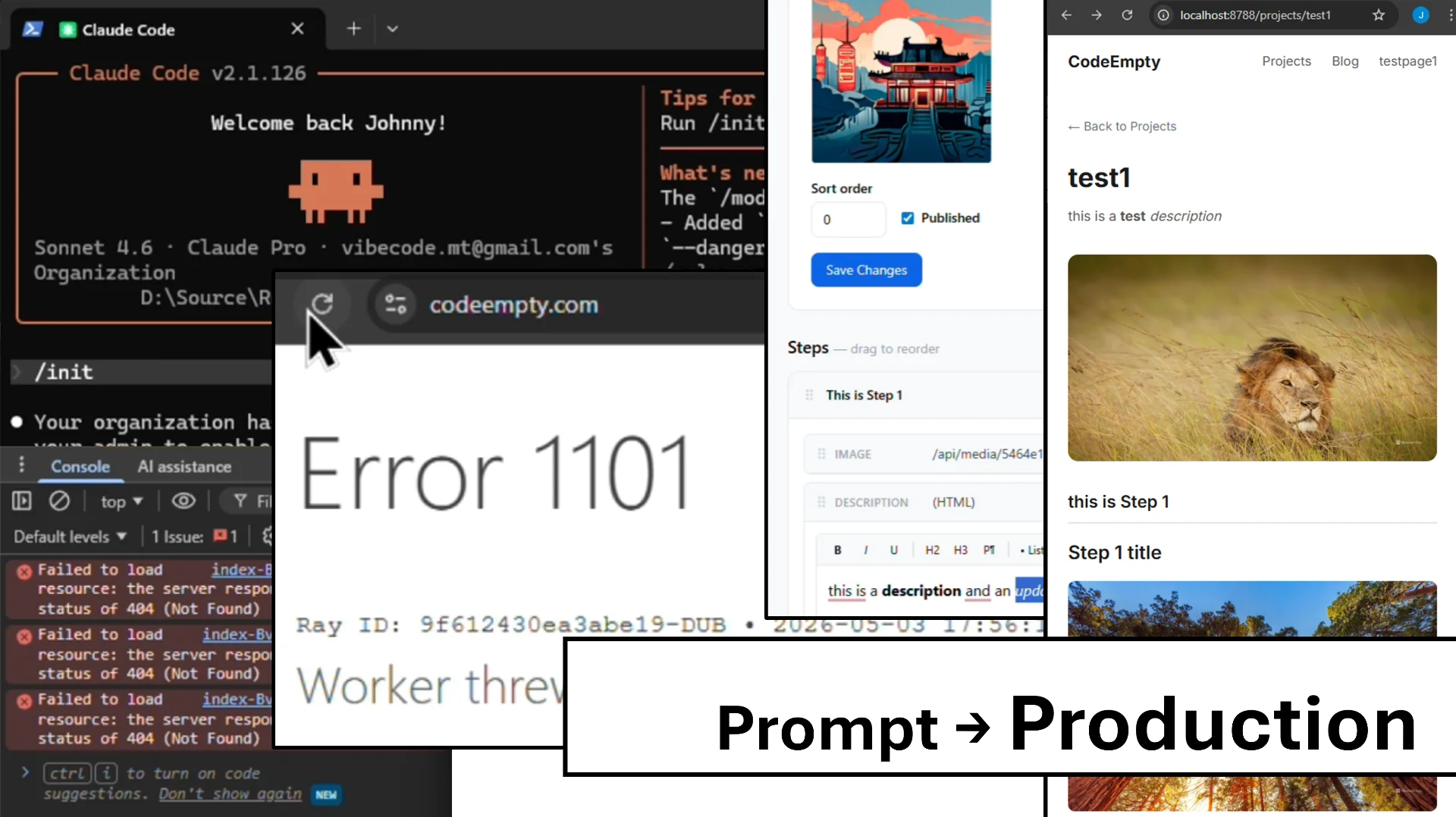
Posted May 8, 2026 · Updated May 10, 2026
CodeEmpty.com is an open-source AI-built CMS and project publishing platform created through real-world vibe coding workflows.
This project documents the complete process of building and deploying CodeEmpty.com using AI — from initial prompting, implementation, debugging, testing, iterations, deployment, troubleshooting, and publishing to production.
The goal is not to create hype around AI tools, but to transparently show the practical realities of building software with AI:
- prompting
- debugging
- fixing AI mistakes
- deployment
- iterations
- production issues
- real workflows
- debugging
- fixing AI mistakes
- deployment
- iterations
- production issues
- real workflows
The platform itself is also part of the vision.
CodeEmpty.com records projects step-by-step with screenshots, prompts, iterations, deployment processes, and implementation details. Projects can later be exported or published to OpenVibeHub.com — an open community for sharing vibe coding projects, collaboration, reviews, discussions, and iterative software development.
This project currently includes:
- AI-assisted CMS
- project & step management
- rich content elements
- static page generation & caching
- Cloudflare Pages deployment
- D1 database integration
- Workers KV caching
- R2 media storage
- GitHub CI/CD workflow
- AI-ready API architecture
The entire project was built through iterative development cycles:
Prompt → Build → Test → Fix → Deploy → Repeat
This project is open-source and intended to encourage practical, collaborative, transparent AI-assisted software development.
📑 Contents — 42 steps
1. 1.
Install Claude Code2. 2.
Setup GitHub Repository3. 3.
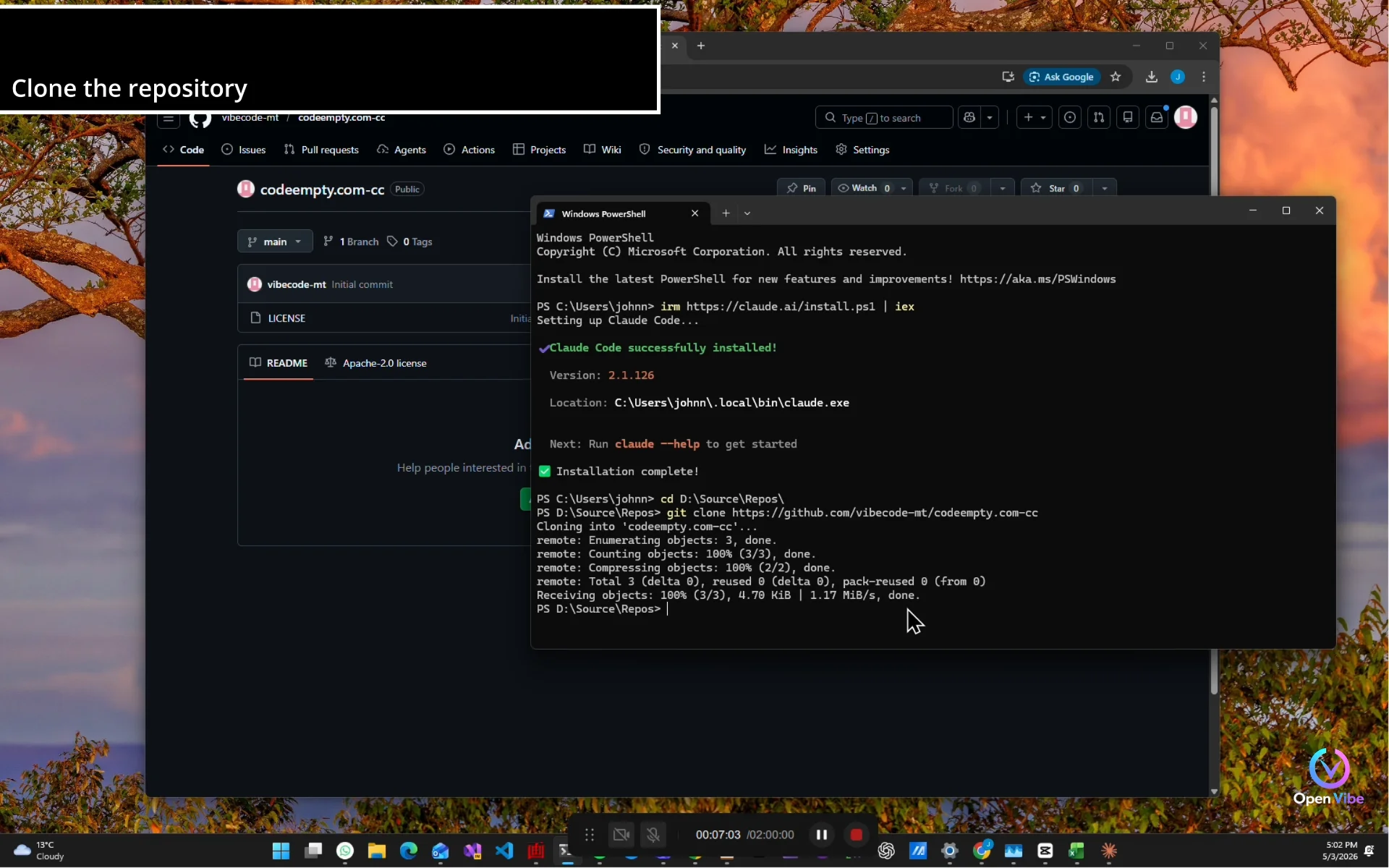
Setup Local Repository4. 4.
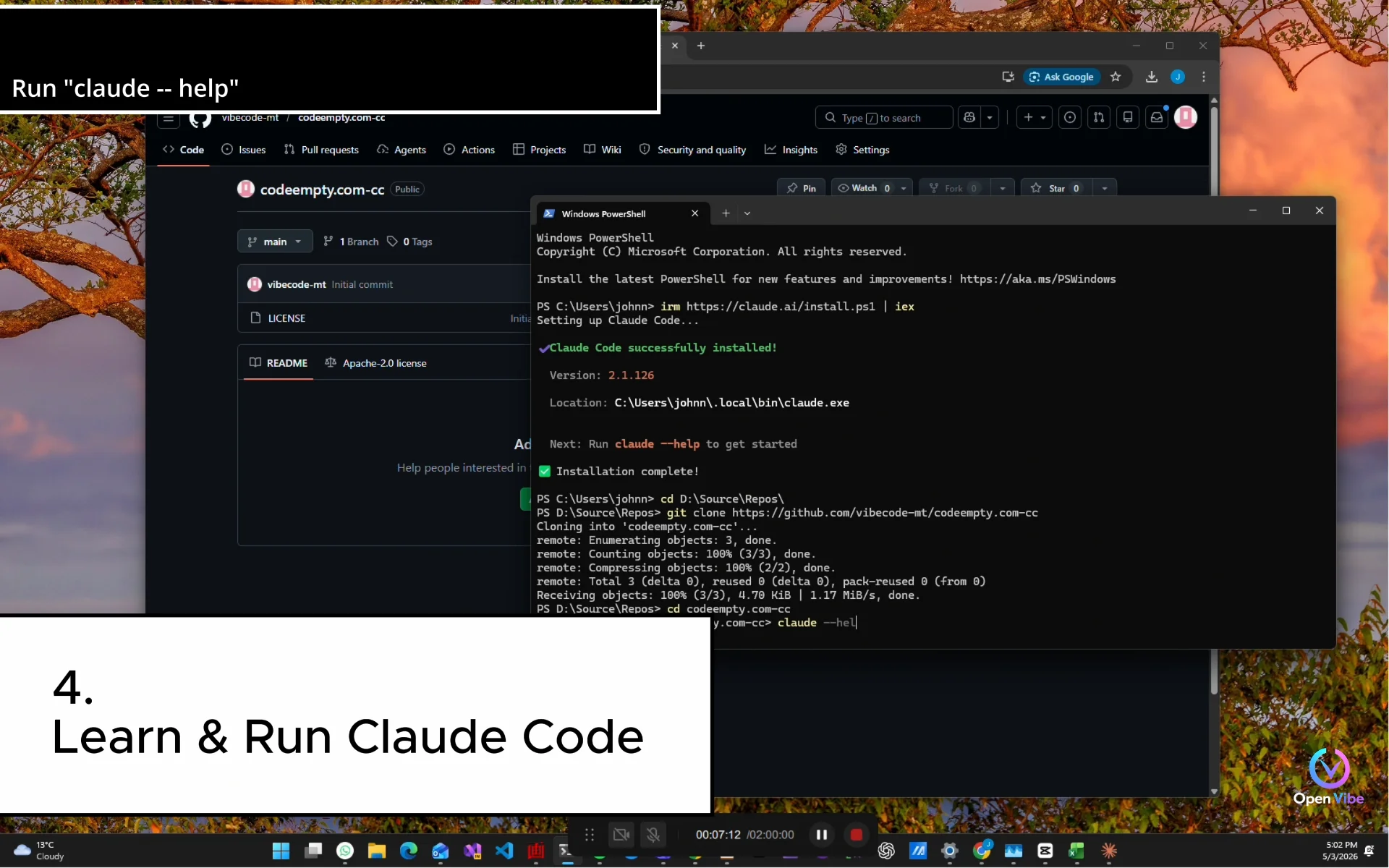
Learn & Run Claude Code5. 5.
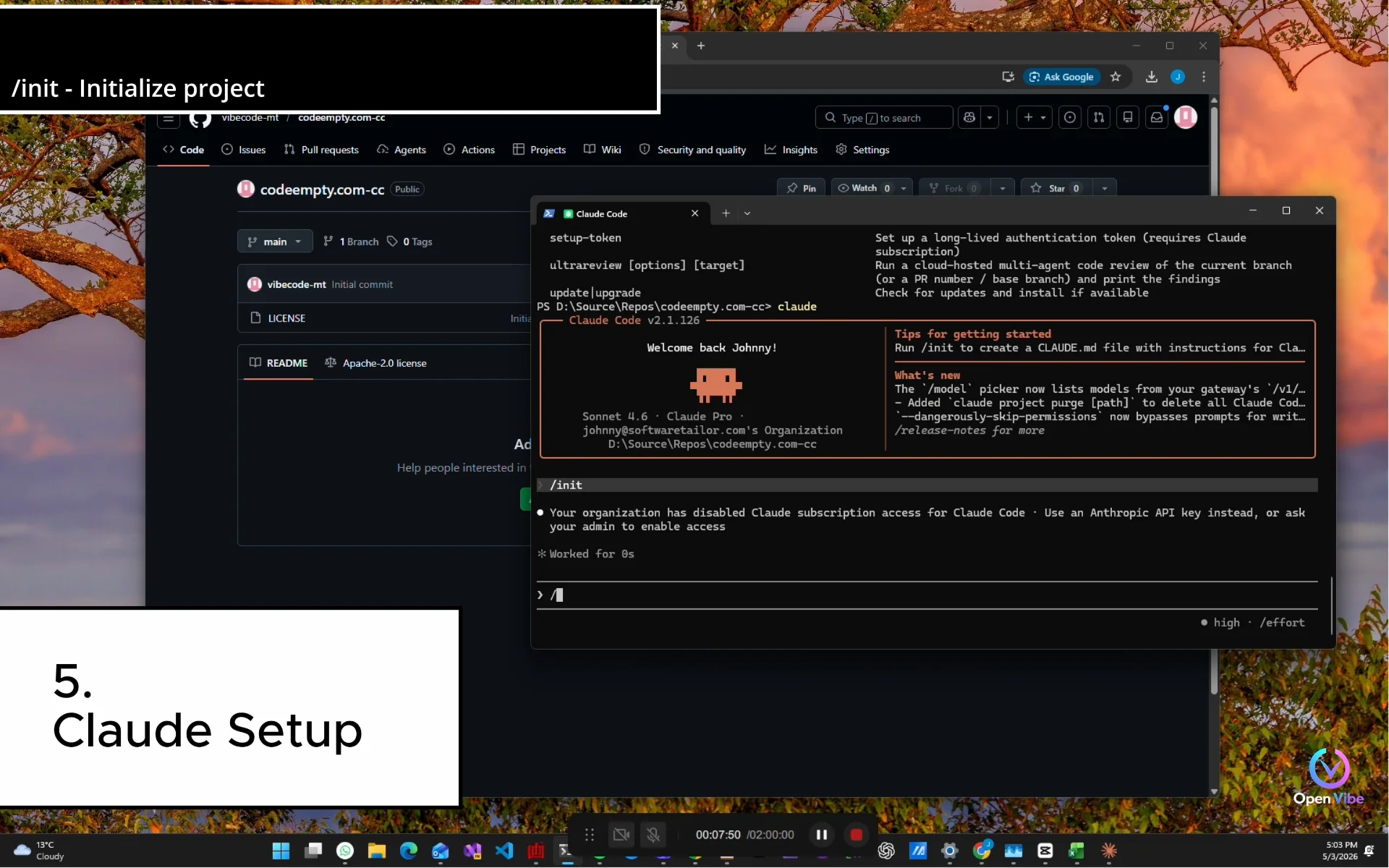
Claude Setup6. 6.
Subscription Required7. 7.
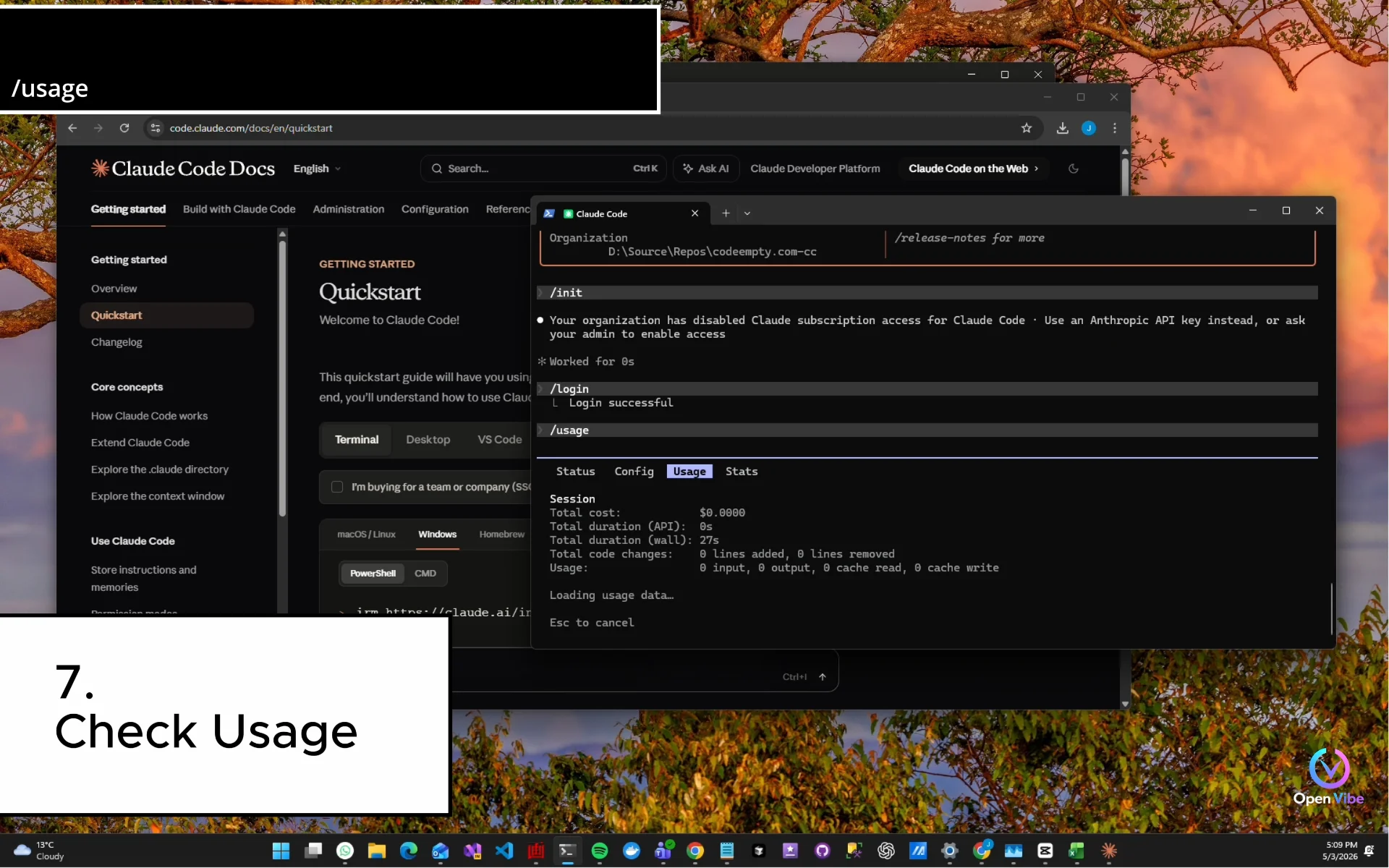
Check Usage8. 8.
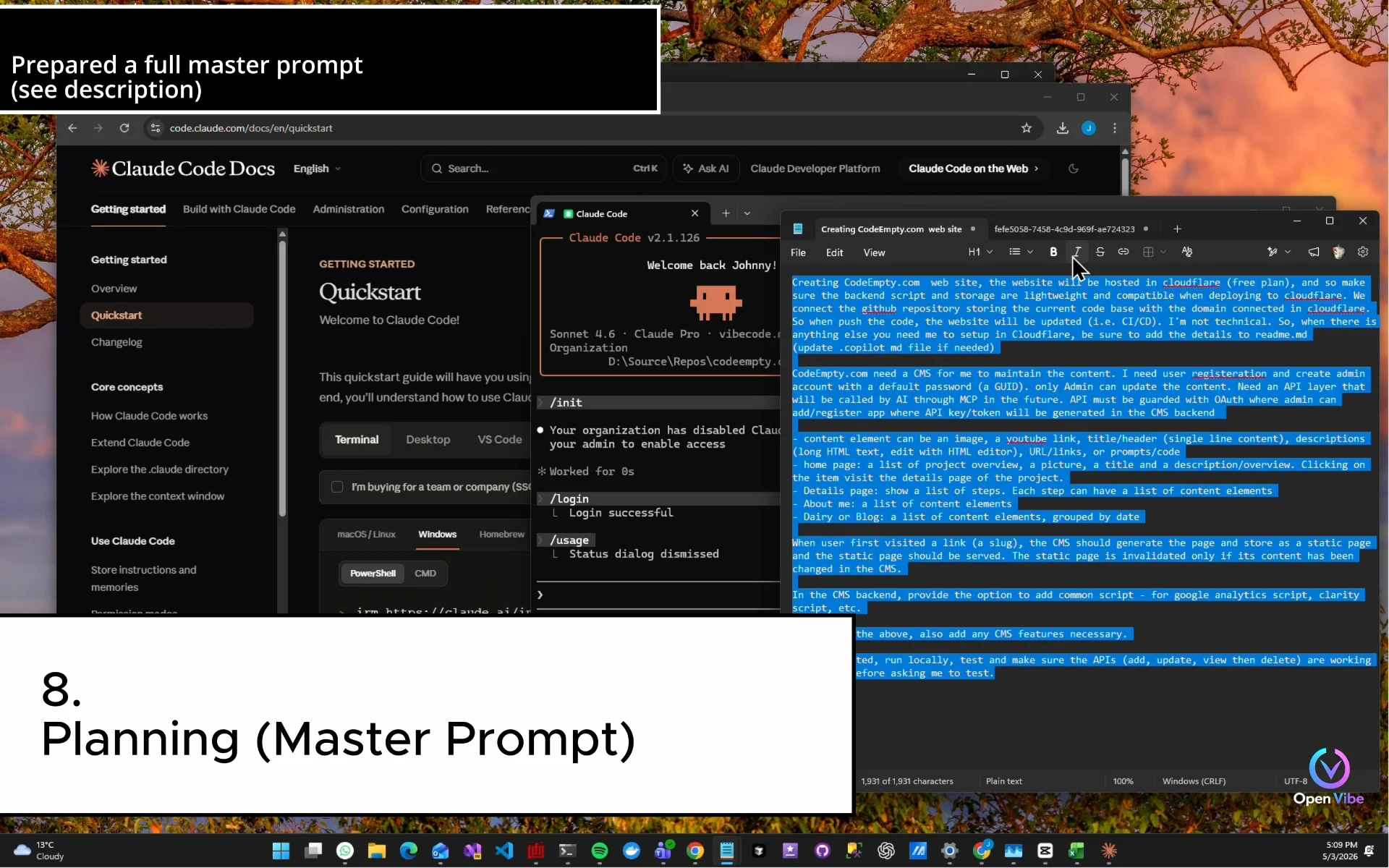
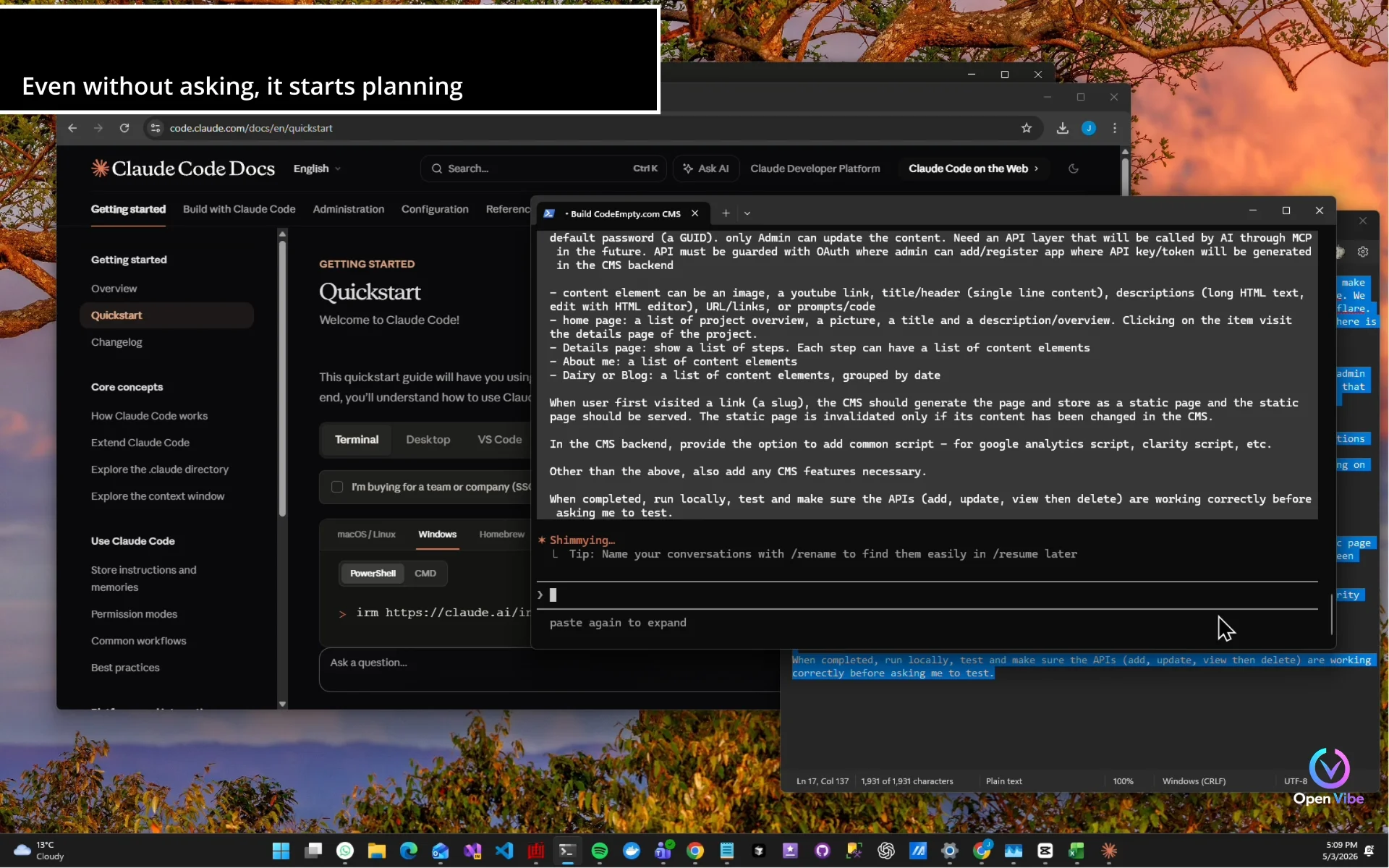
Planning (Master Prompt)9. 9.
Iteration 1 — Start Build10. 10.
Iteration 1 — Install & Run11. 11.
Iteration 1 — Testing12. 12.
Iteration 213. 13.
Iteration 2 — Building14. 14.
Iteration 2 — Testing15. 15.
Iteration 316. 16.
Iteration 3 — Building17. 17.
Iteration 3 — Testing18. 18.
Update Github19. 19.
Iteration 420. 20.
Iteration 4 — Building21. 21.
Iteration 4 — Testing22. 22.
Iteration 523. 23.
Iteration 5 — Building24. 24.
Iteration 5 — Testing25. 25.
Iteration 626. 26.
Iteration 6 — Building27. 27.
Iteration 6 — Testing28. 28.
Iteration 729. 29.
Iteration 7 — Building30. 30.
Iteration 7 — Testing31. 31.
Iteration 832. 32.
Iteration 8 — Building33. 33.
Iteration 8 — Testing34. 34.
Deplpyment35. 34a.
Create a Cloudflare Account36. 34b.
Register or connect a domain37. 34c.
Create Database (D1)38. 34d.
Create Key-value (KV) store39. 34e.
Create R2 Storage40. 34f.
Create Cloudflare Pages41. 34g.
Add Domain42. 34h.
Troubleshooting
Steps:
Content:
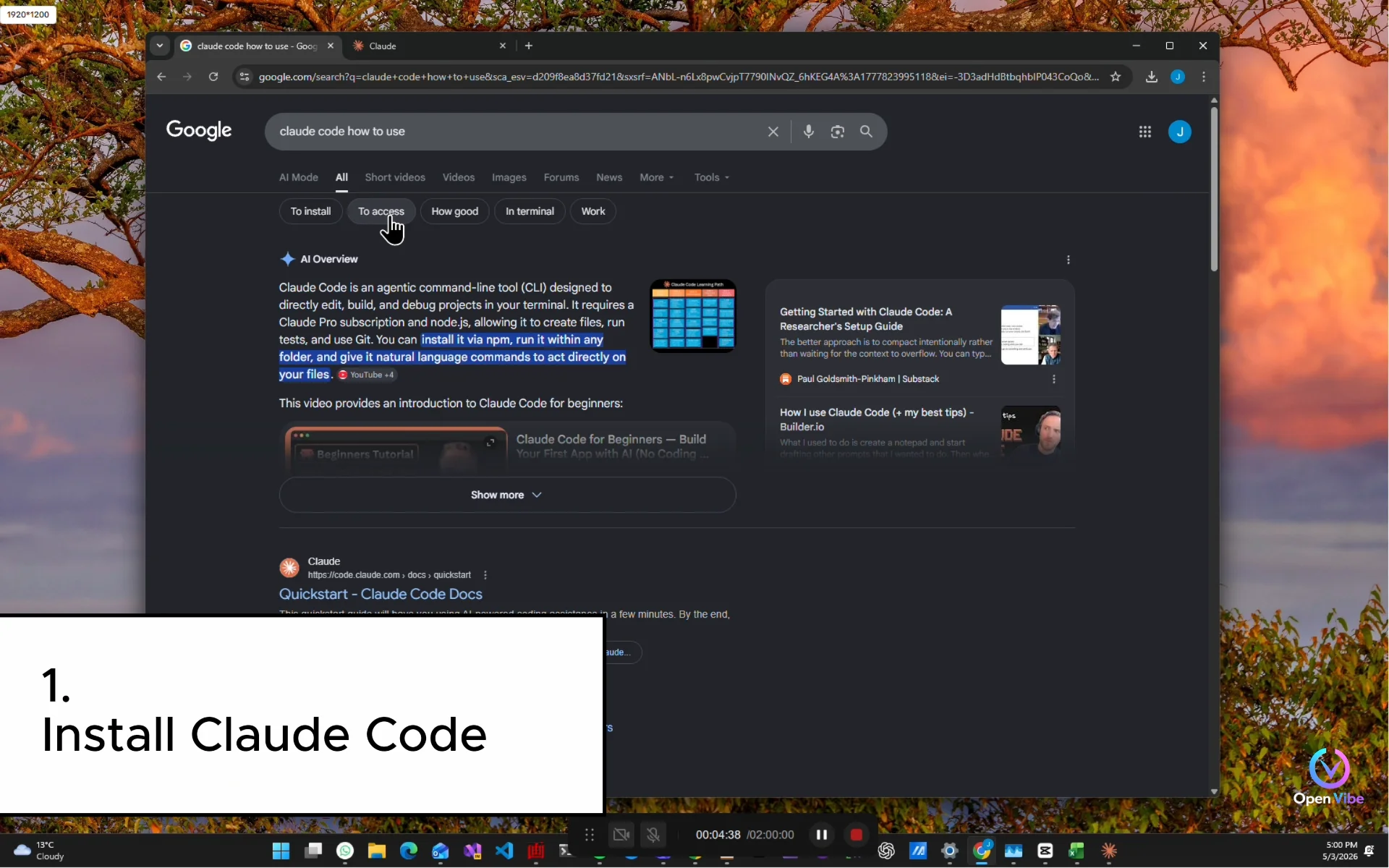
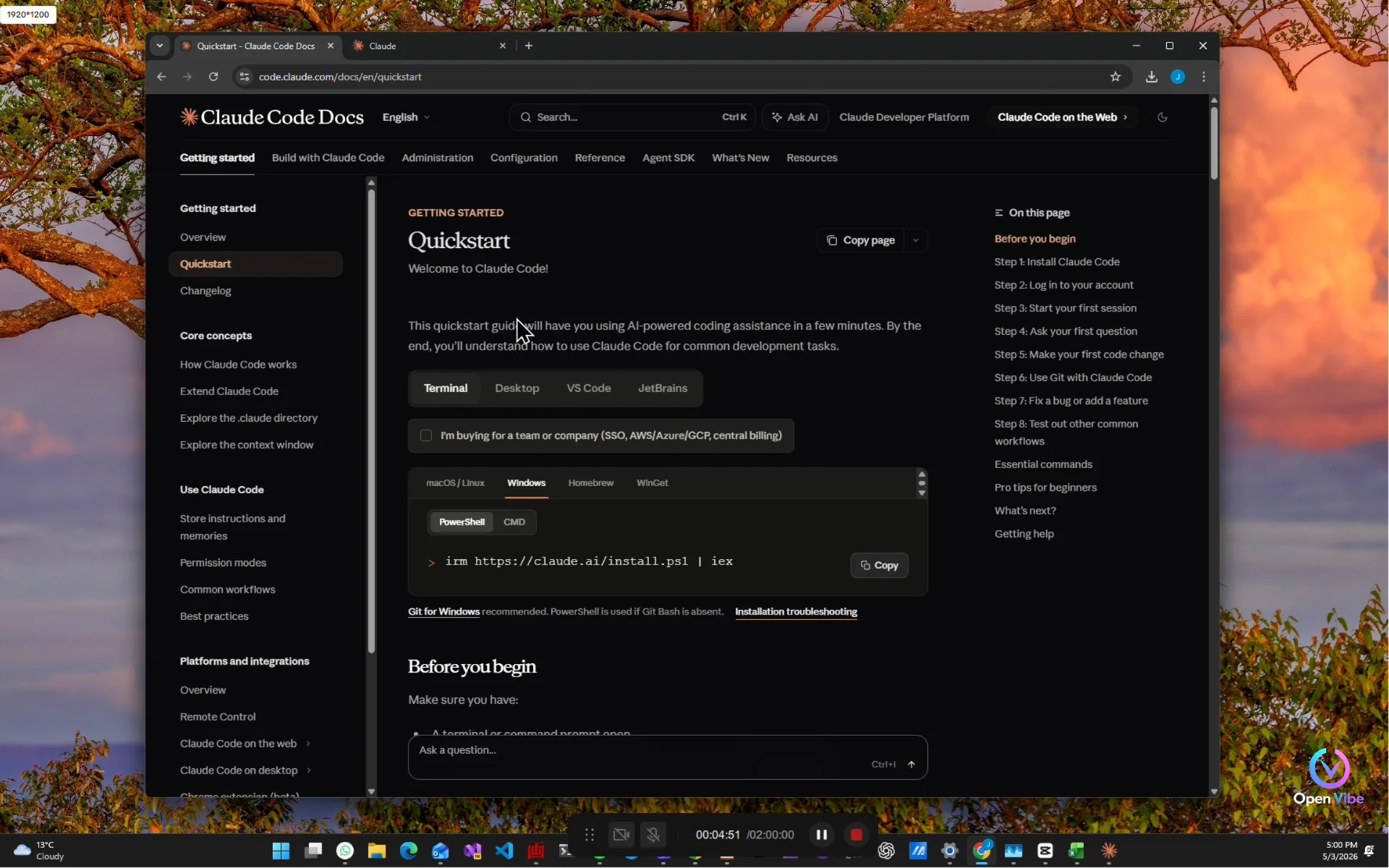
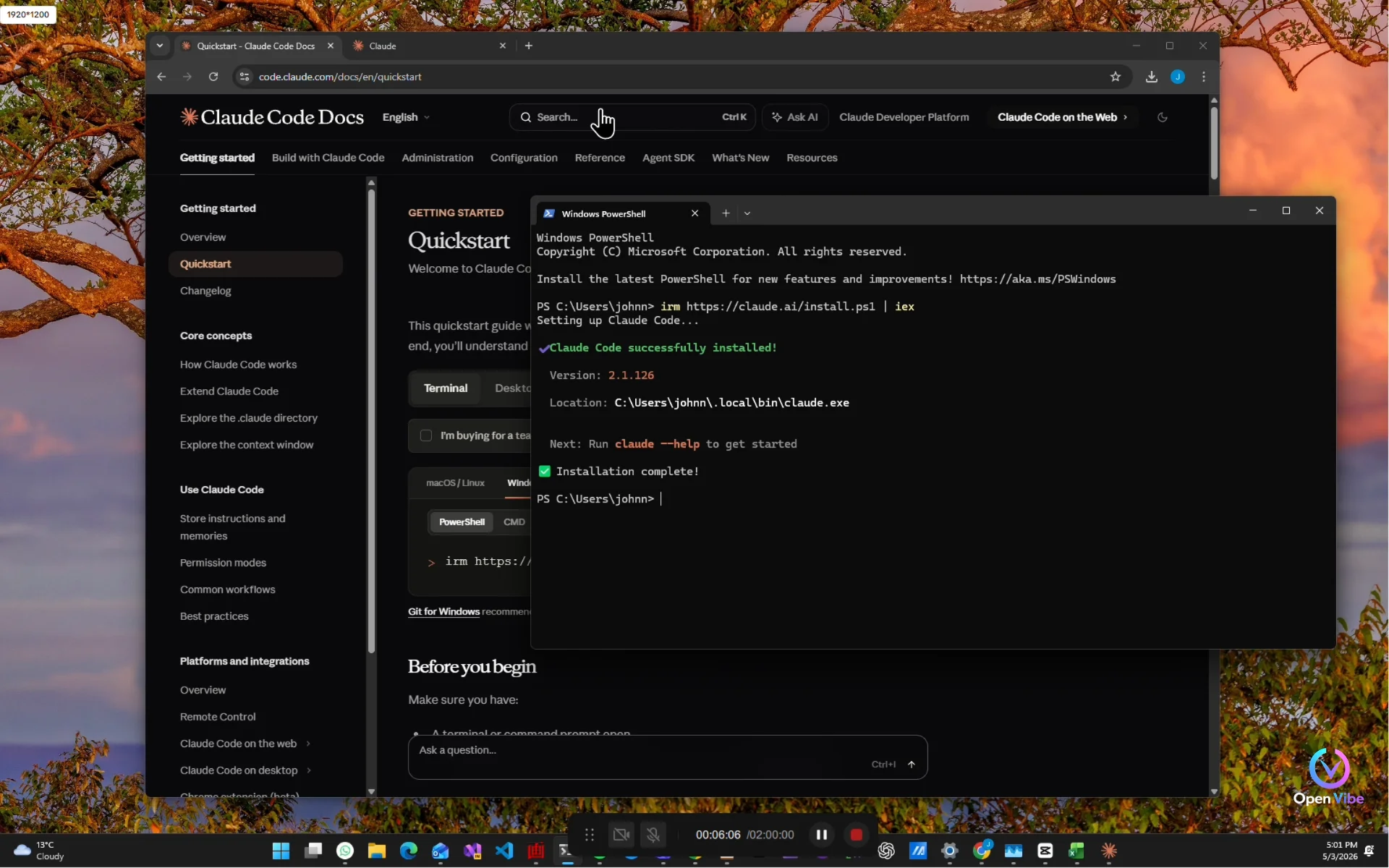
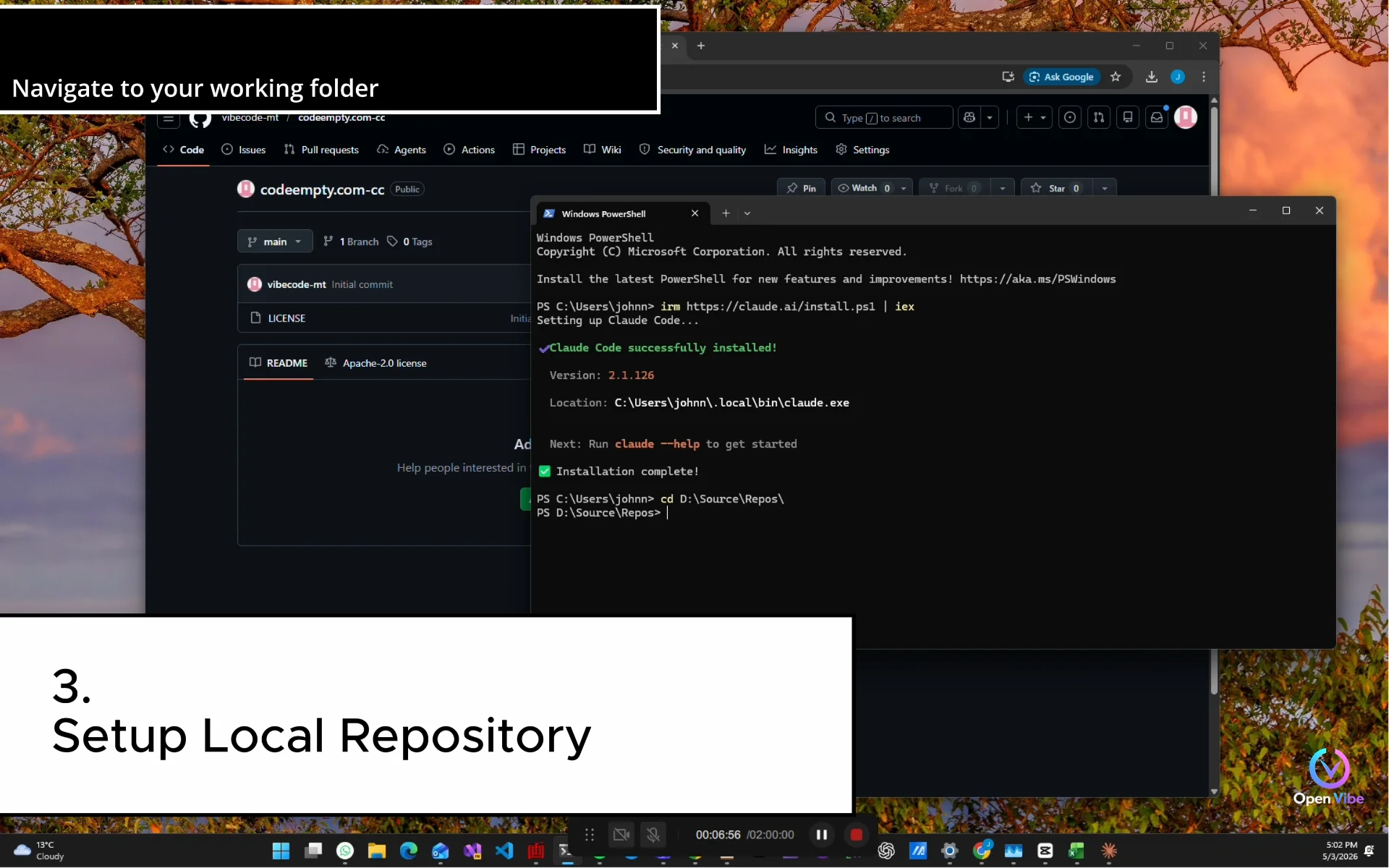
1. 1. Install Claude Code ▶ 1:11
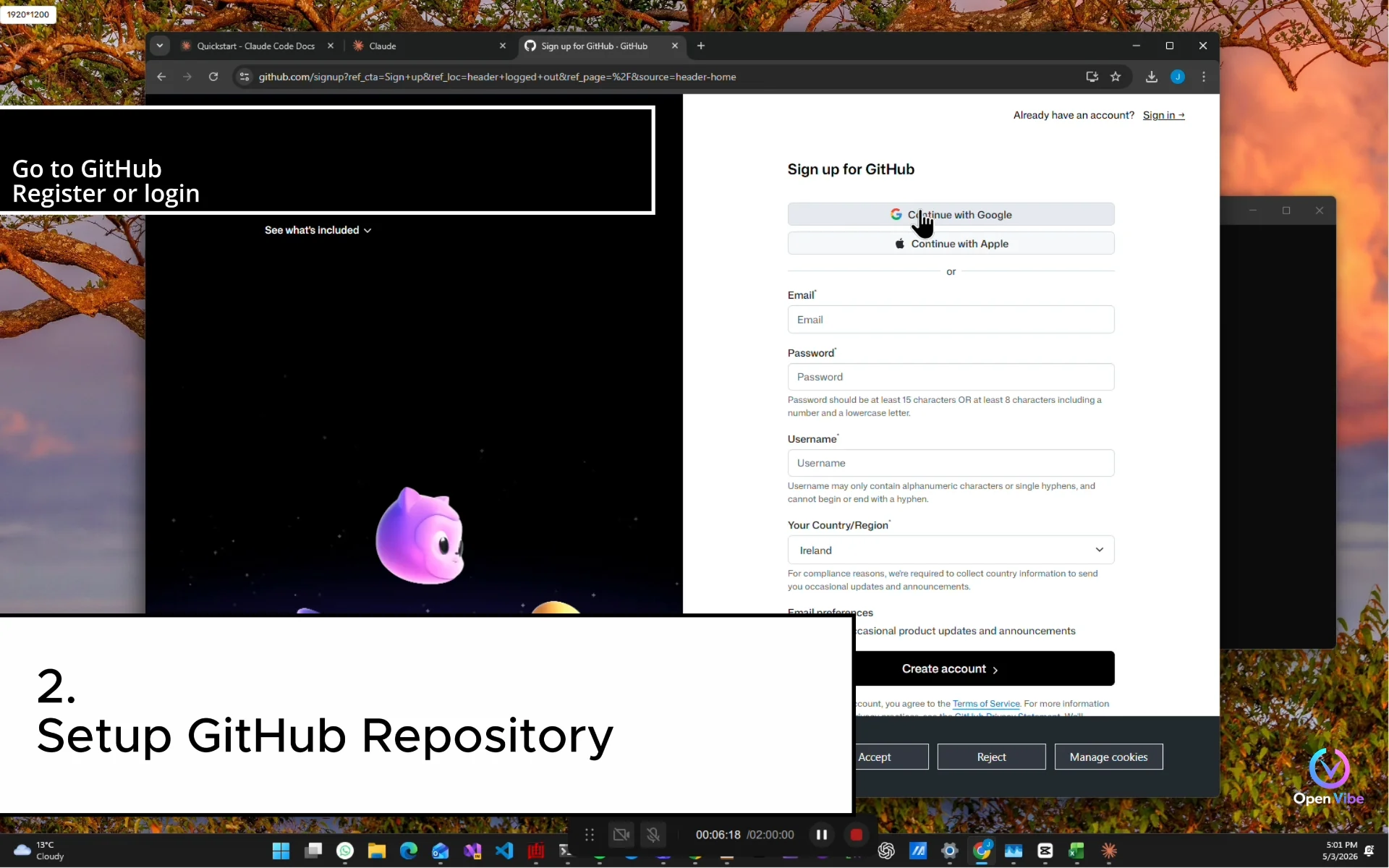
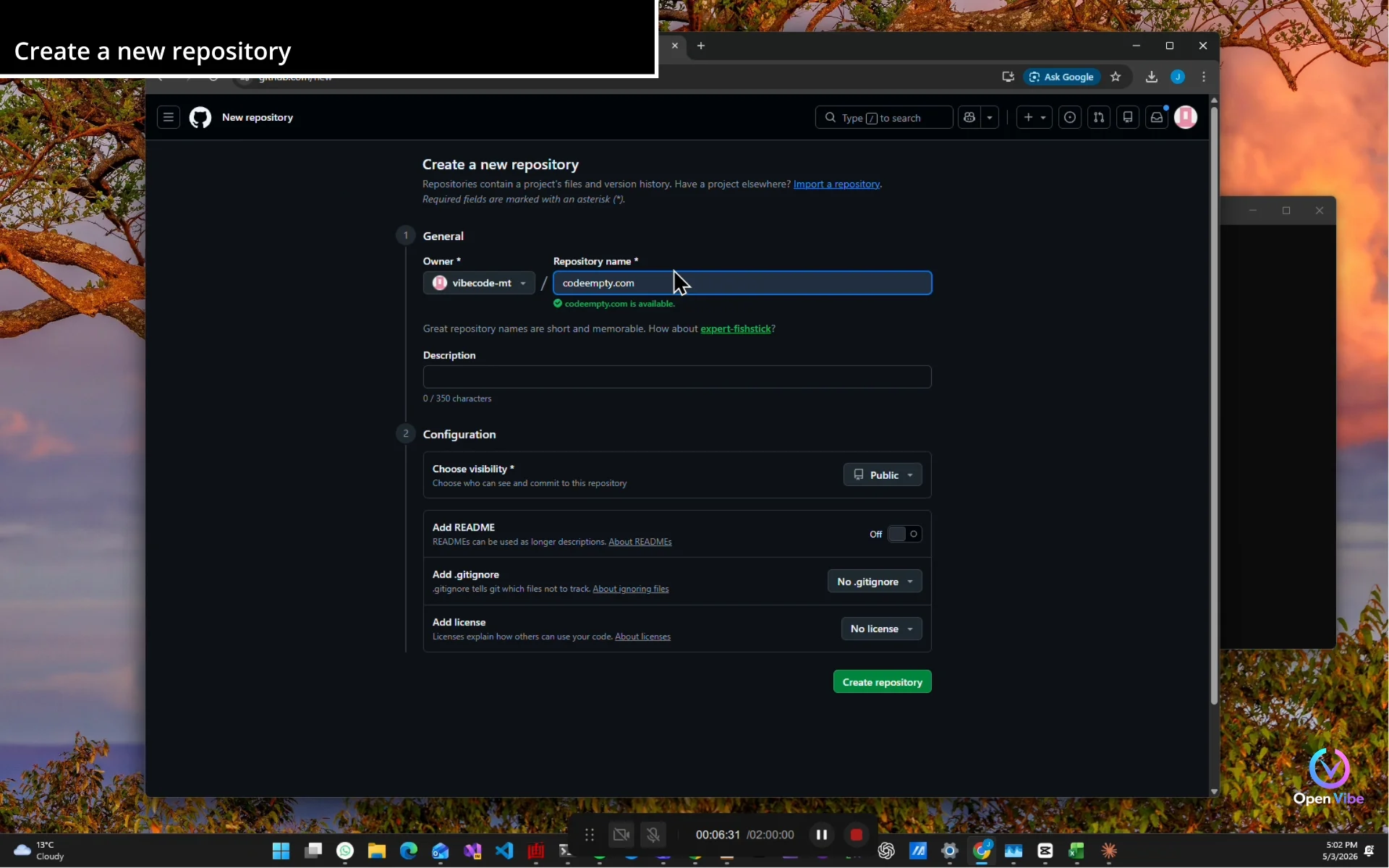
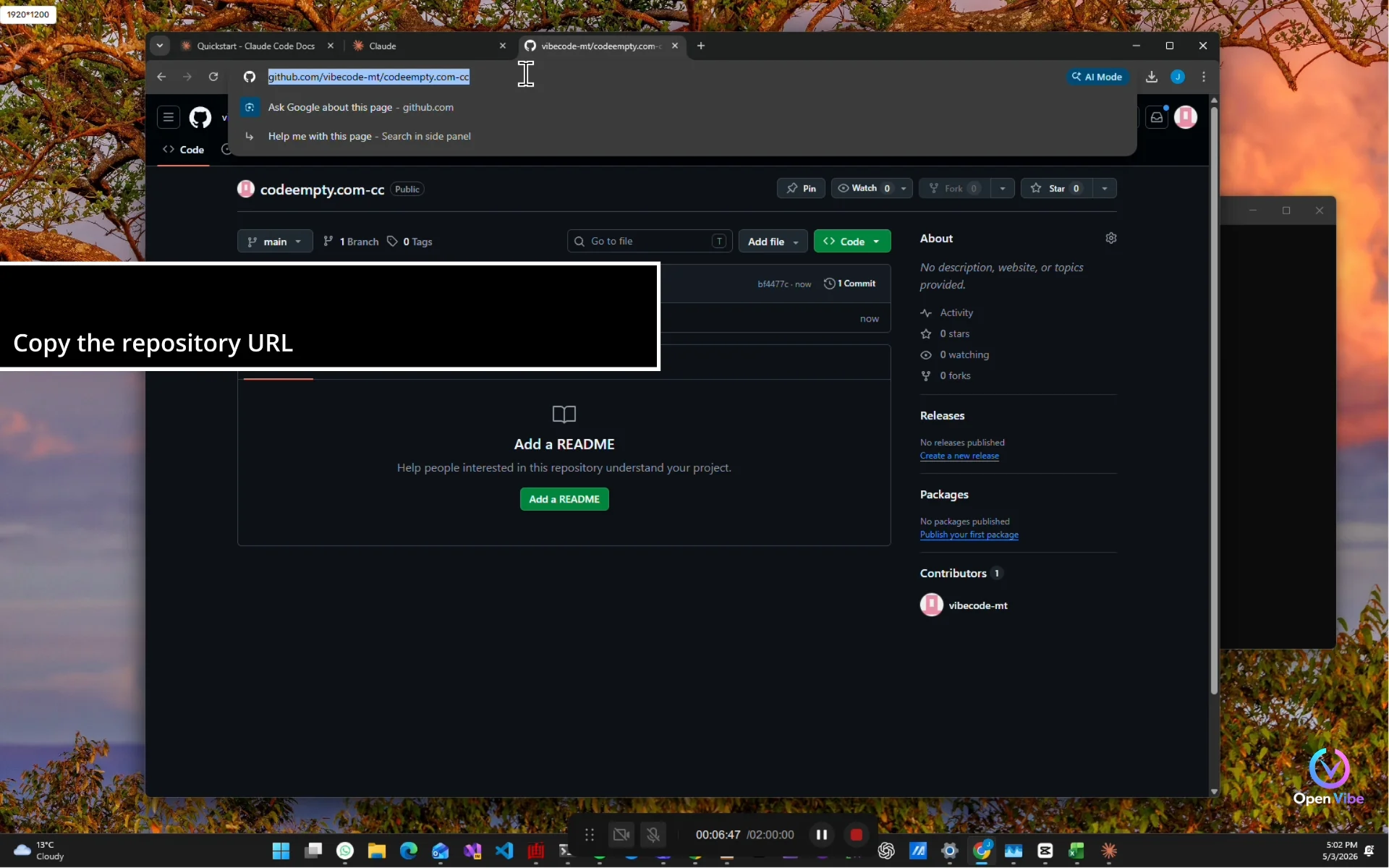
2. 2. Setup GitHub Repository ▶ 2:03
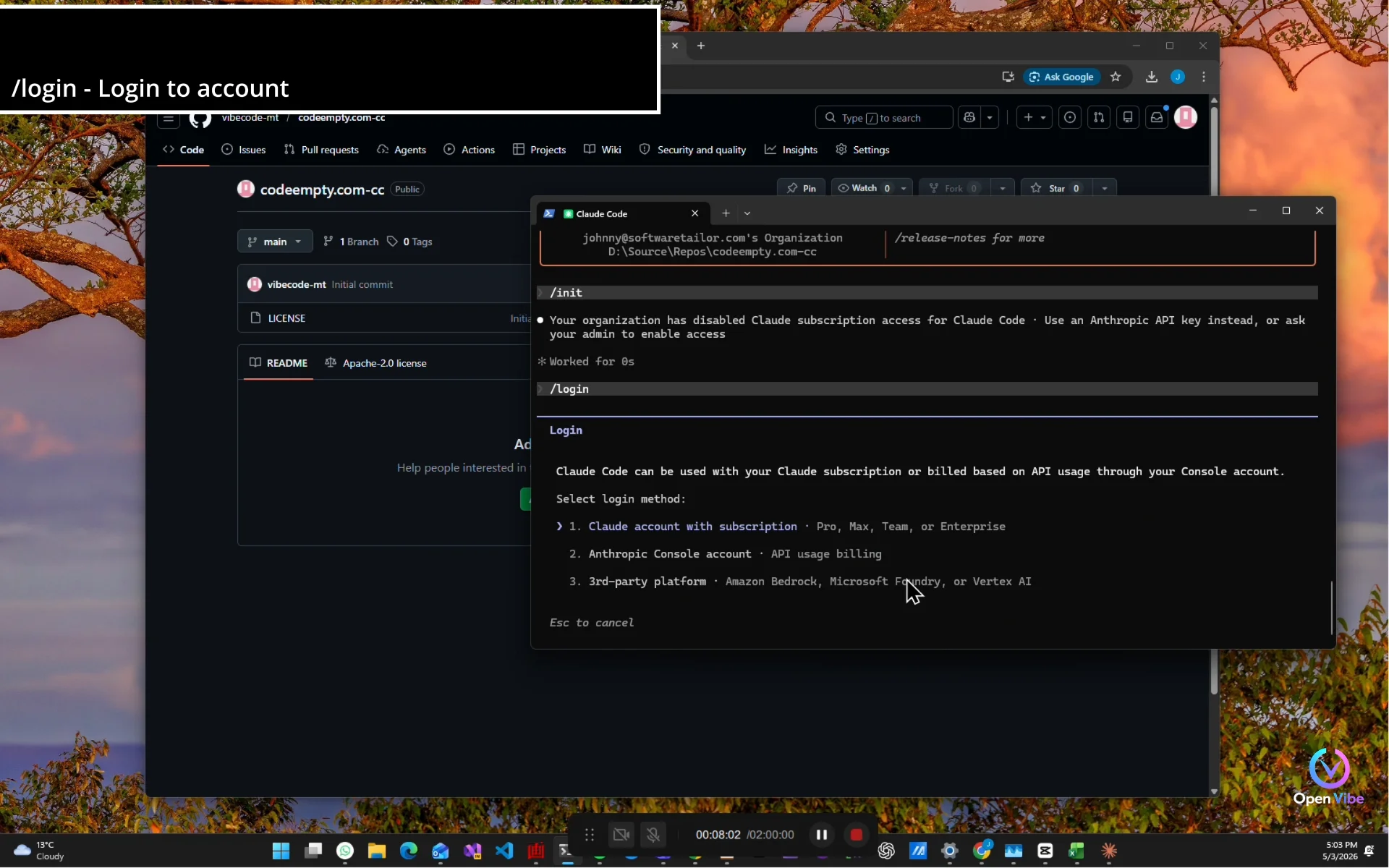
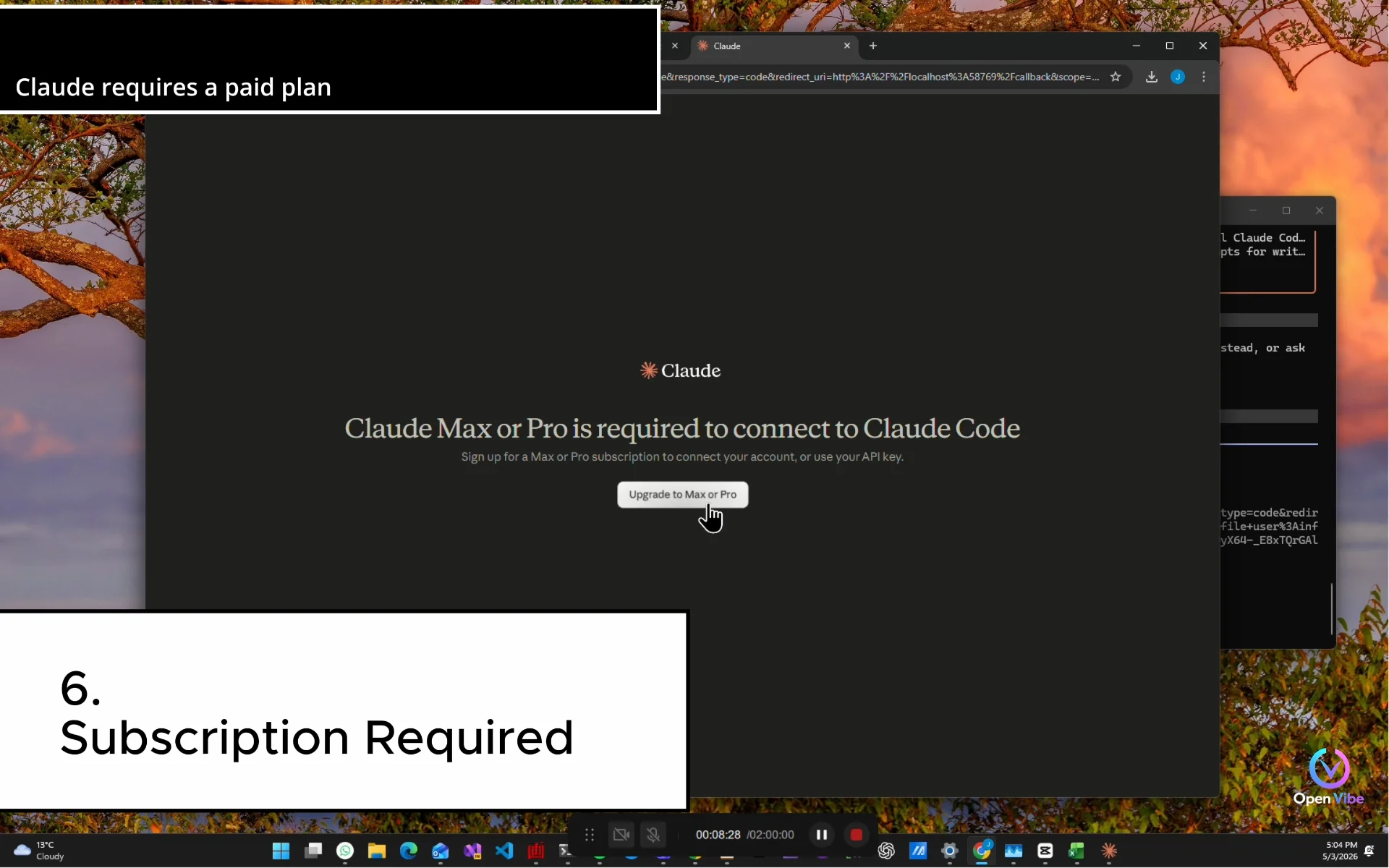
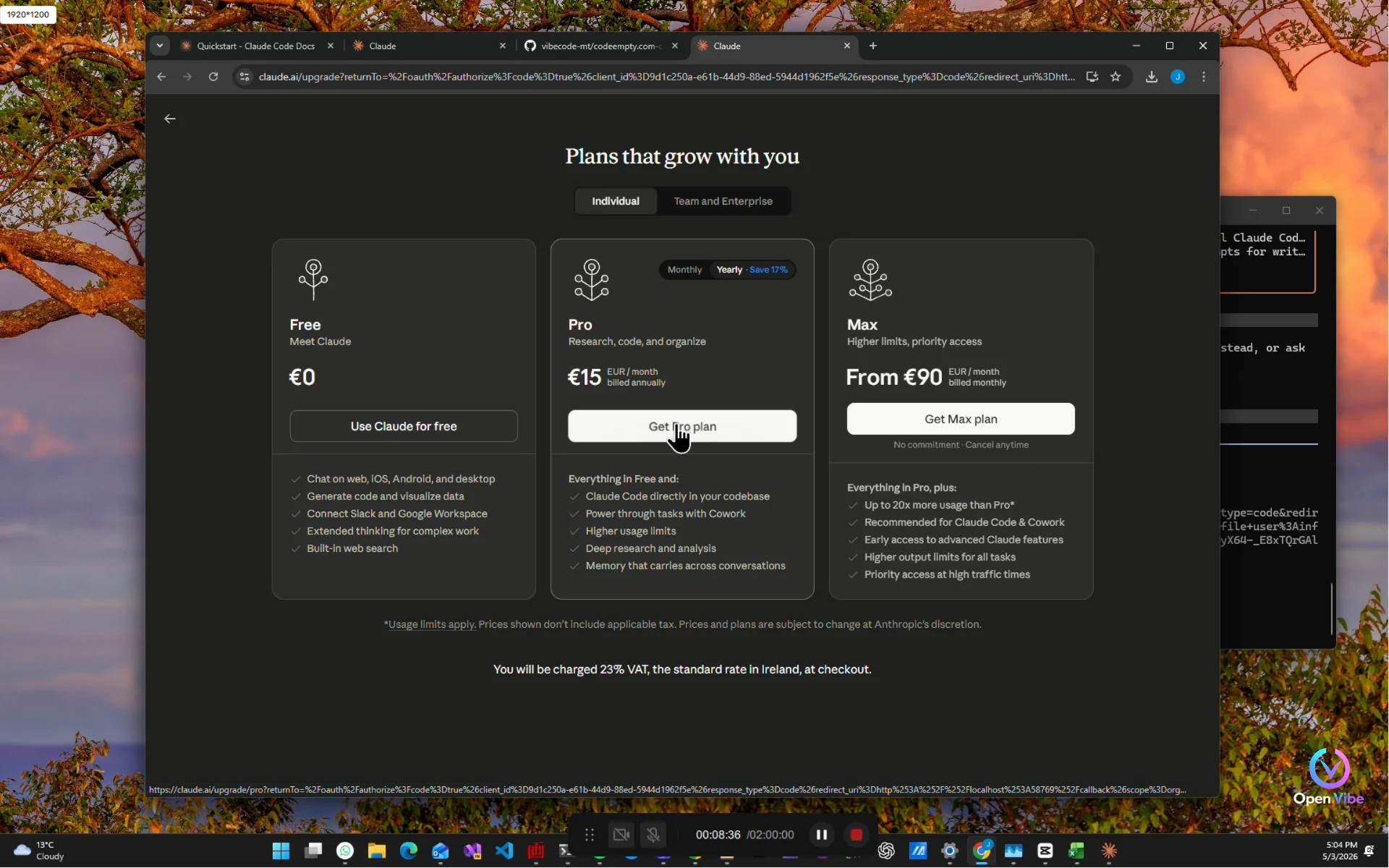
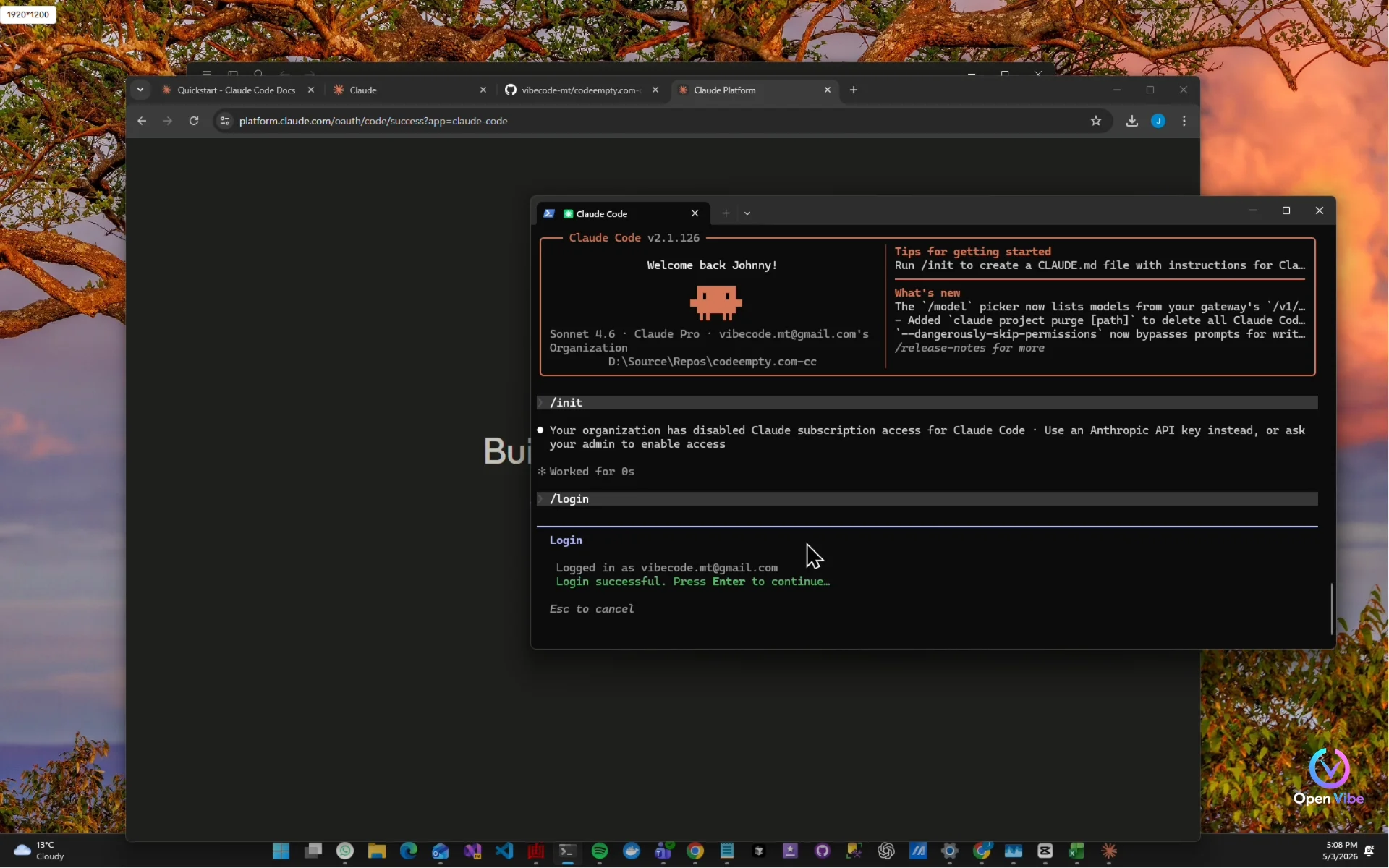
6. 6. Subscription Required ▶ 3:49
8. 8. Planning (Master Prompt) ▶ 4:57
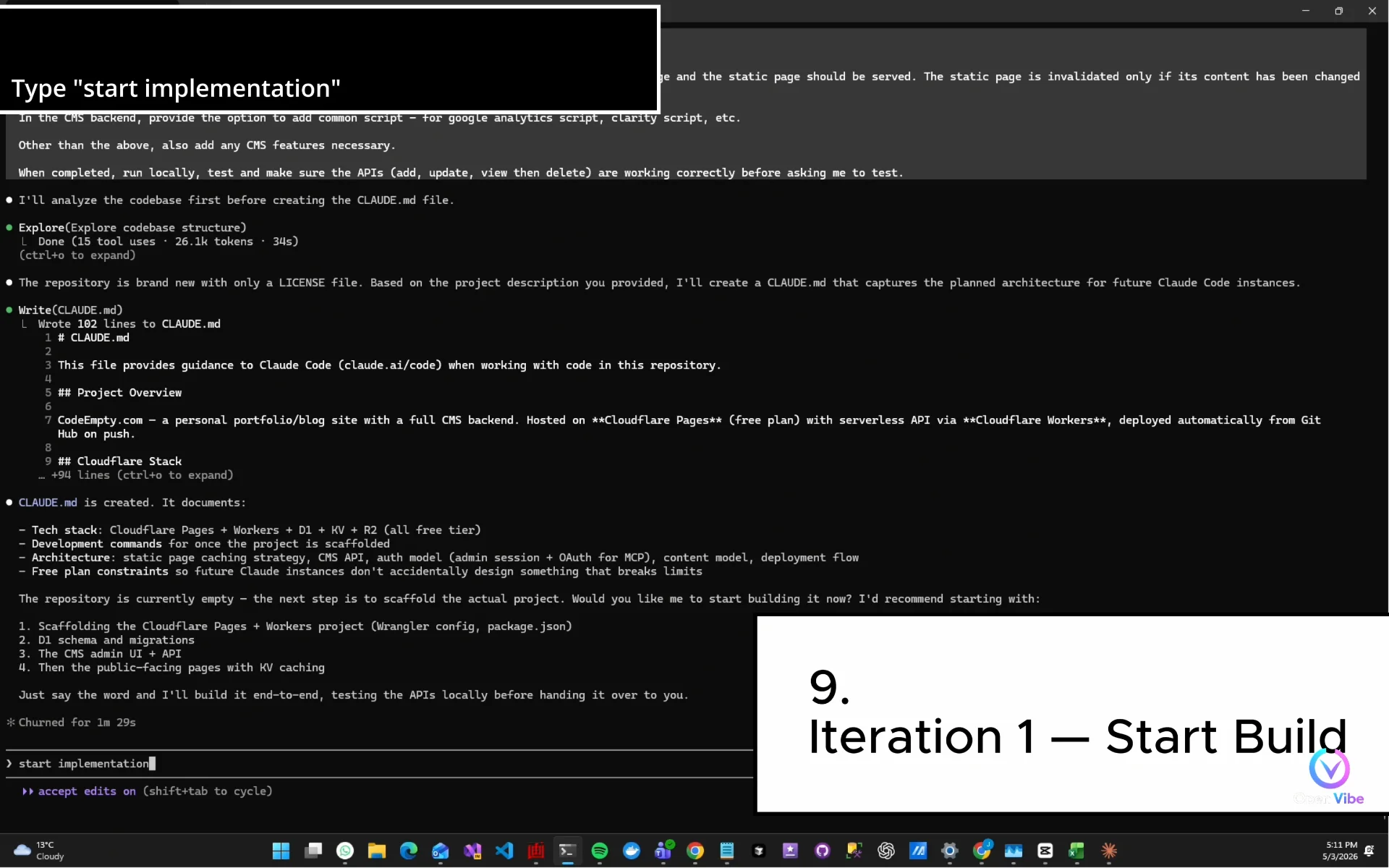
9. 9. Iteration 1 — Start Build ▶ 5:37
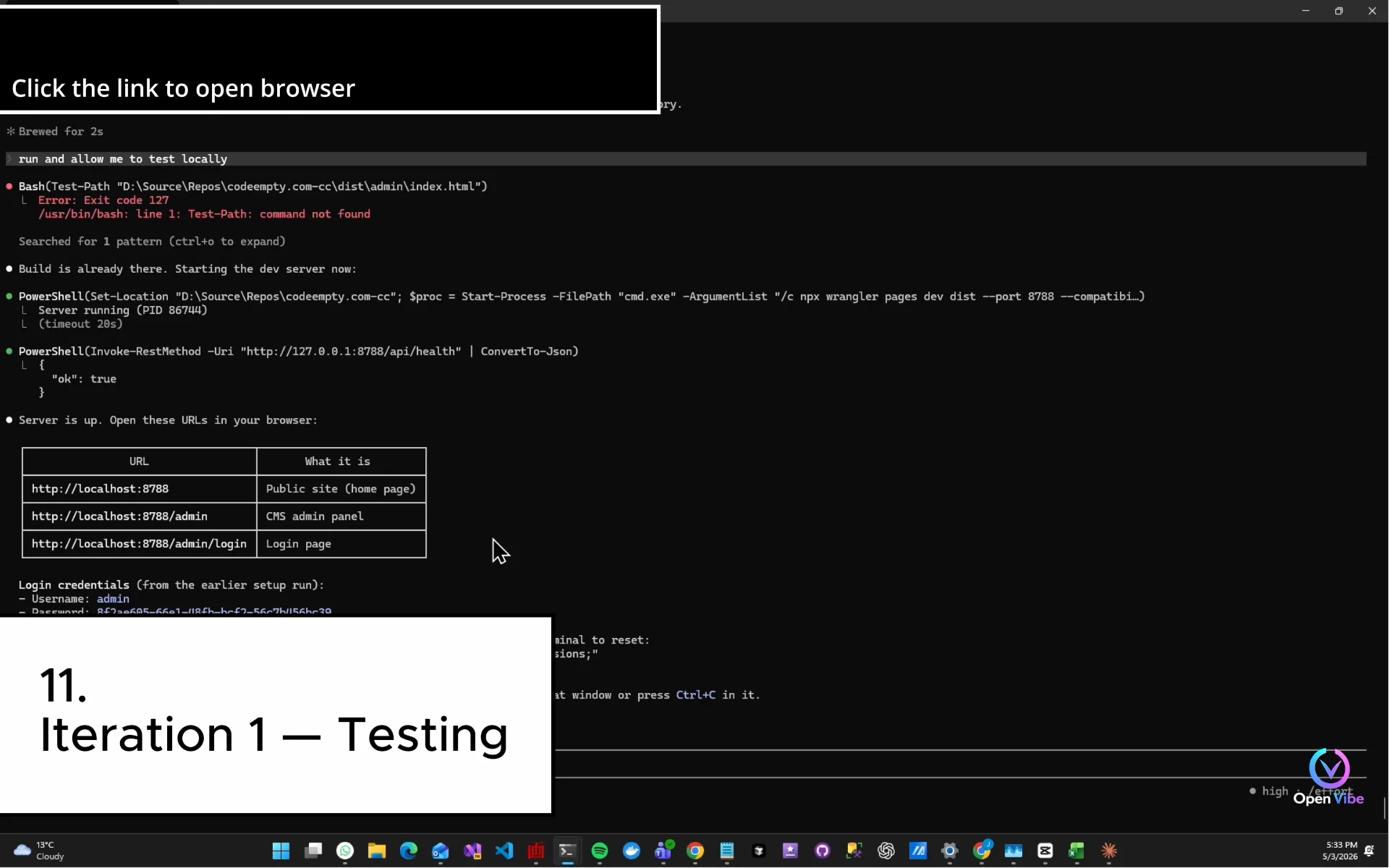
11. 11. Iteration 1 — Testing ▶ 8:04
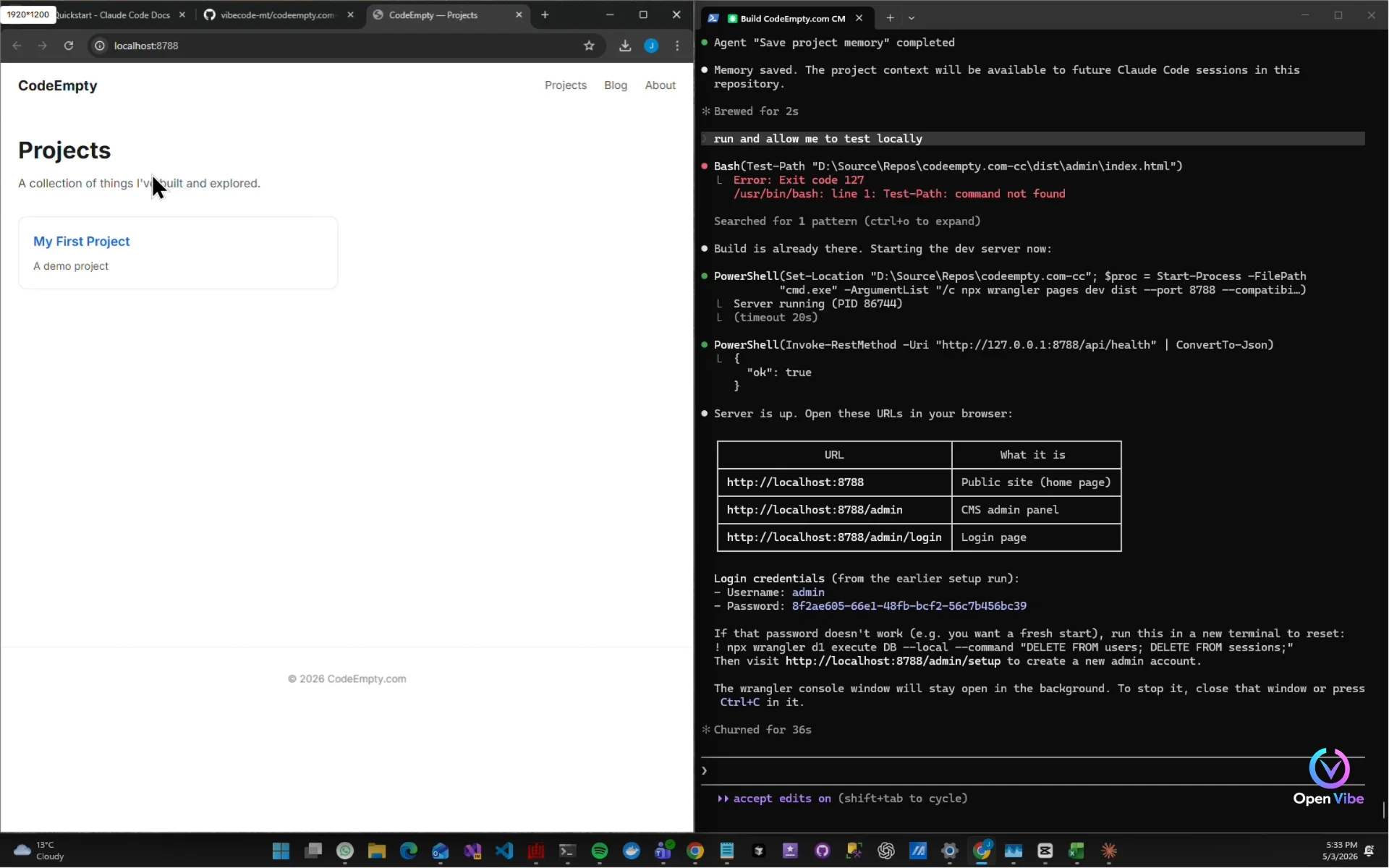
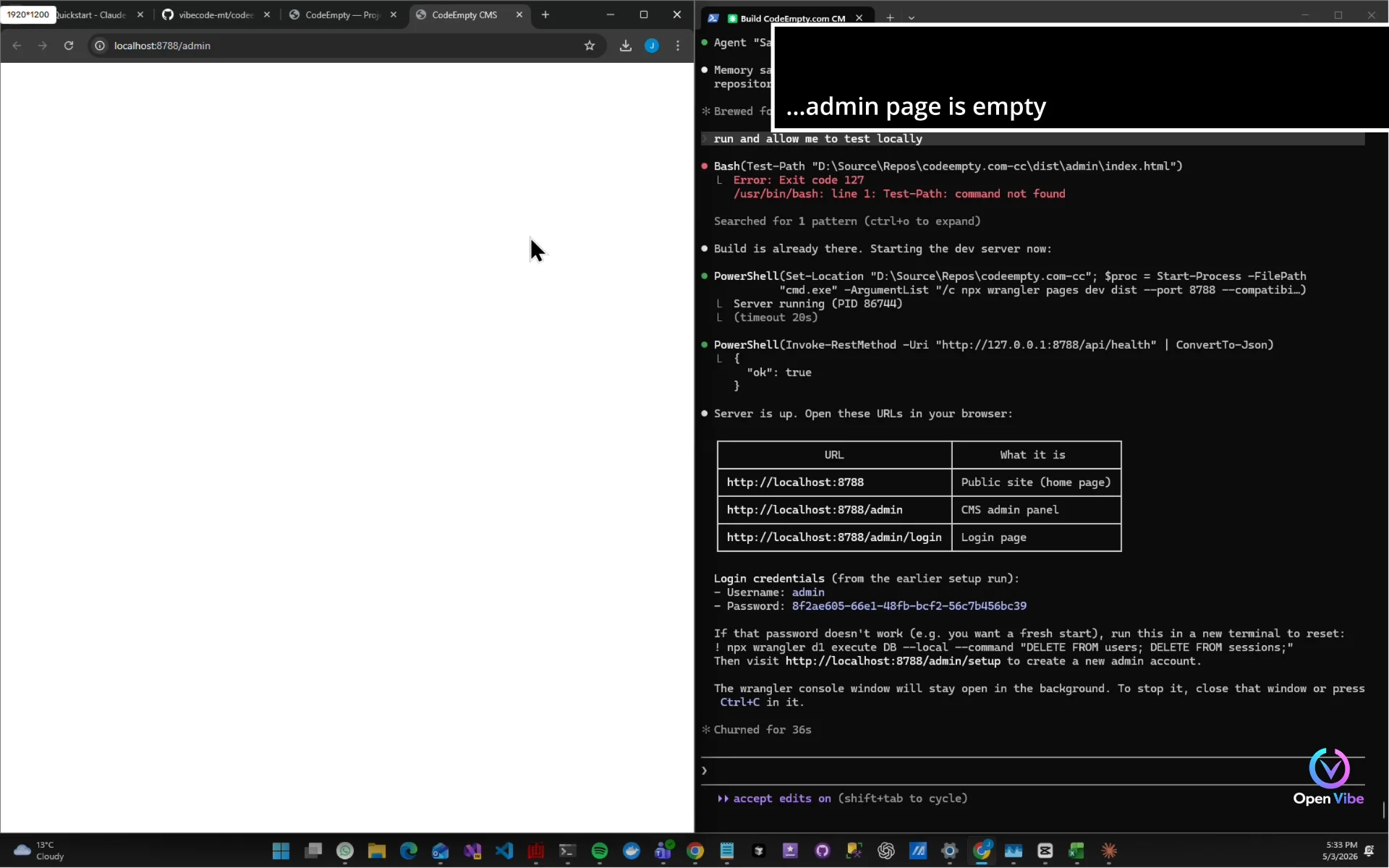
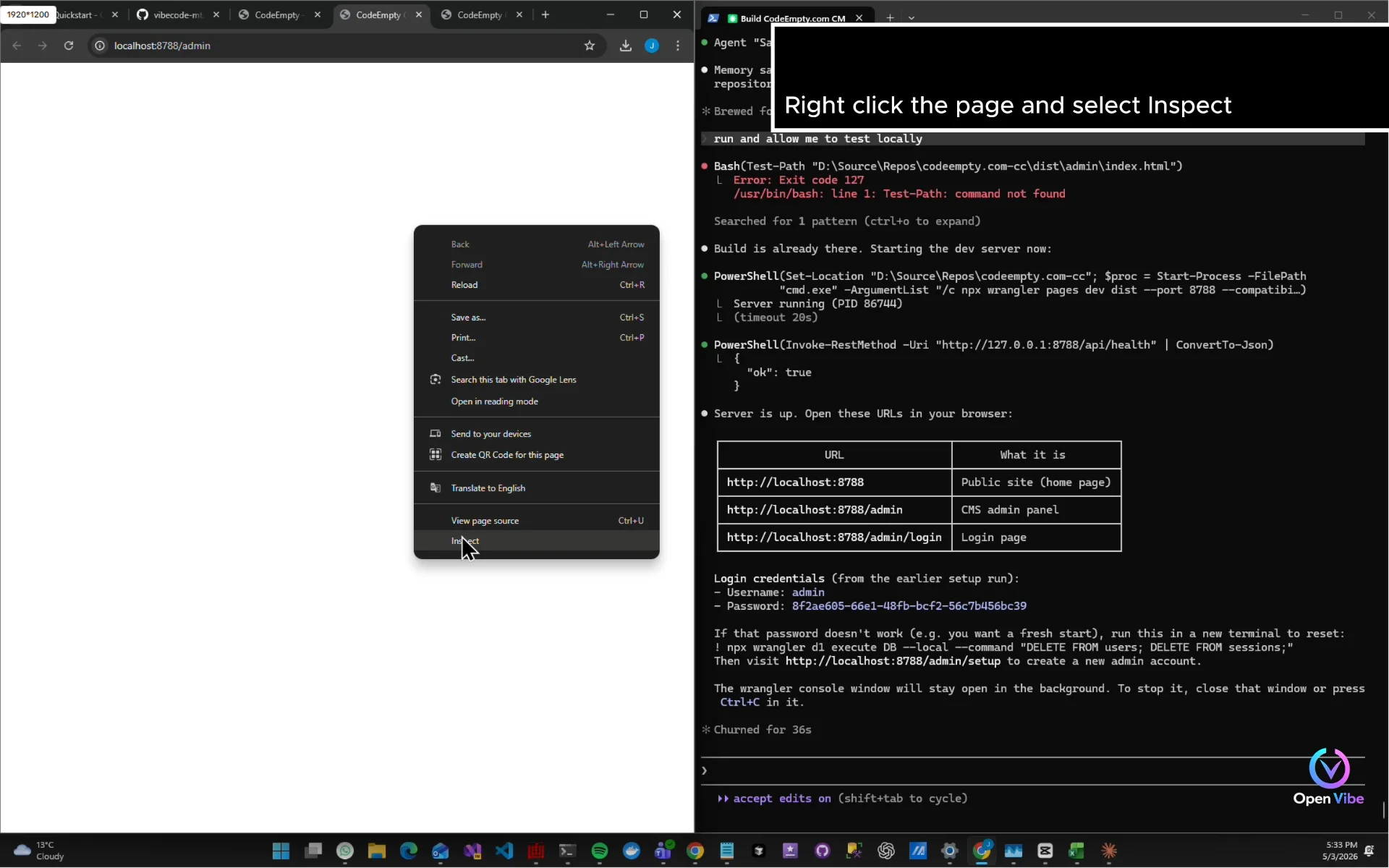
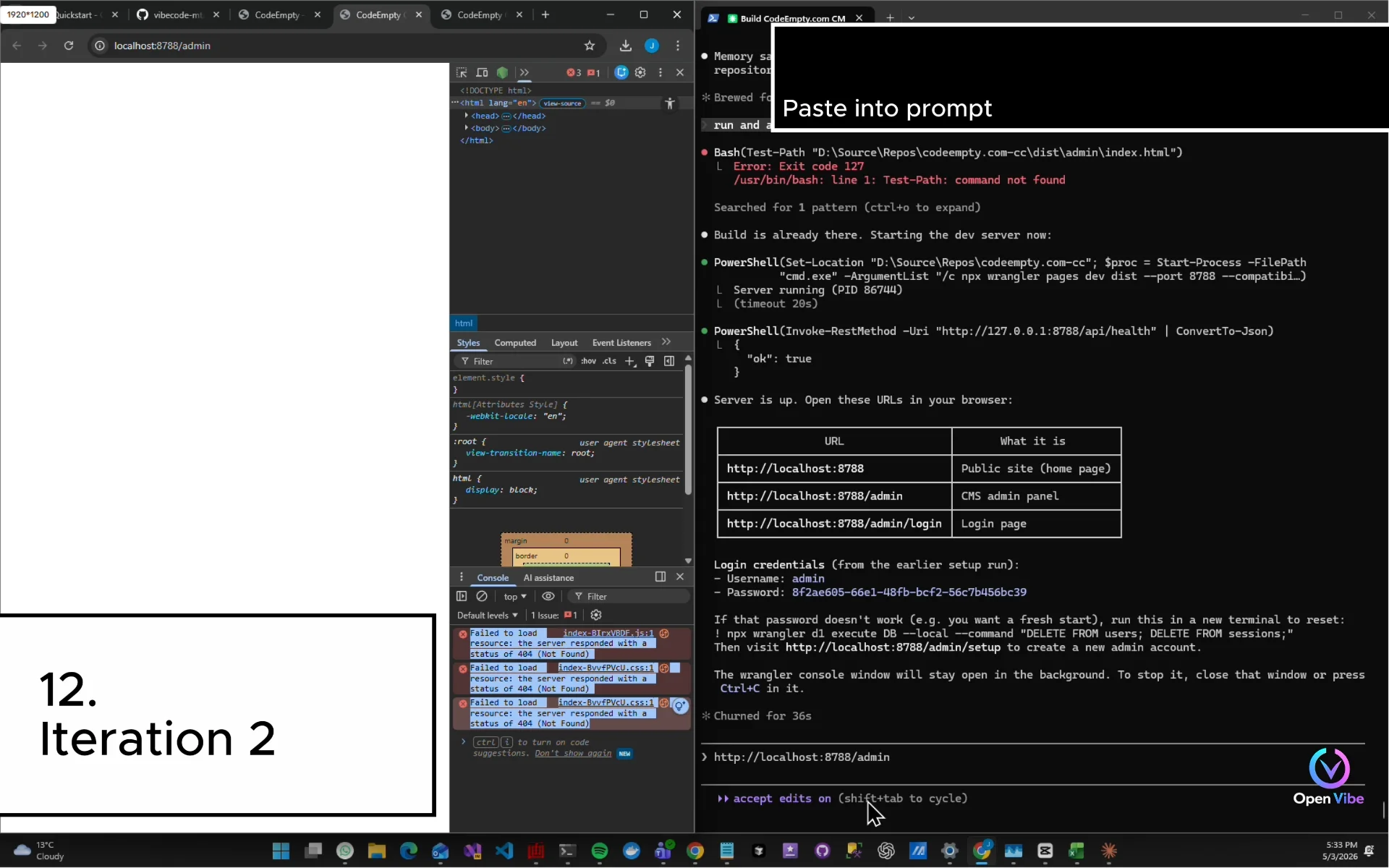
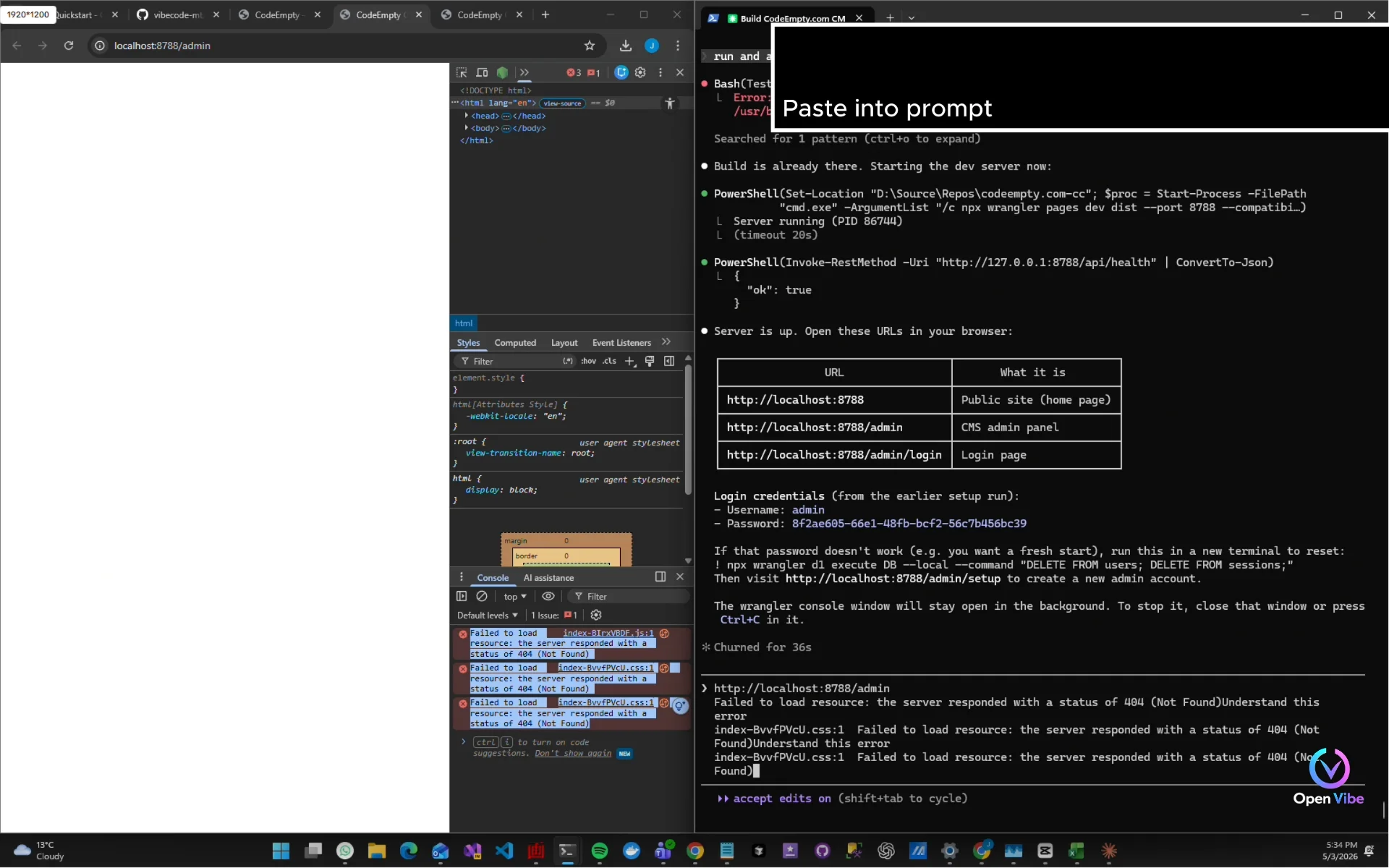
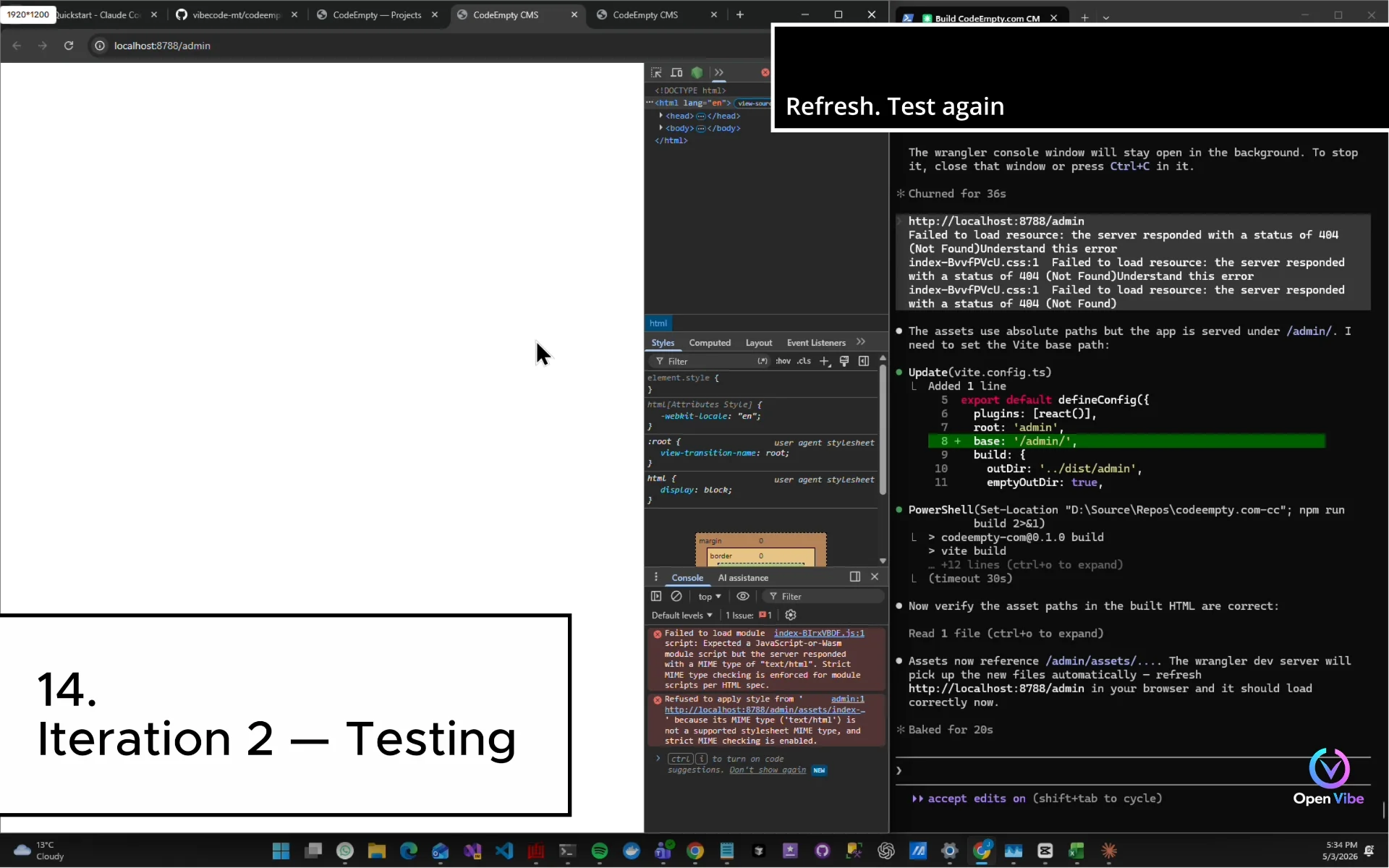
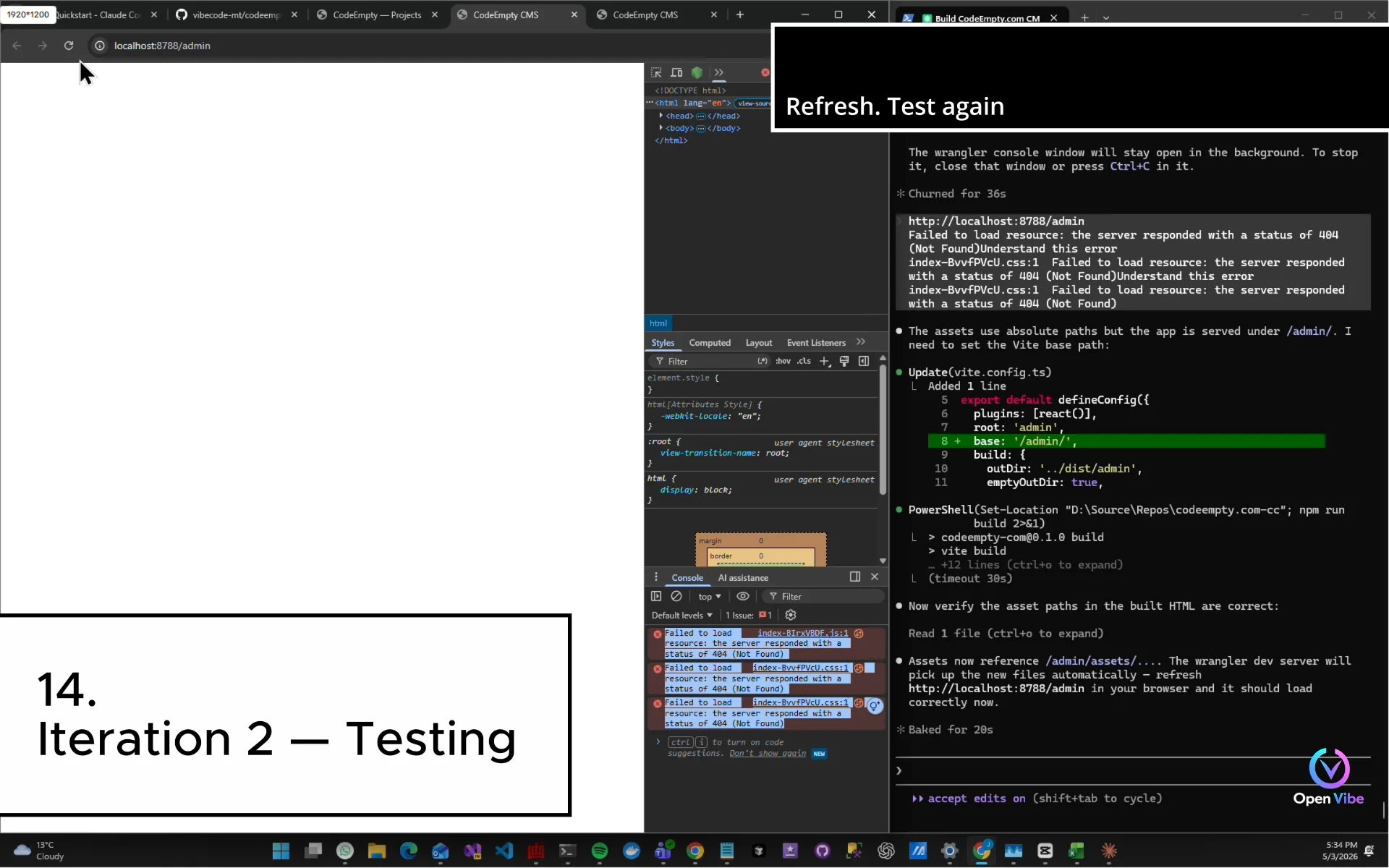
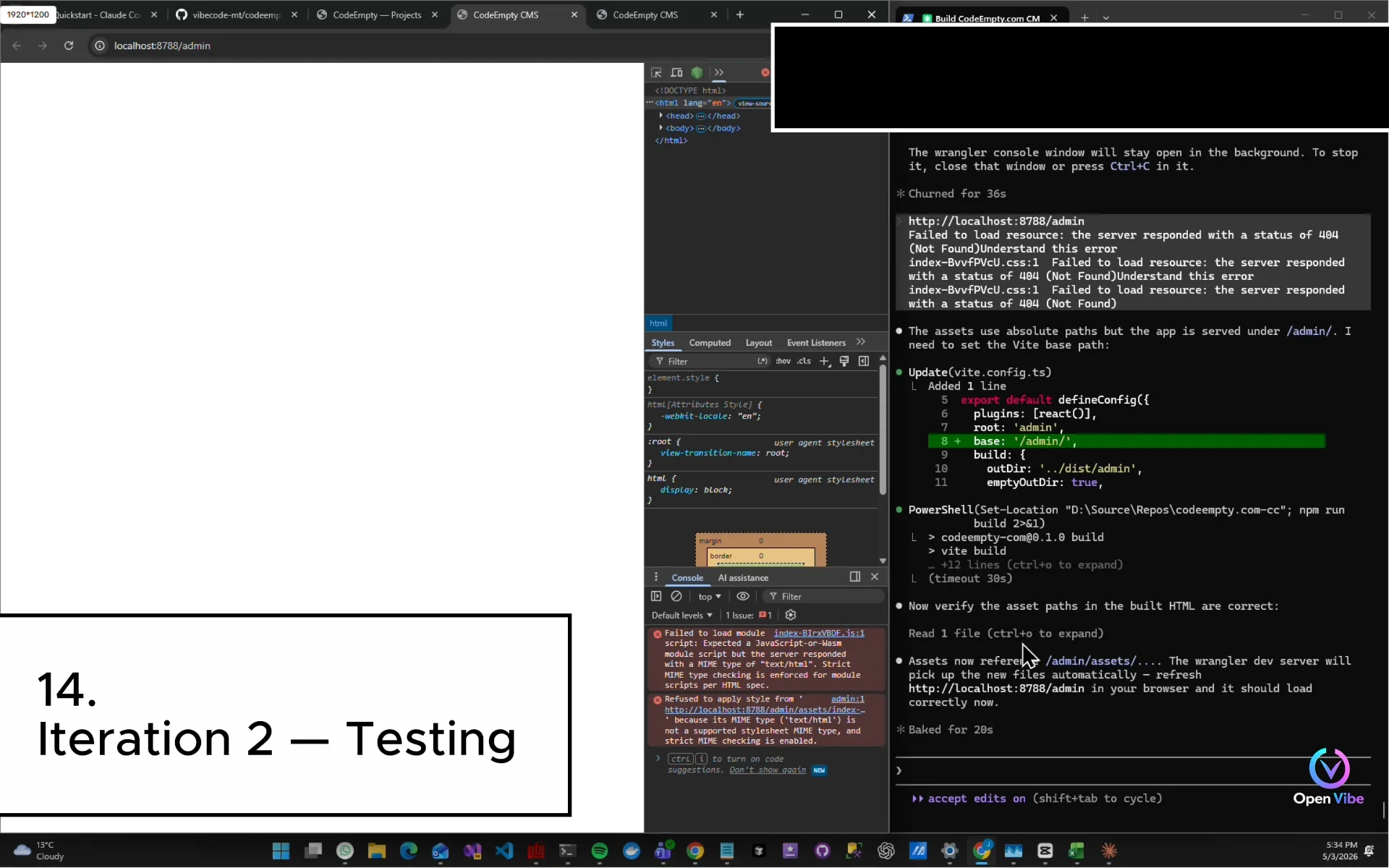
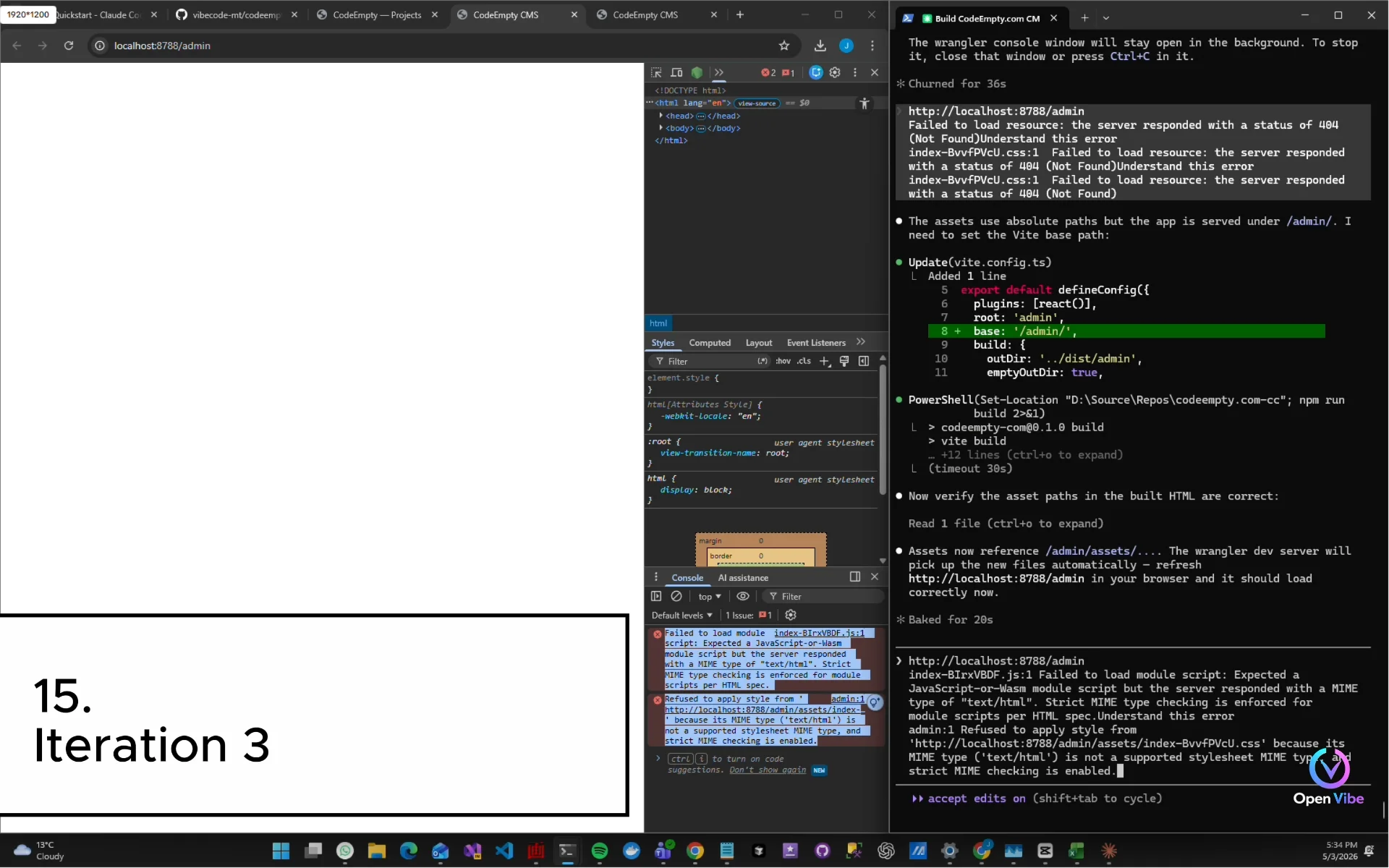
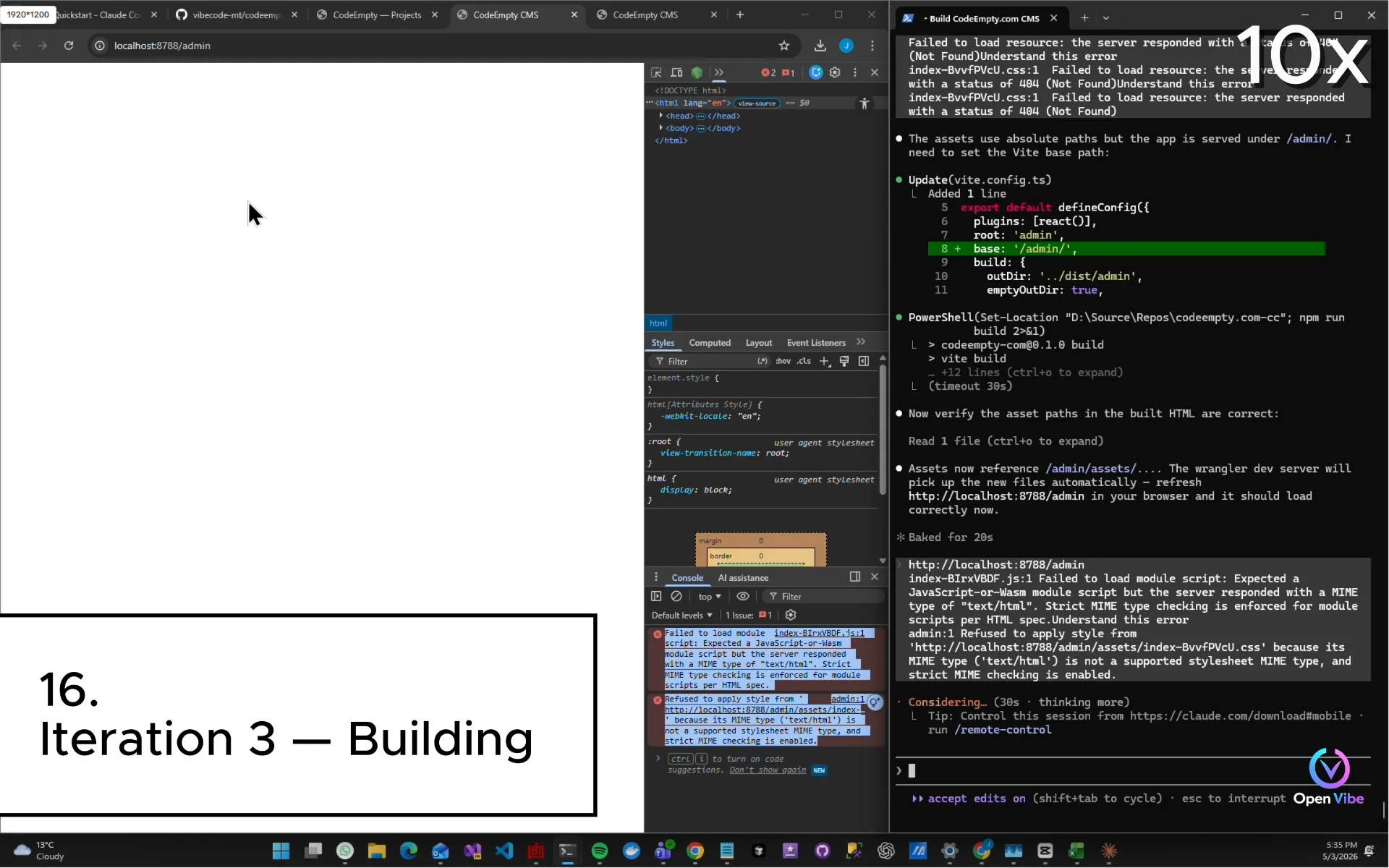
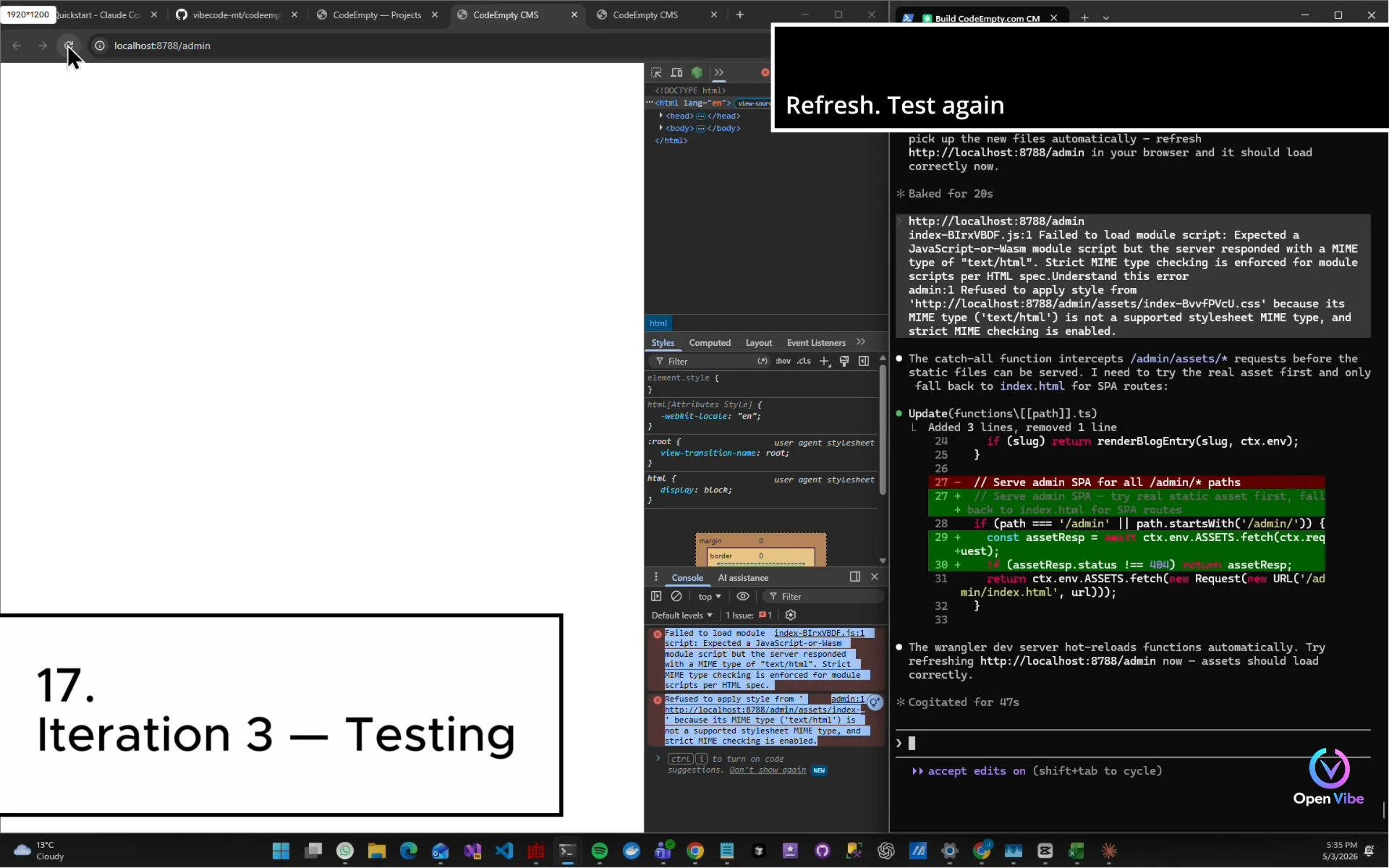
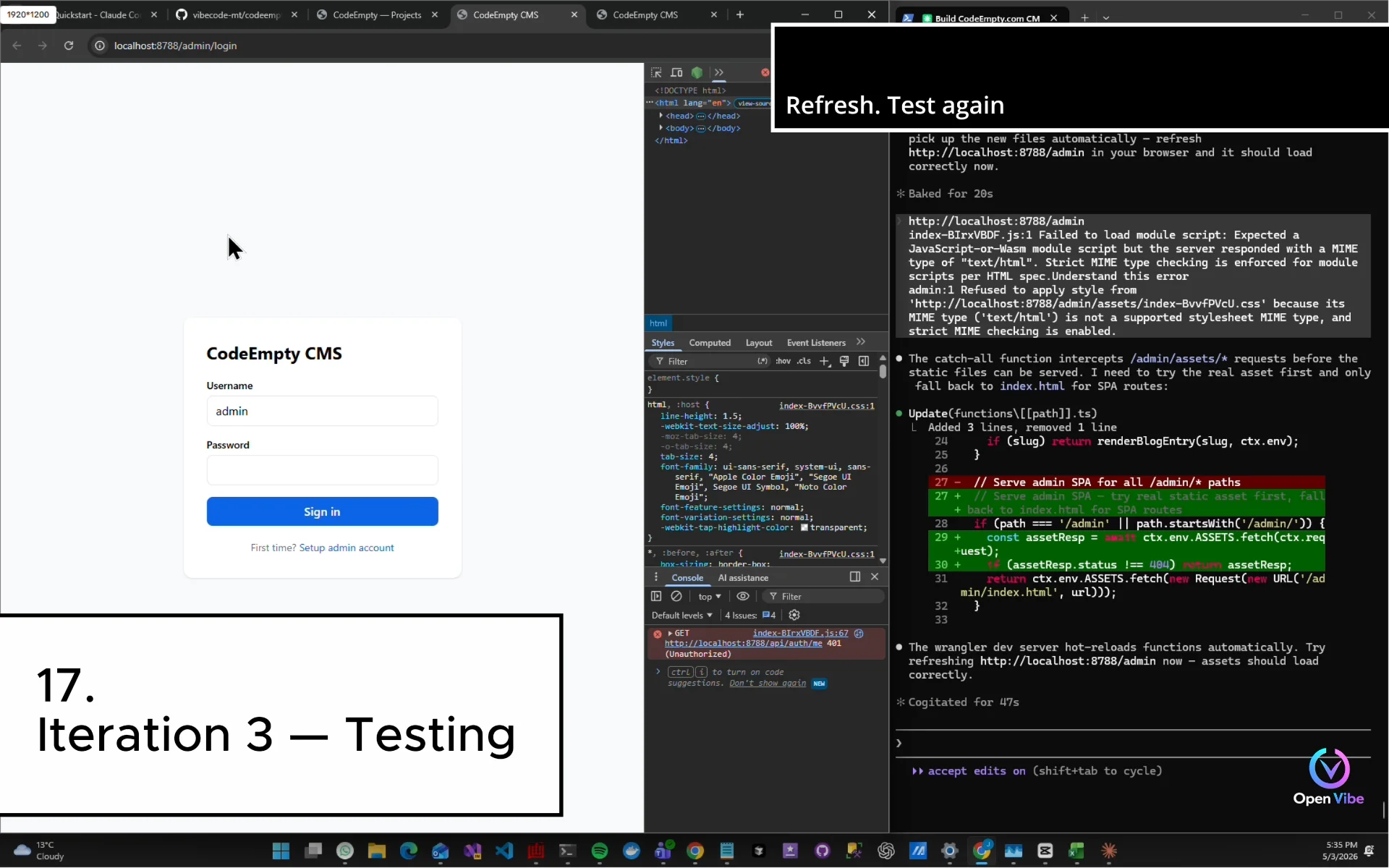
17. 17. Iteration 3 — Testing ▶ 9:44
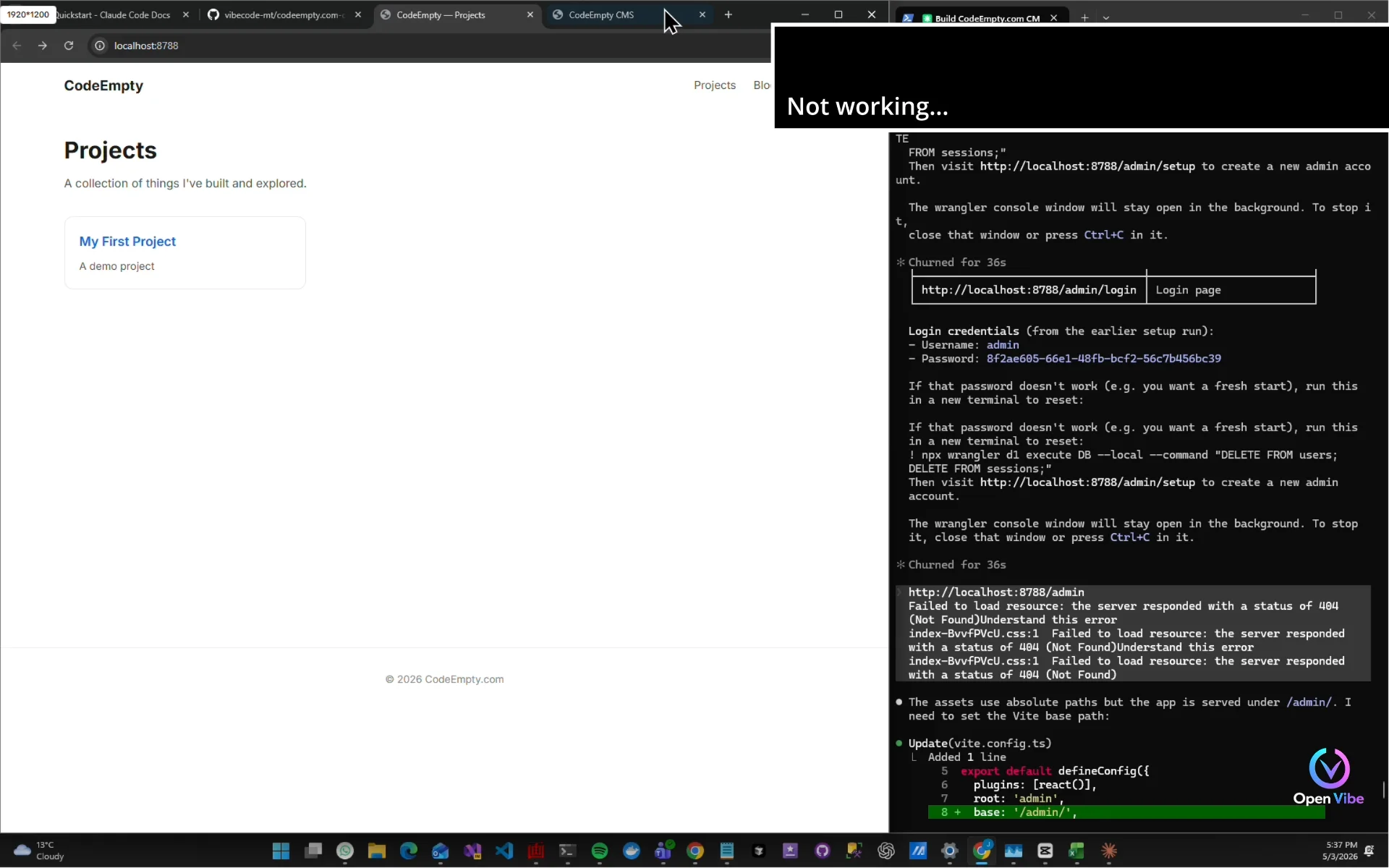
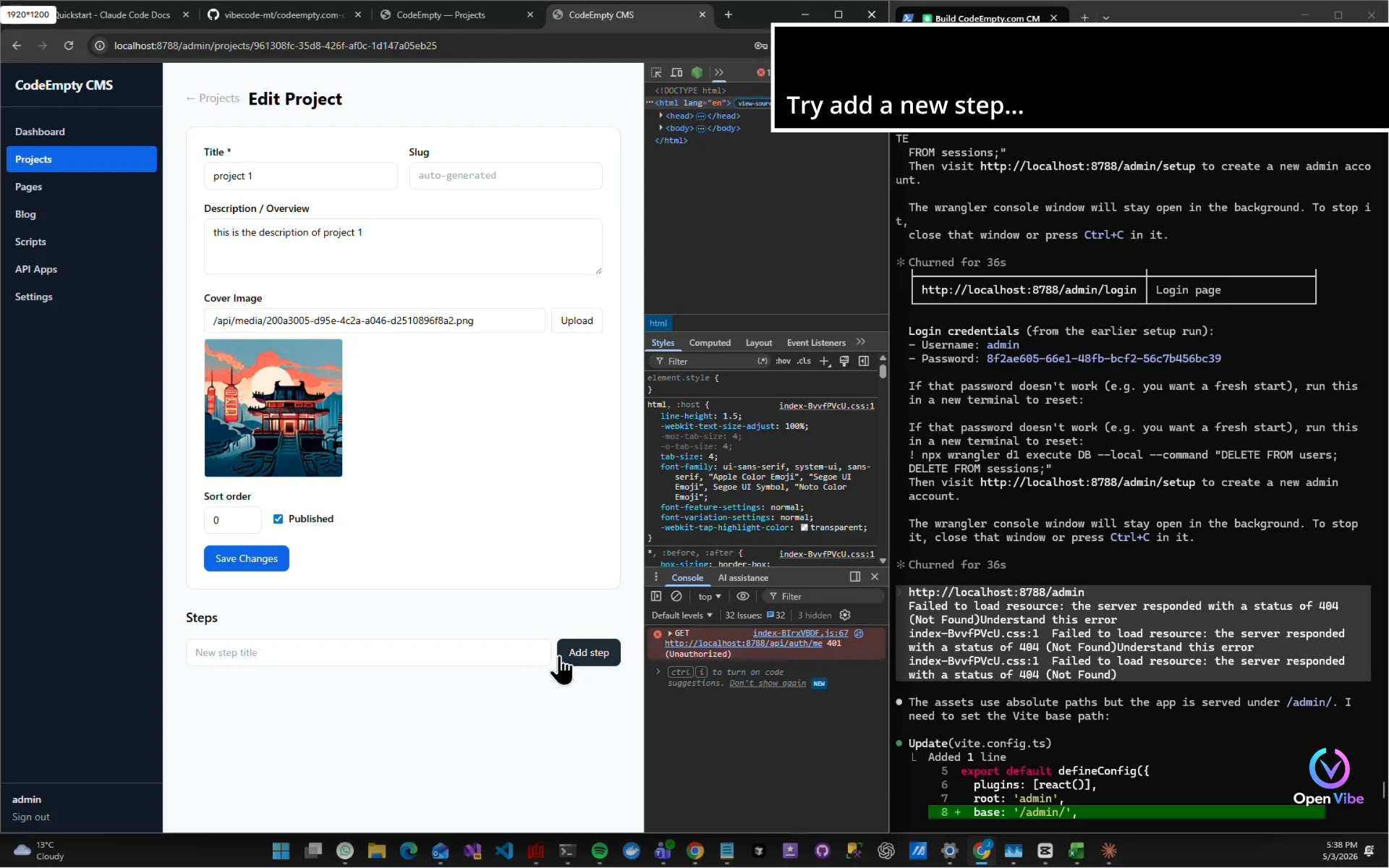
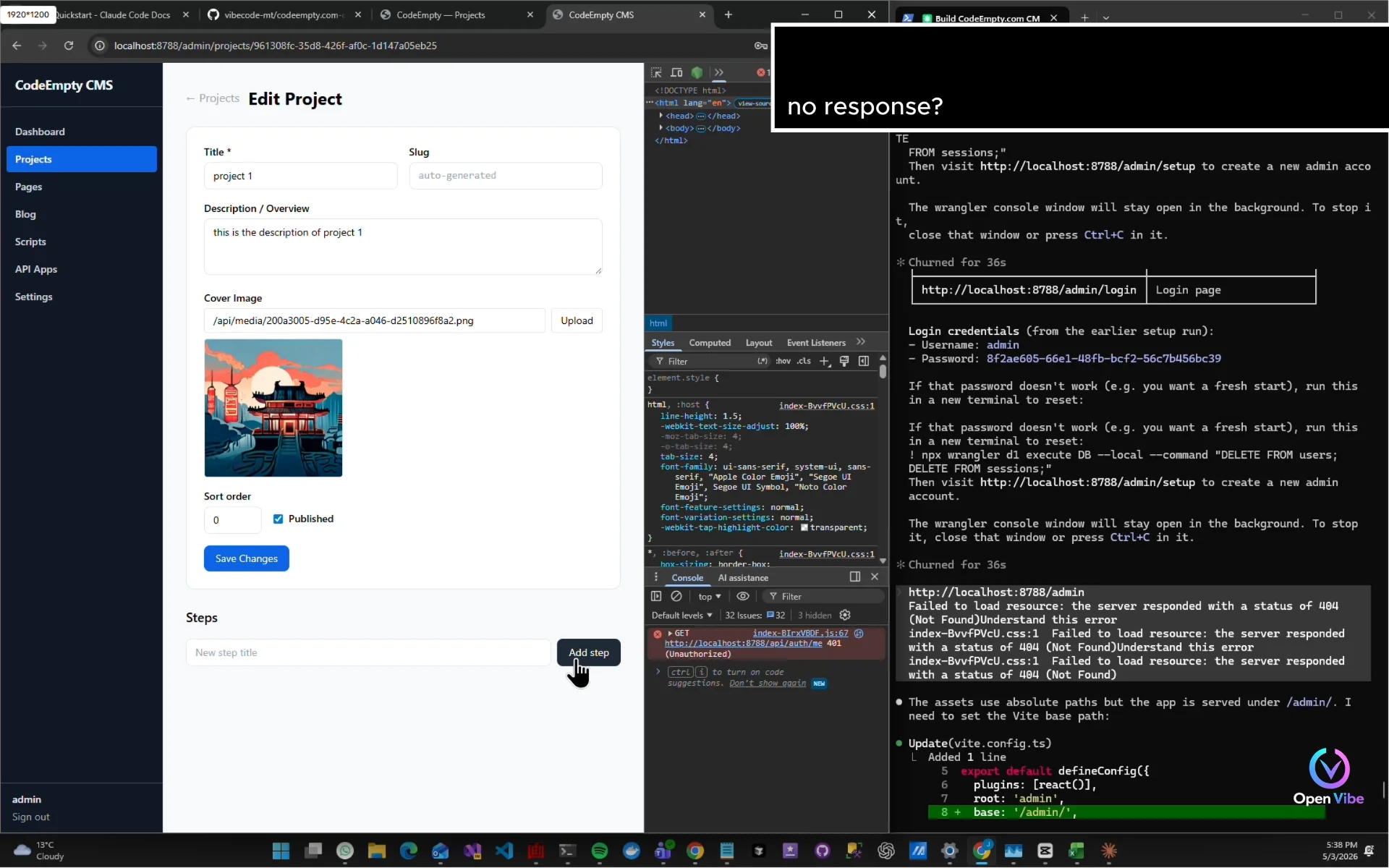
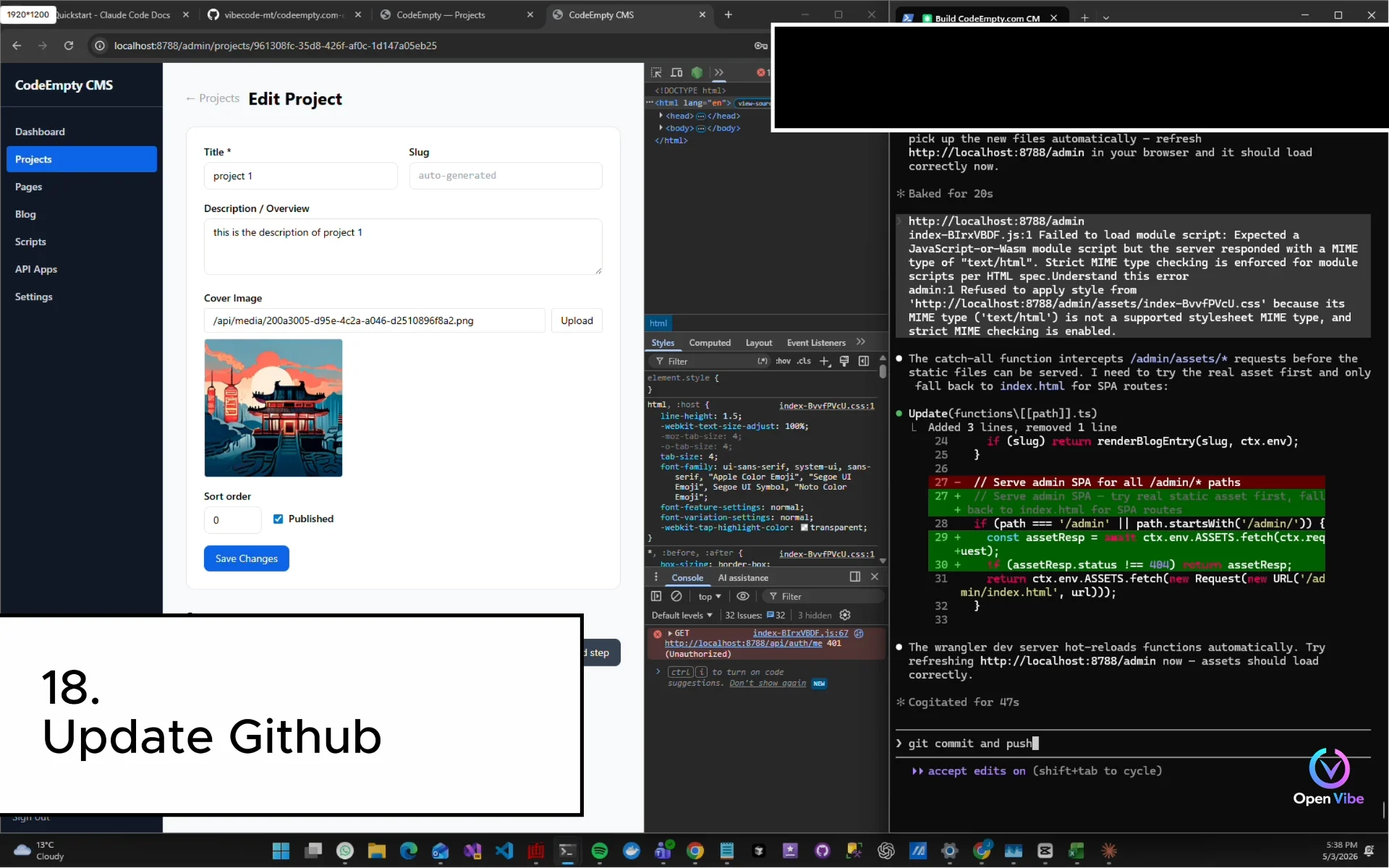
18. 18. Update Github ▶ 12:23
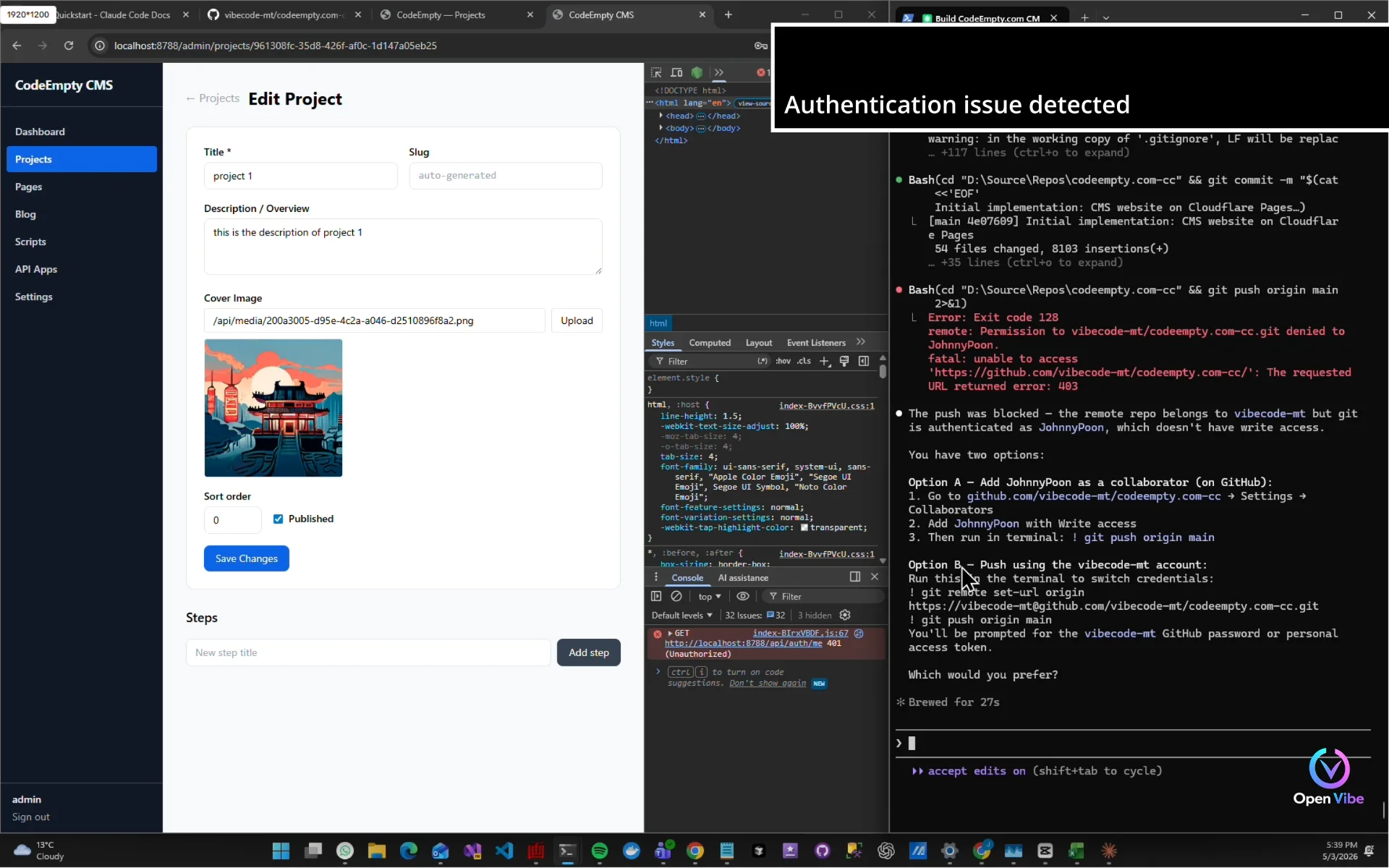
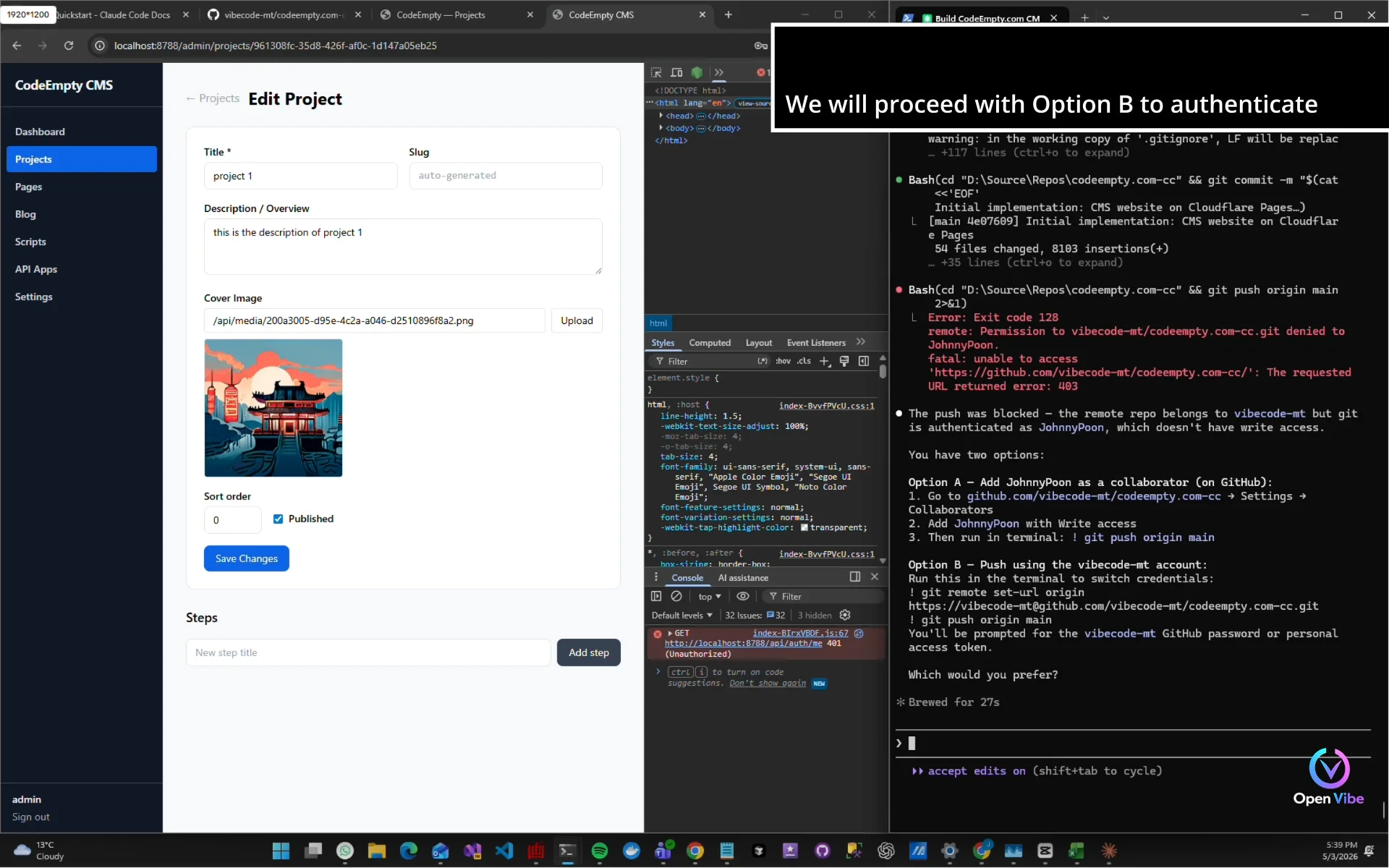
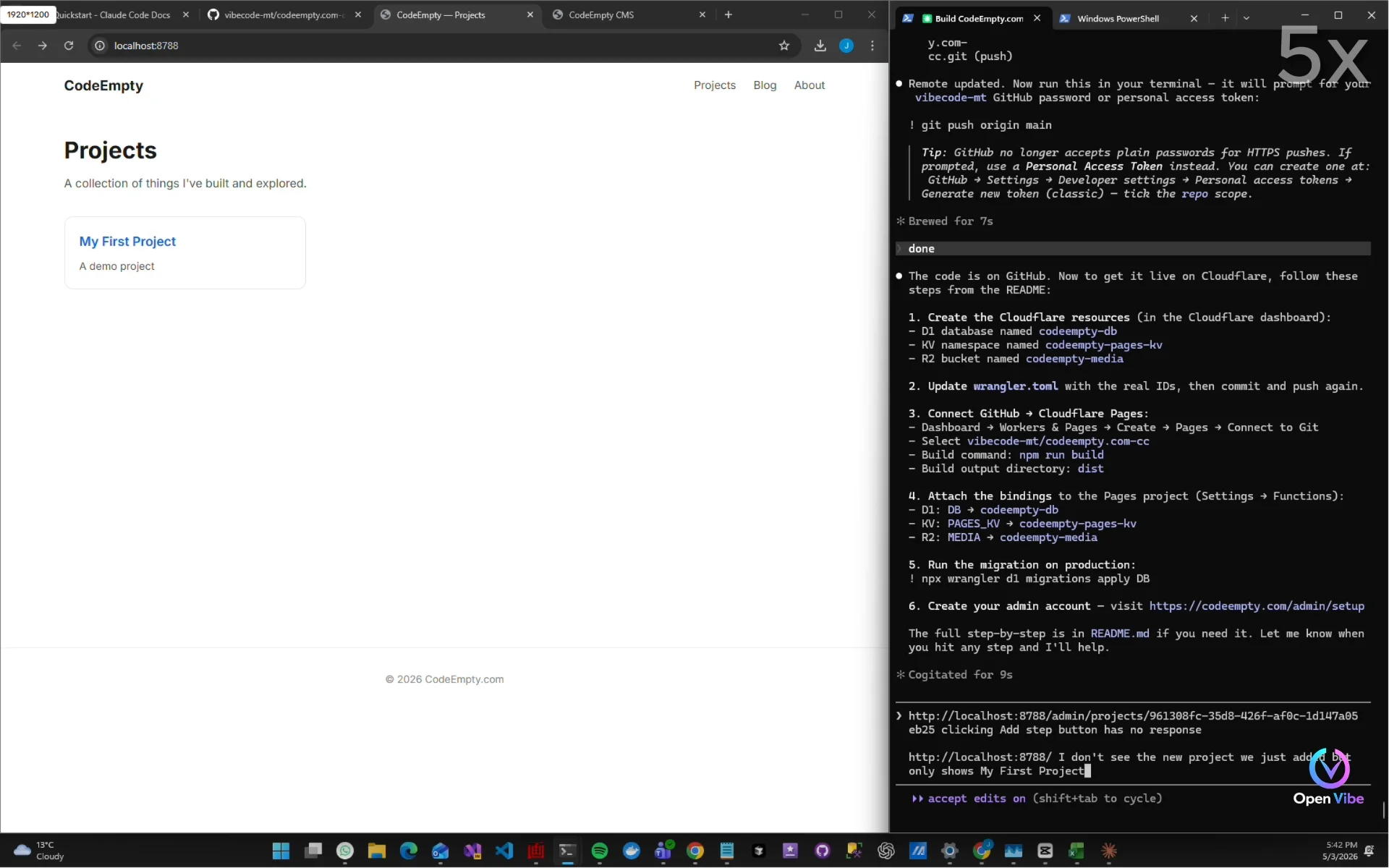
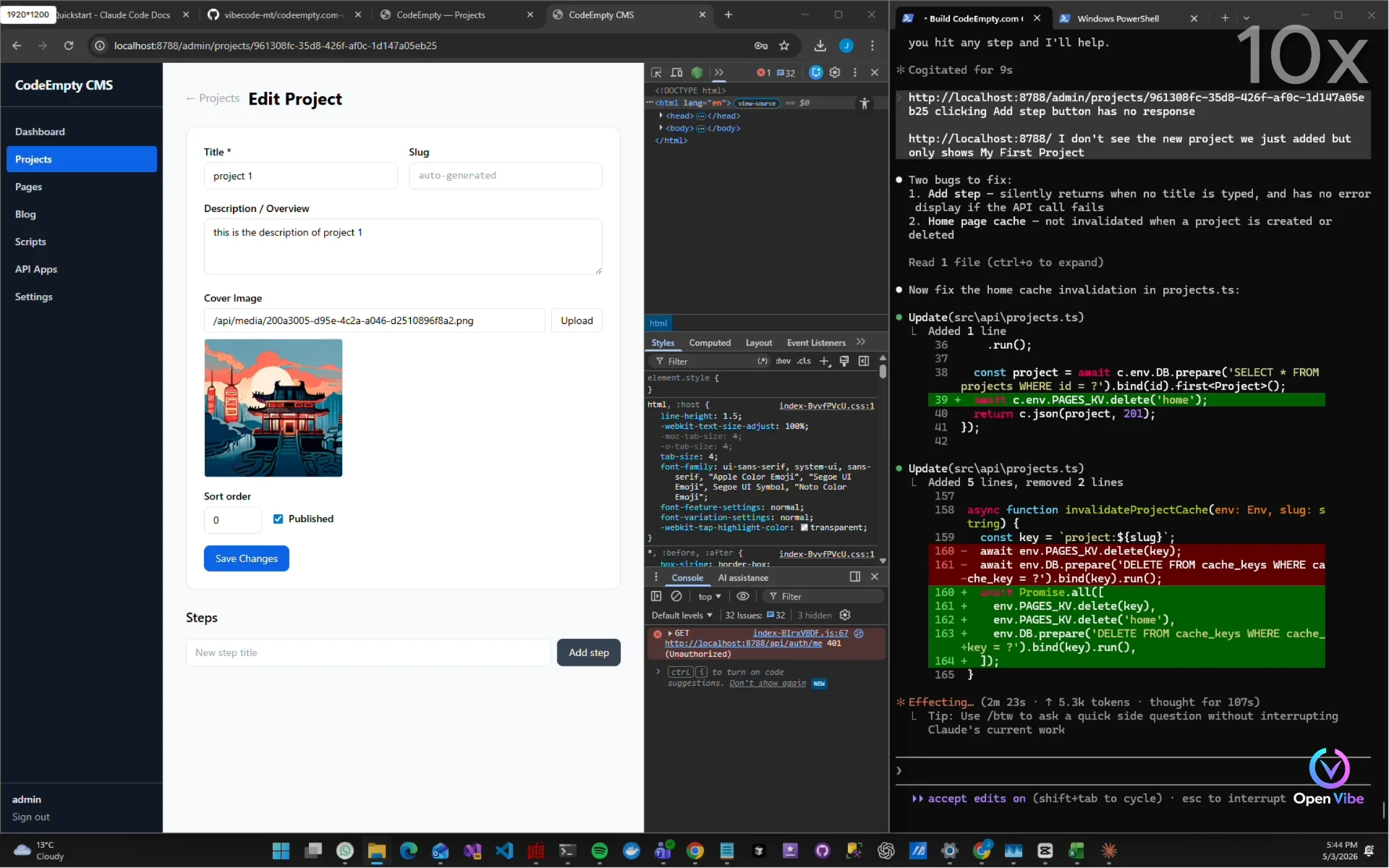
21. 21. Iteration 4 — Testing ▶ 14:12
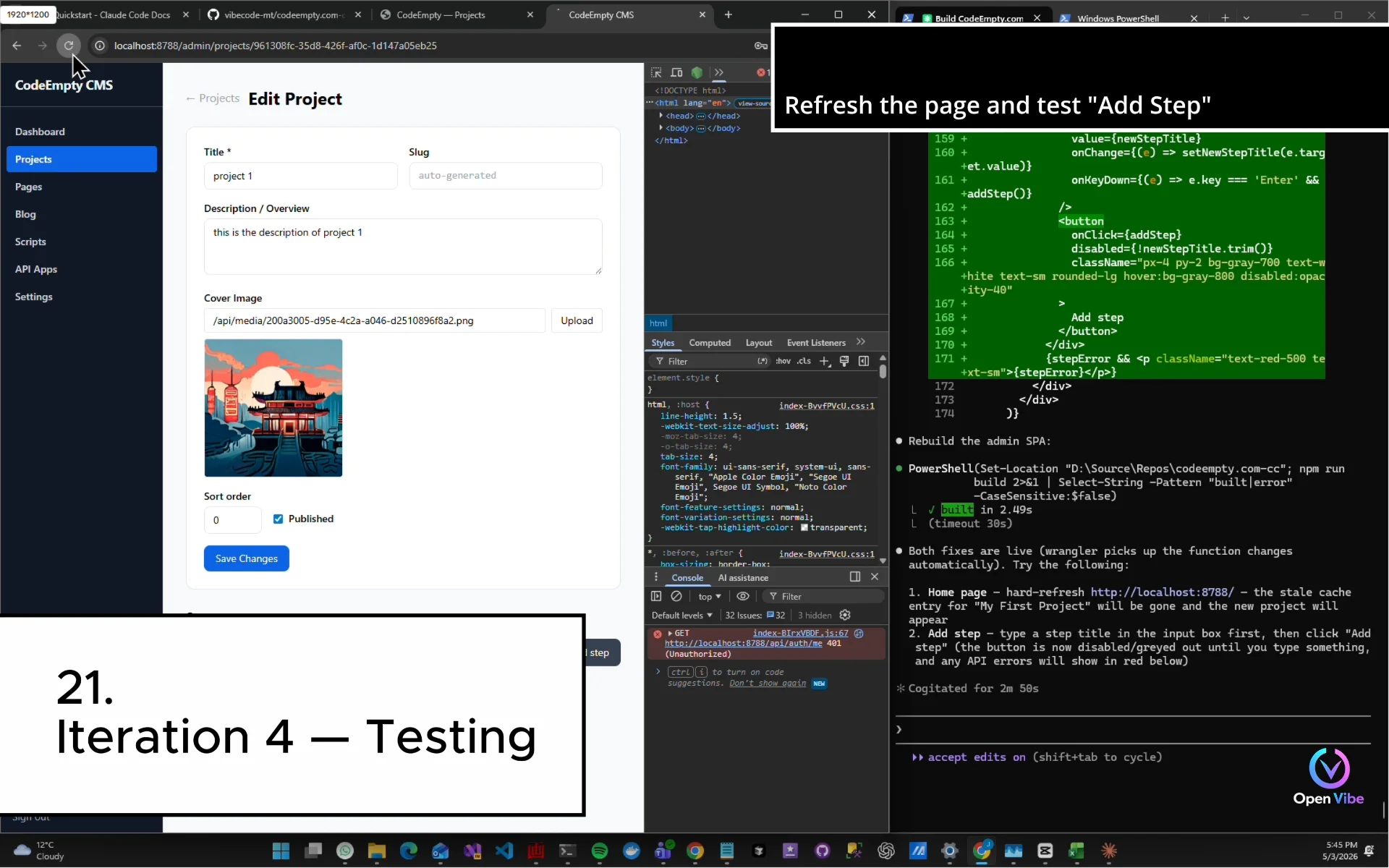
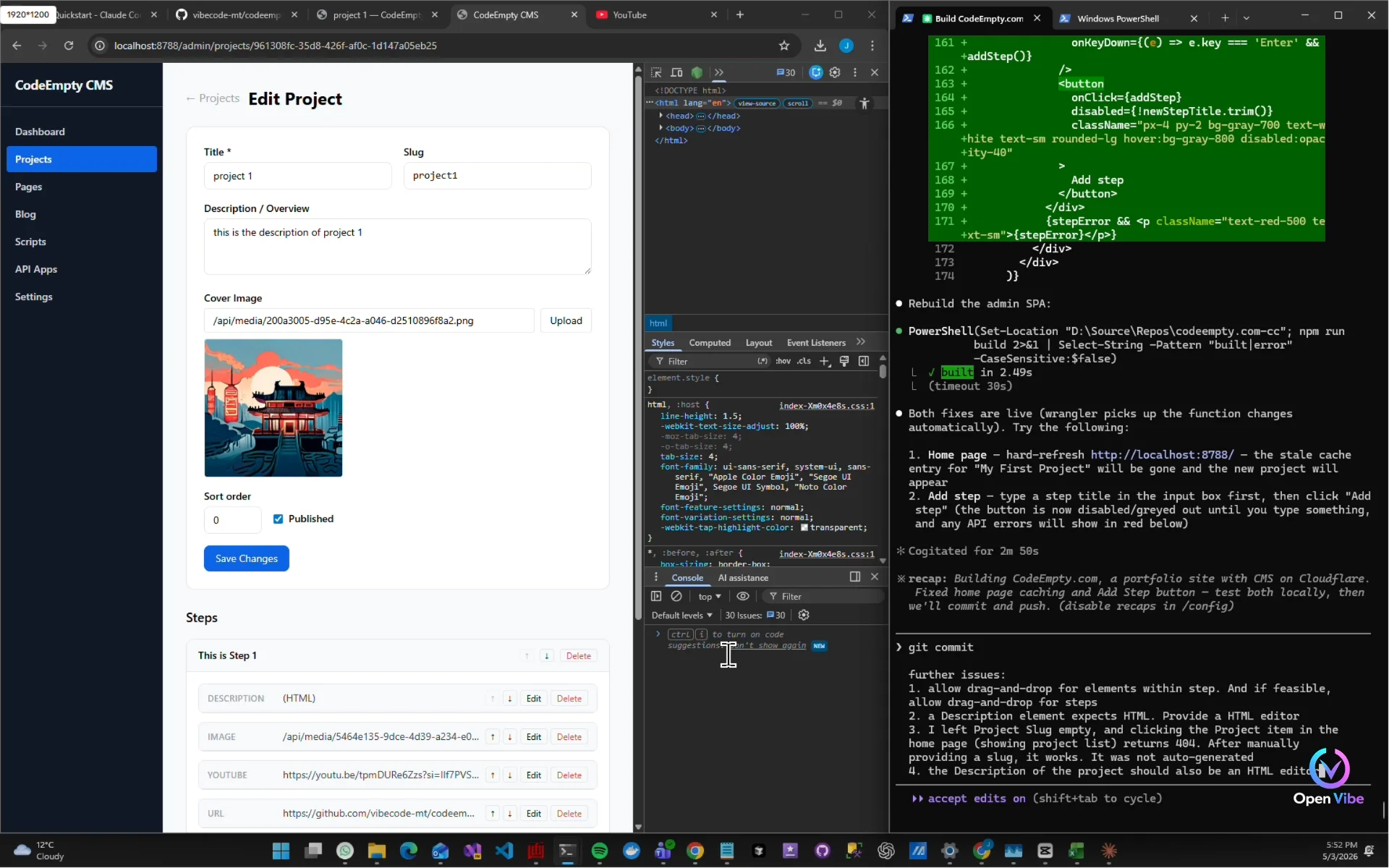
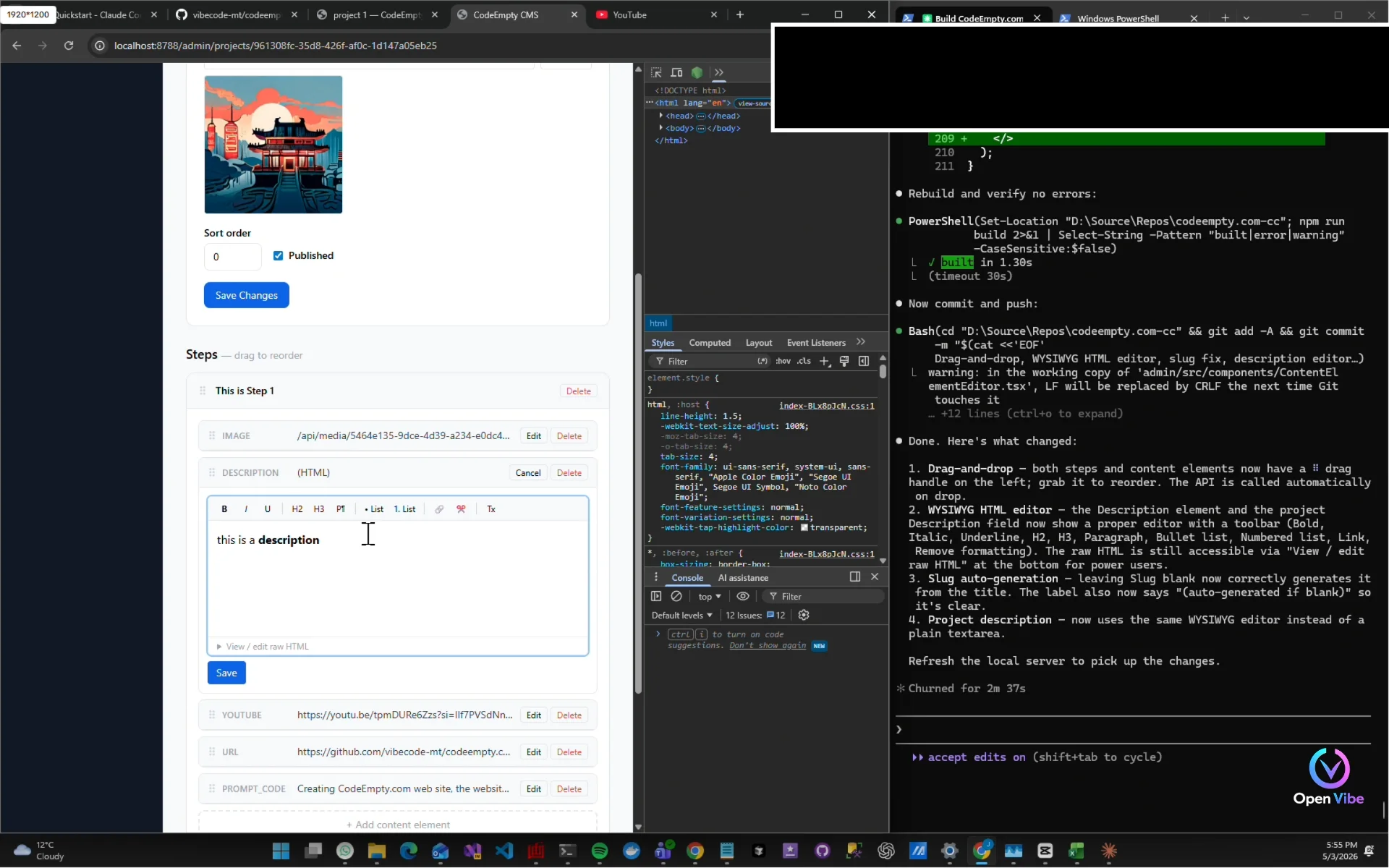
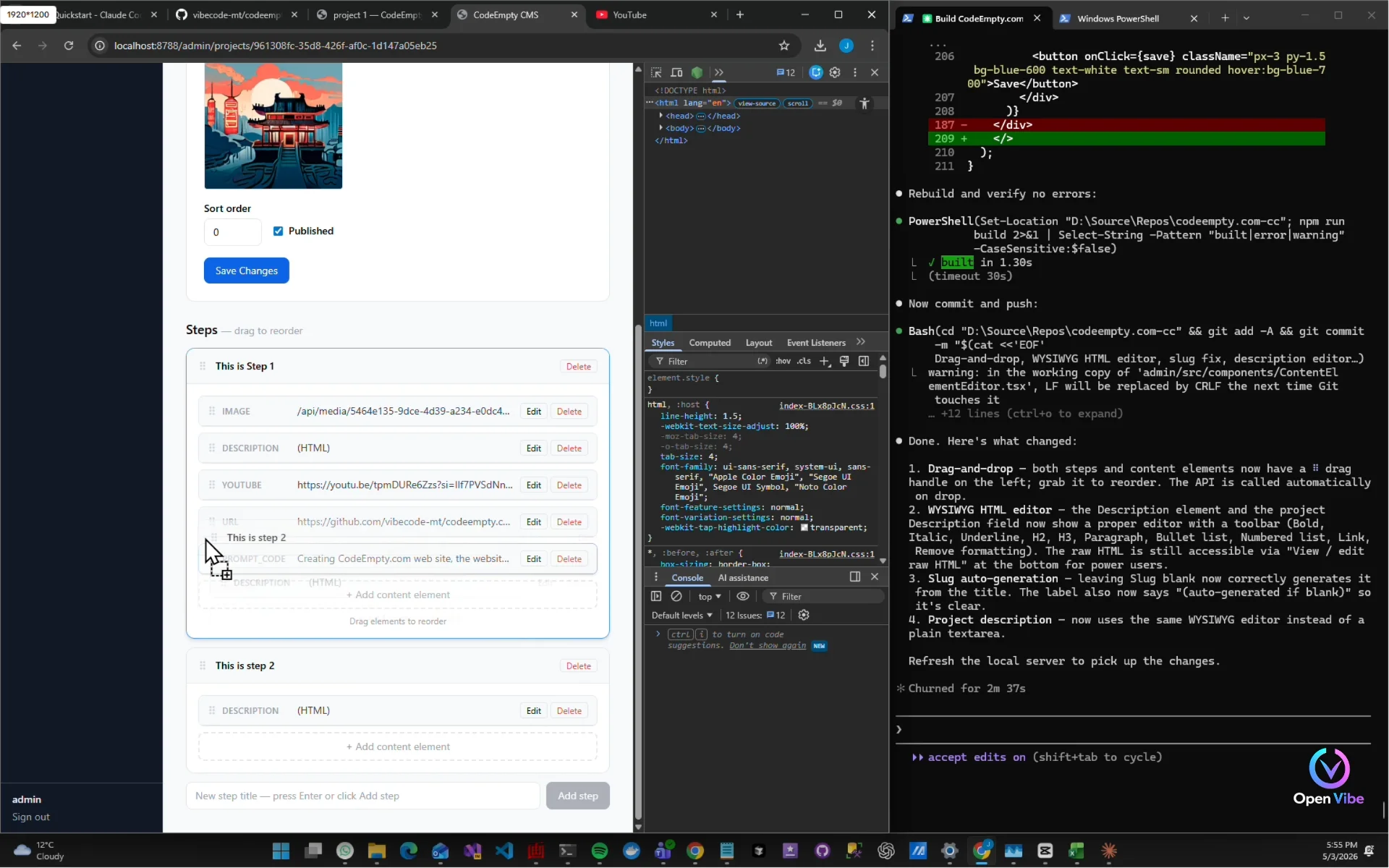
Refresh the page and test "Add Step"
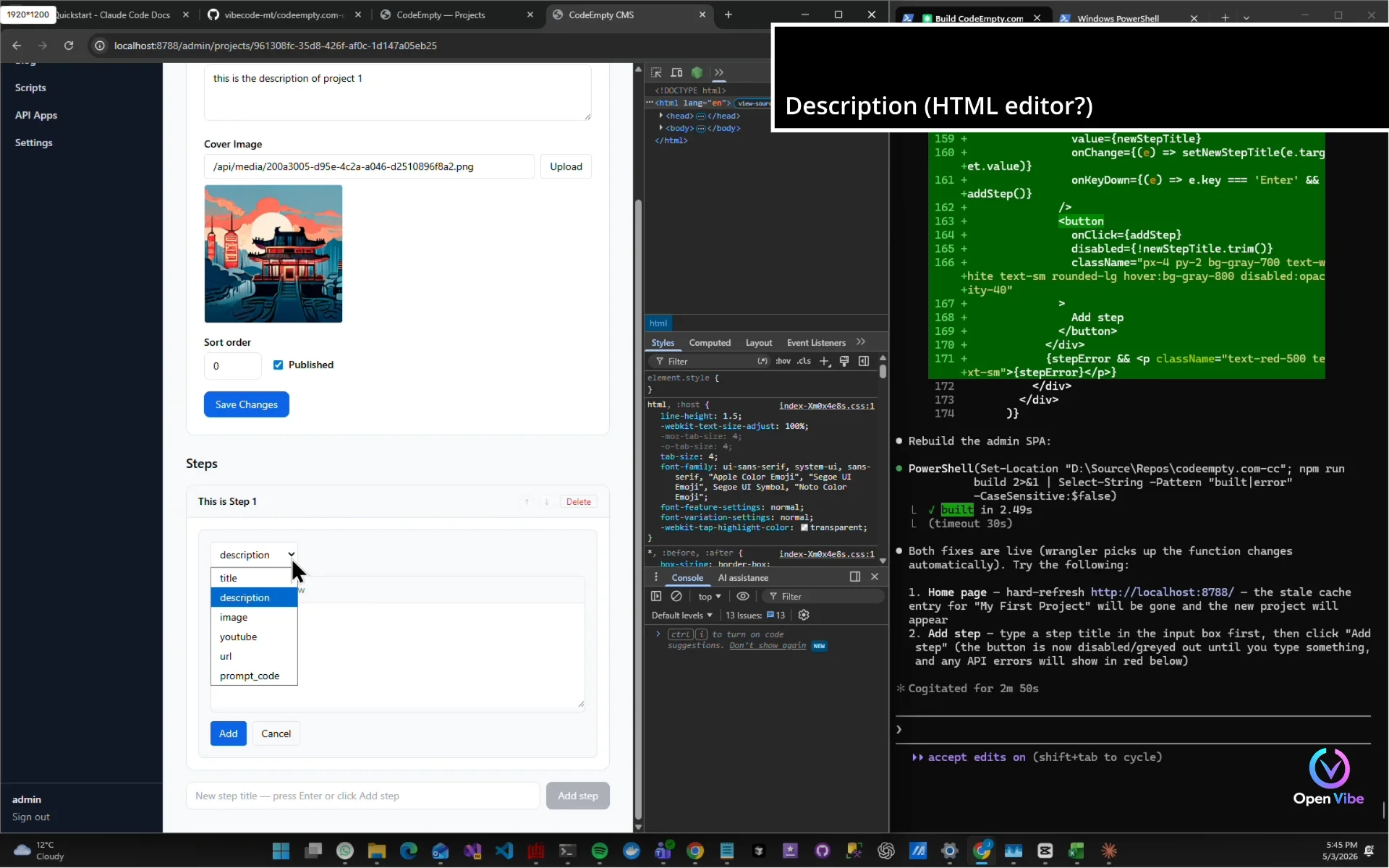
Each step supports:
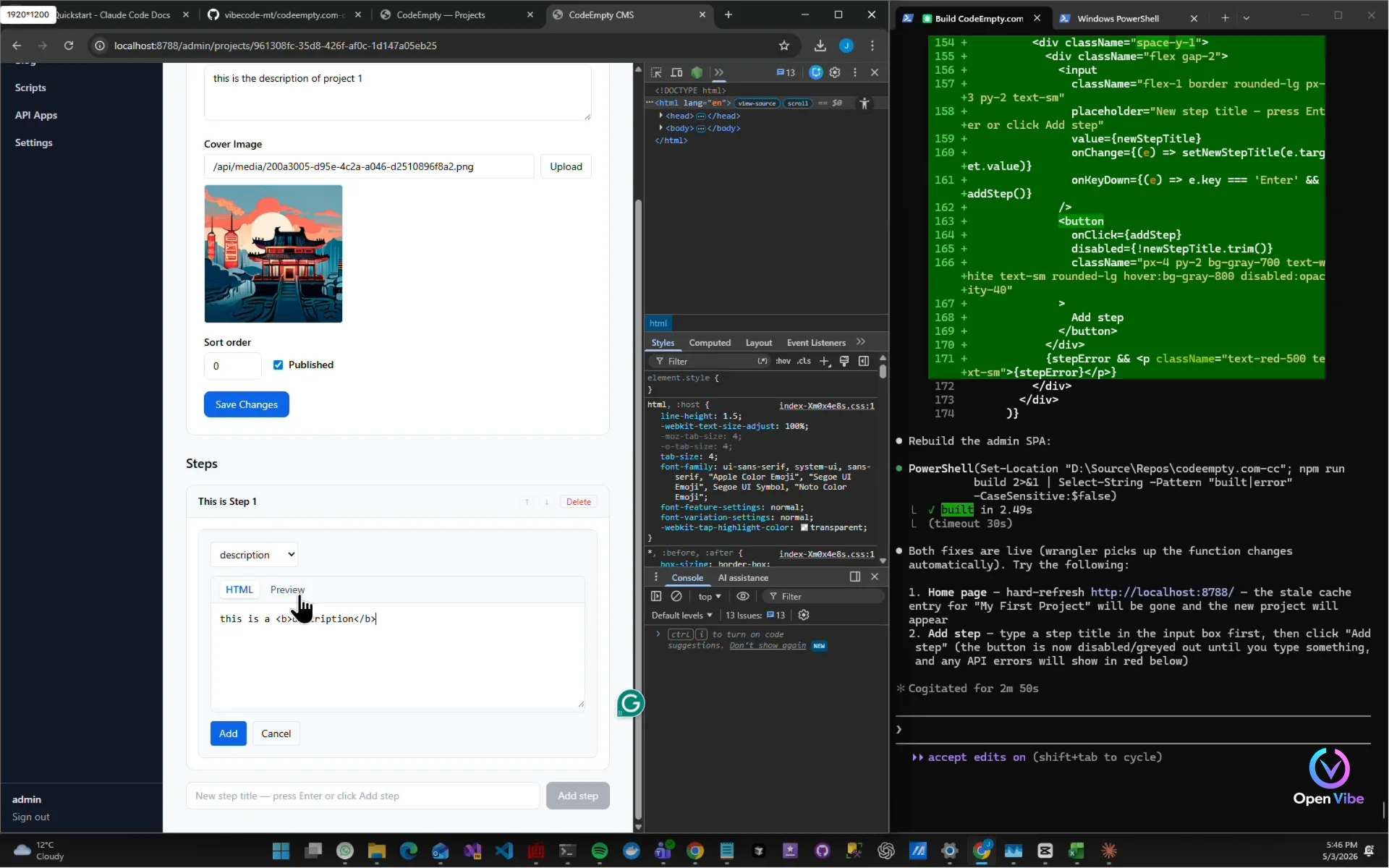
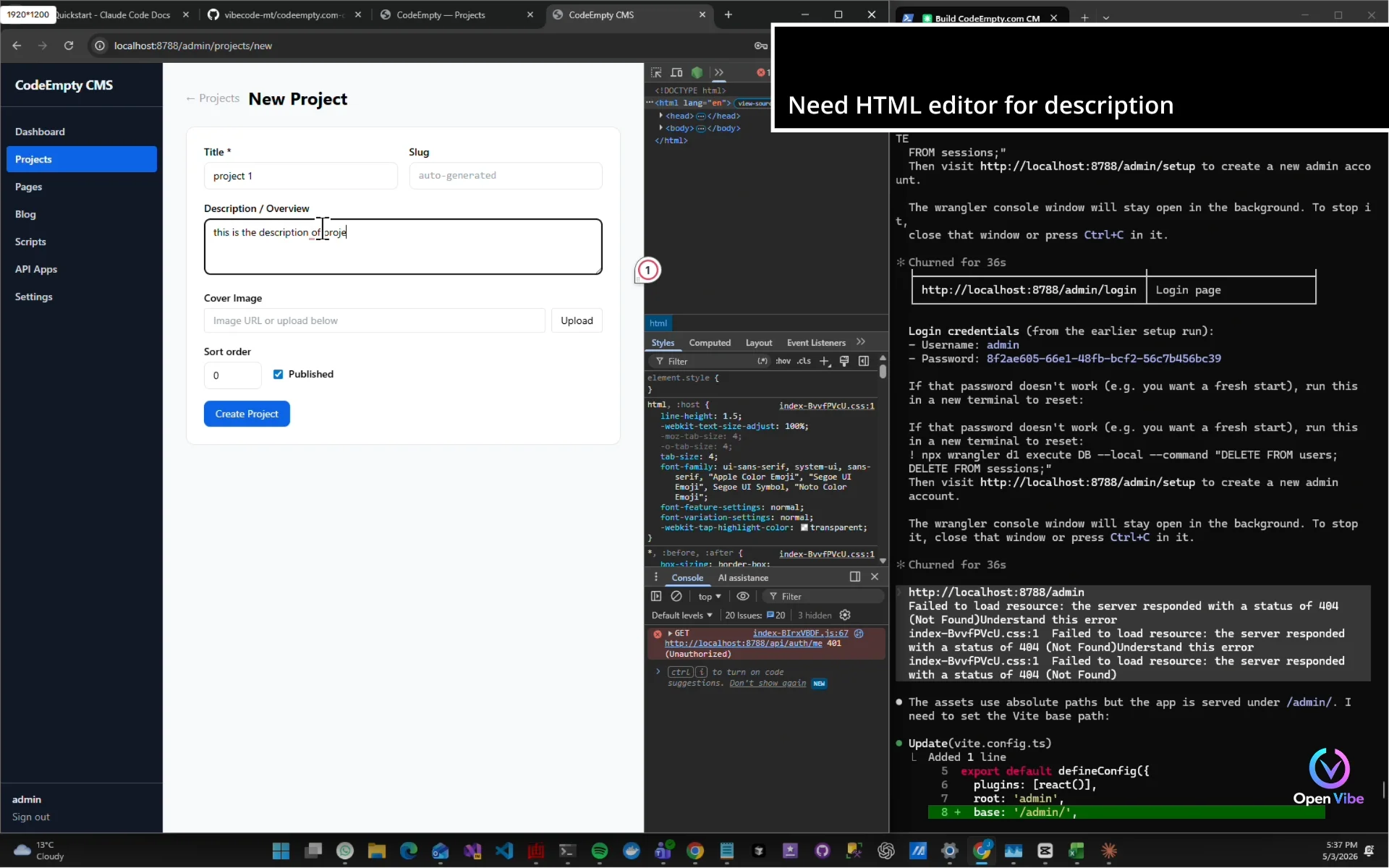
Description (HTML editor?)
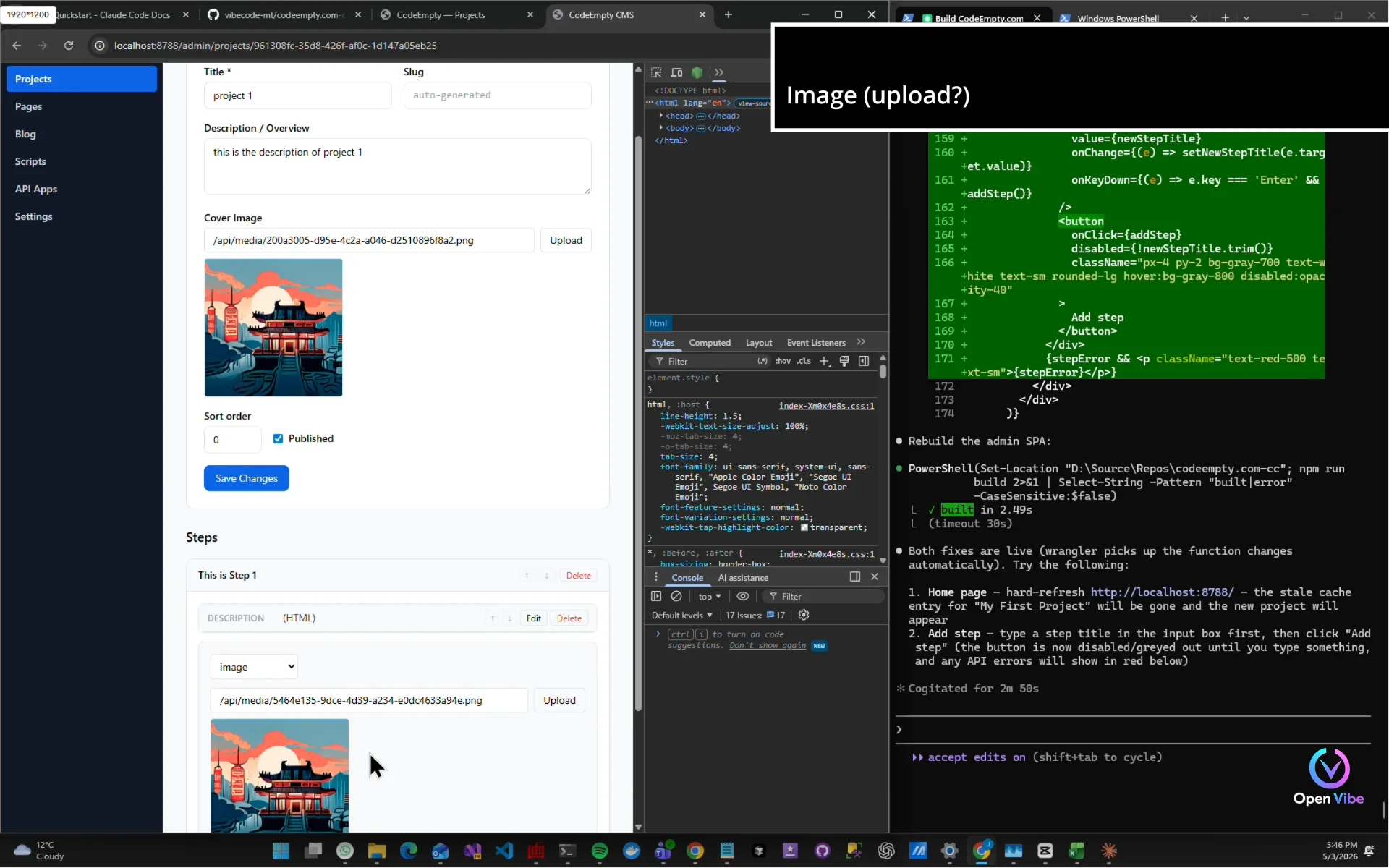
Image (upload?)
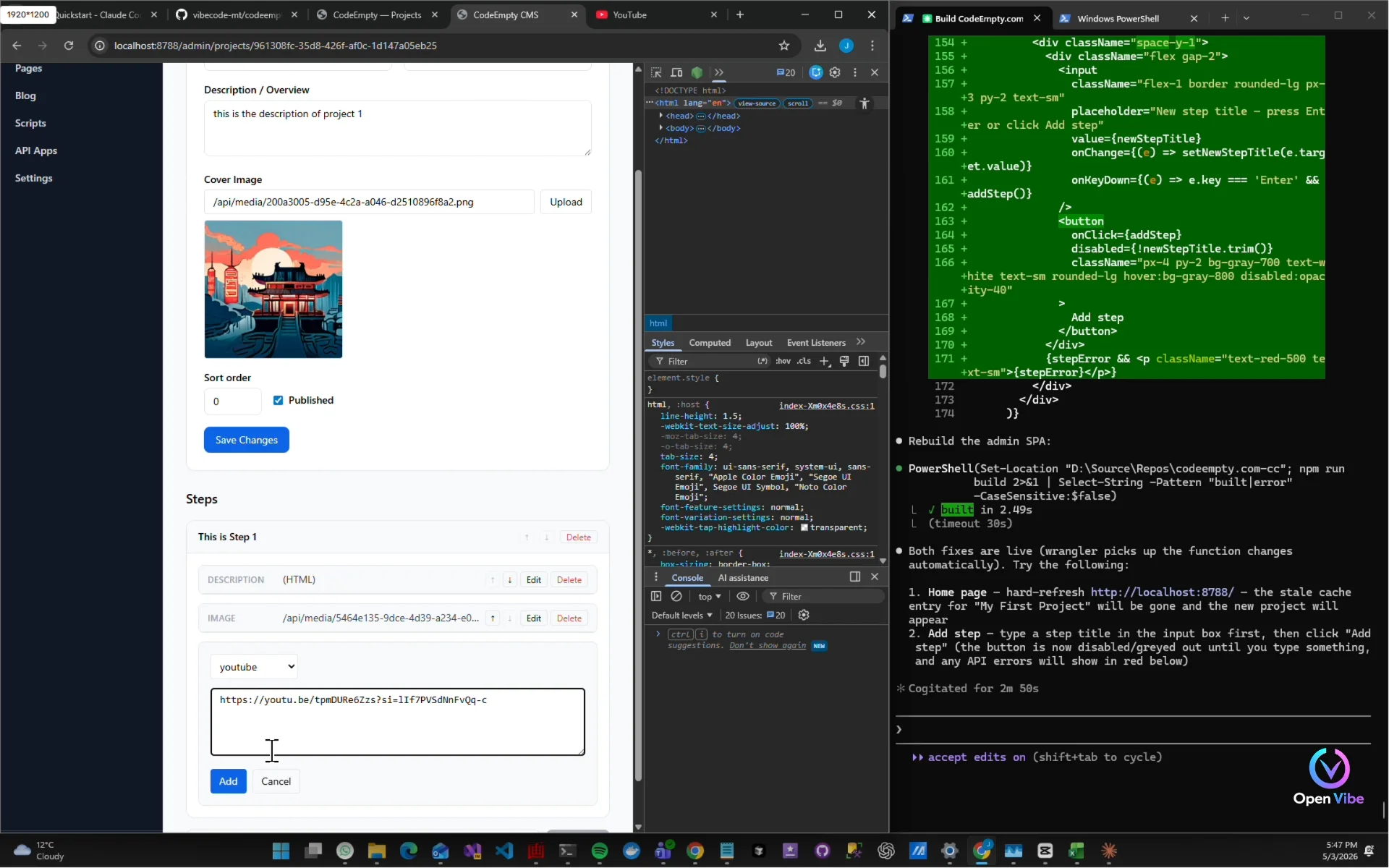
Youtube embed
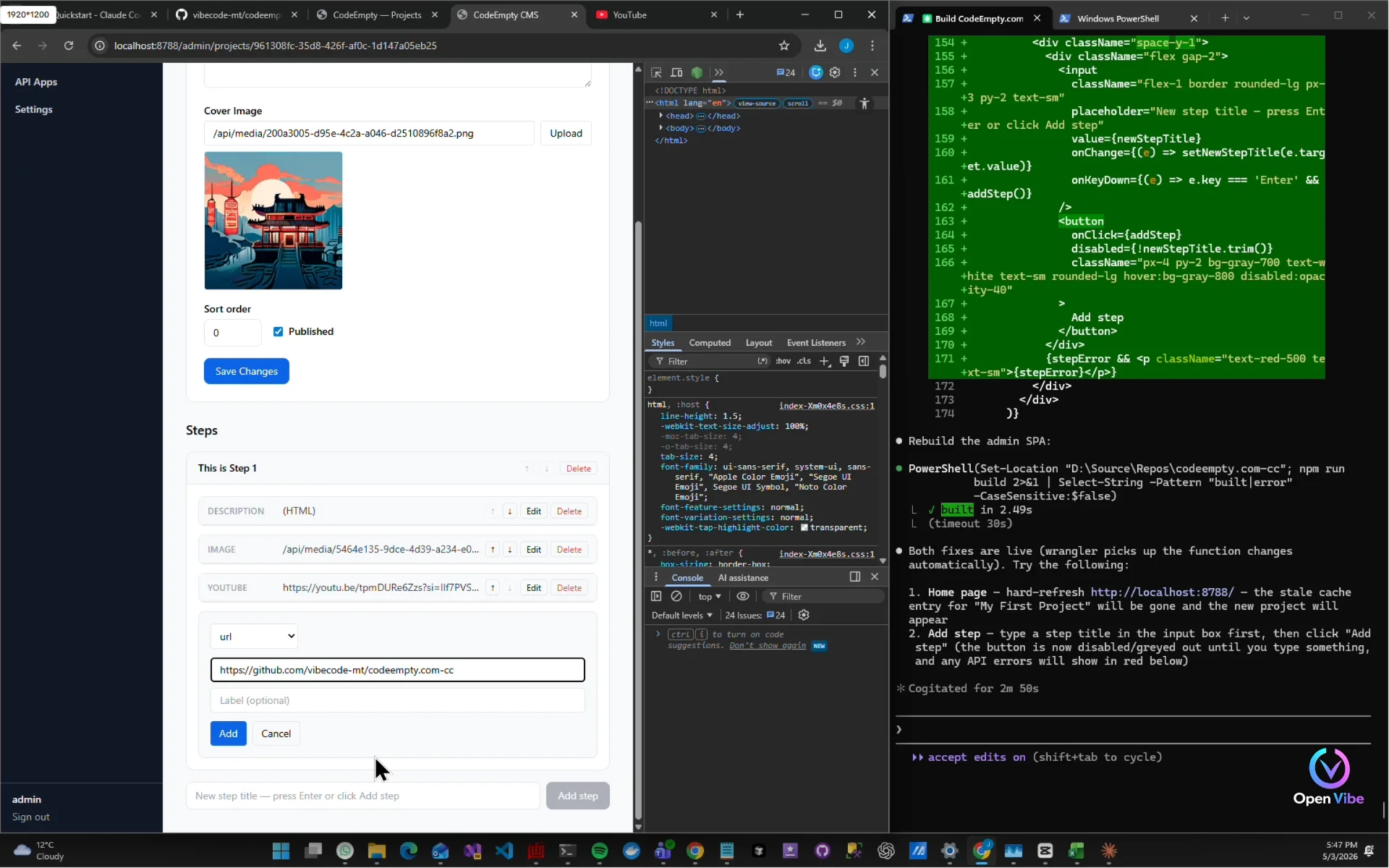
URL links
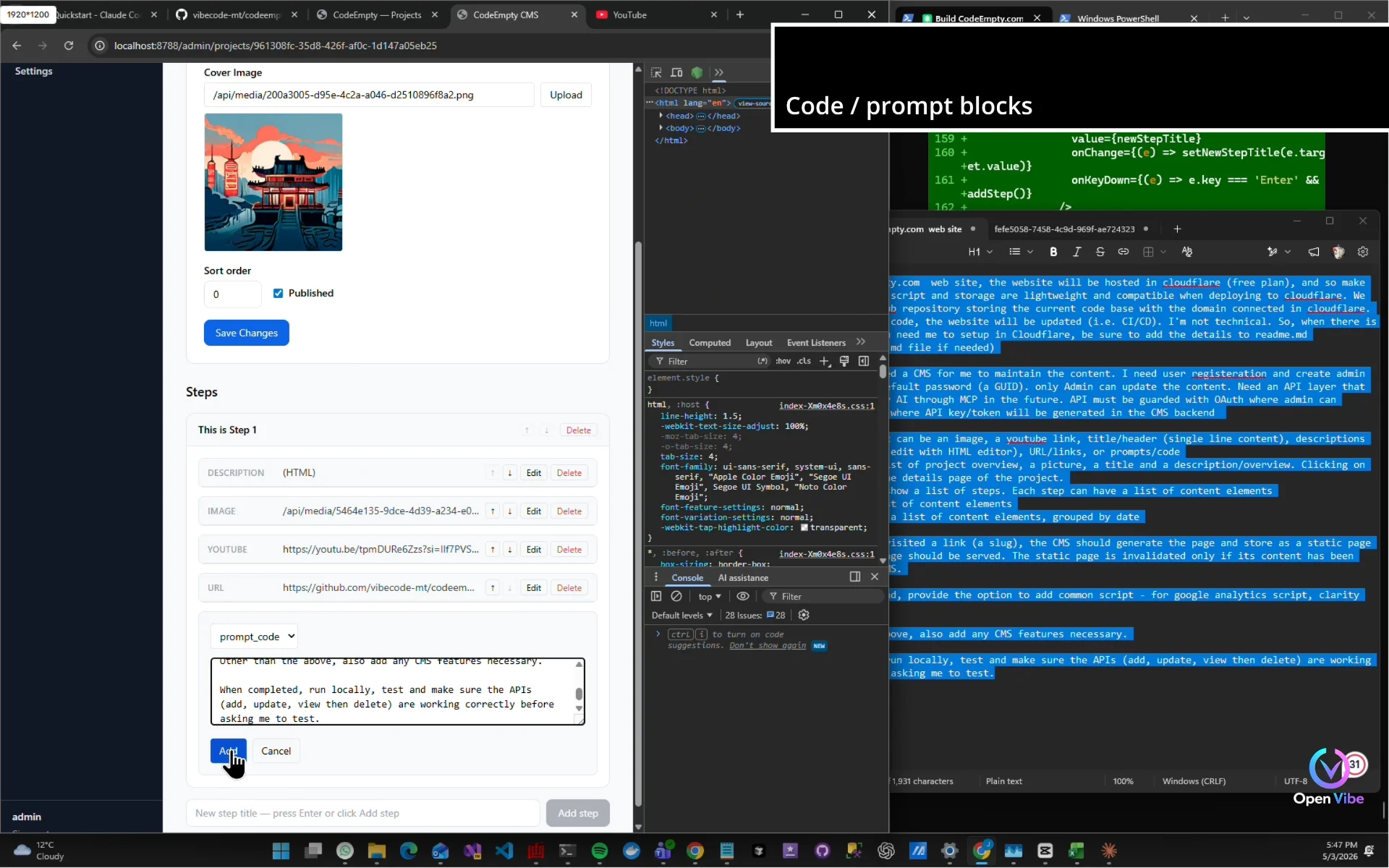
Code / prompt blocks
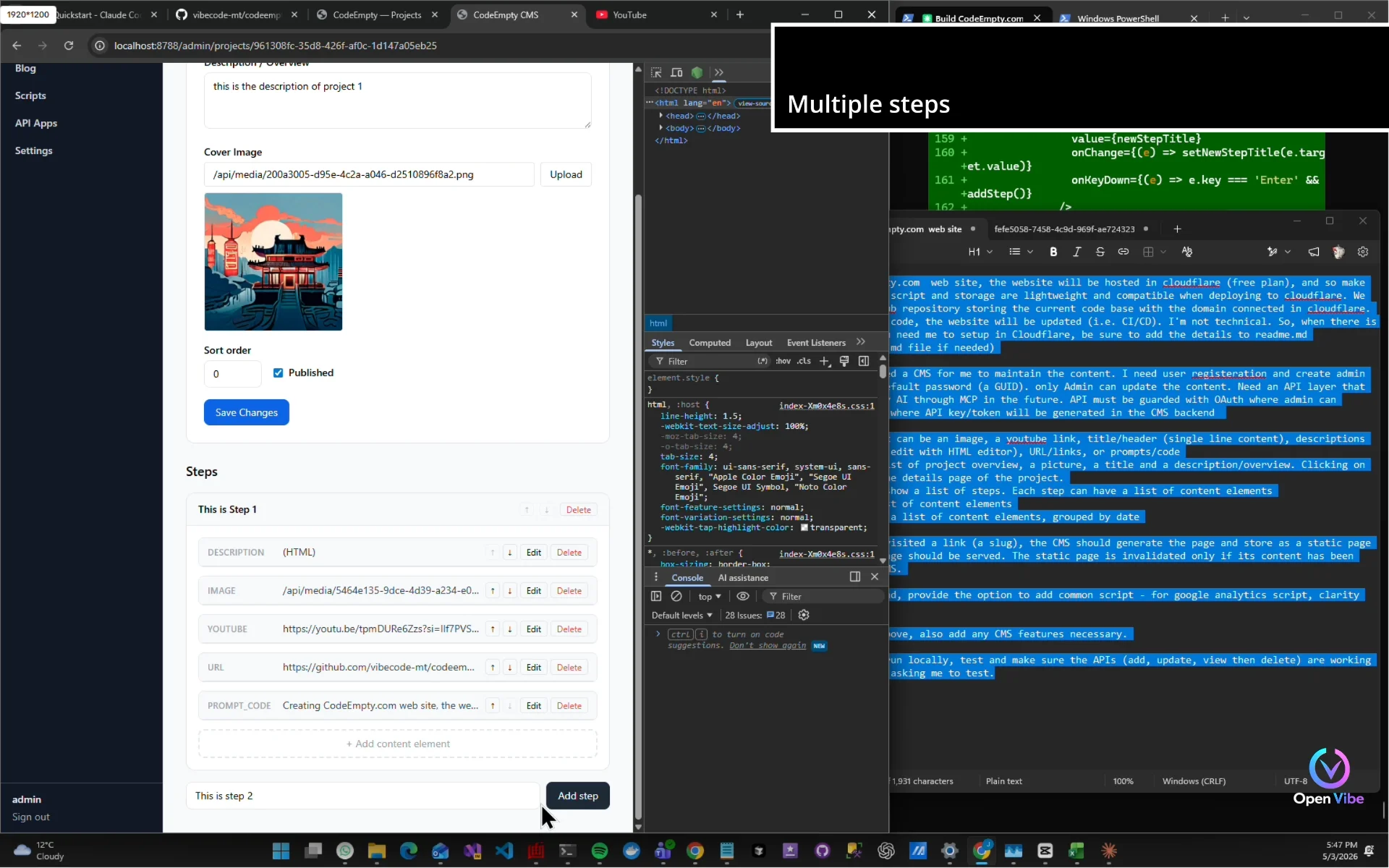
Multiple steps
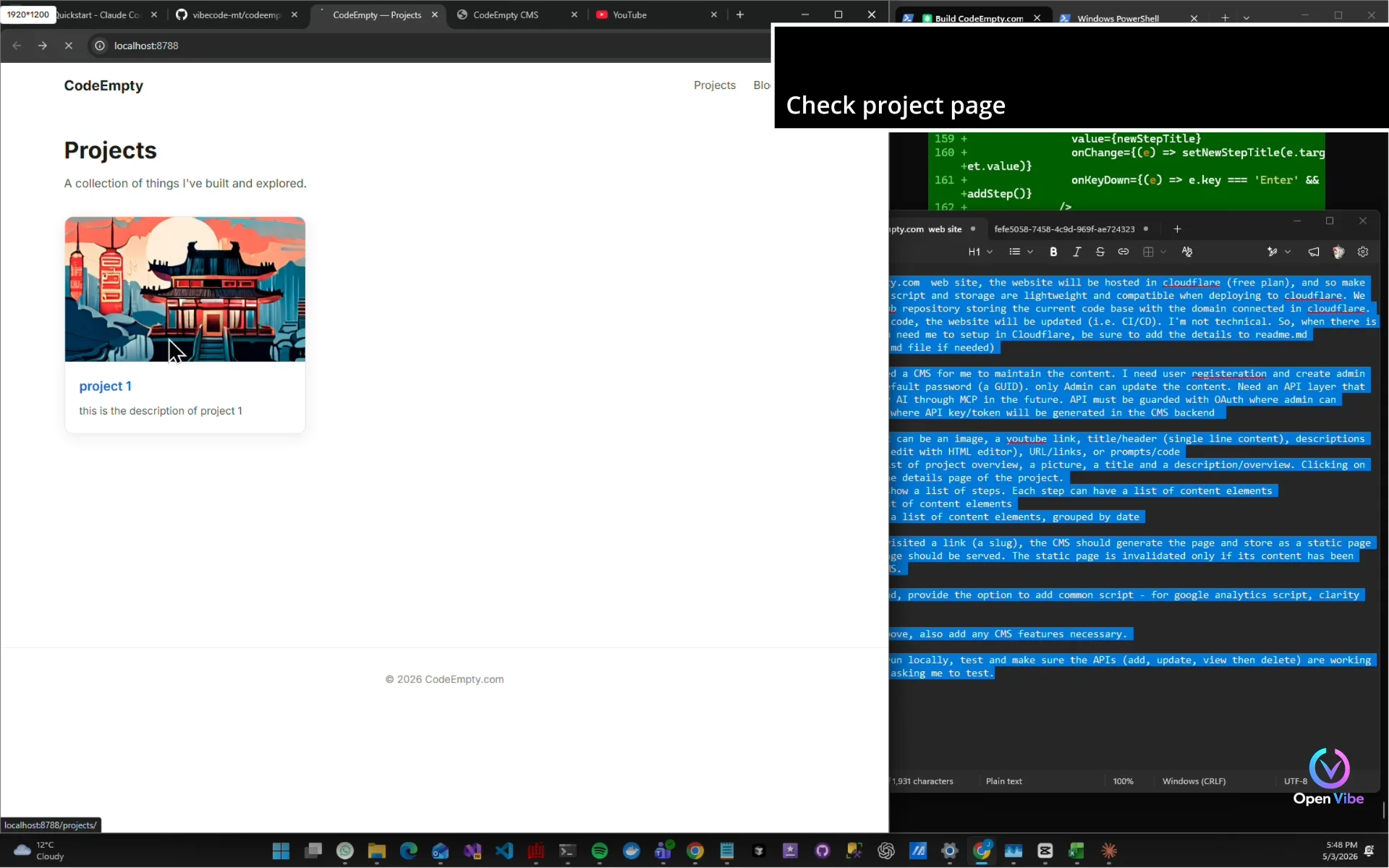
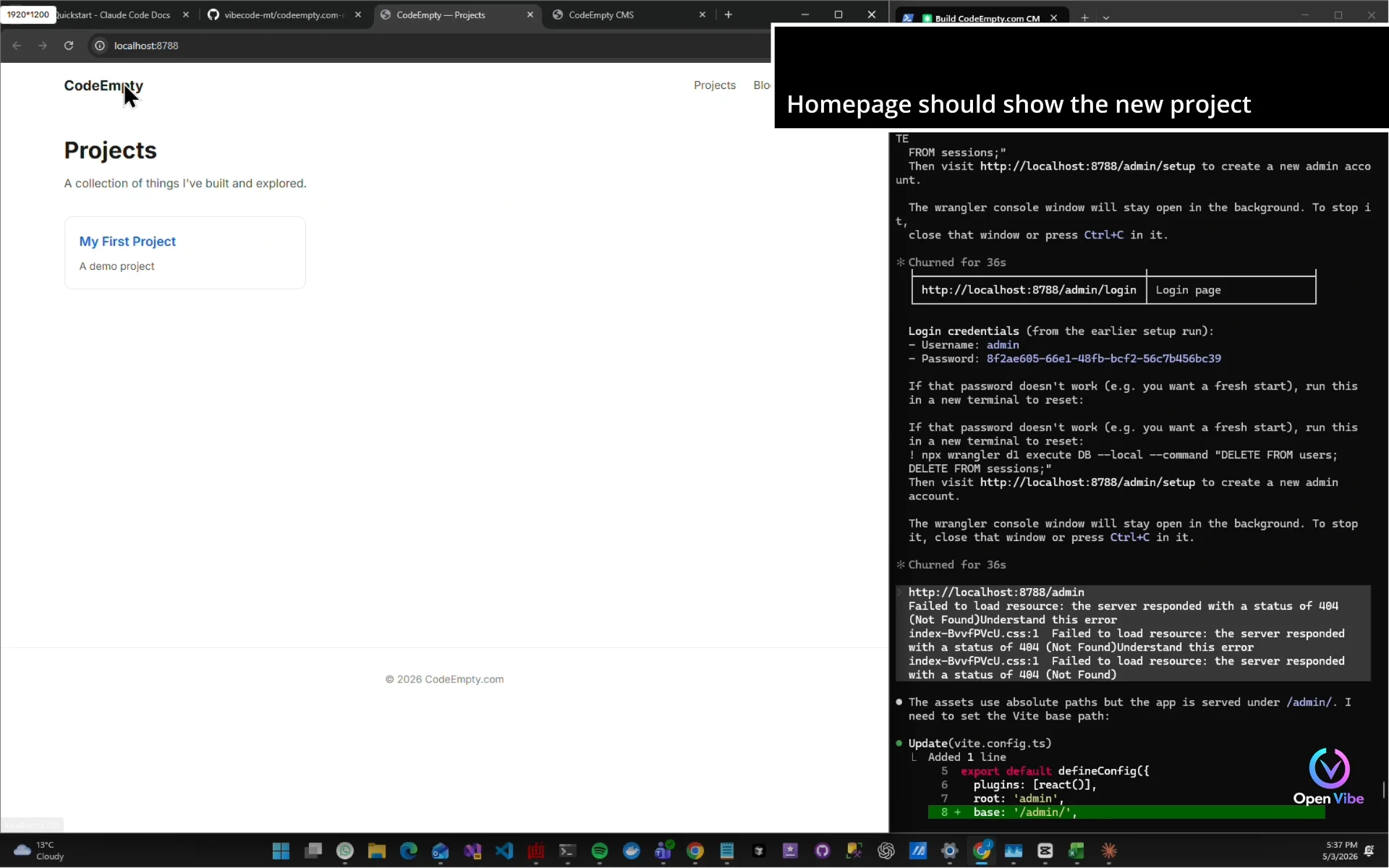
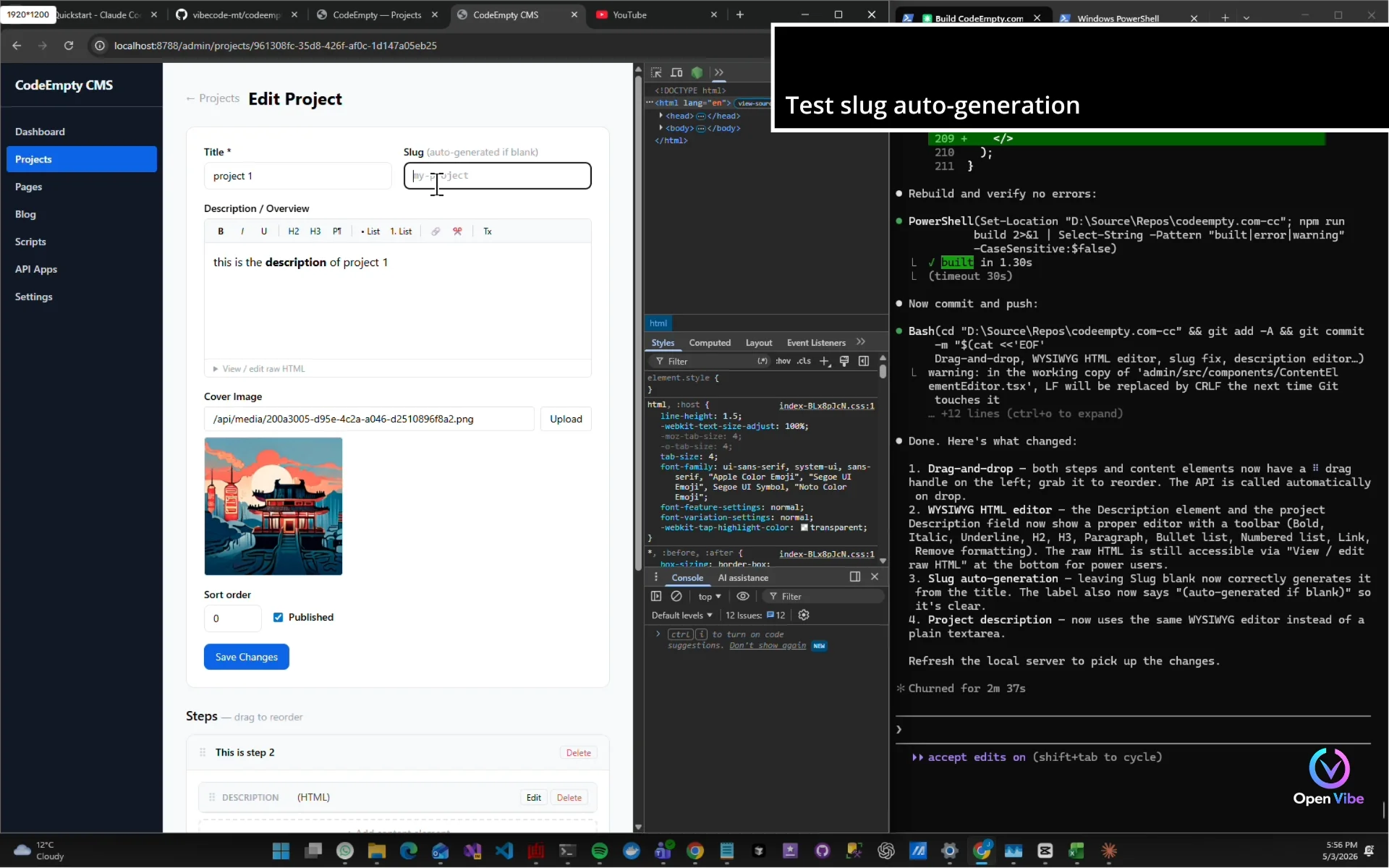
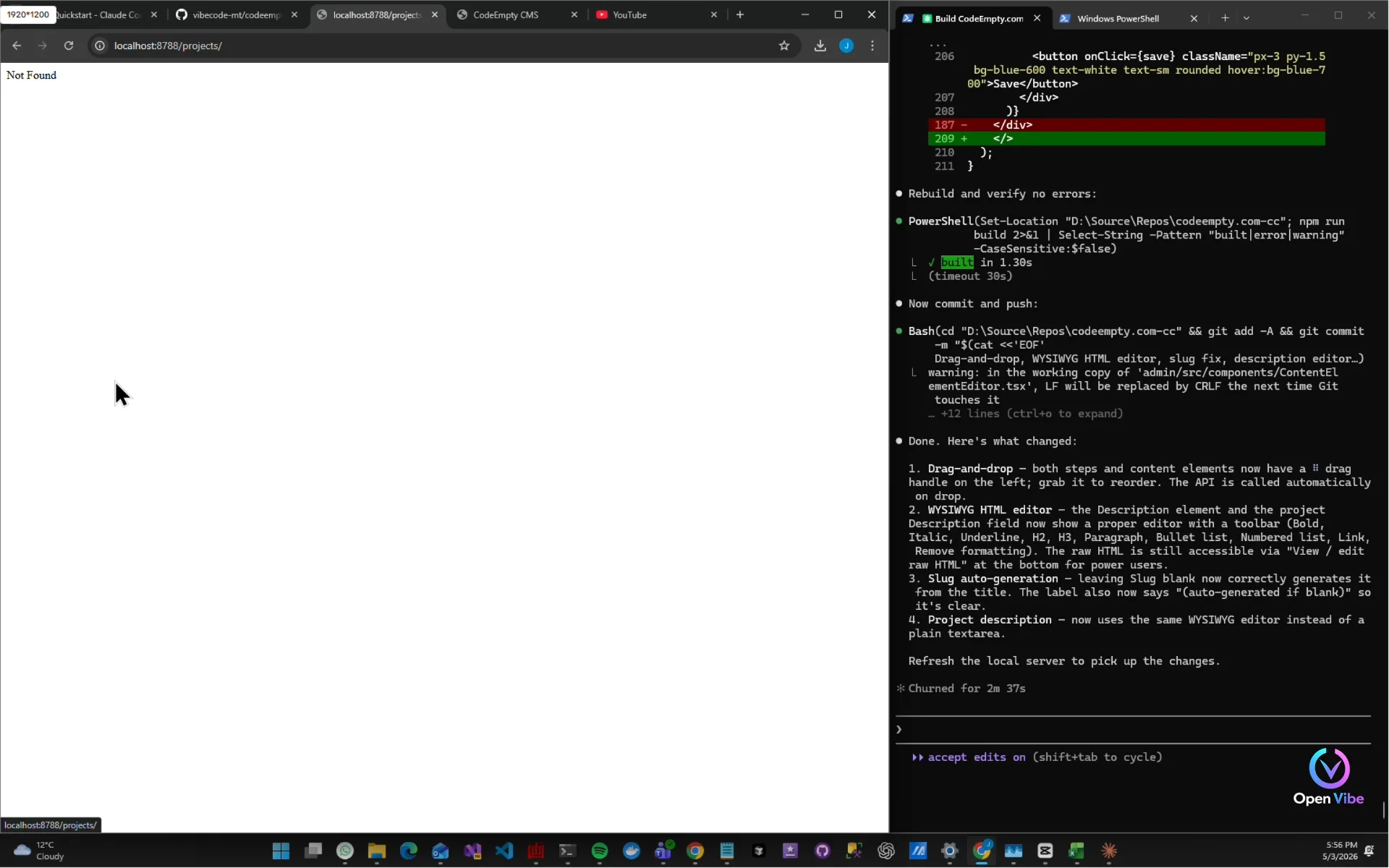
Check project page
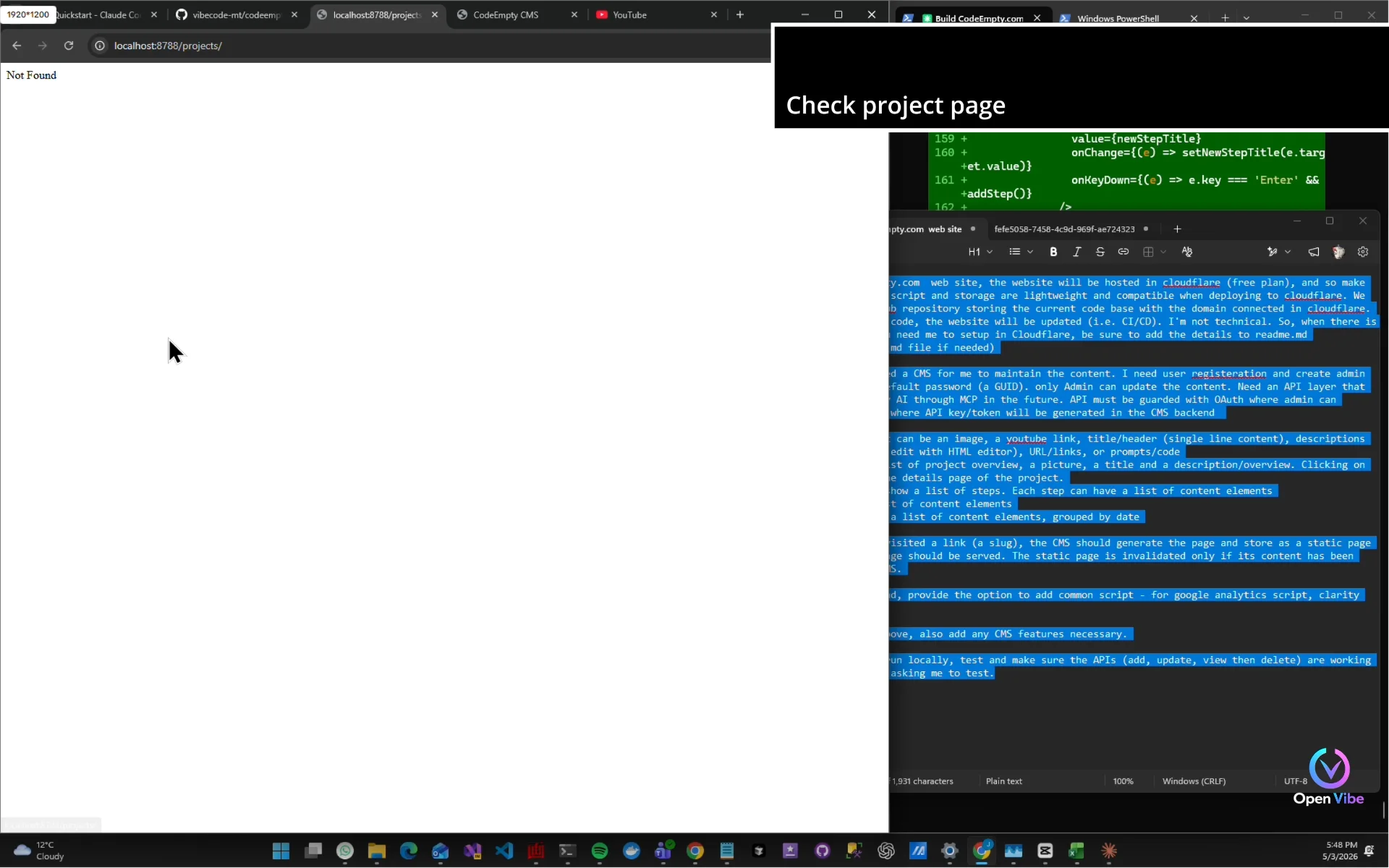
Not updating…?
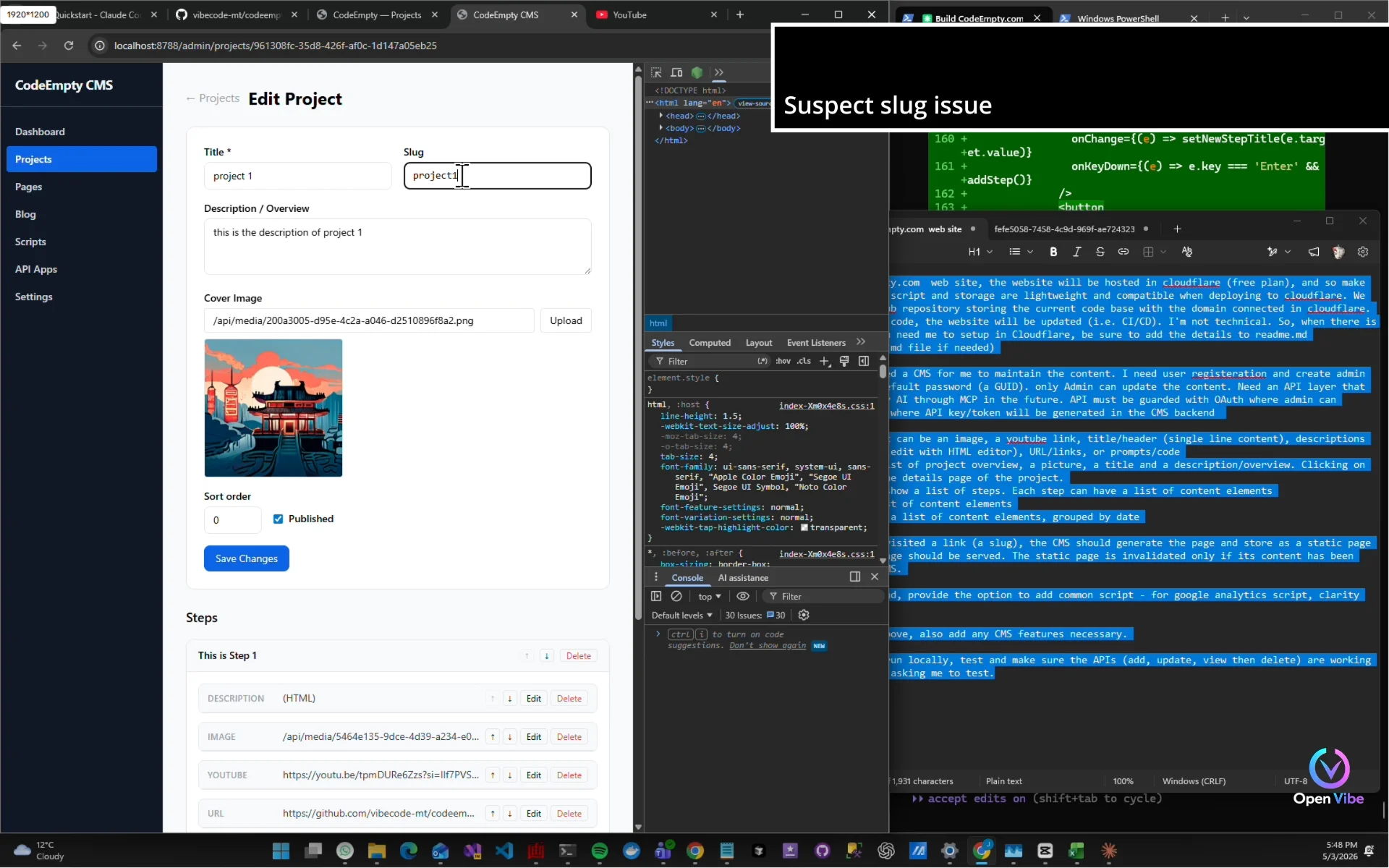
Suspect slug issue
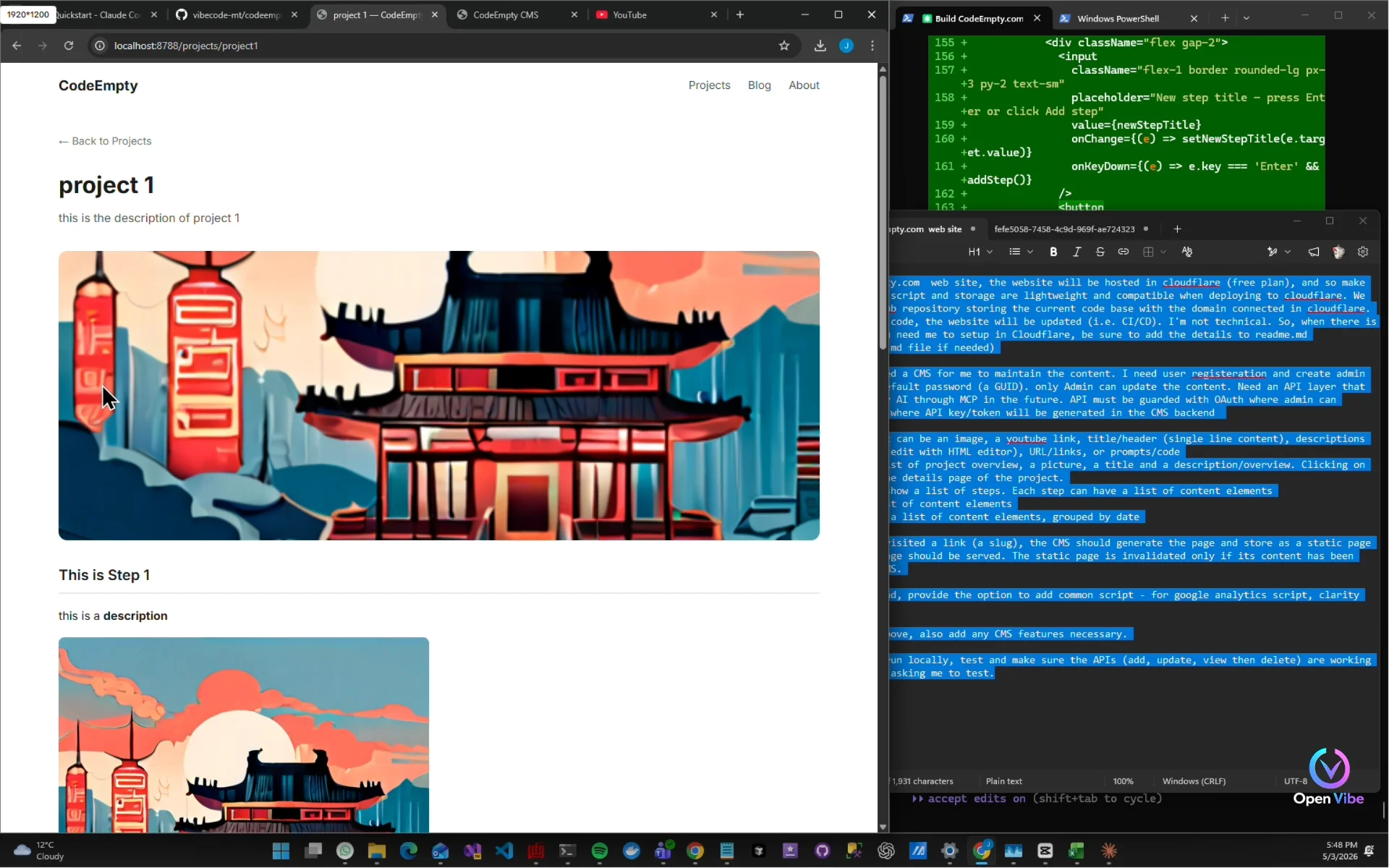
Details are correct Slug generation is not
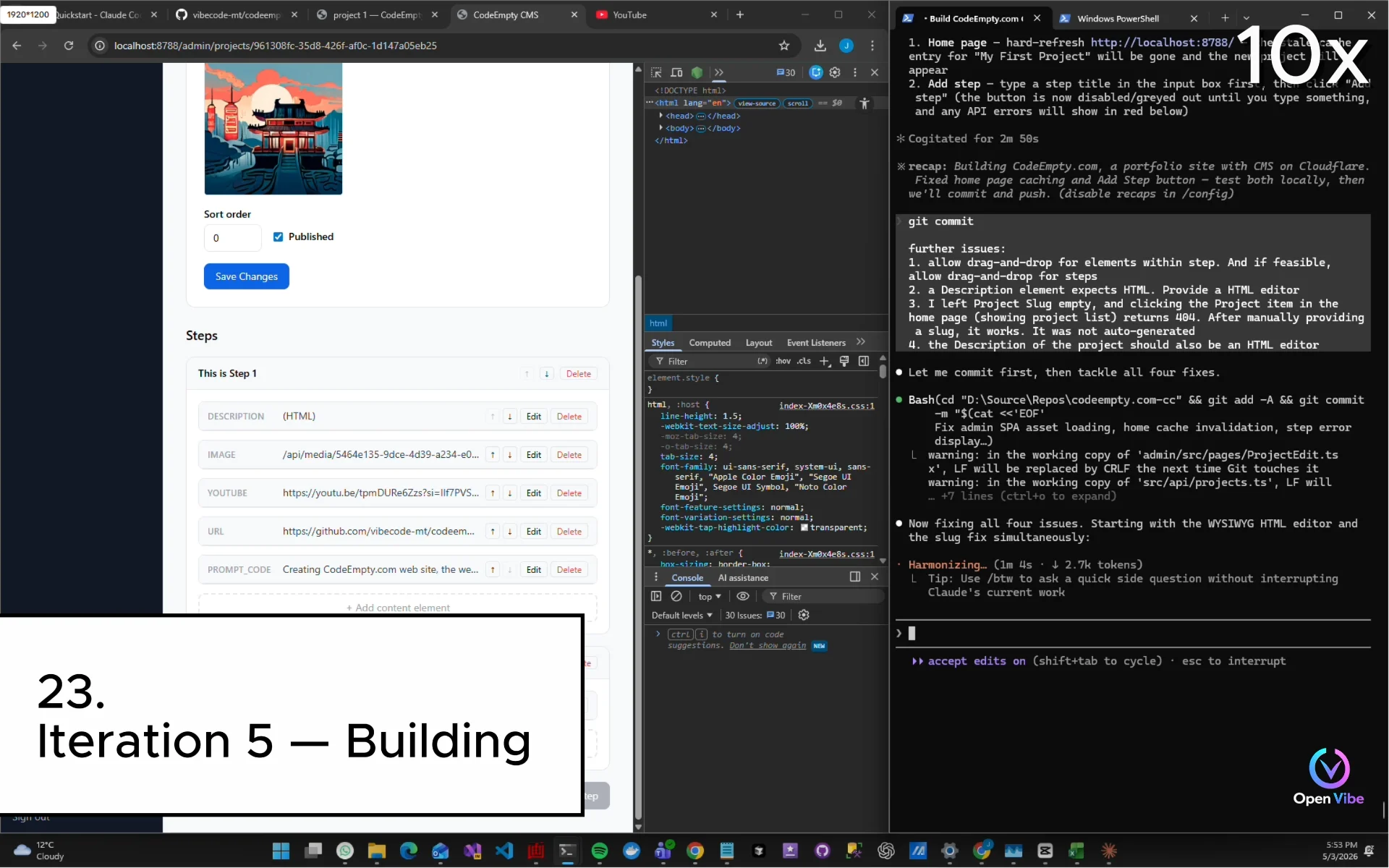
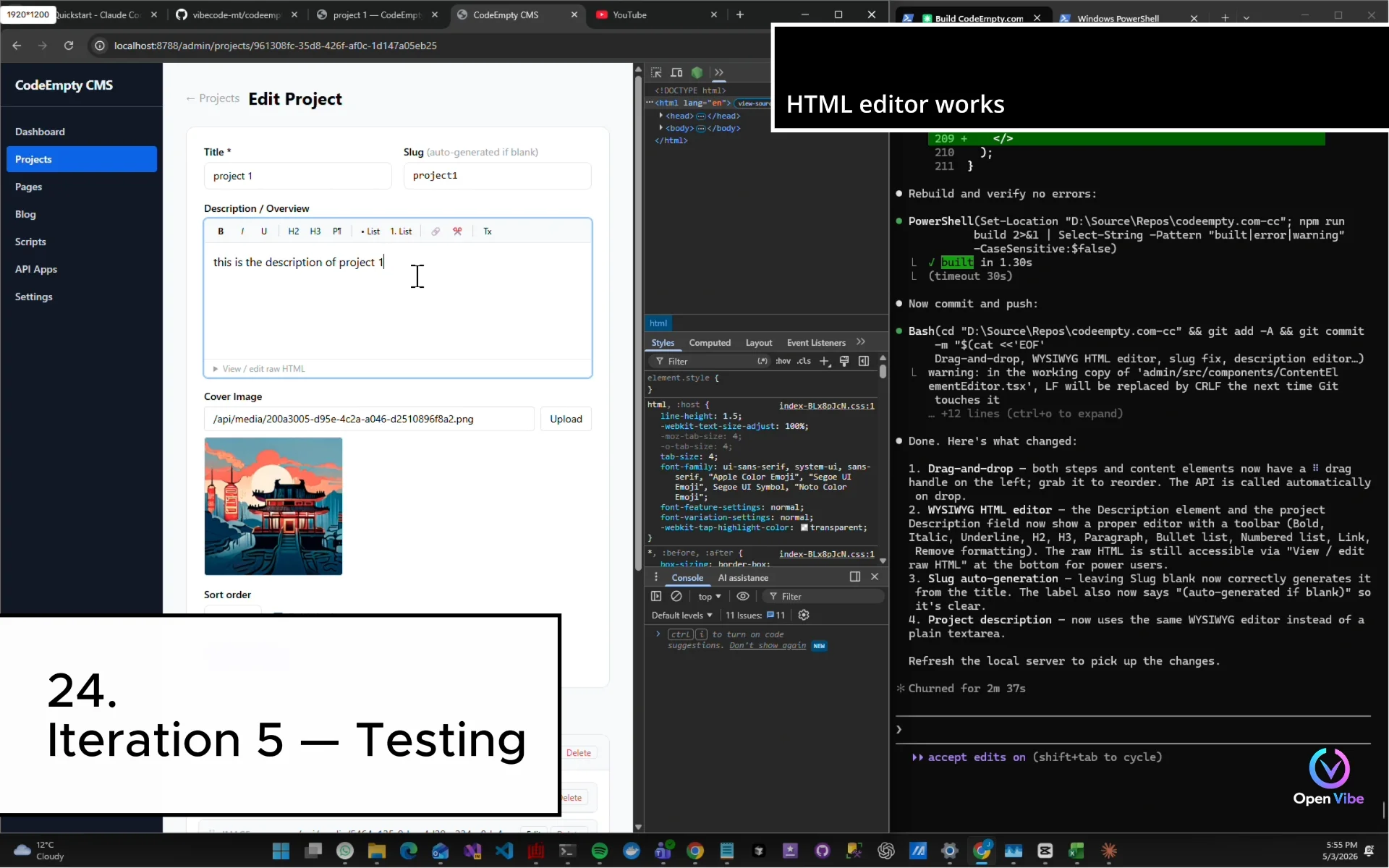
24. 24. Iteration 5 — Testing ▶ 18:35
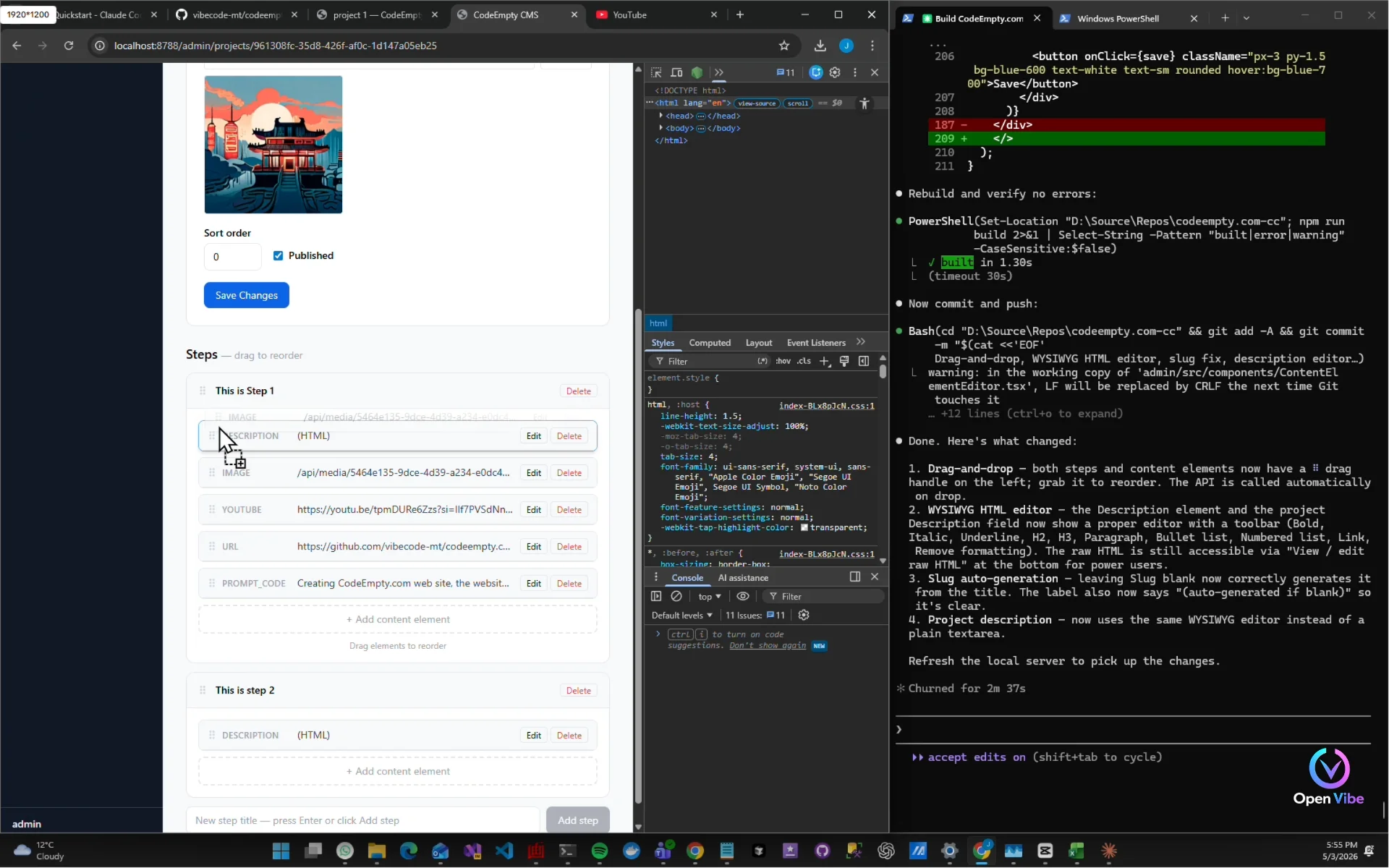
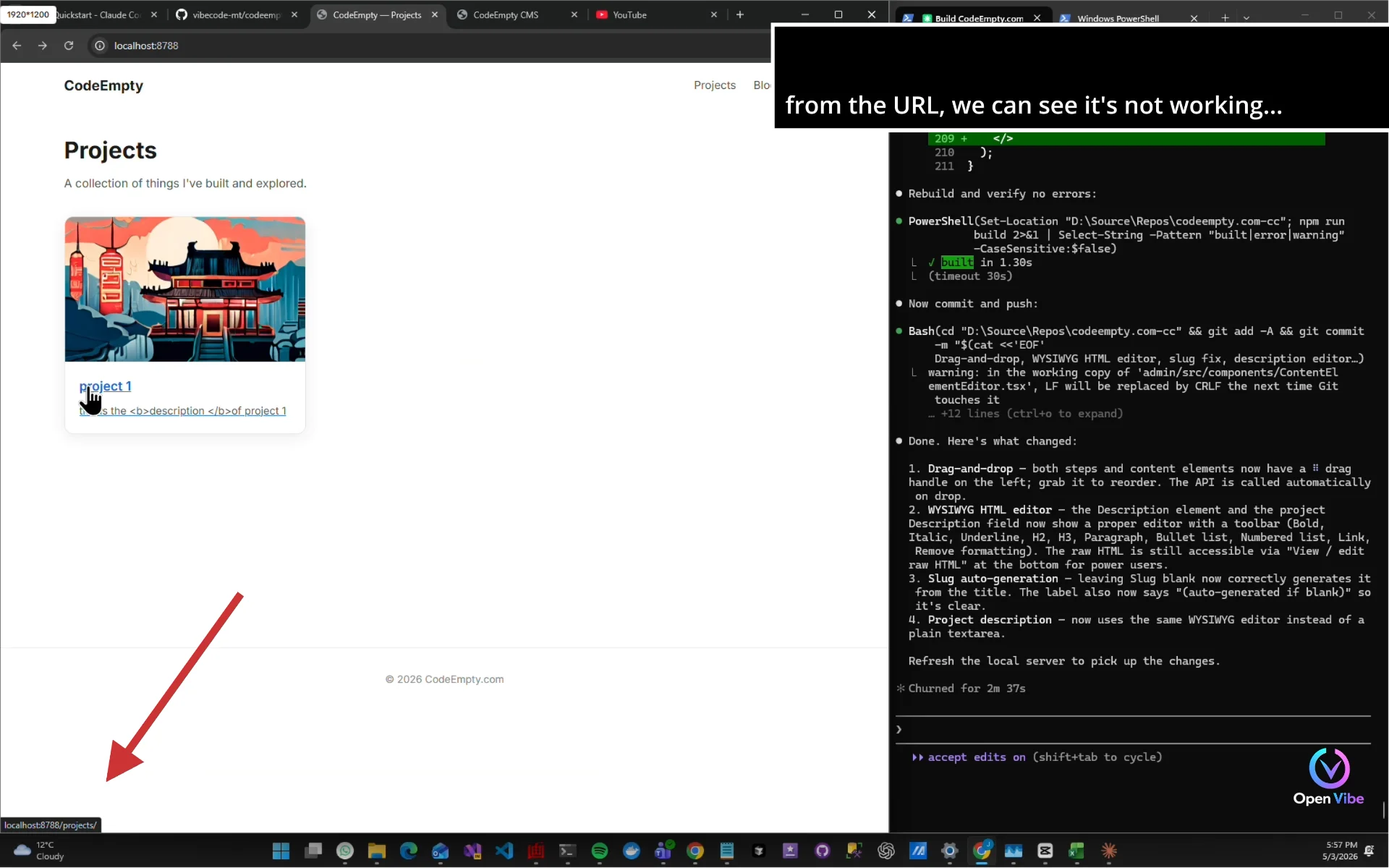
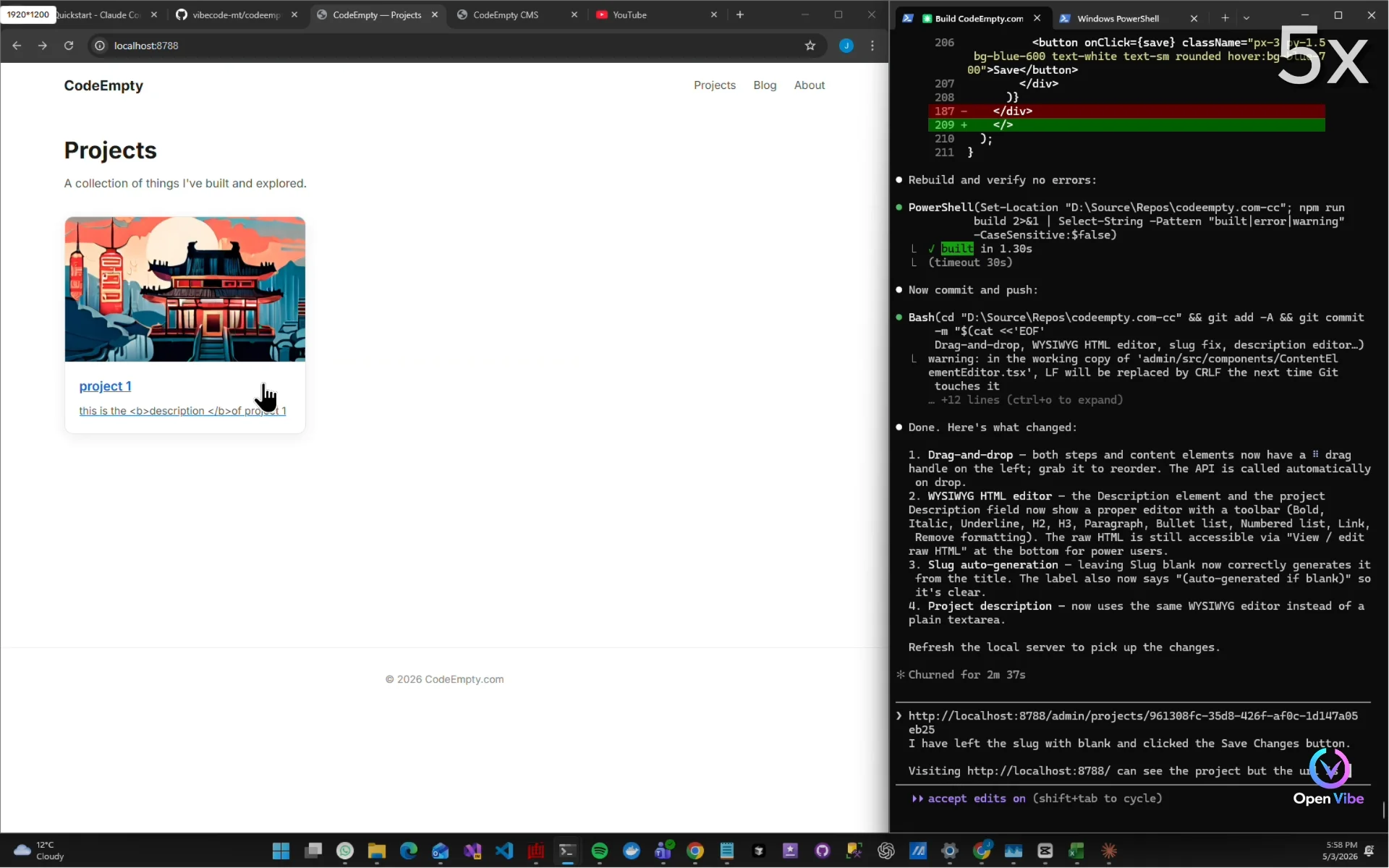
26. 26. Iteration 6 — Building ▶ 20:54
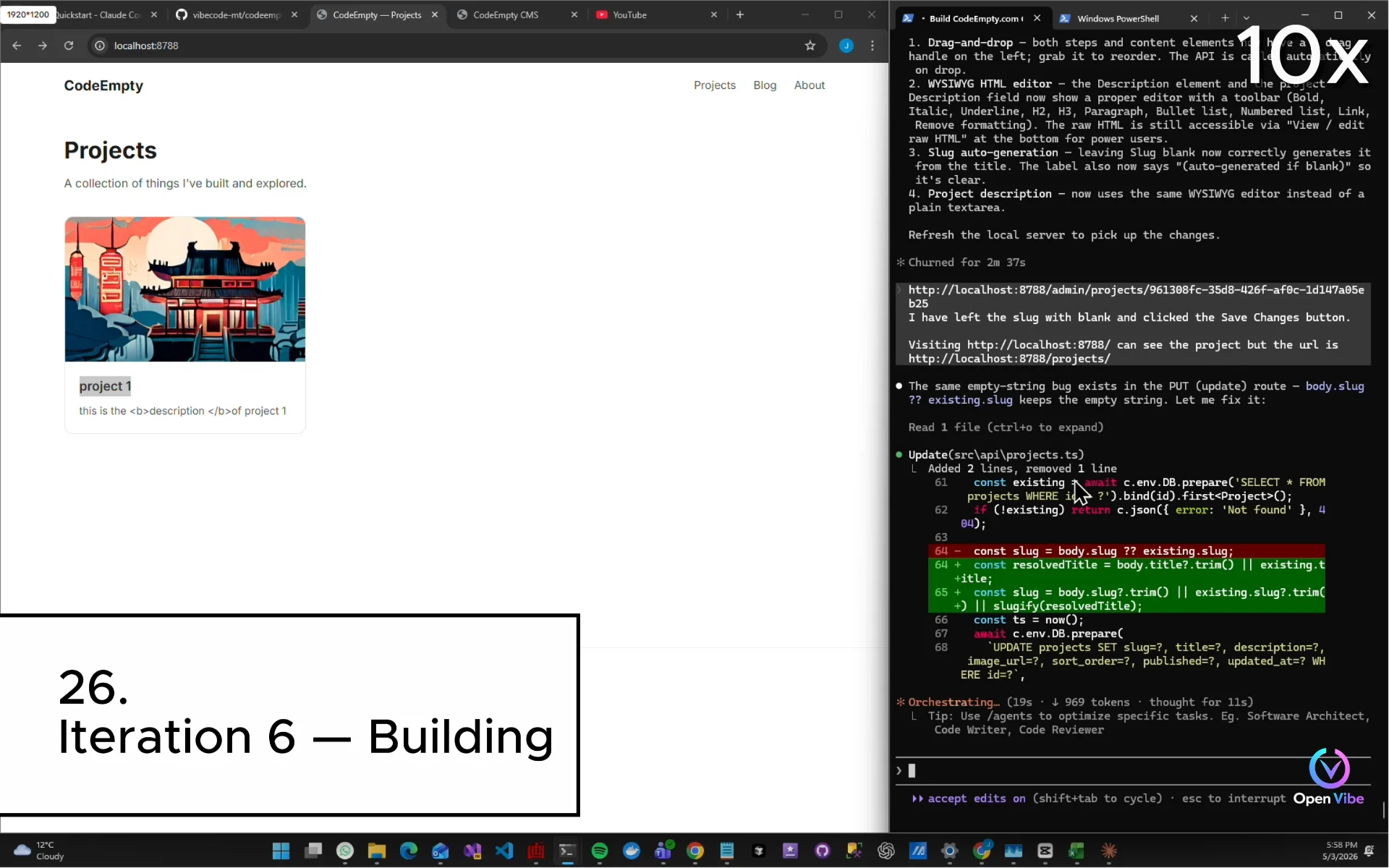
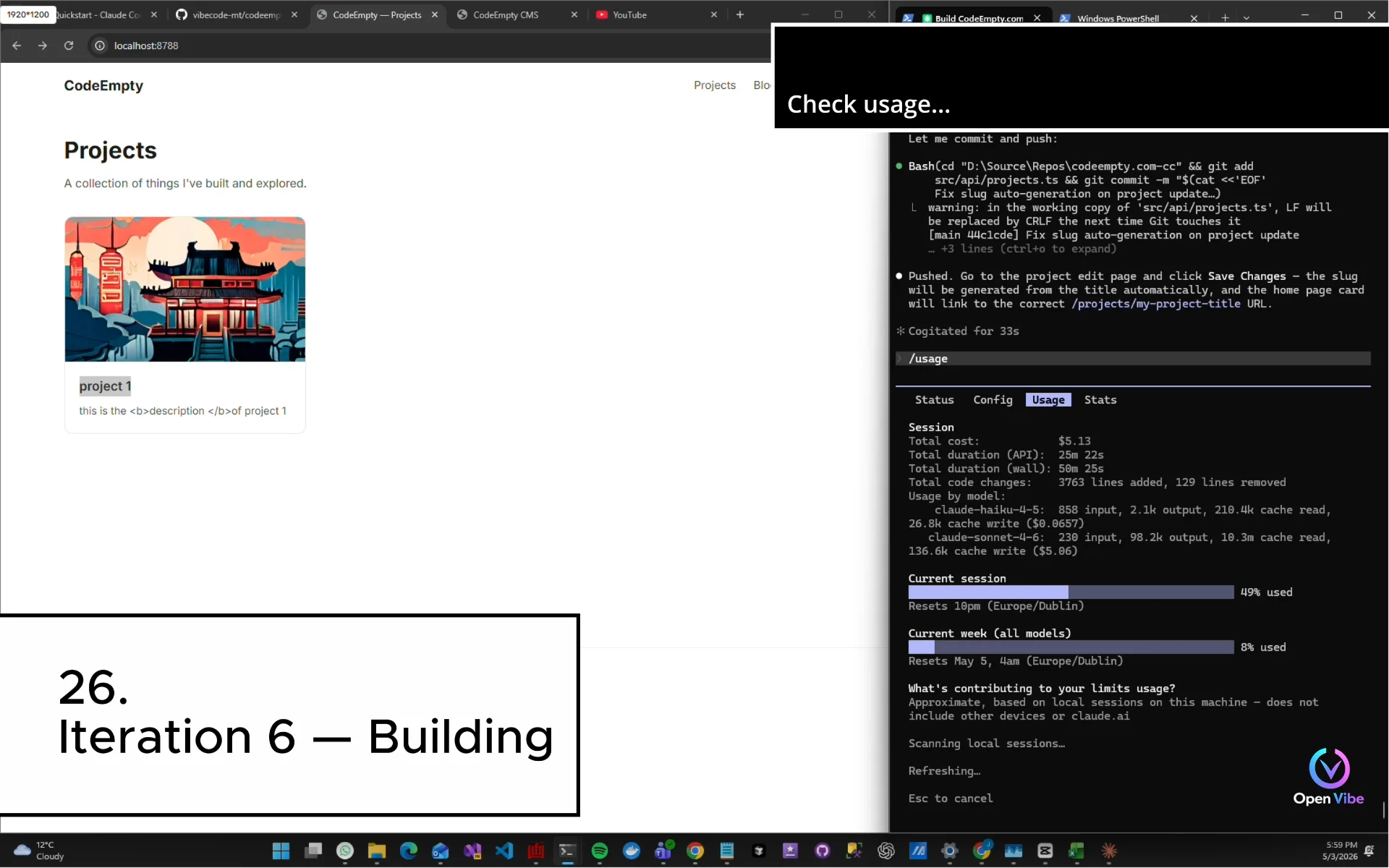
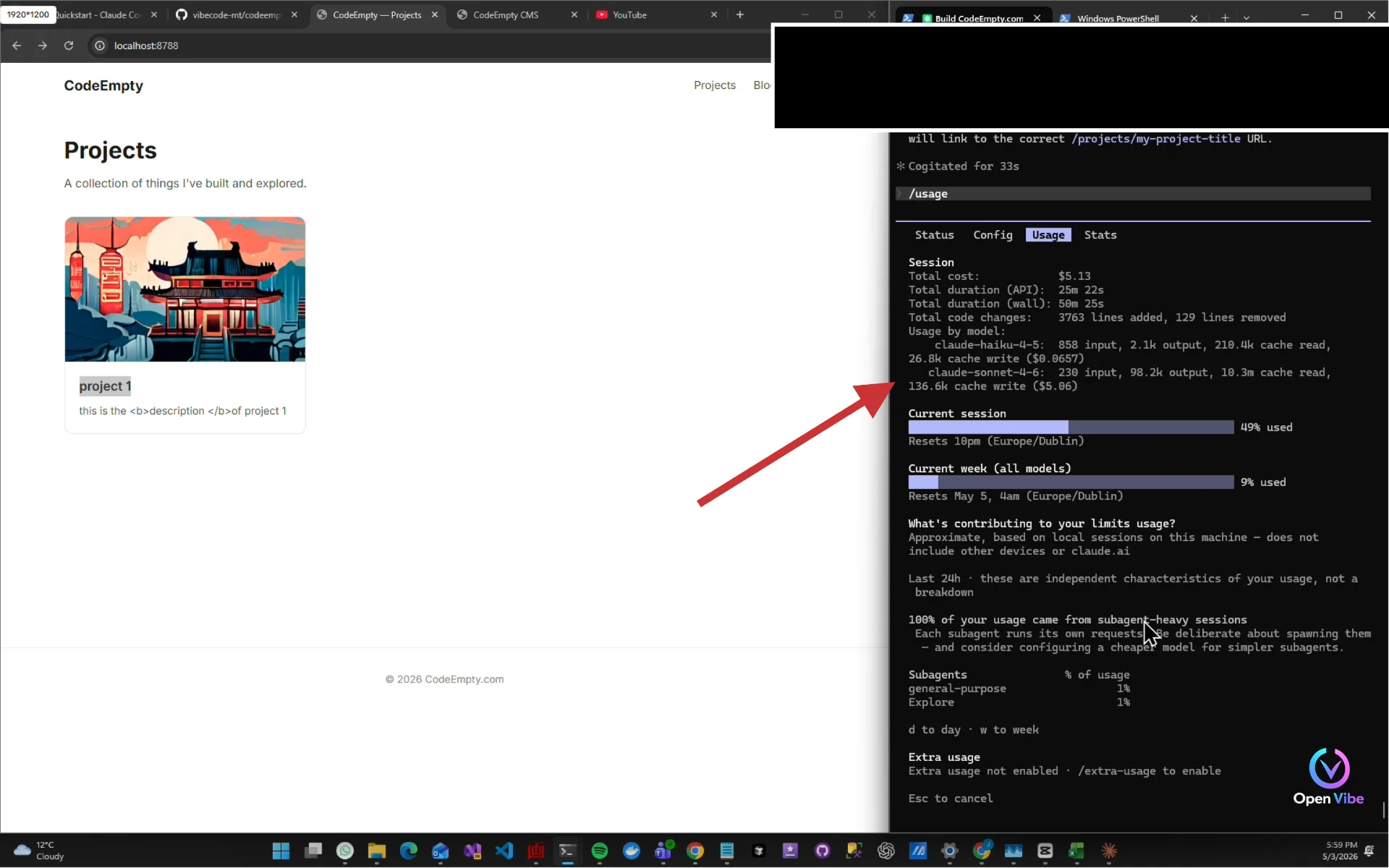
27. 27. Iteration 6 — Testing ▶ 21:14
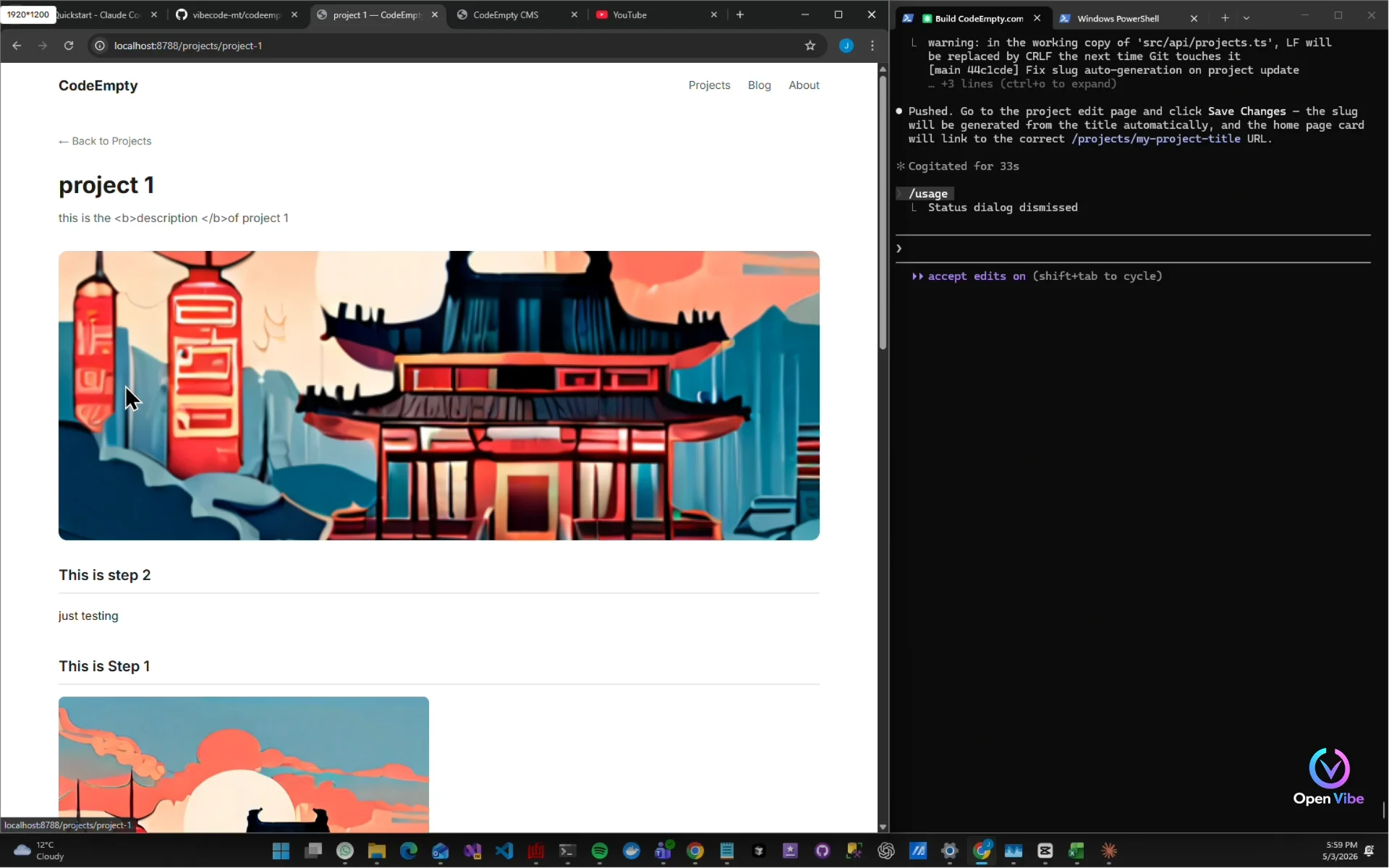
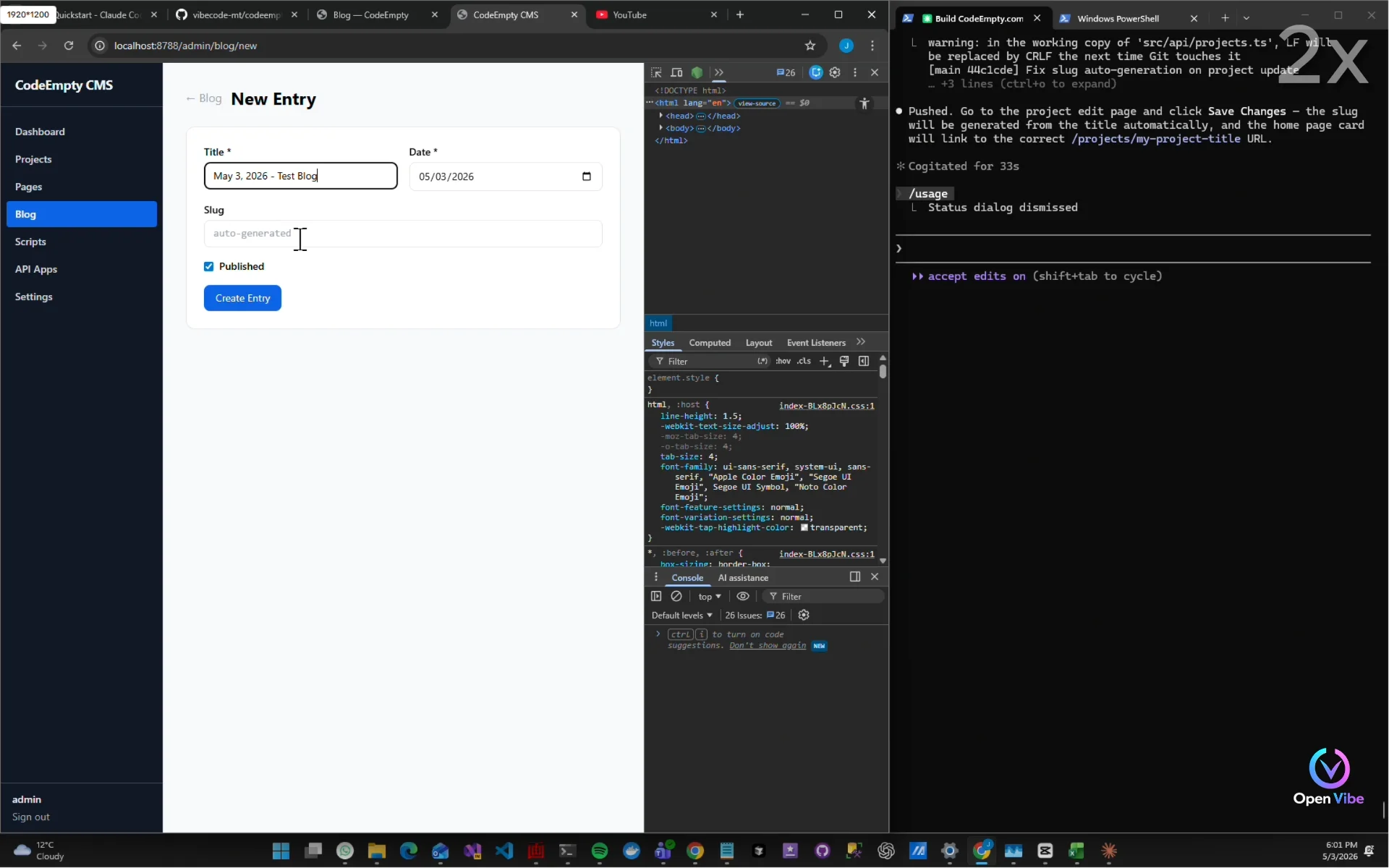
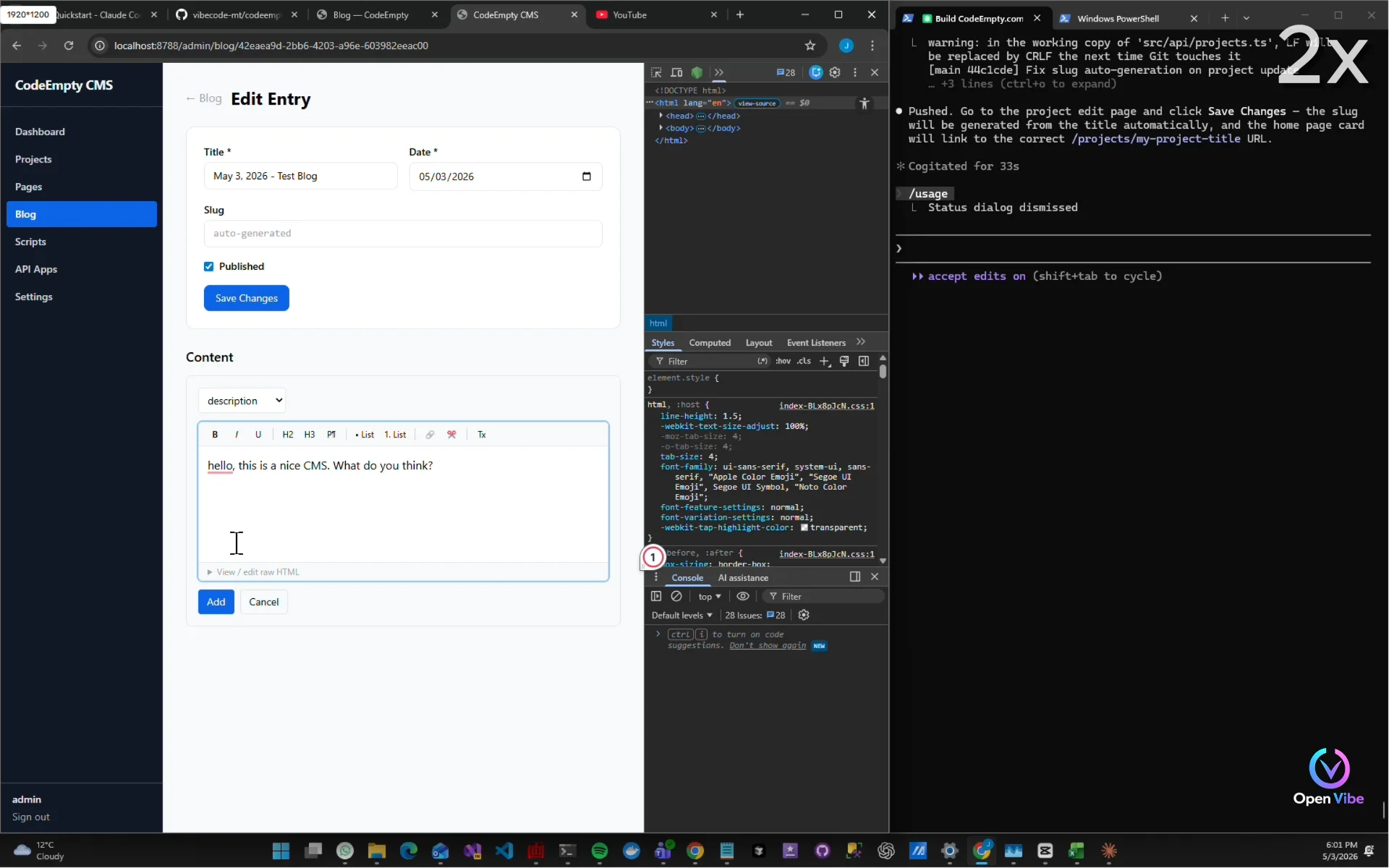
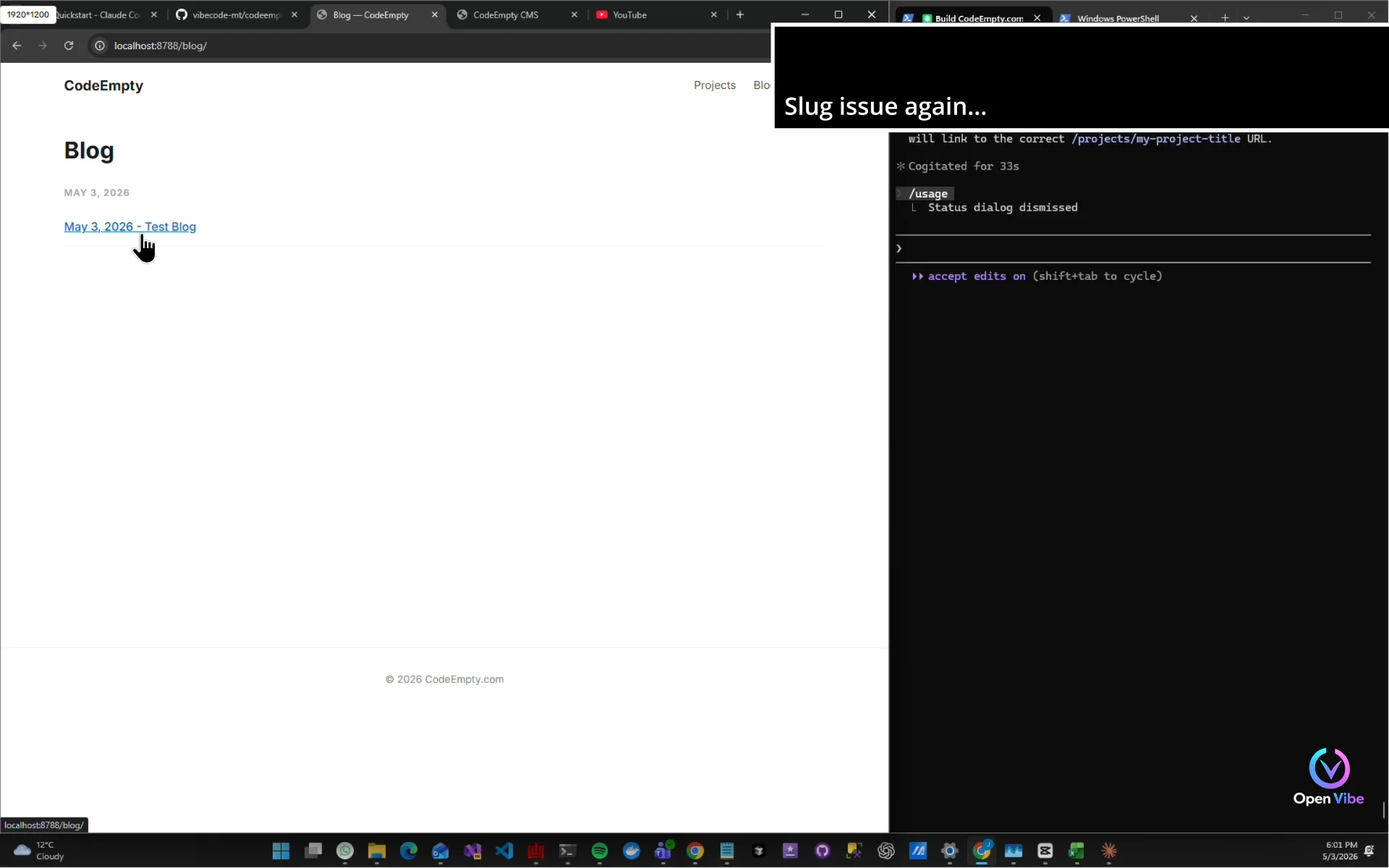
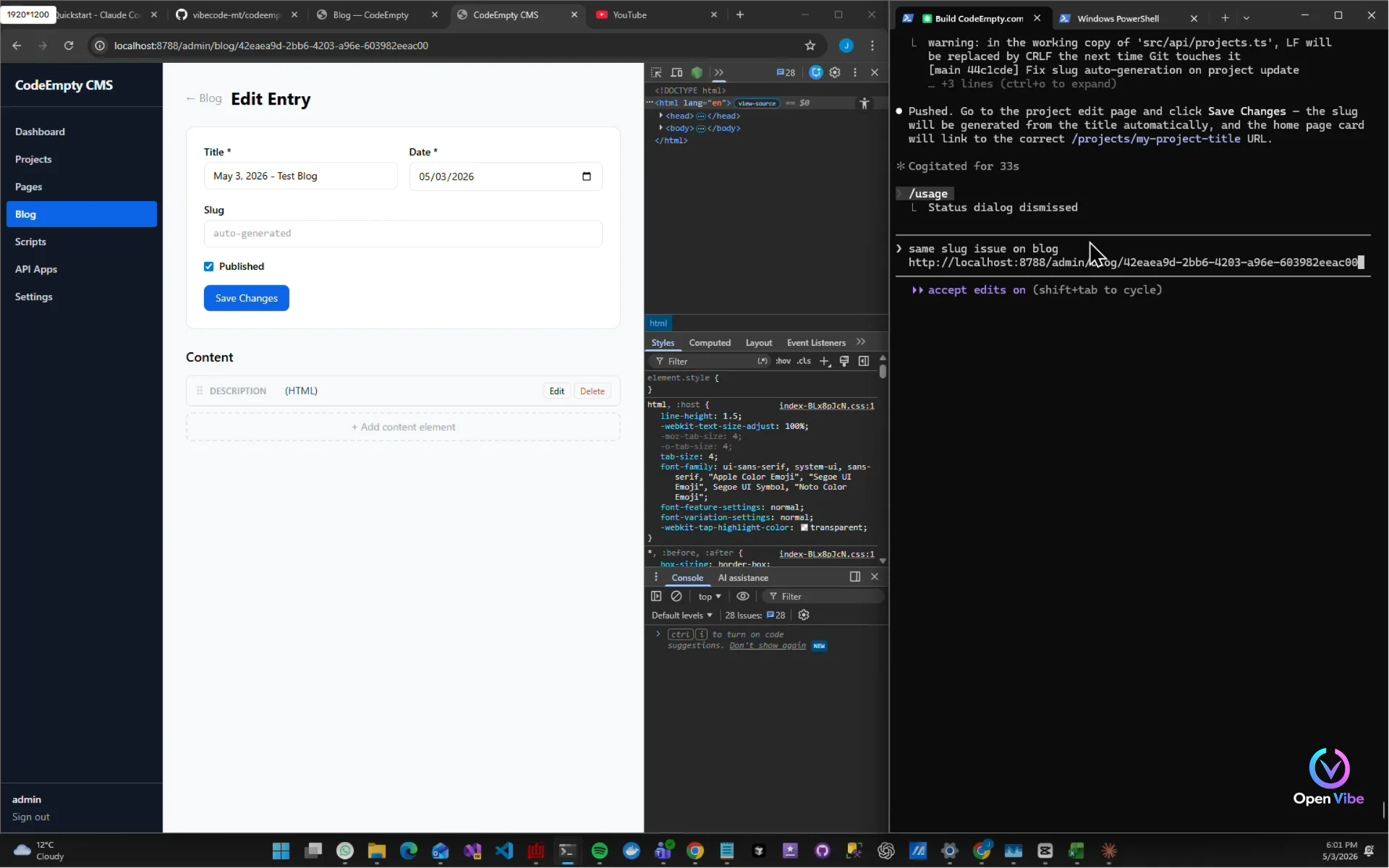
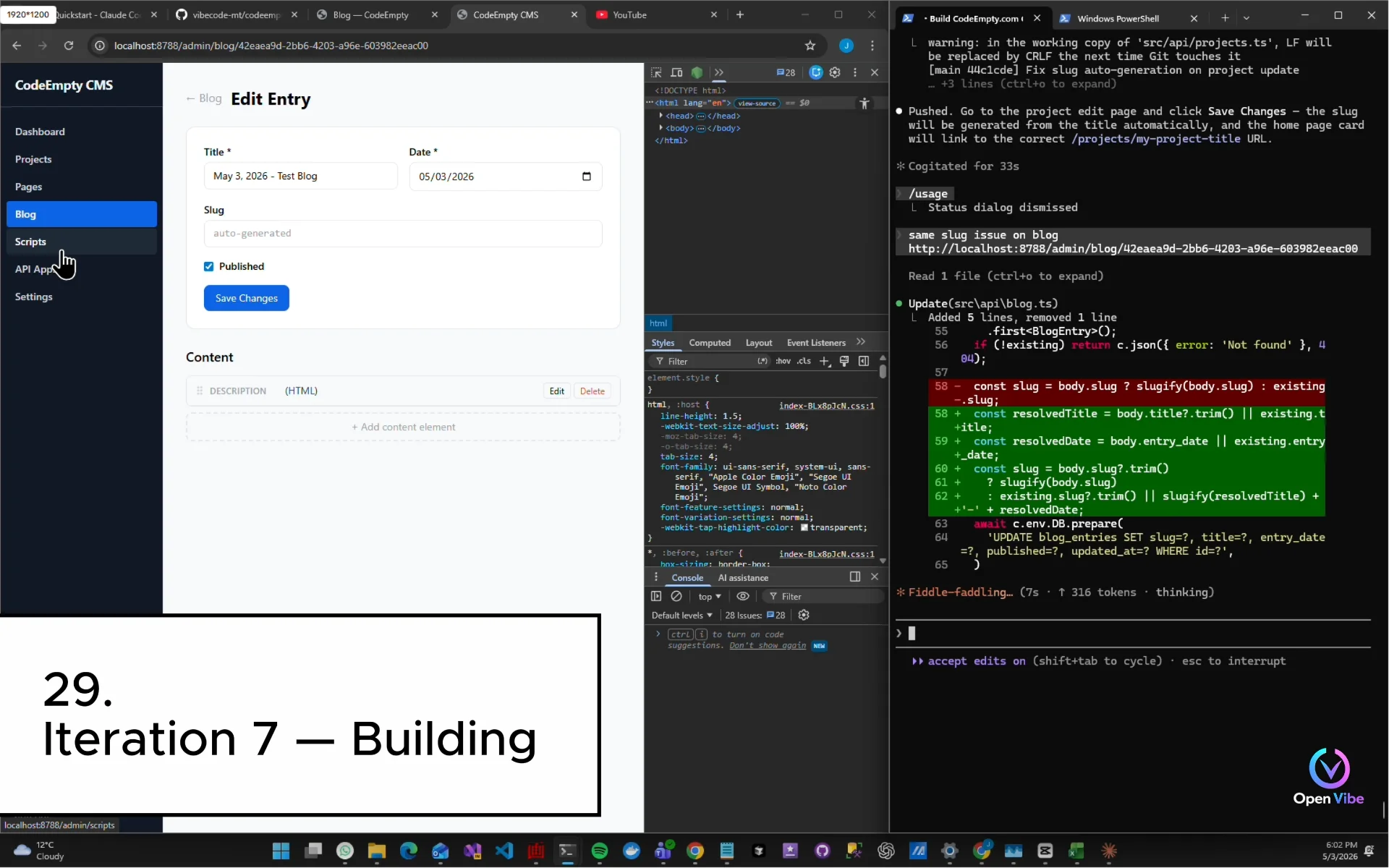
30. 30. Iteration 7 — Testing ▶ 23:57
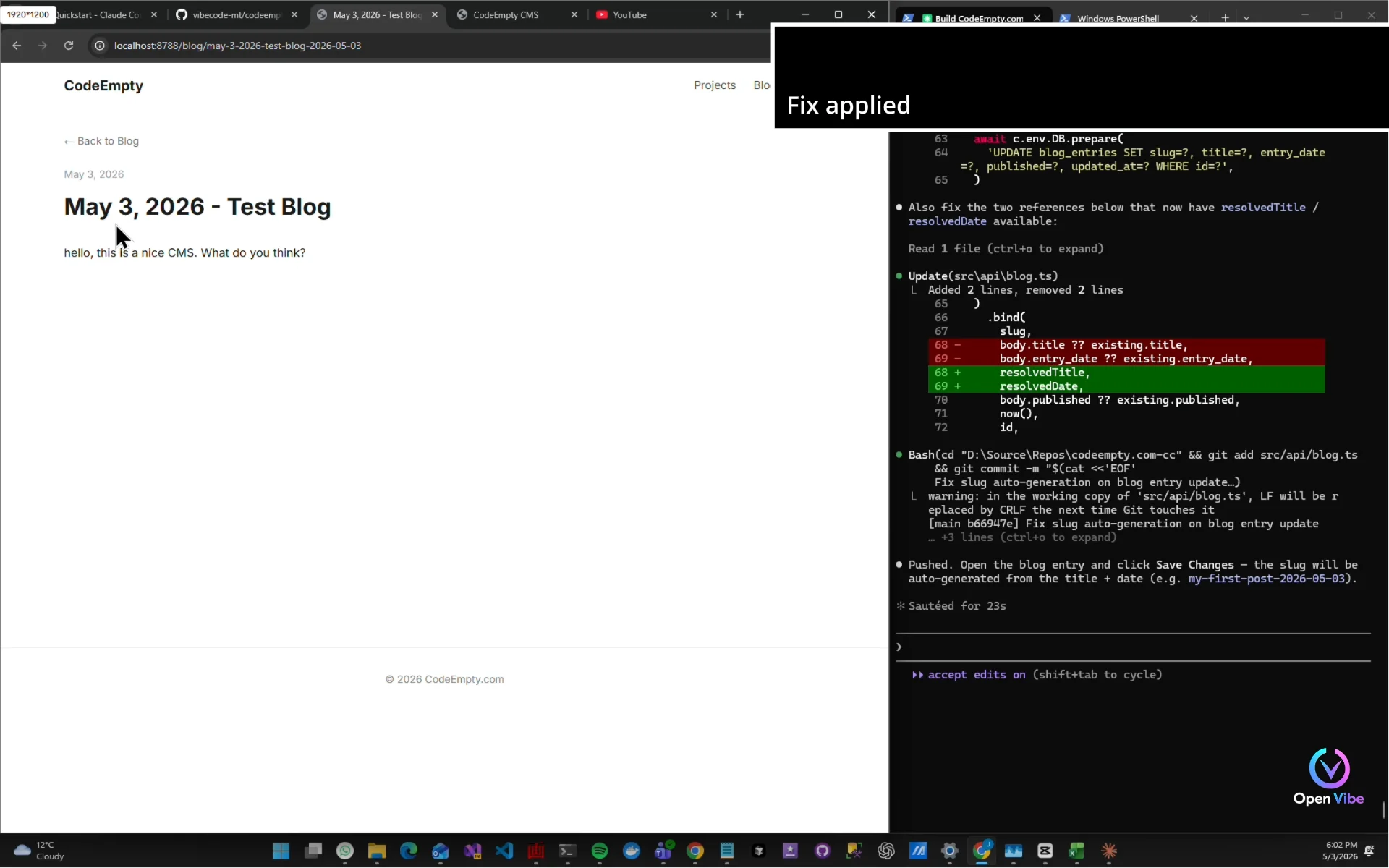
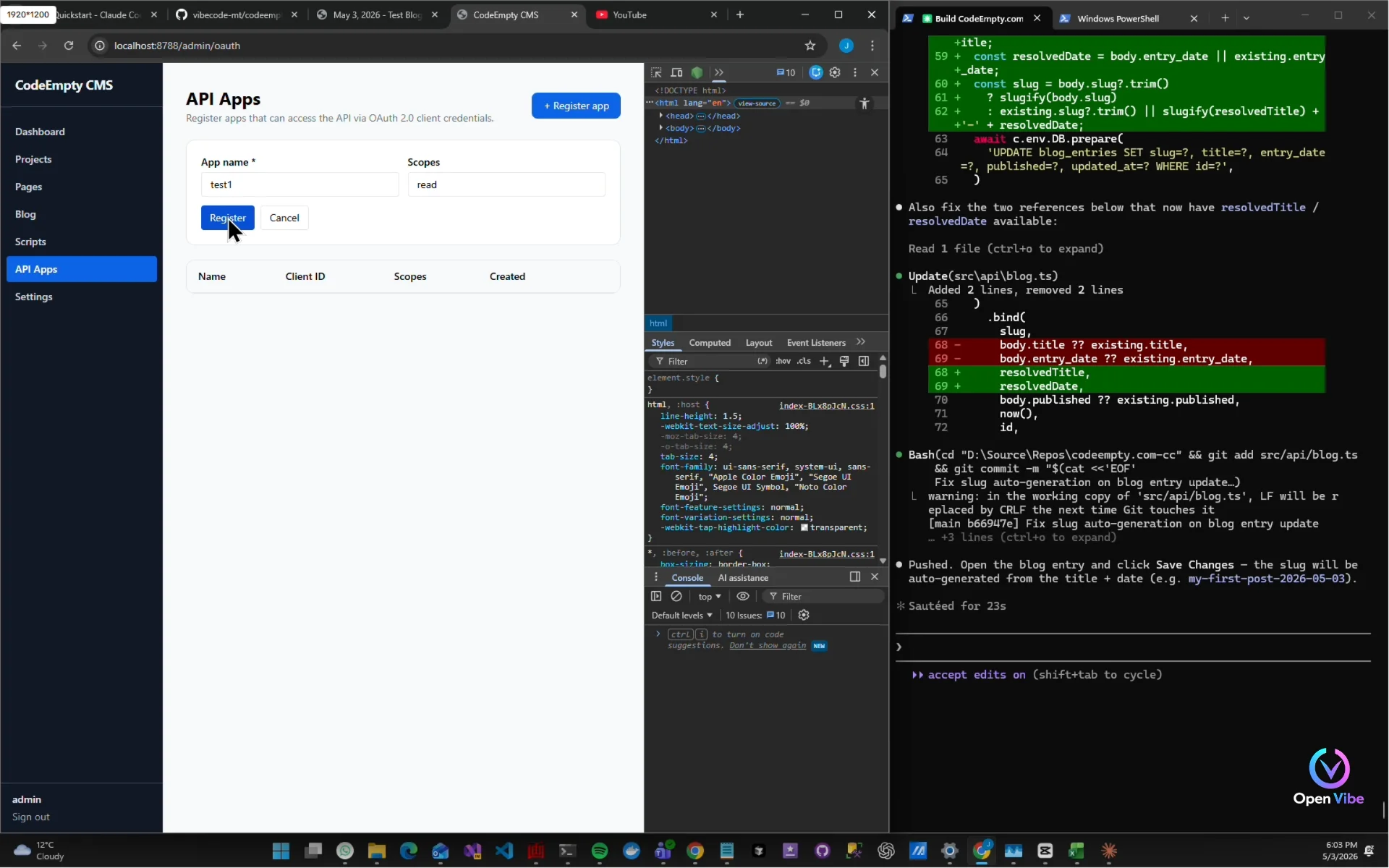
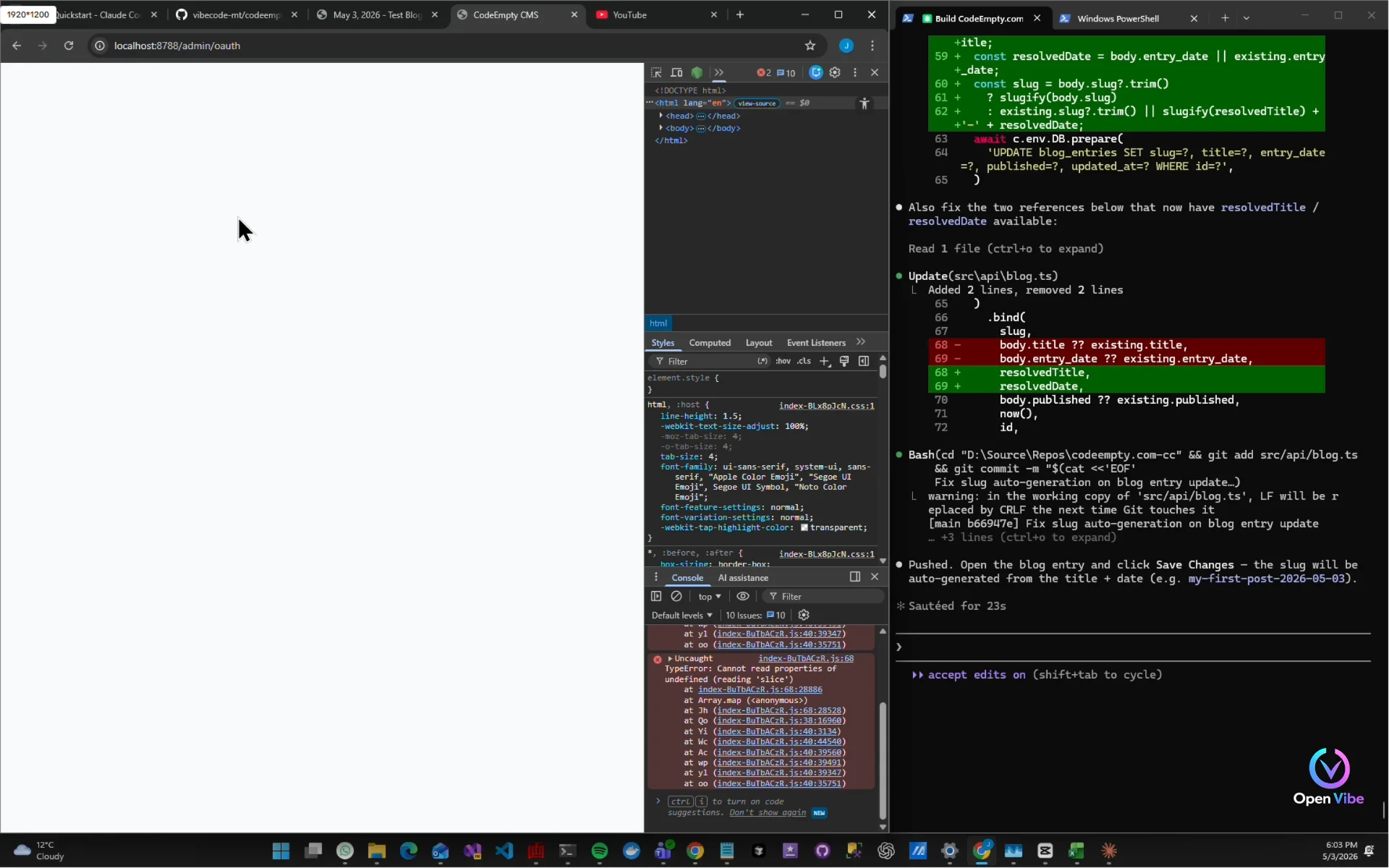
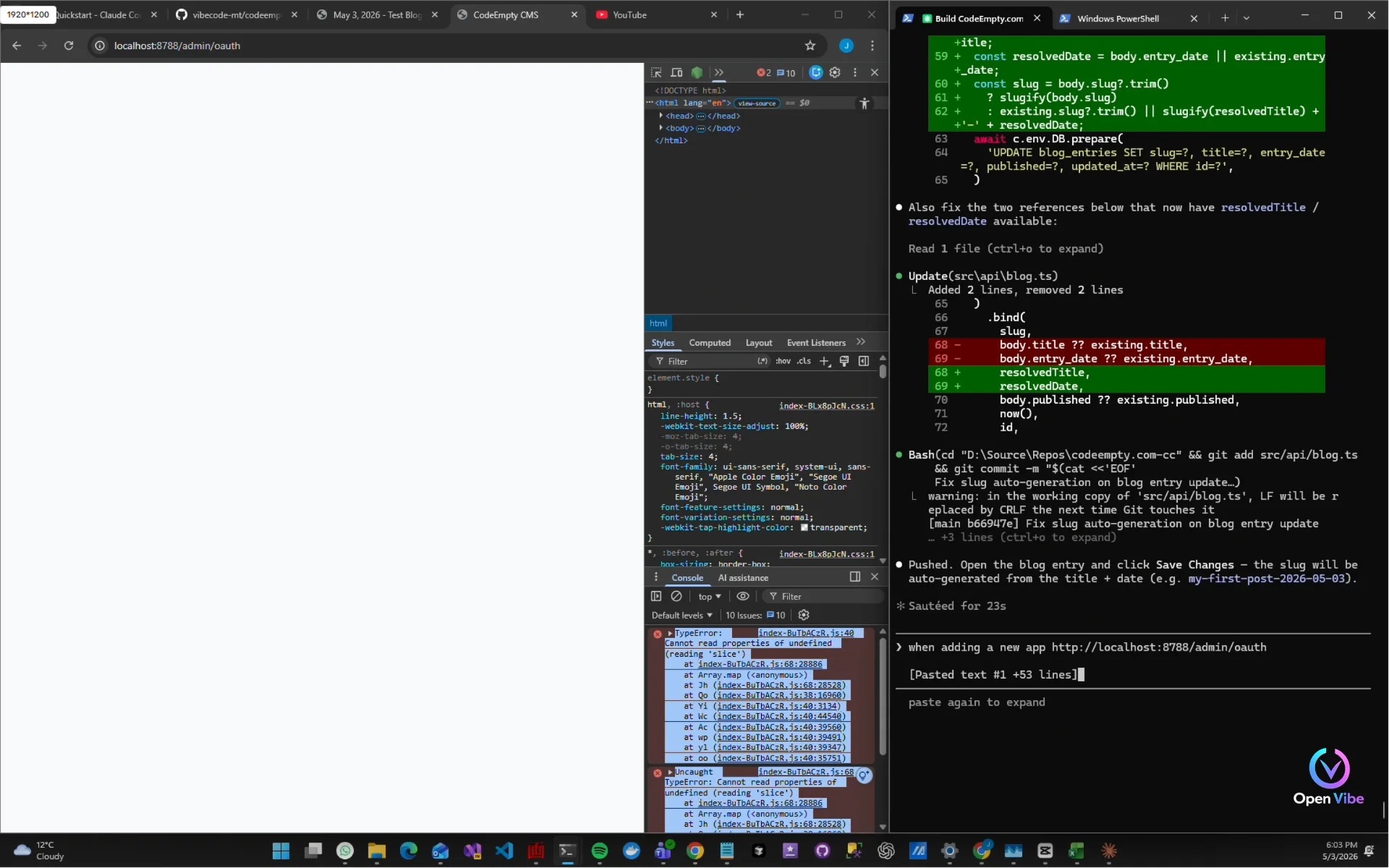
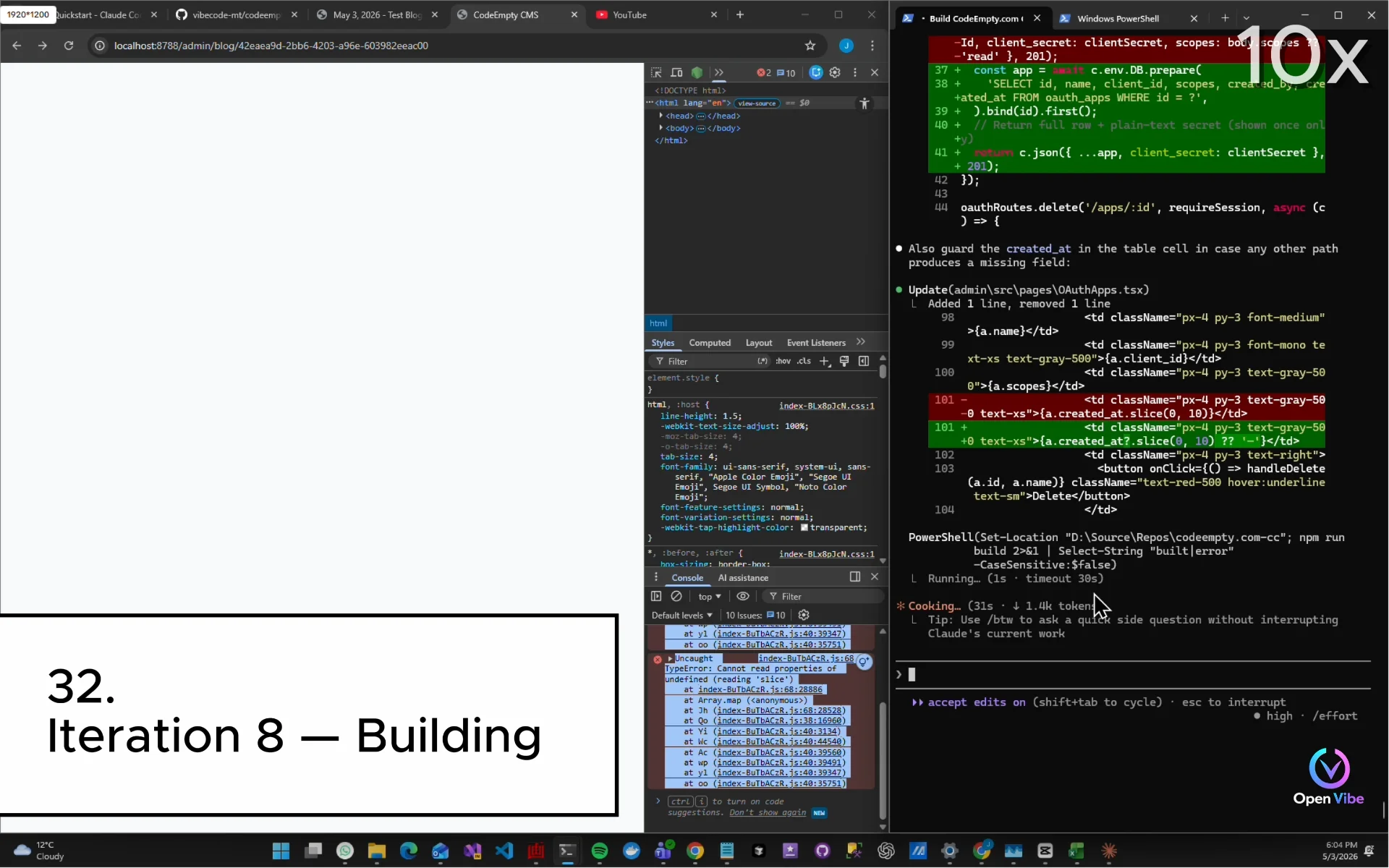
33. 33. Iteration 8 — Testing ▶ 24:58
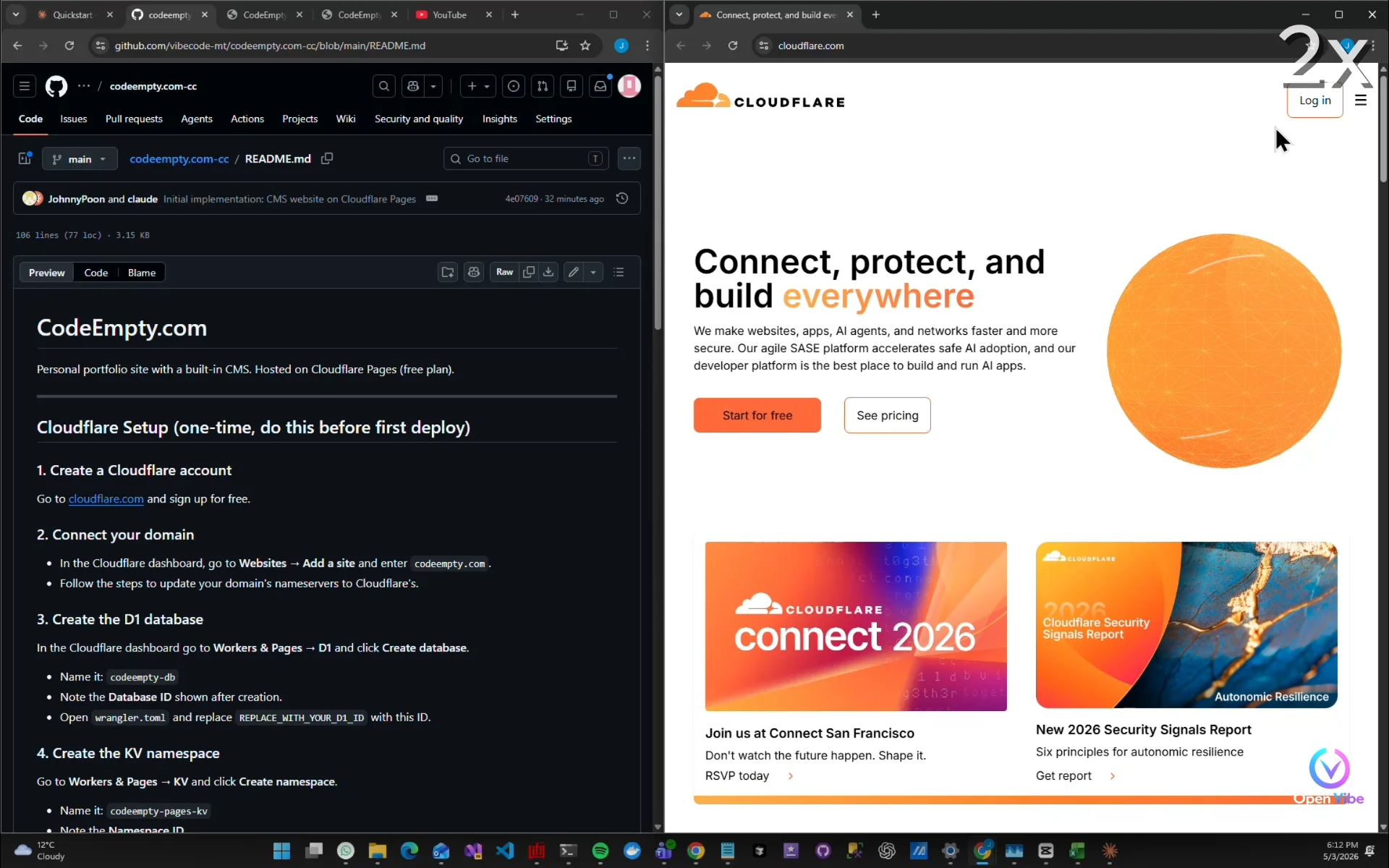
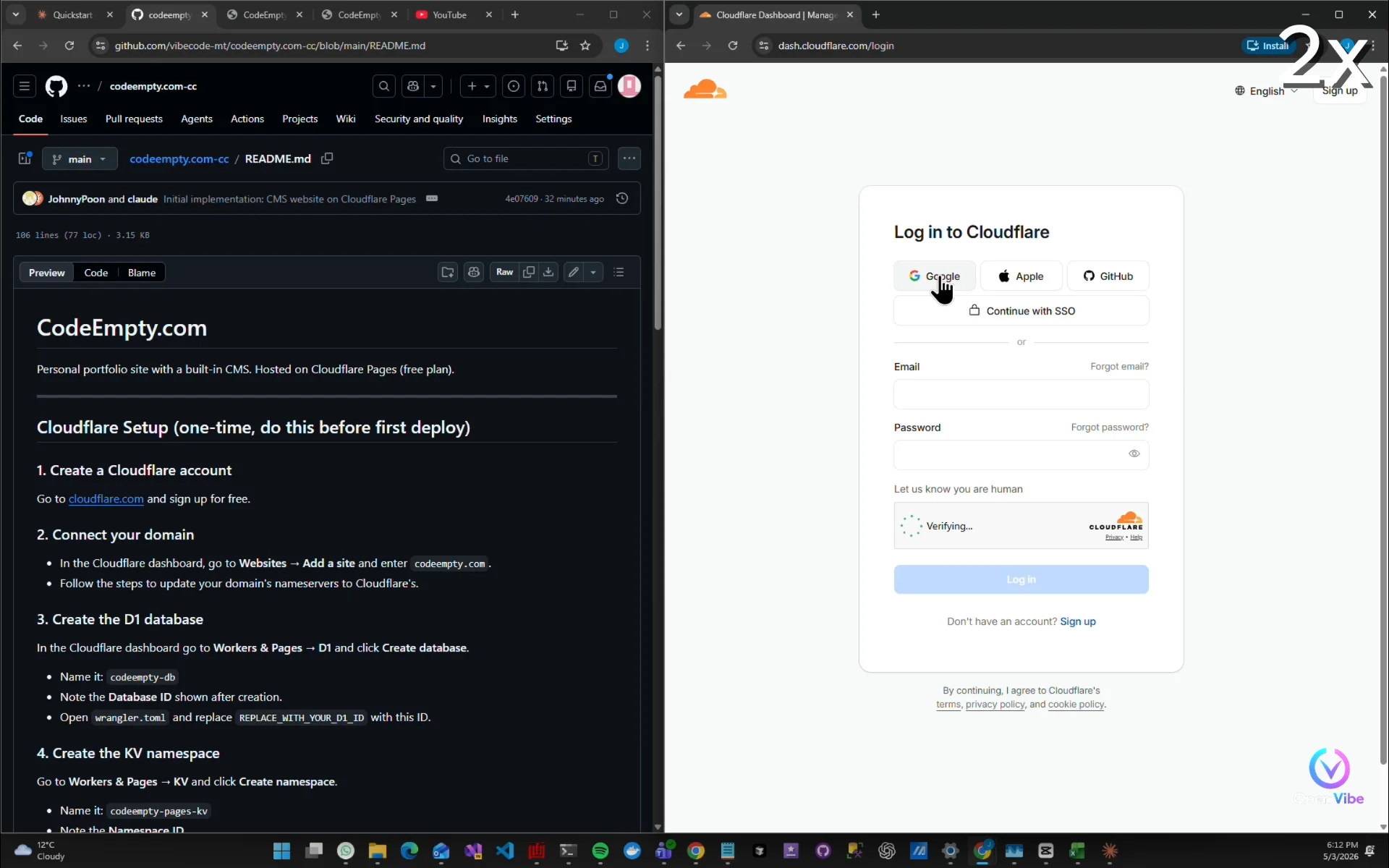
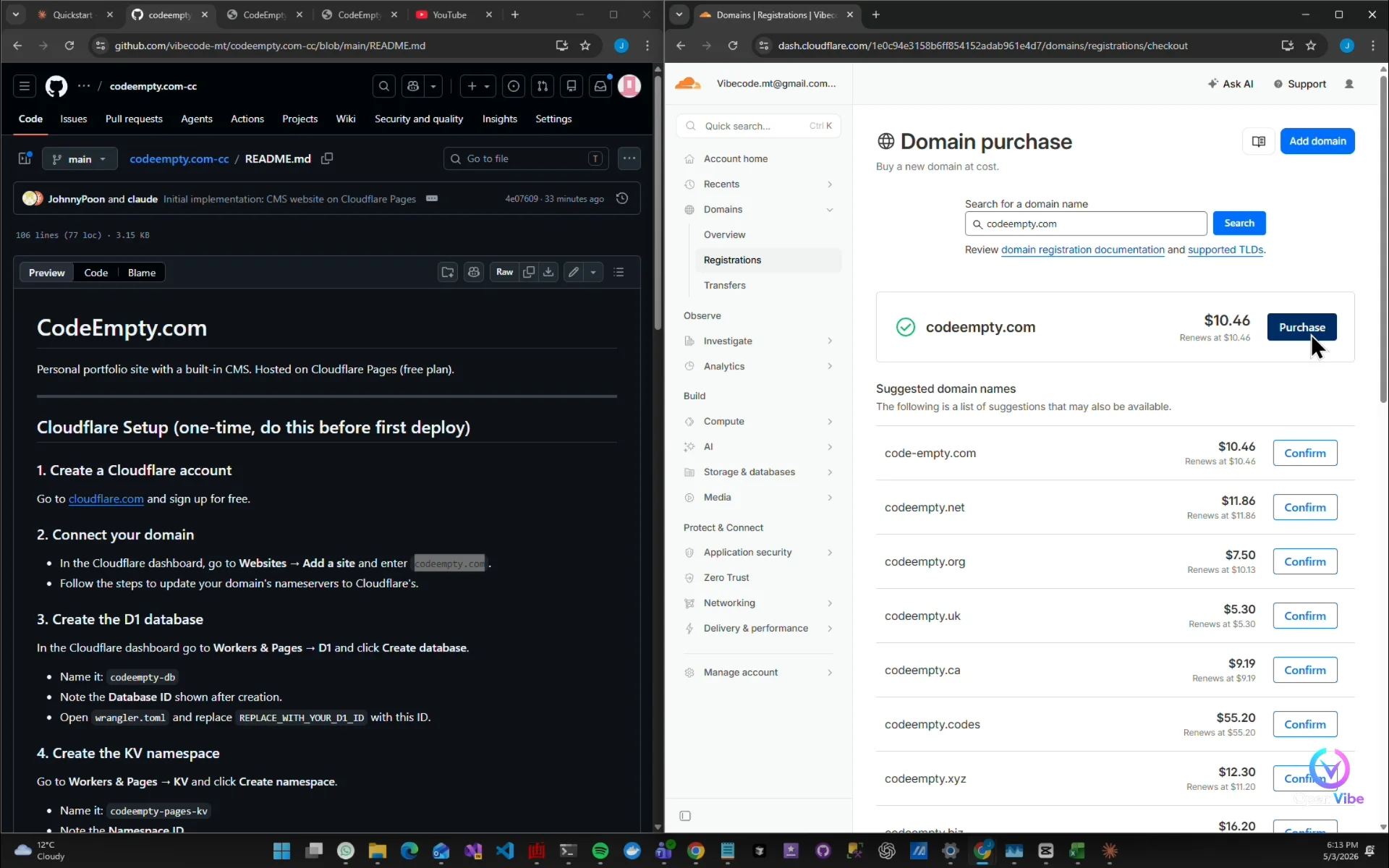
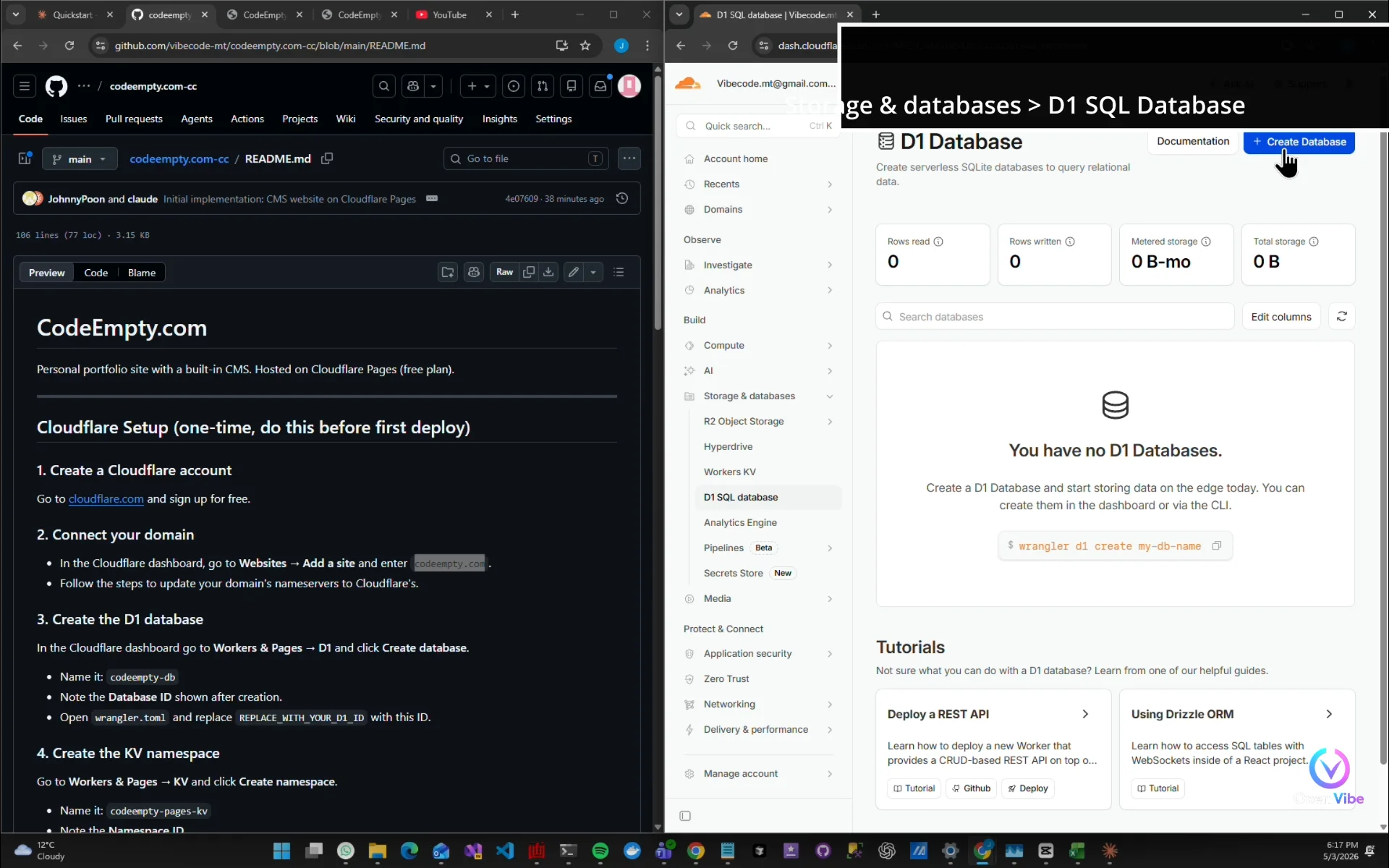
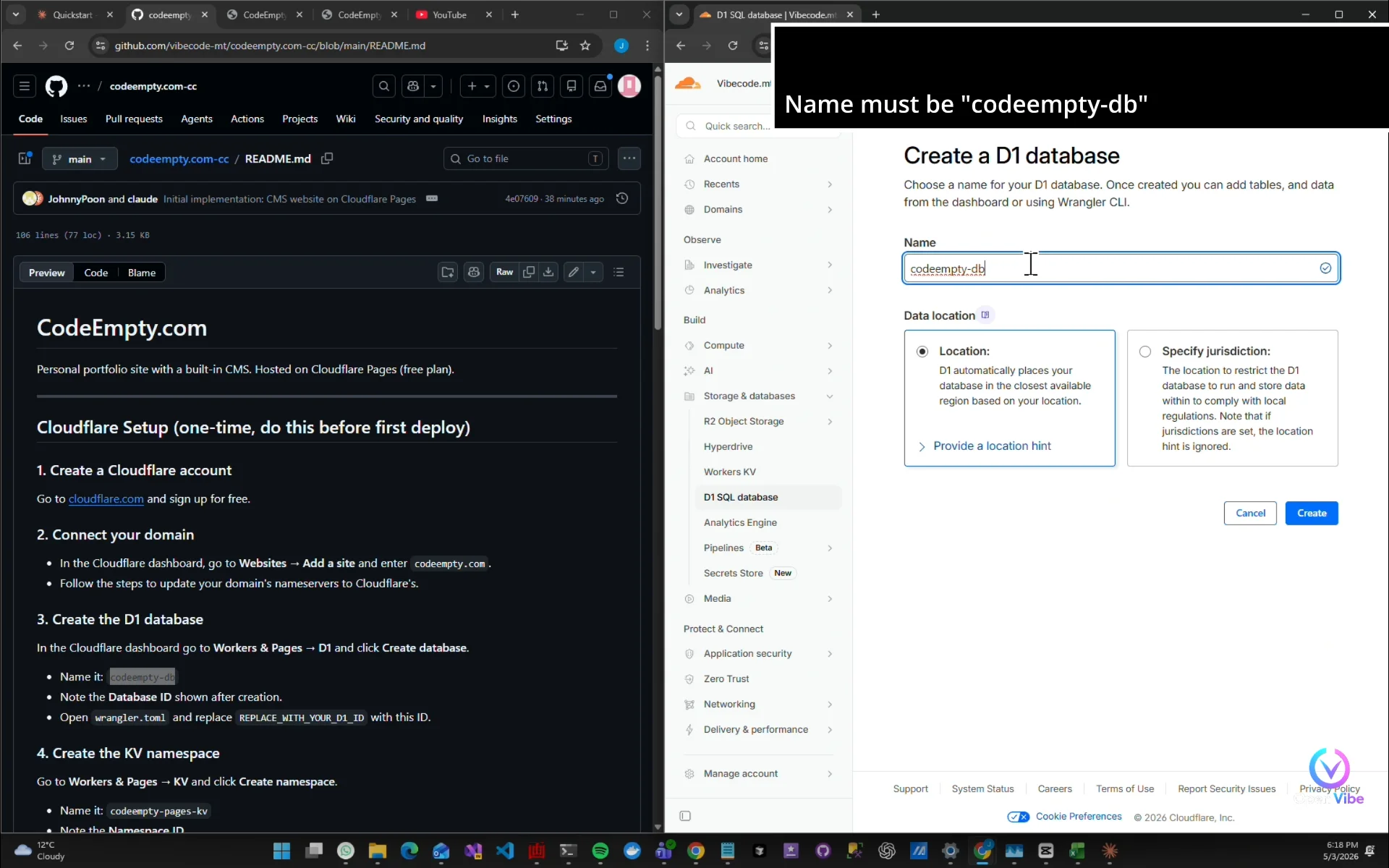
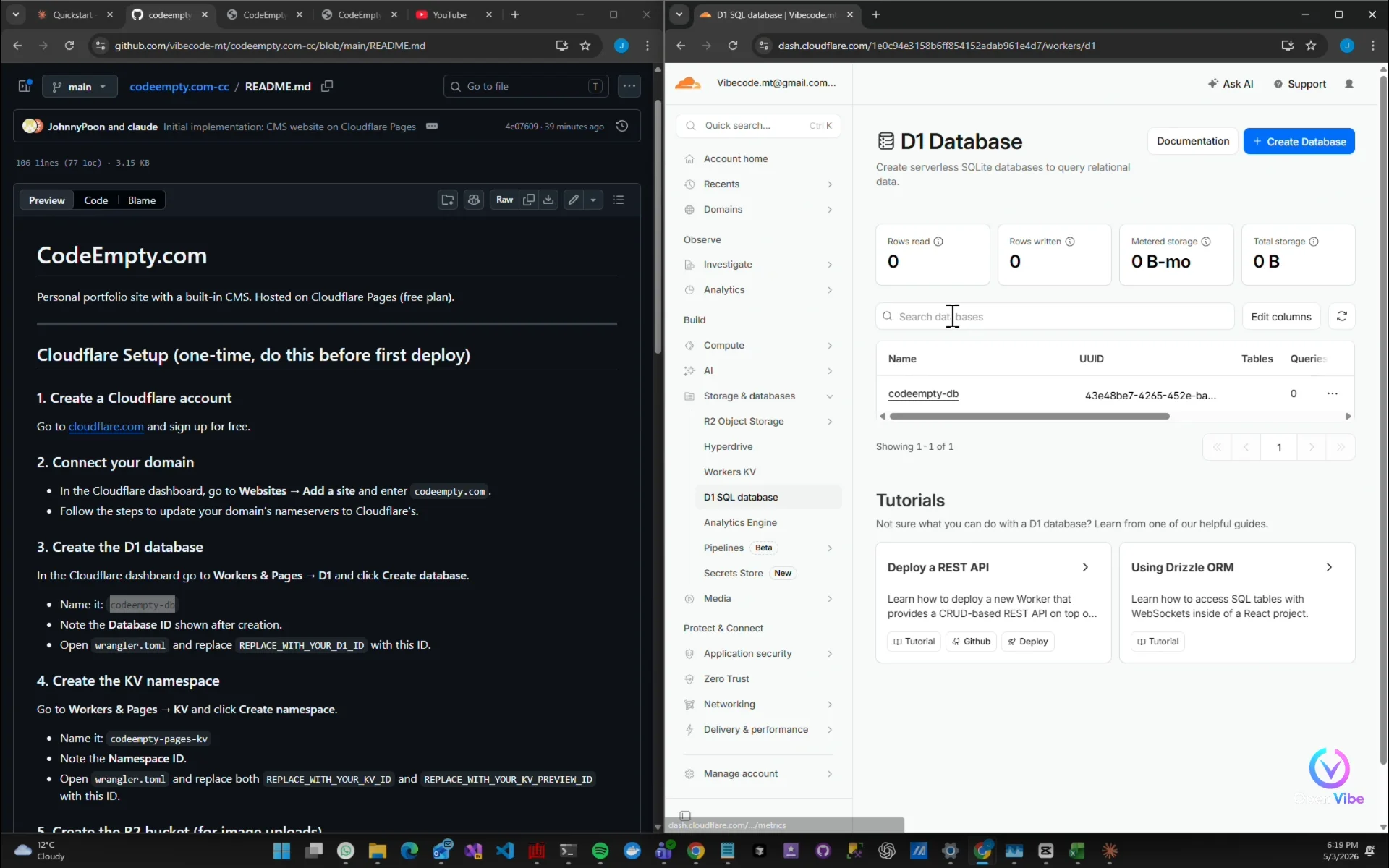
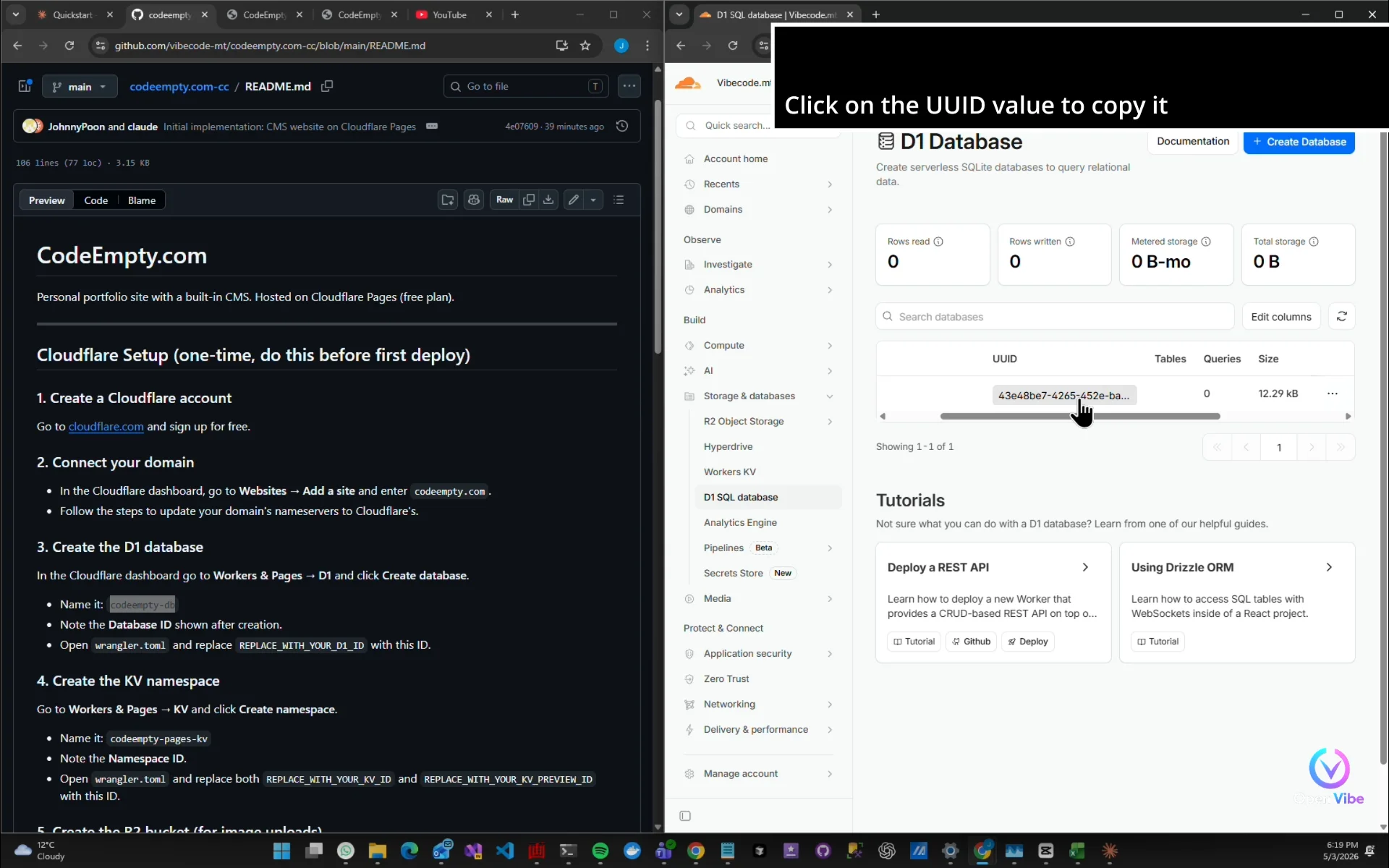
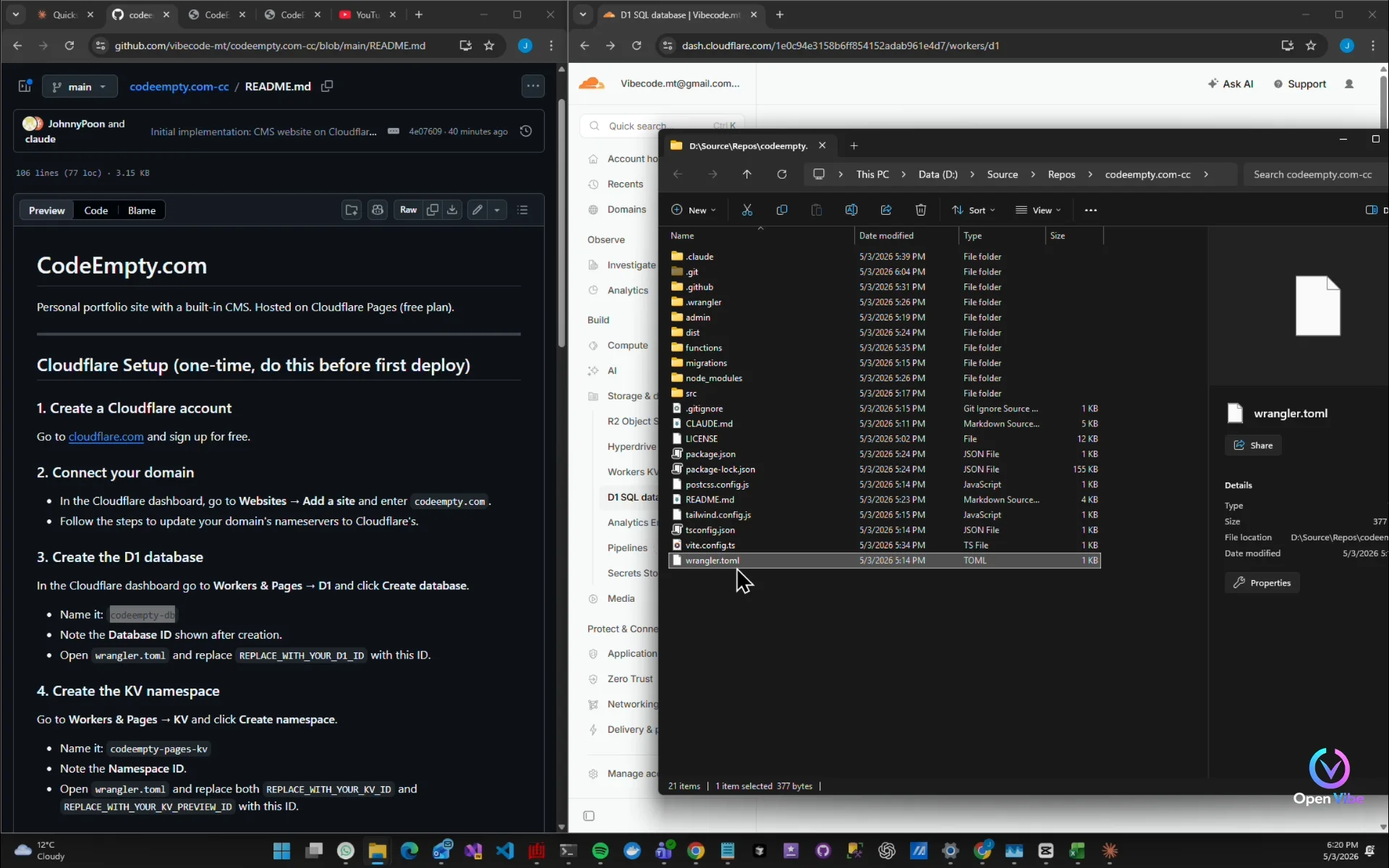
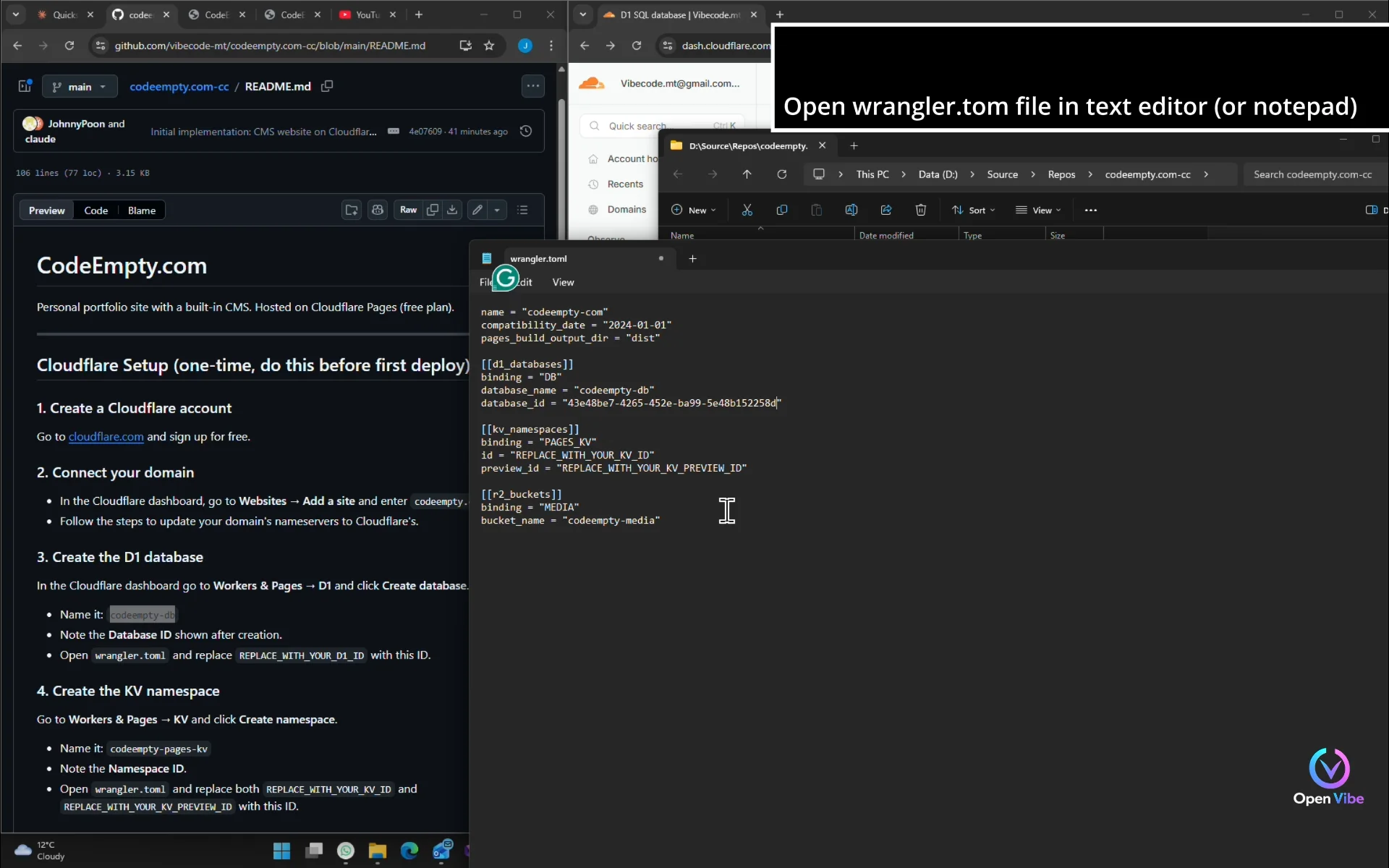
37. 34c. Create Database (D1) ▶ 27:09
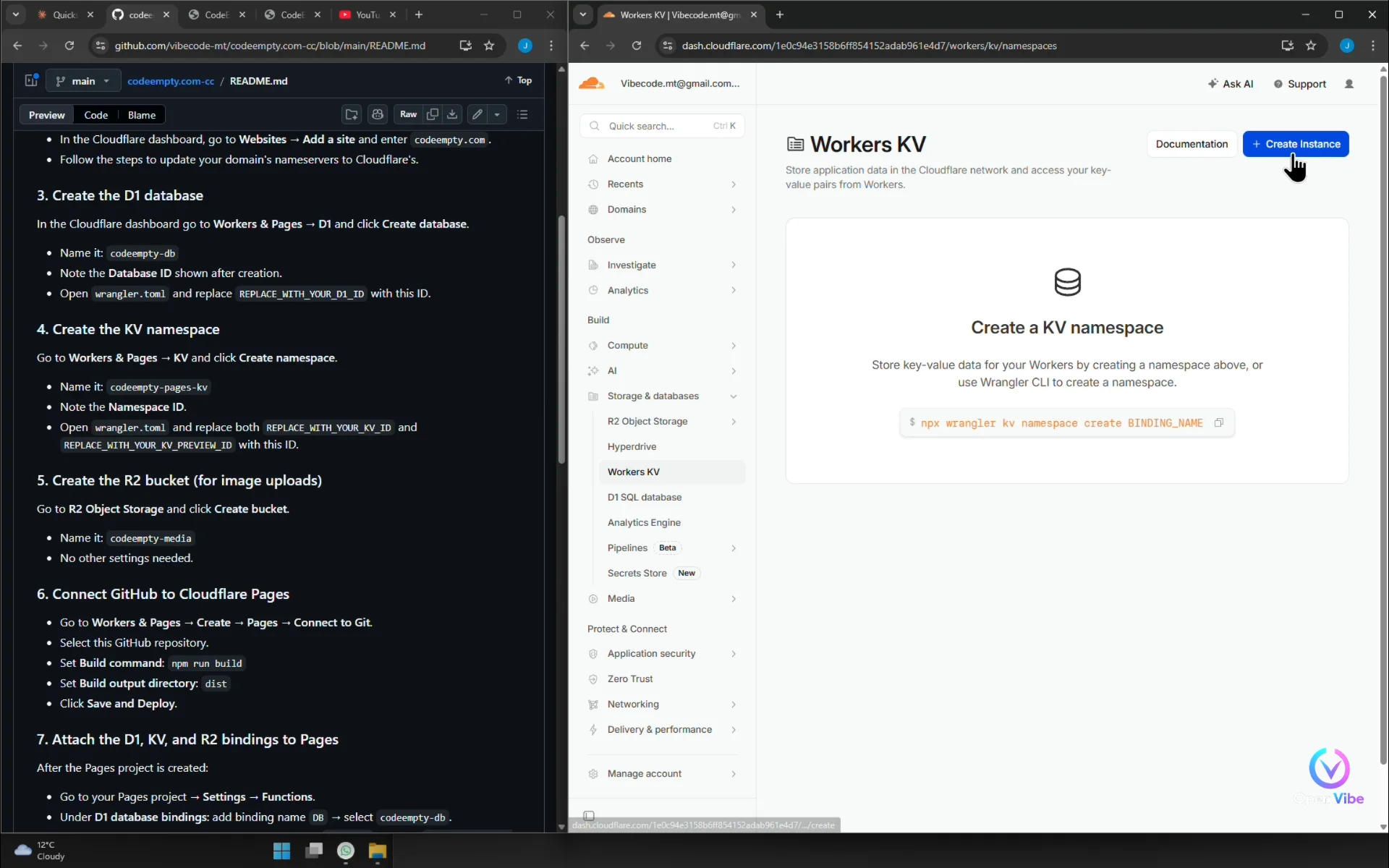
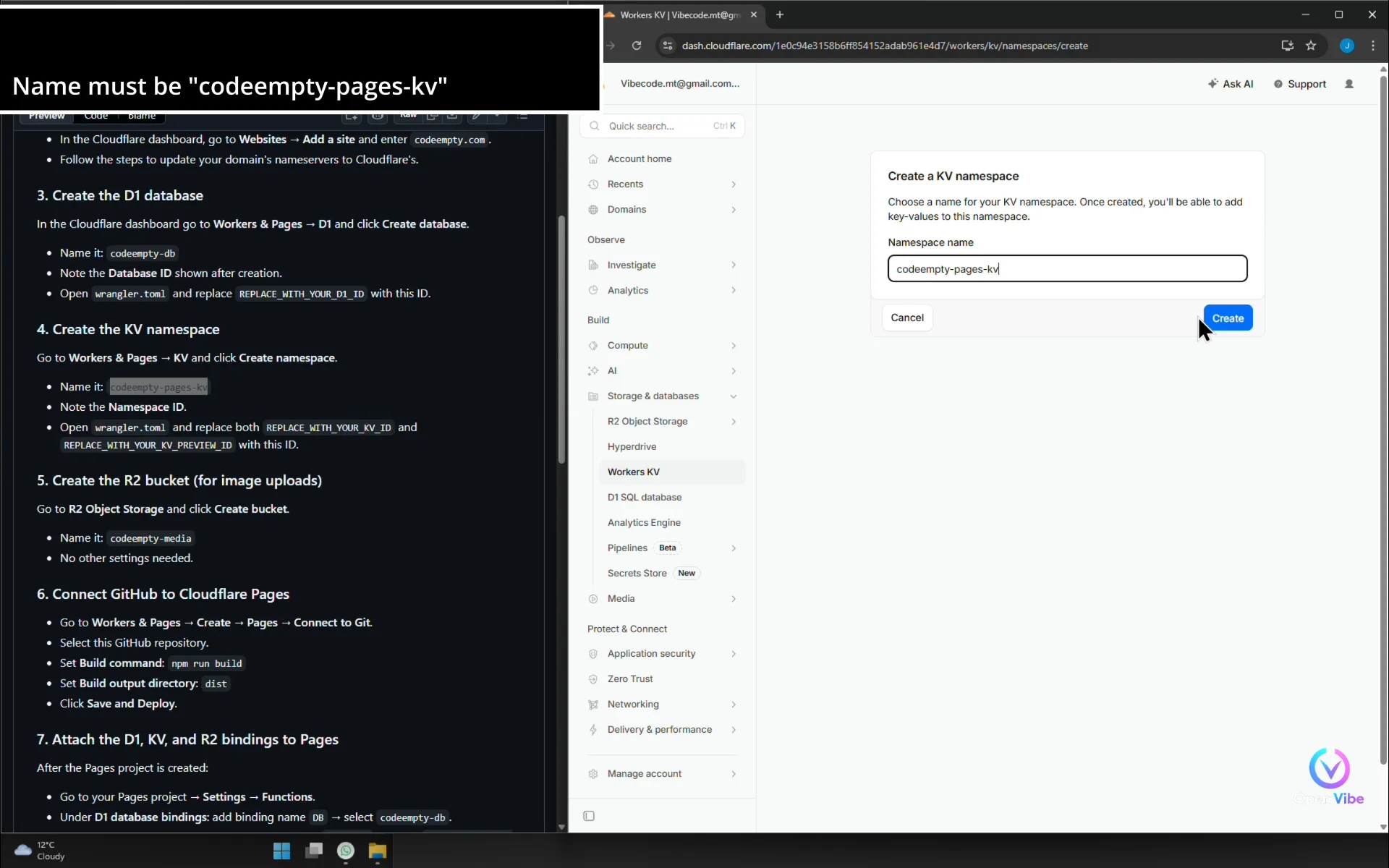
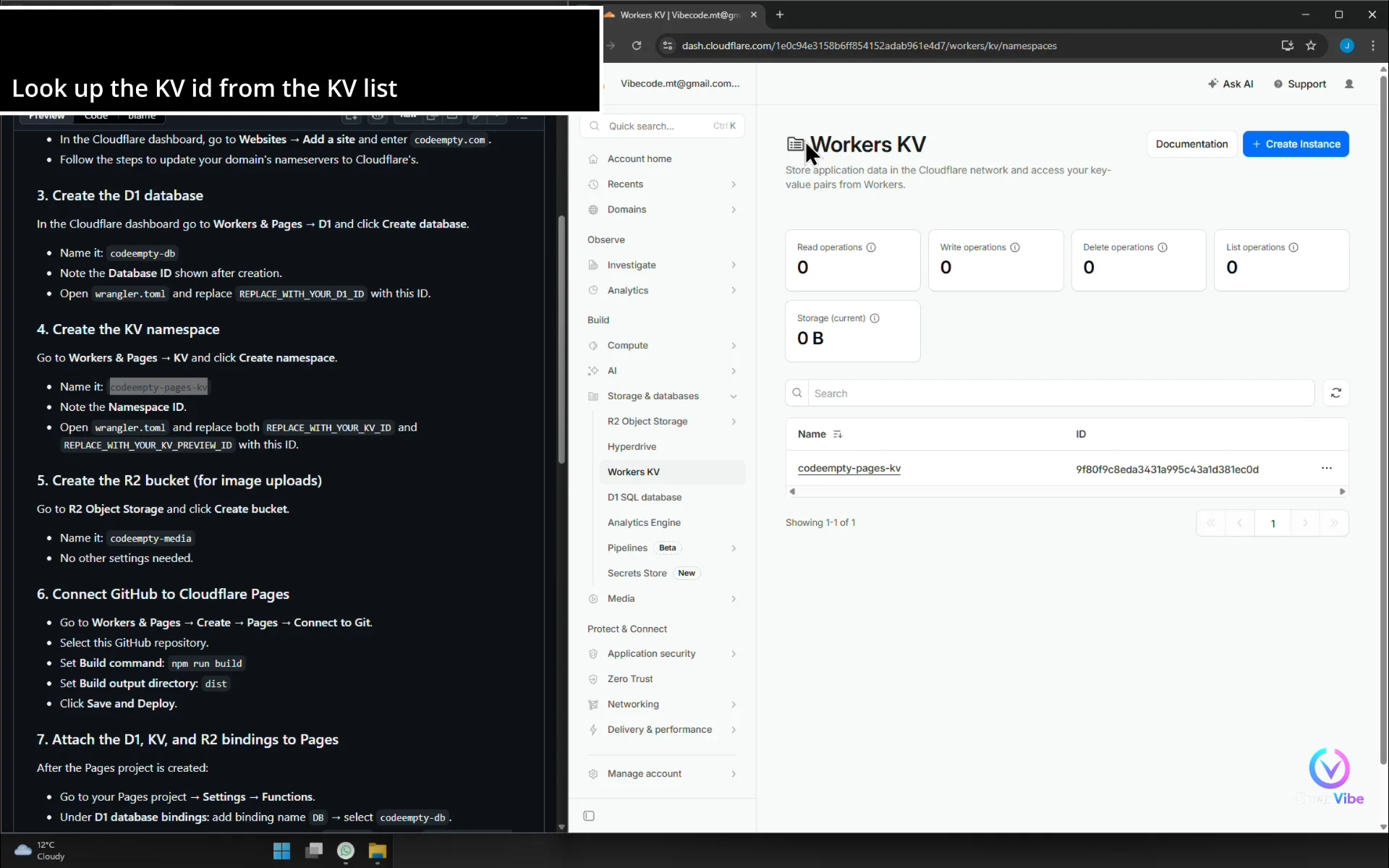
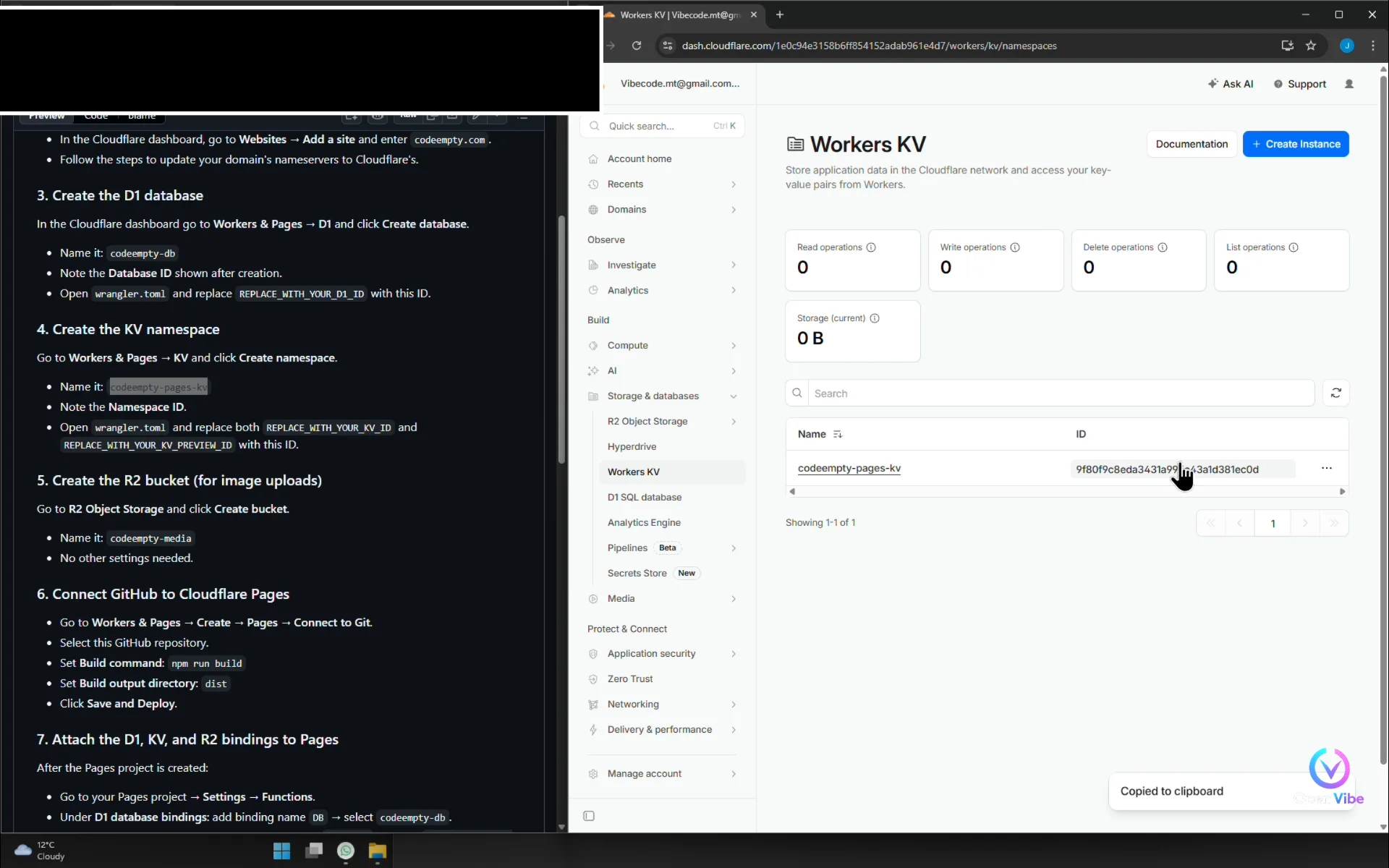
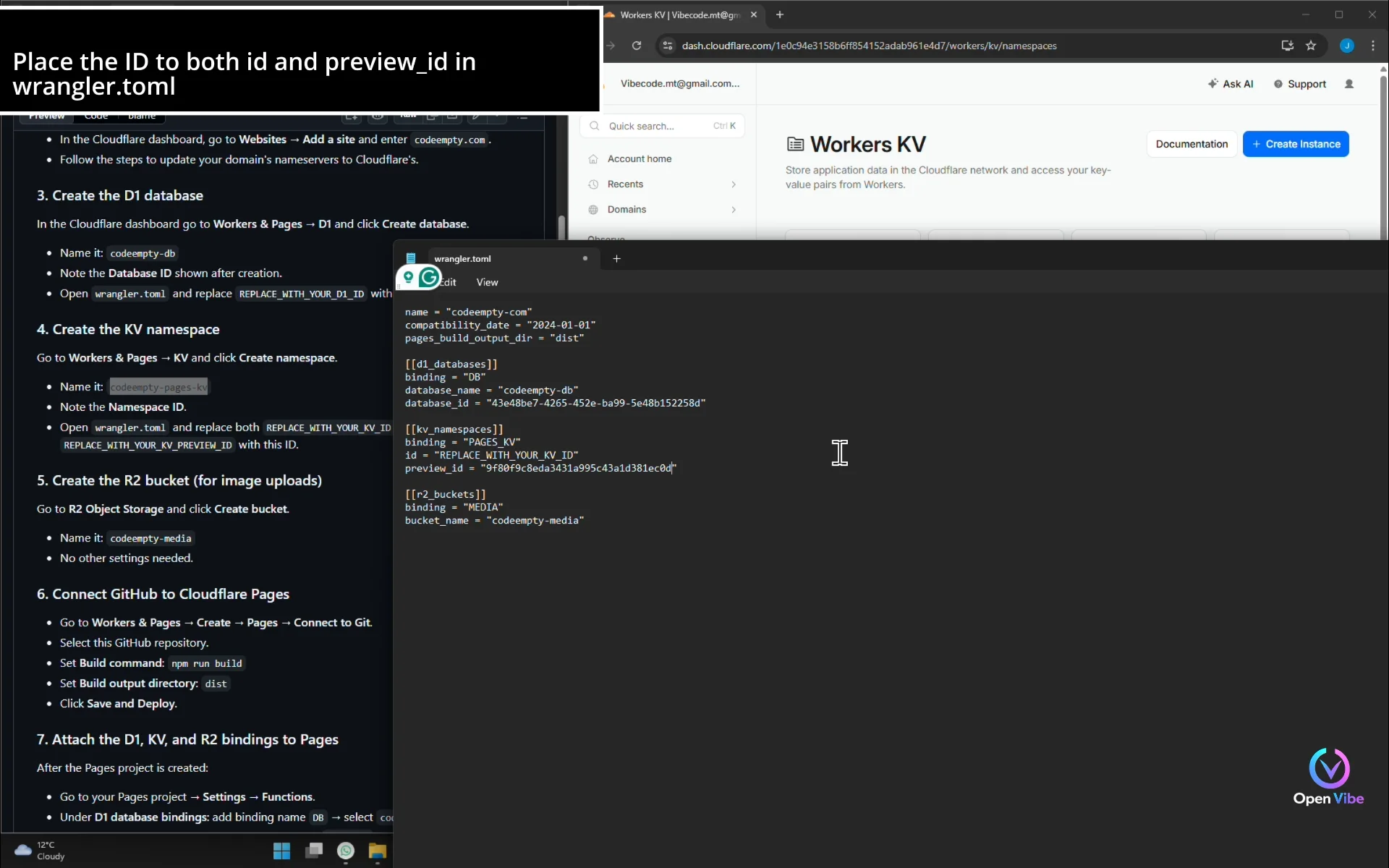
38. 34d. Create Key-value (KV) store ▶ 28:39
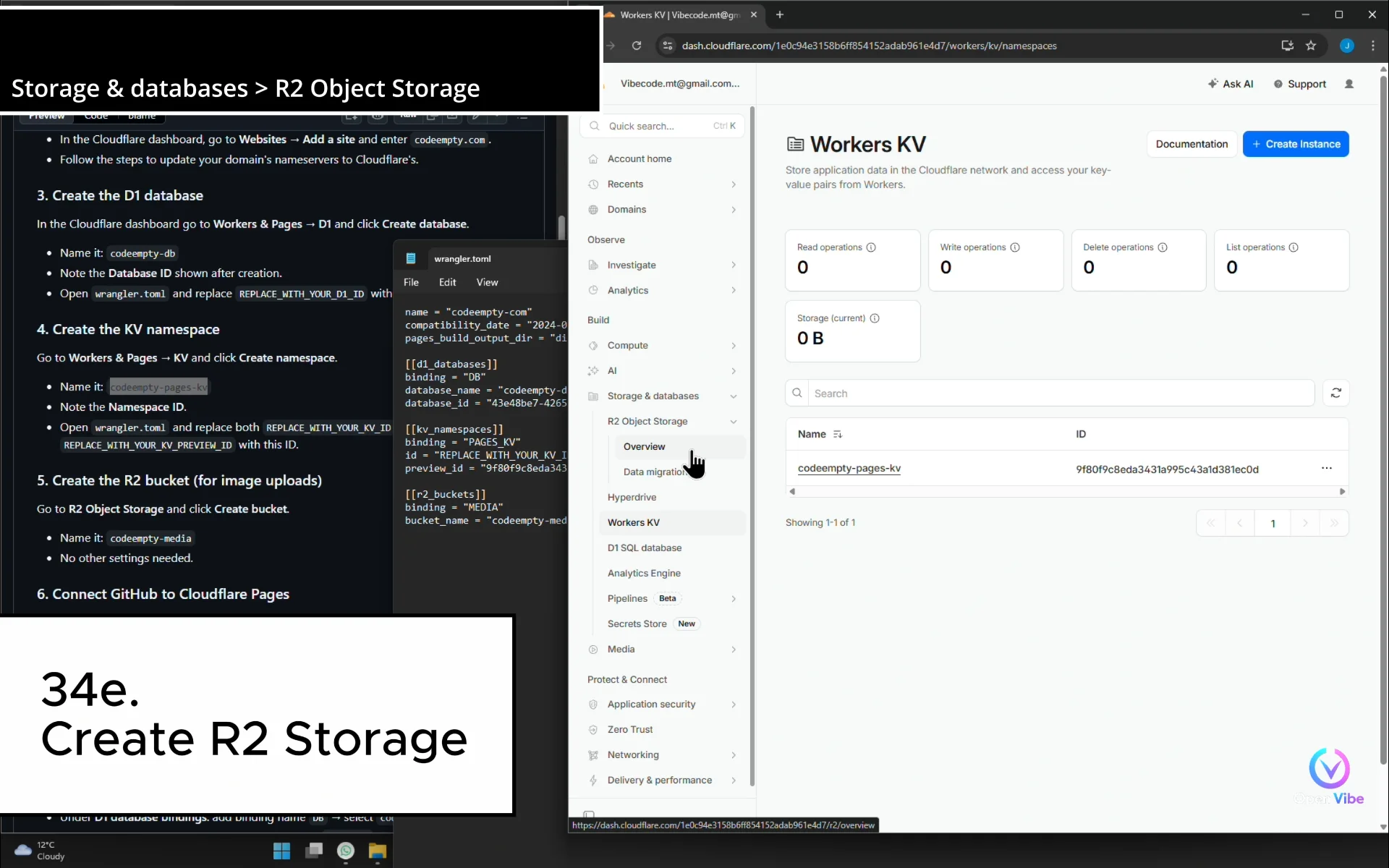
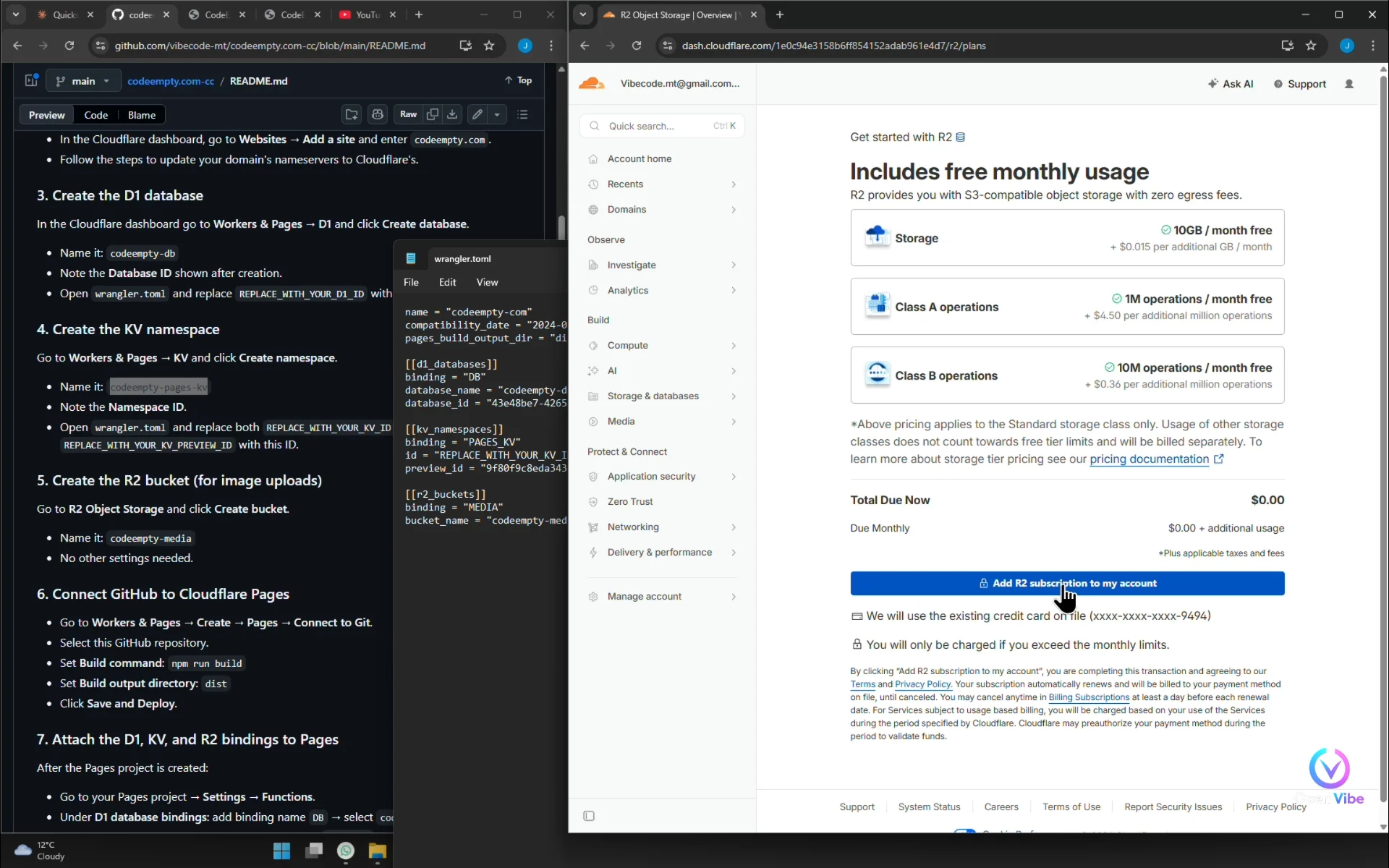
39. 34e. Create R2 Storage ▶ 29:48
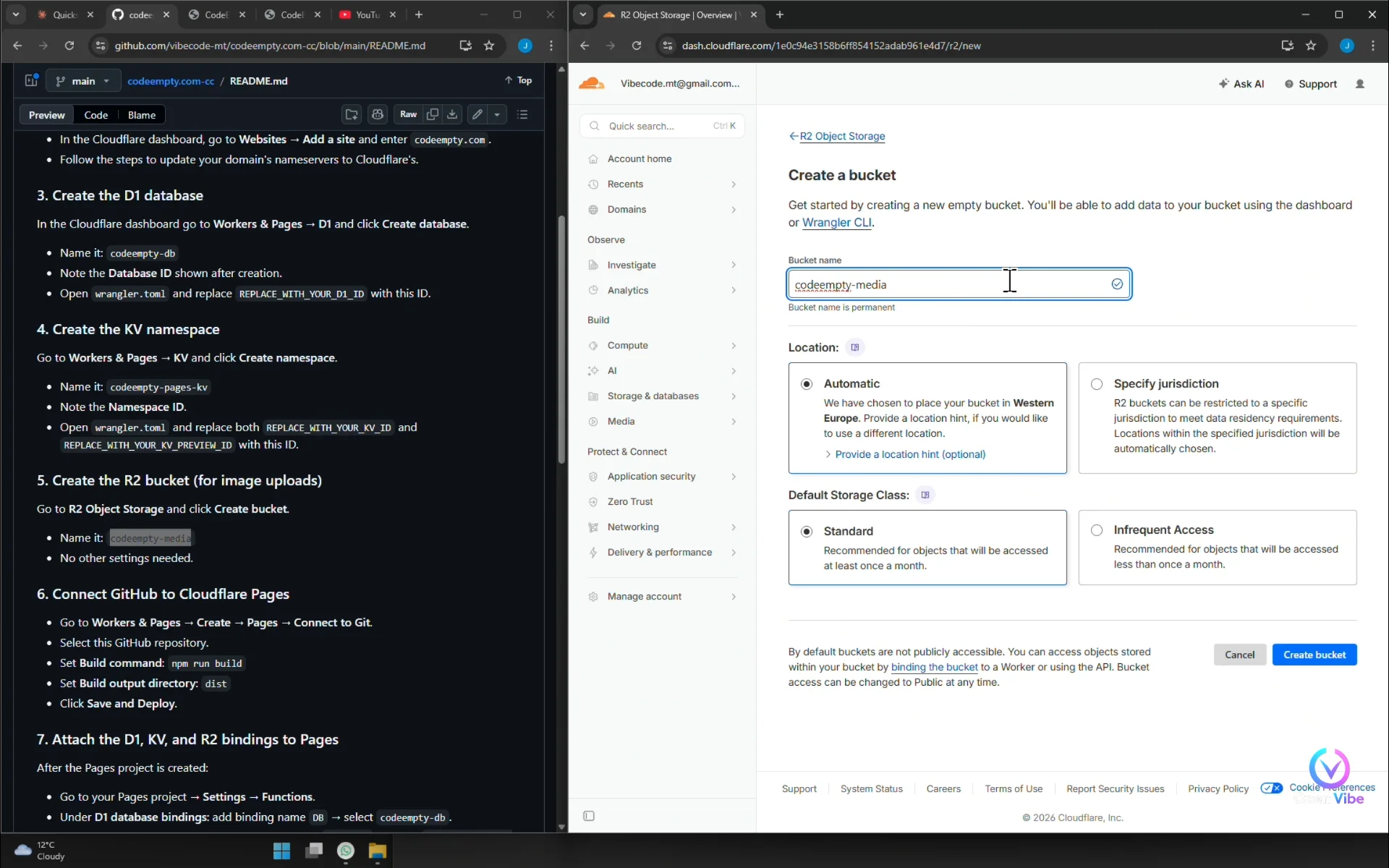
40. 34f. Create Cloudflare Pages ▶ 31:08
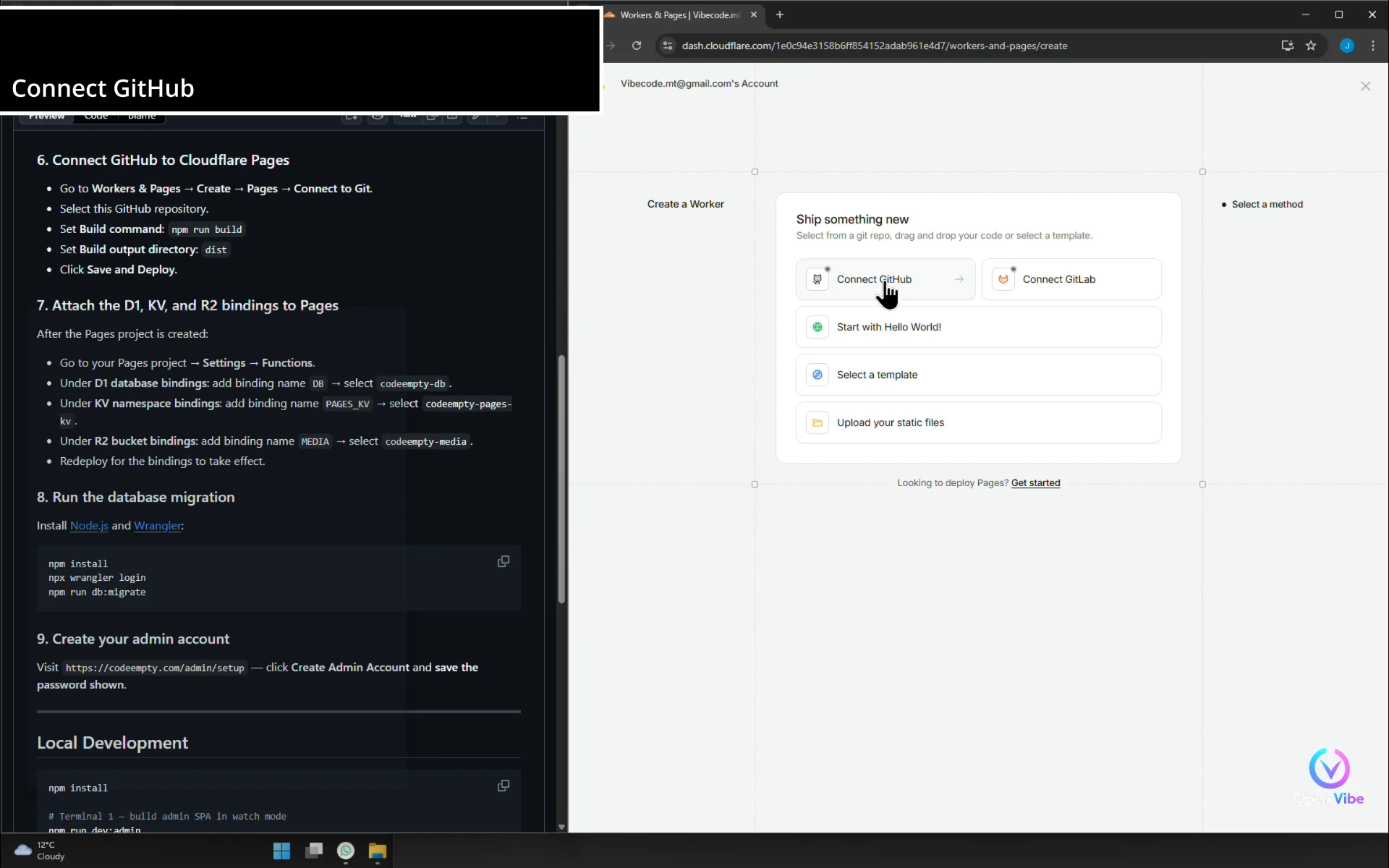
Connect the repository… and trigger the build.
Connect GitHub
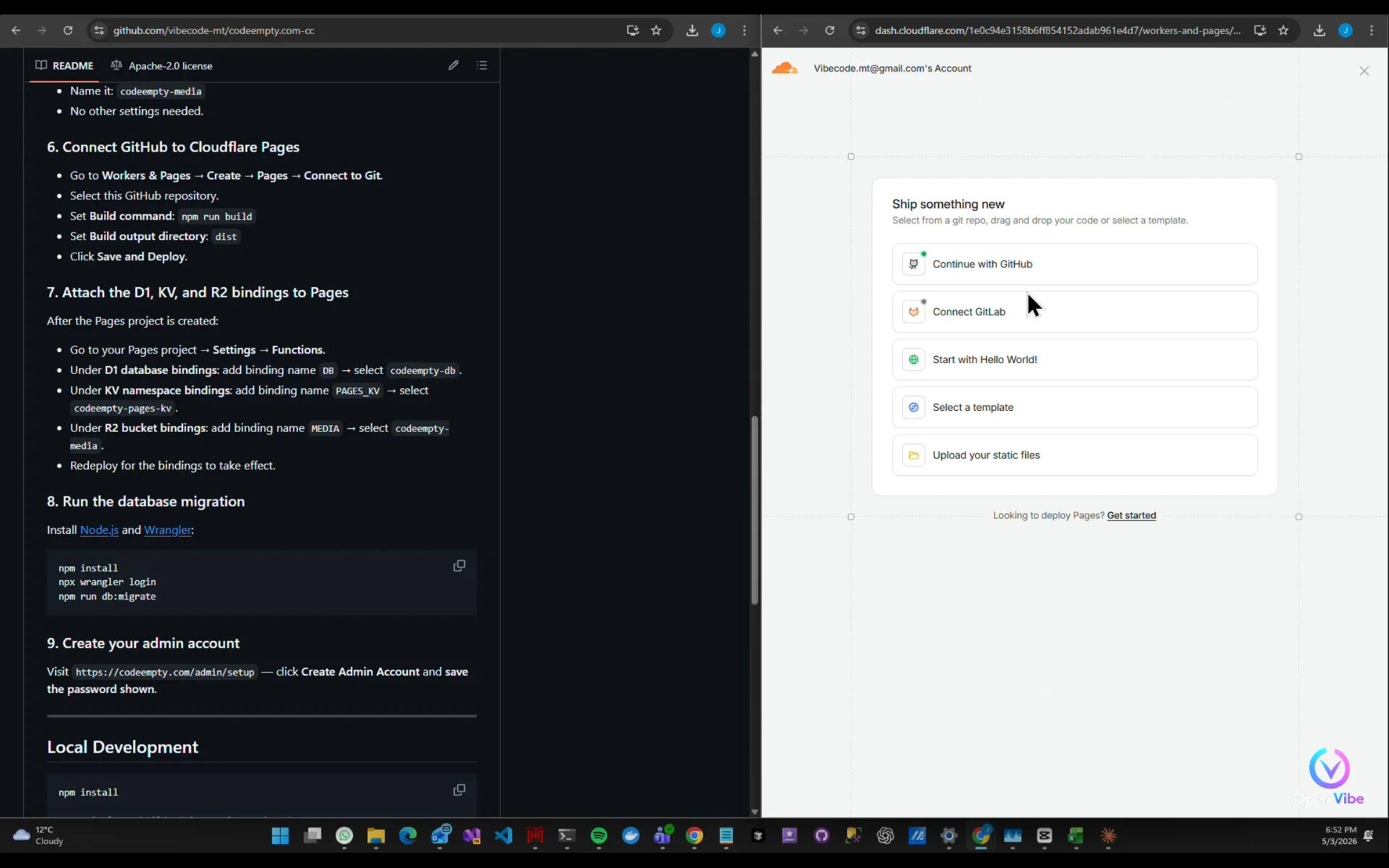
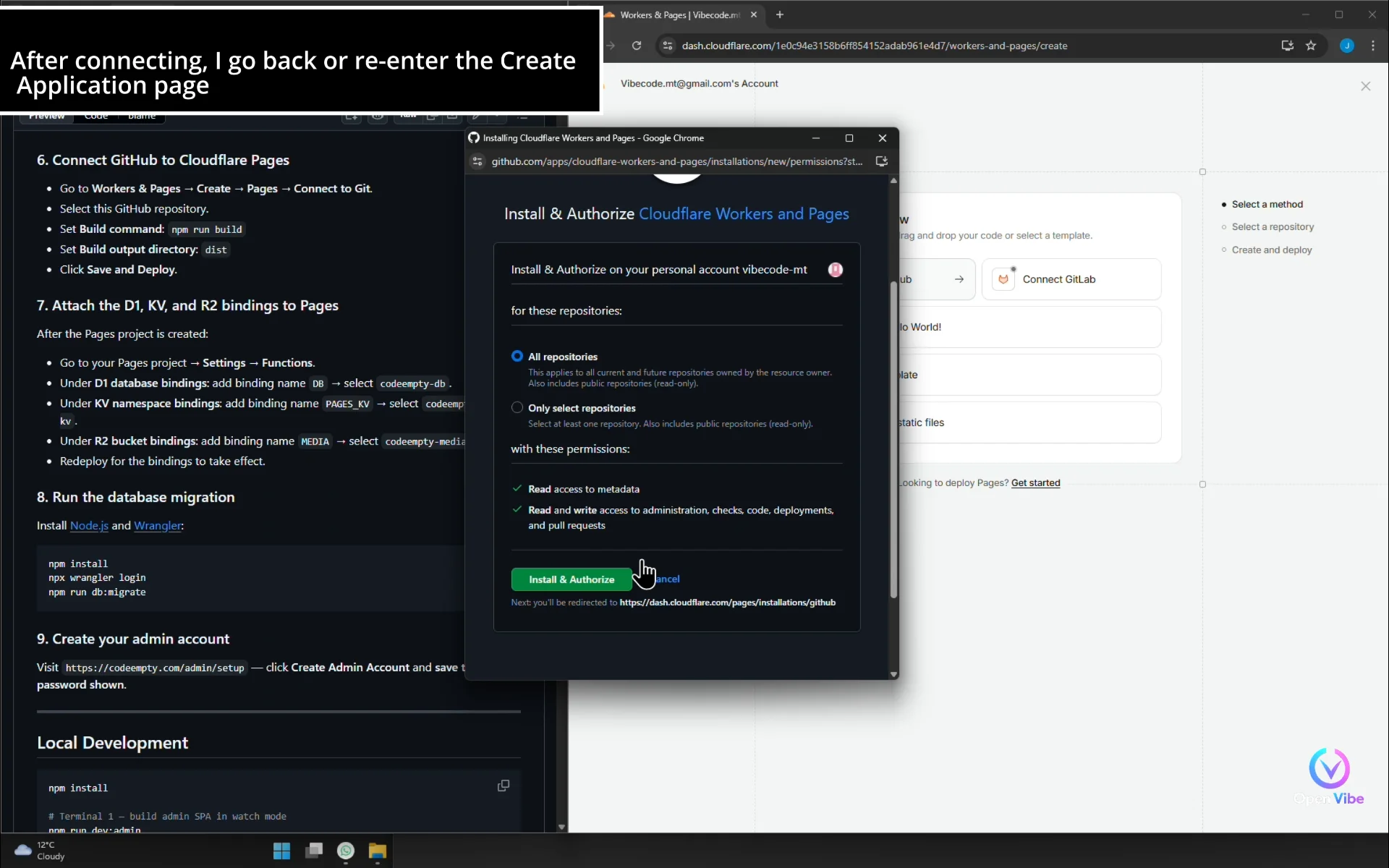
After connecting, I go back or re-enter the Create Application page
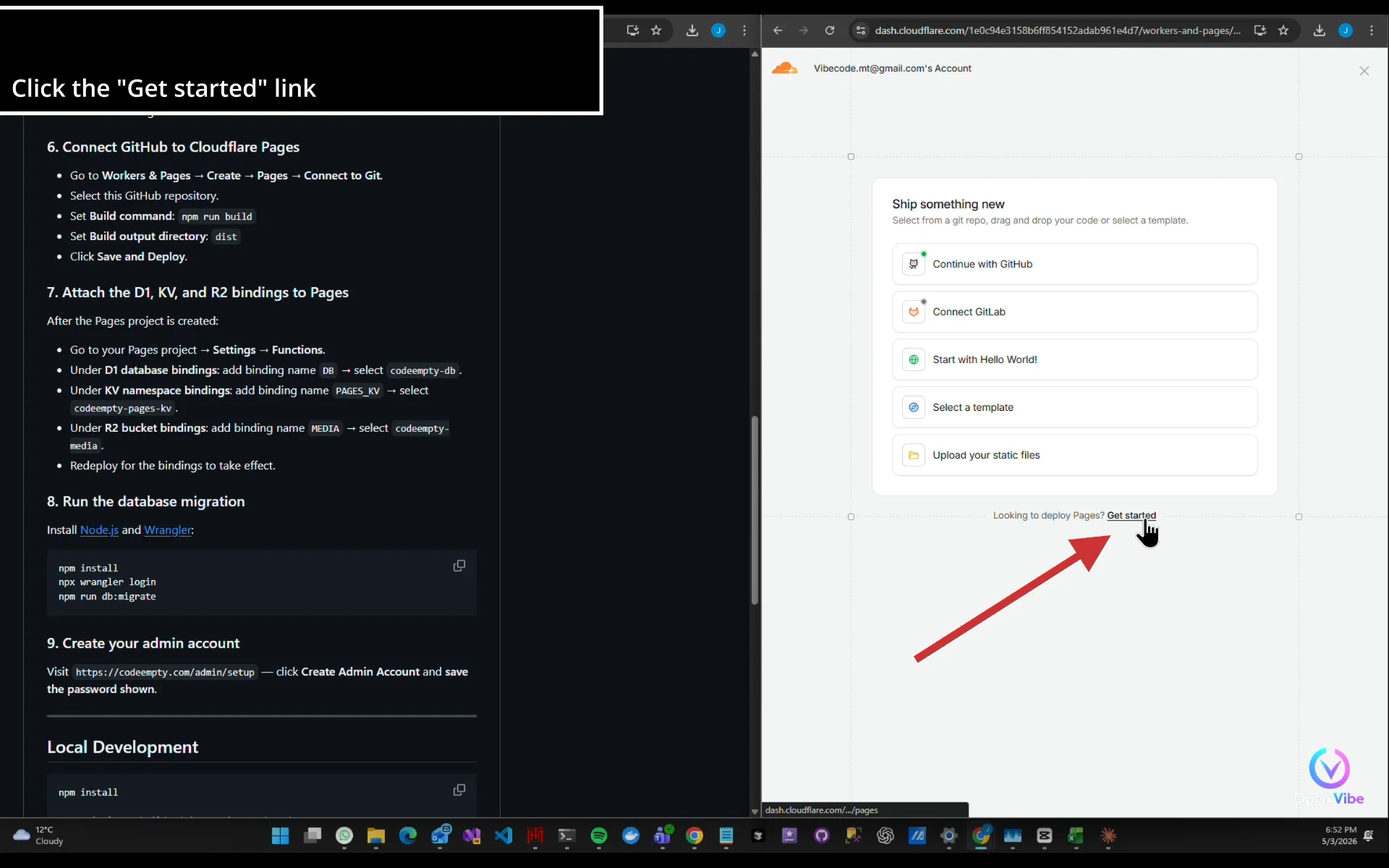
Click the "Get started" link
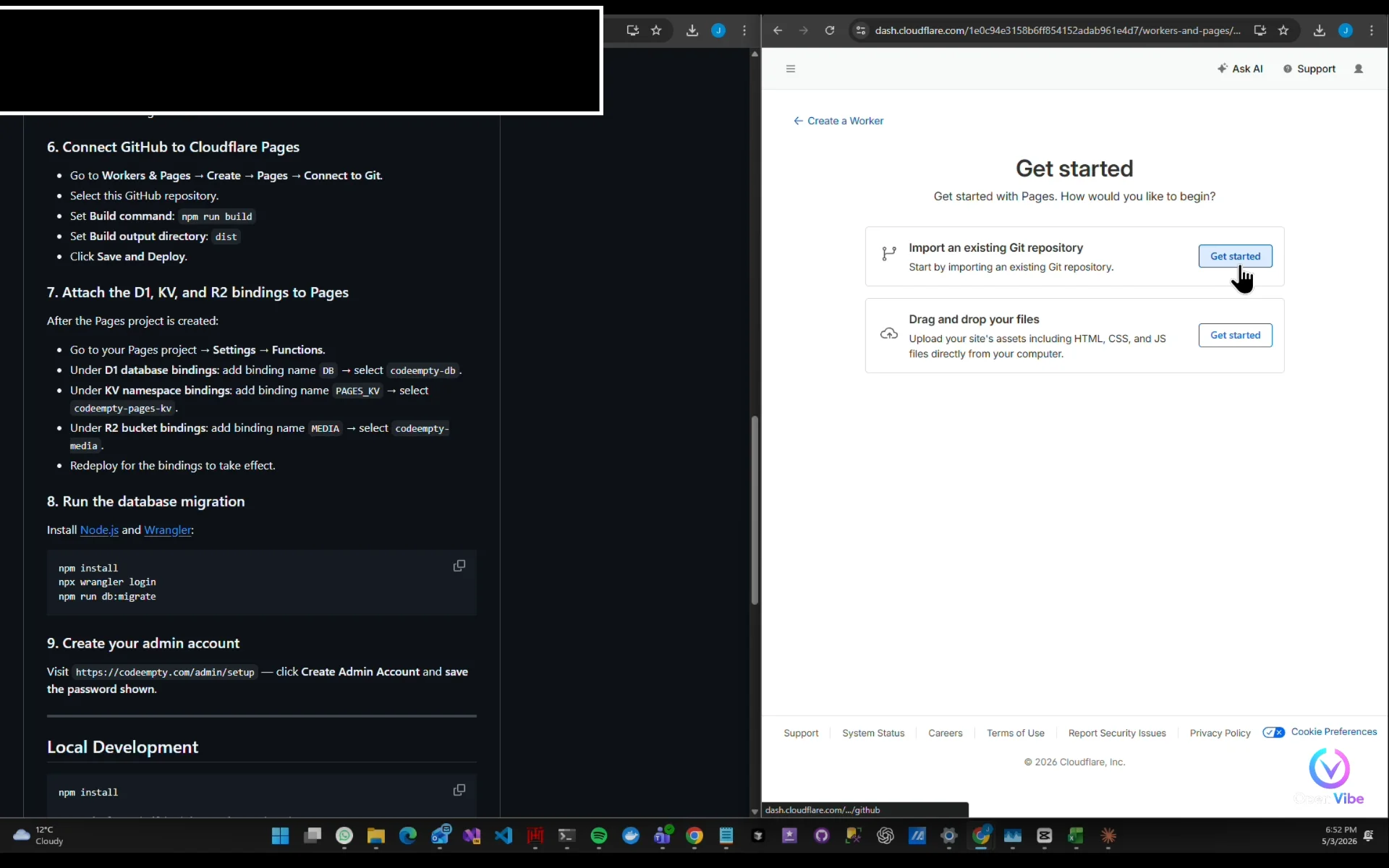
Import an existing Git repository
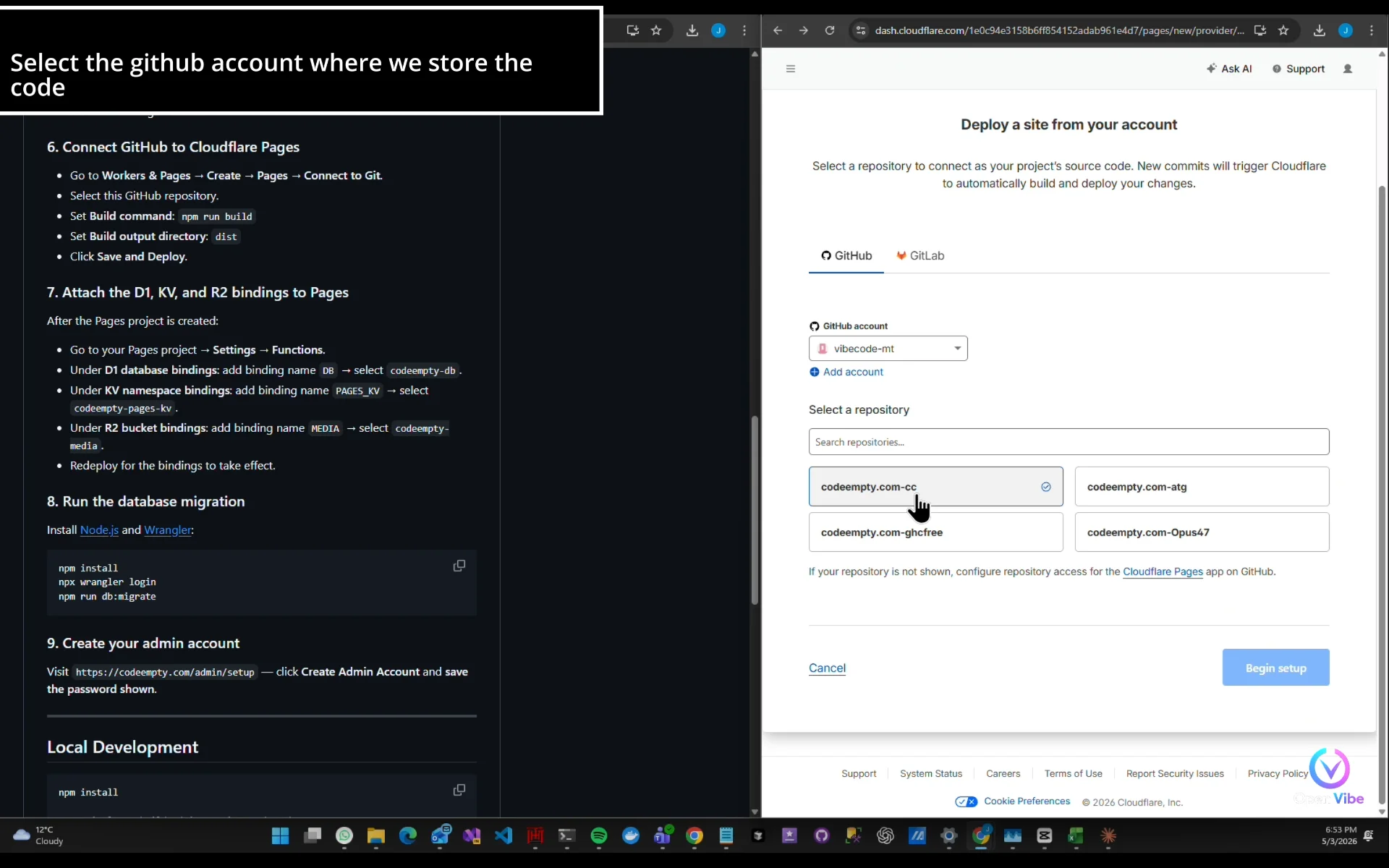
Select the github account where we store the code
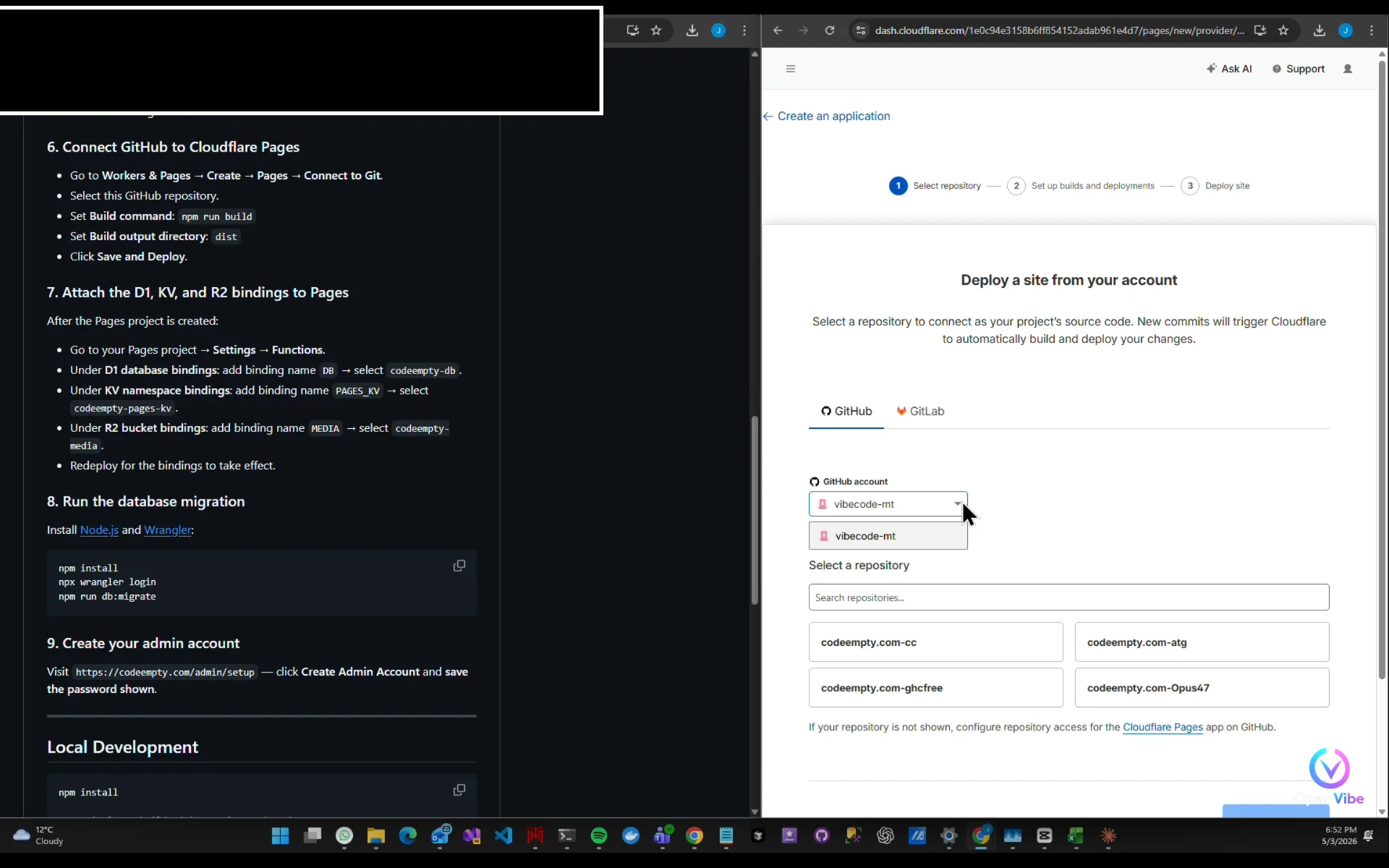
Select repository
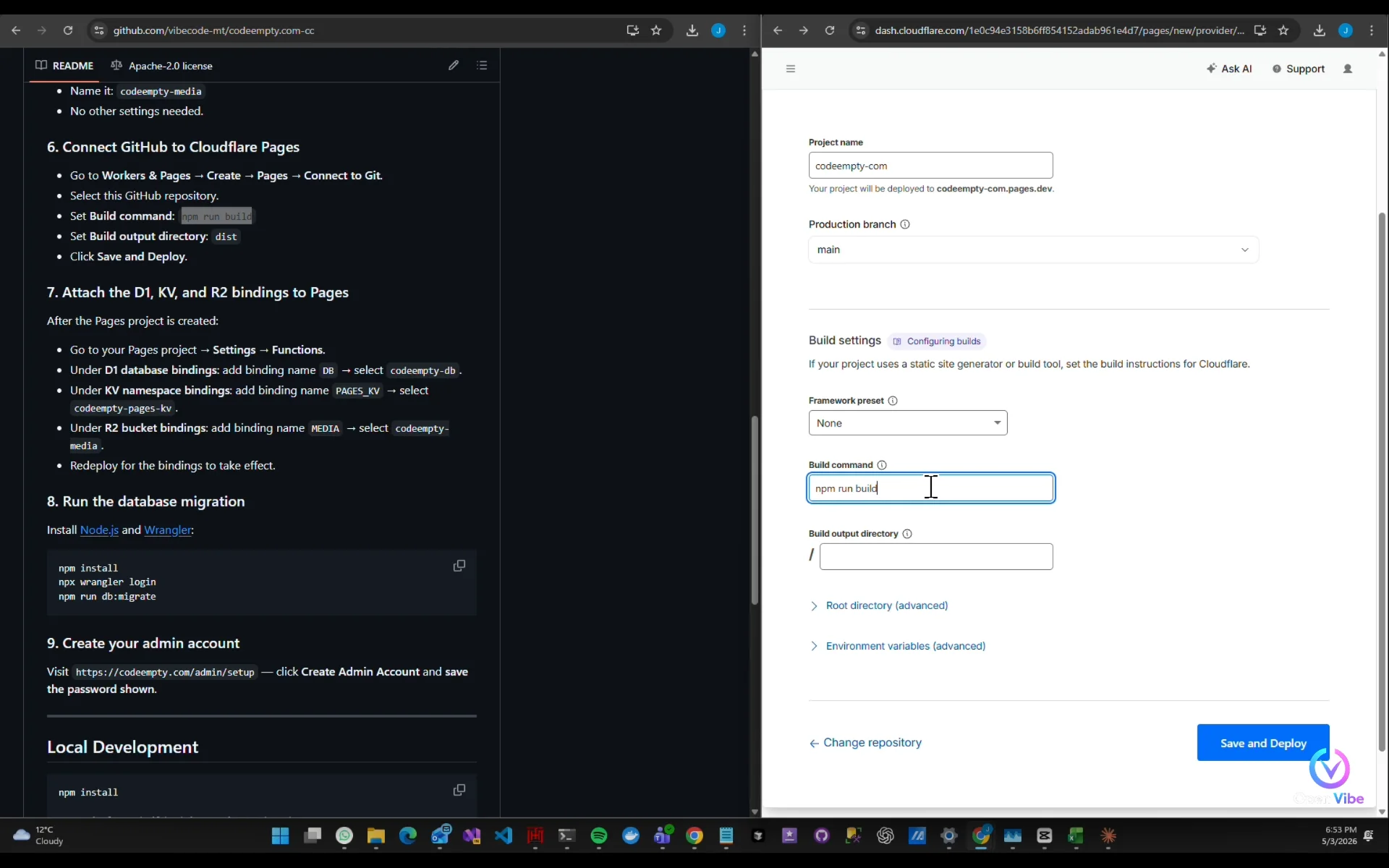
Put "npm run build" as Build command
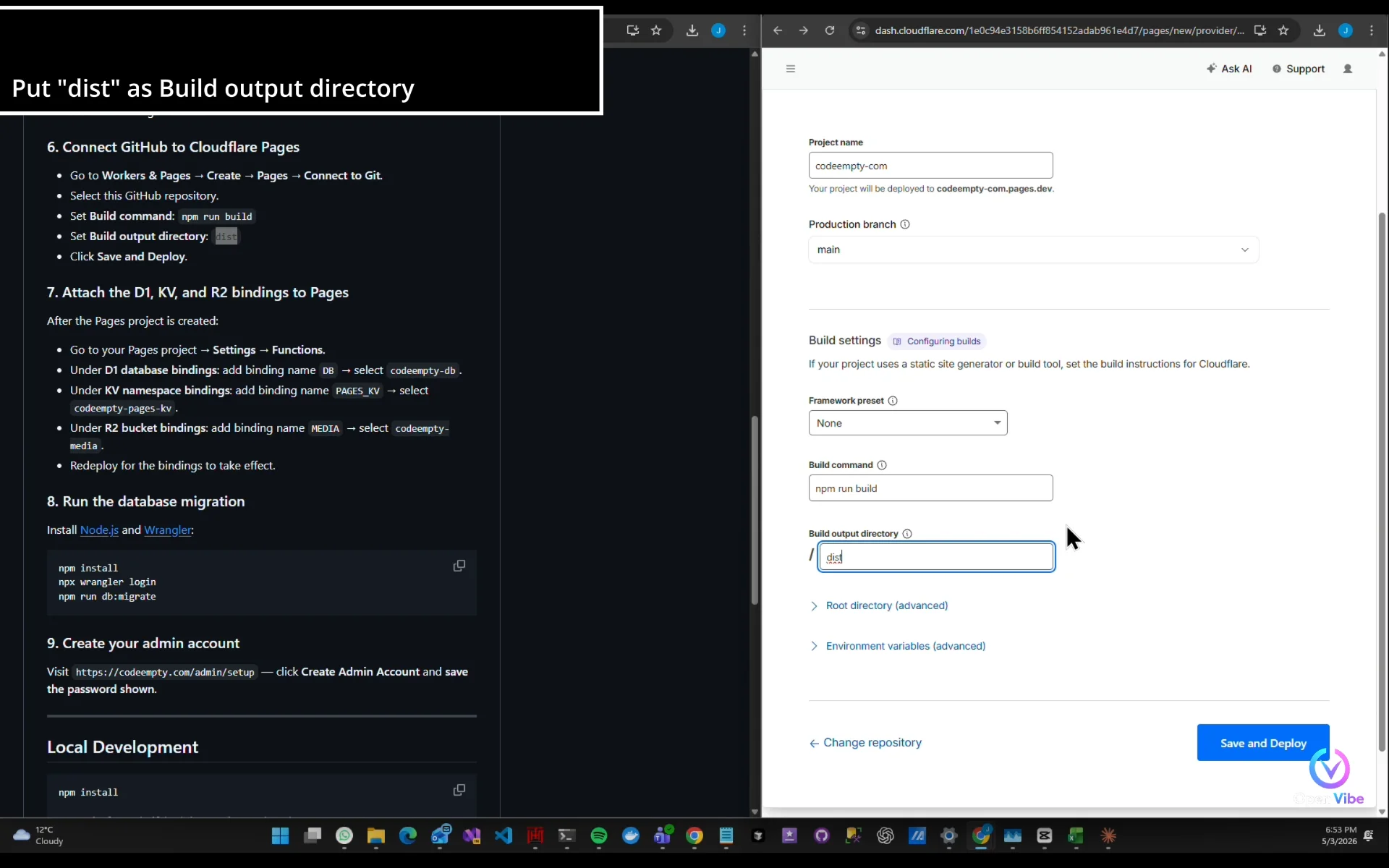
Put "dist" as Build output directory
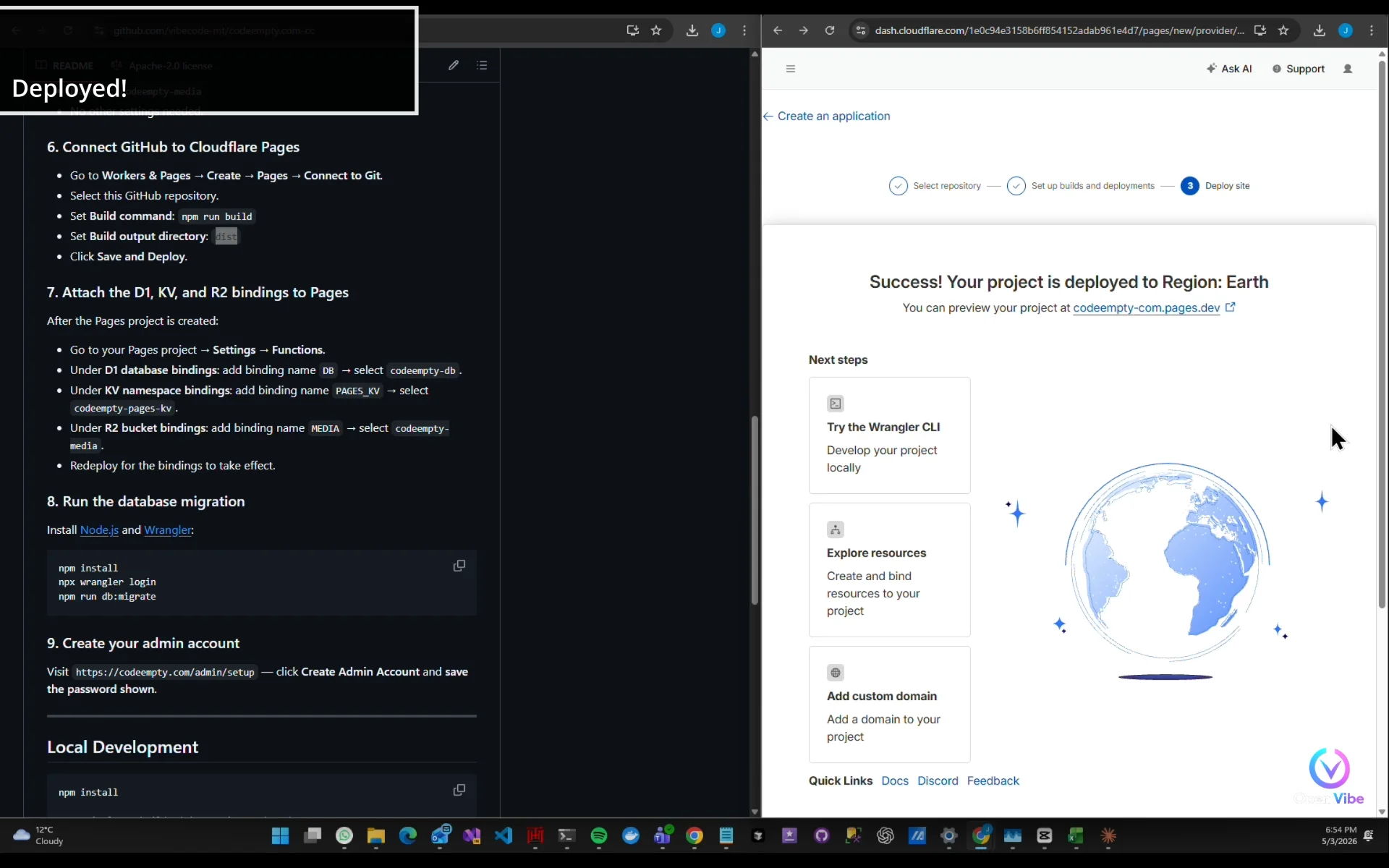
Deployed!
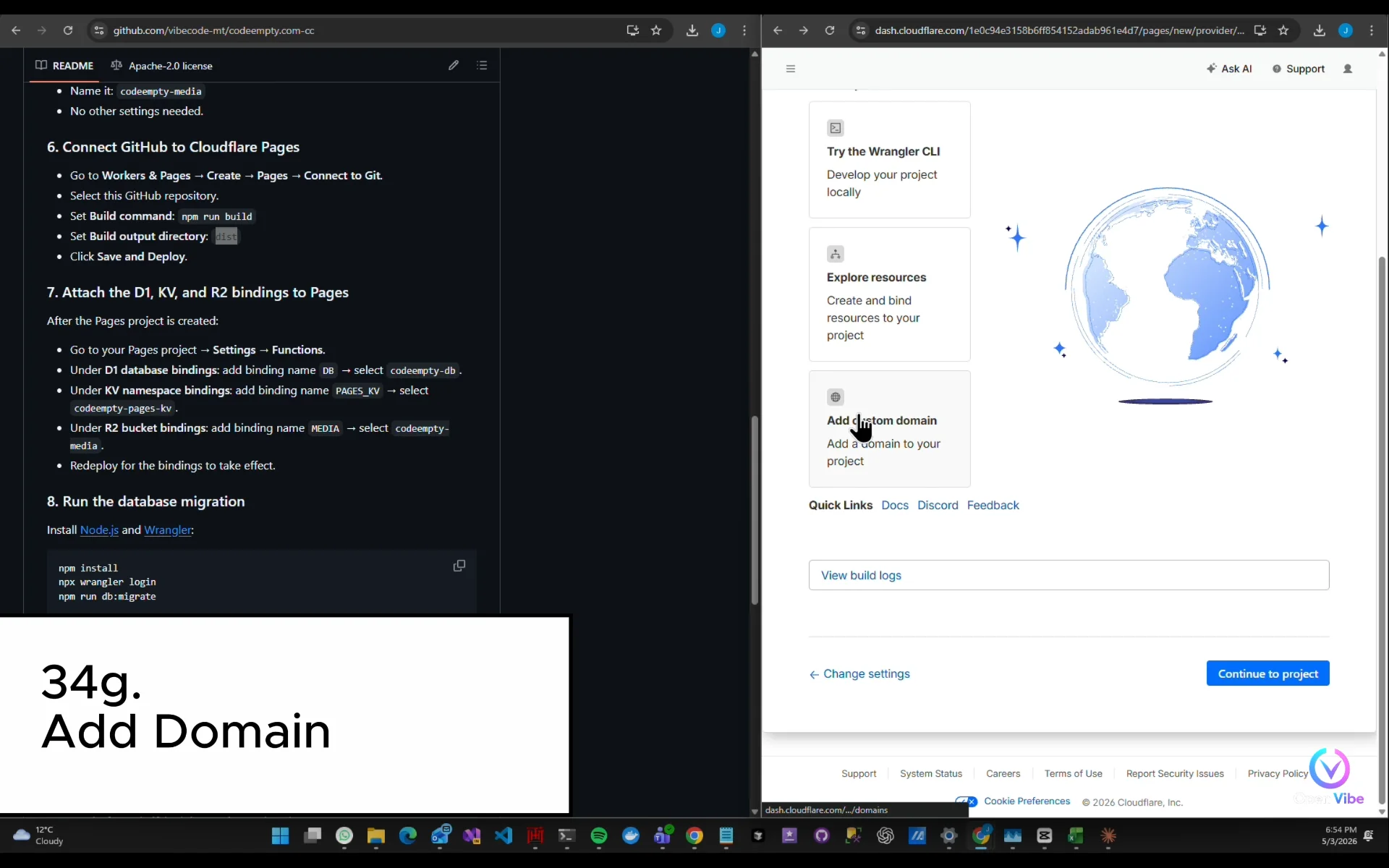
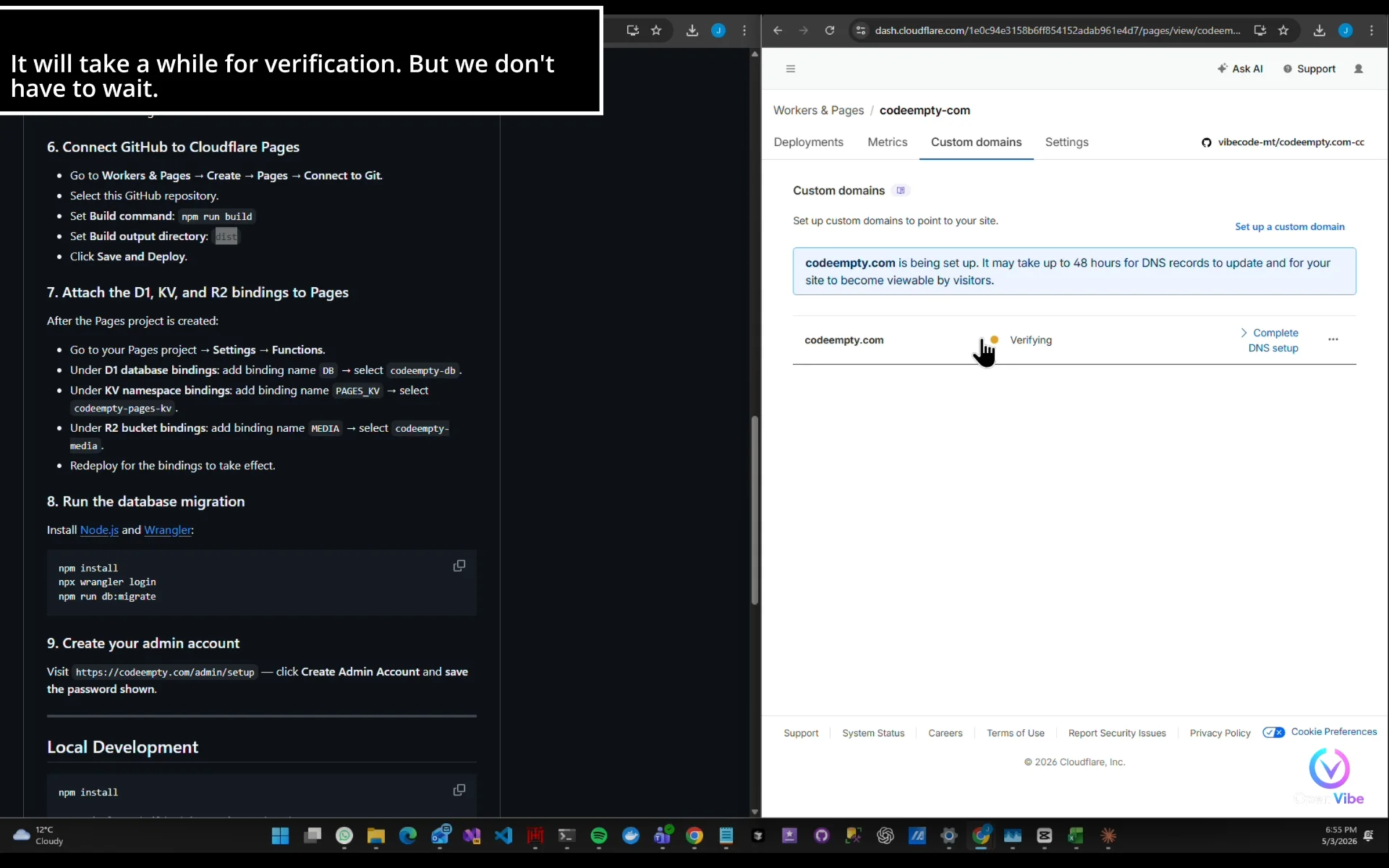
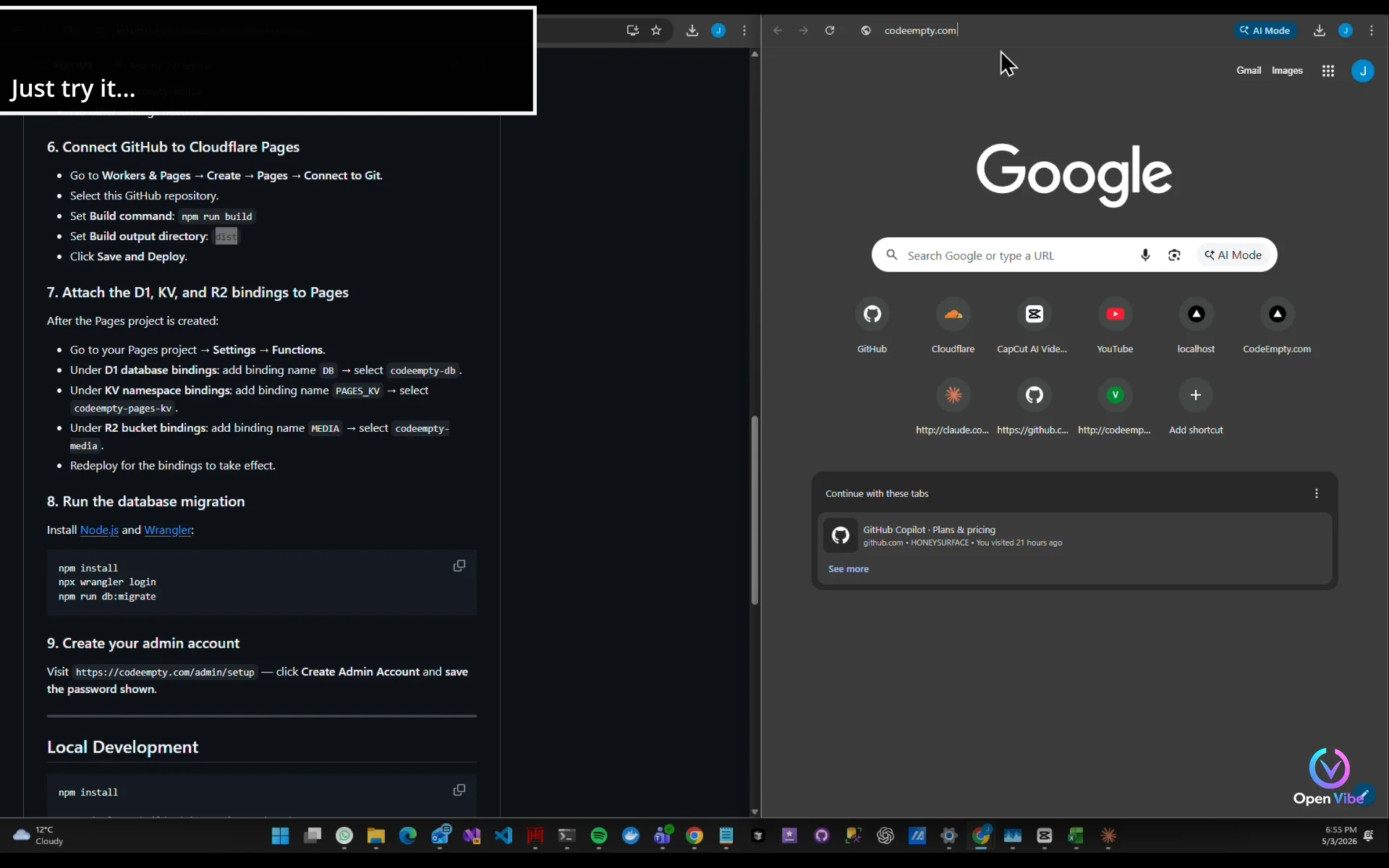
41. 34g. Add Domain ▶ 32:46
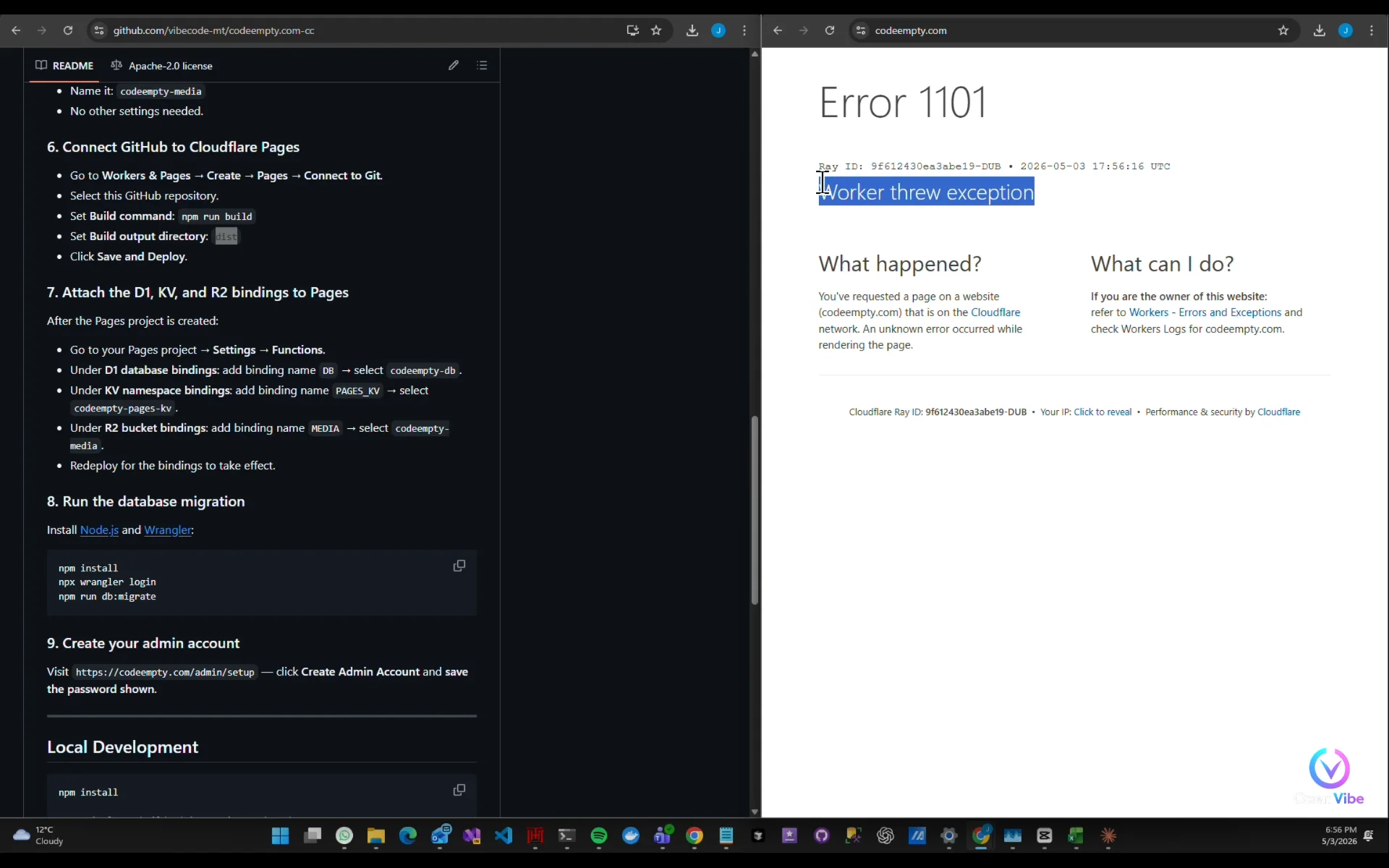
42. 34h. Troubleshooting ▶ 33:32
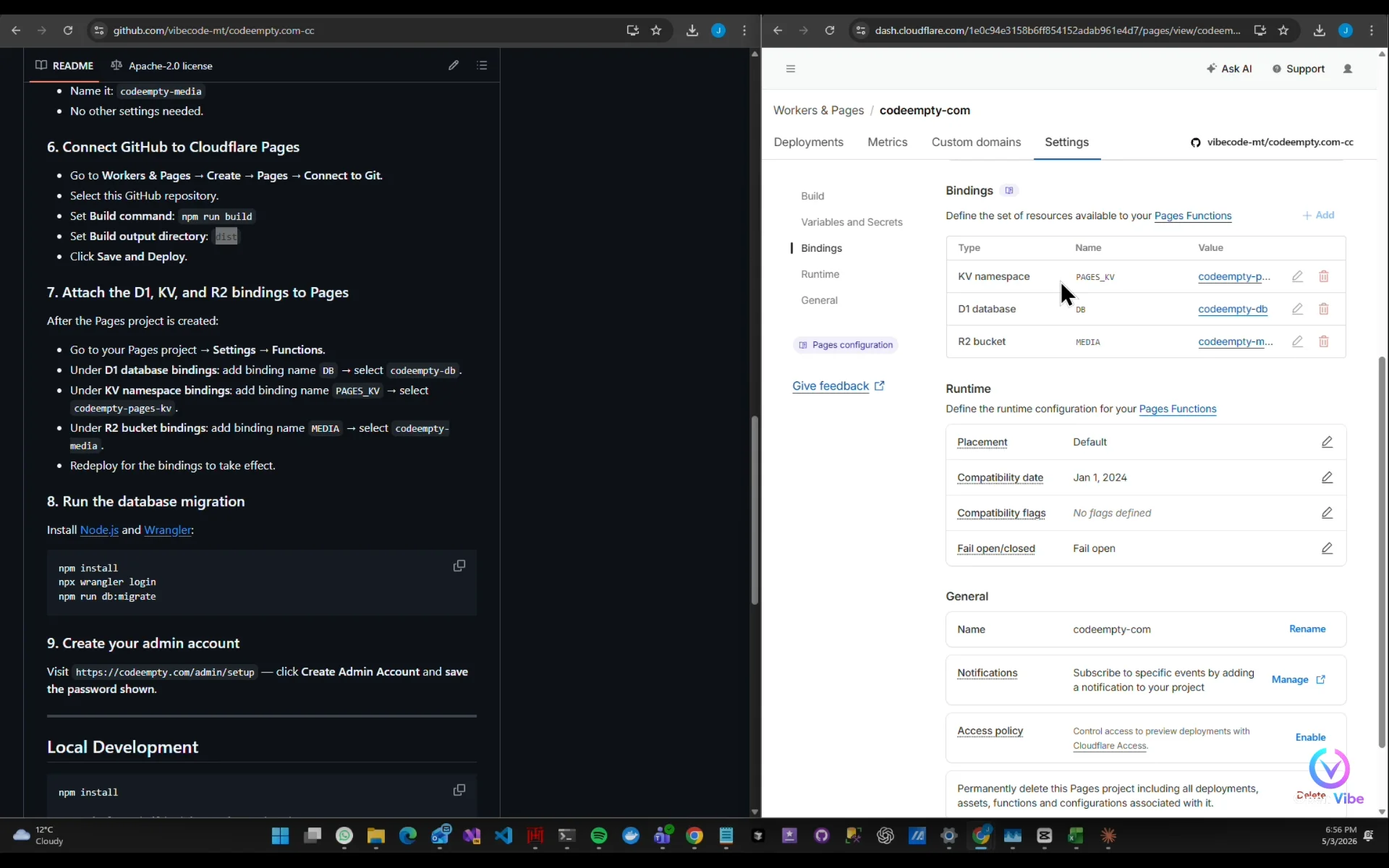
Check bindings (README Step 7)
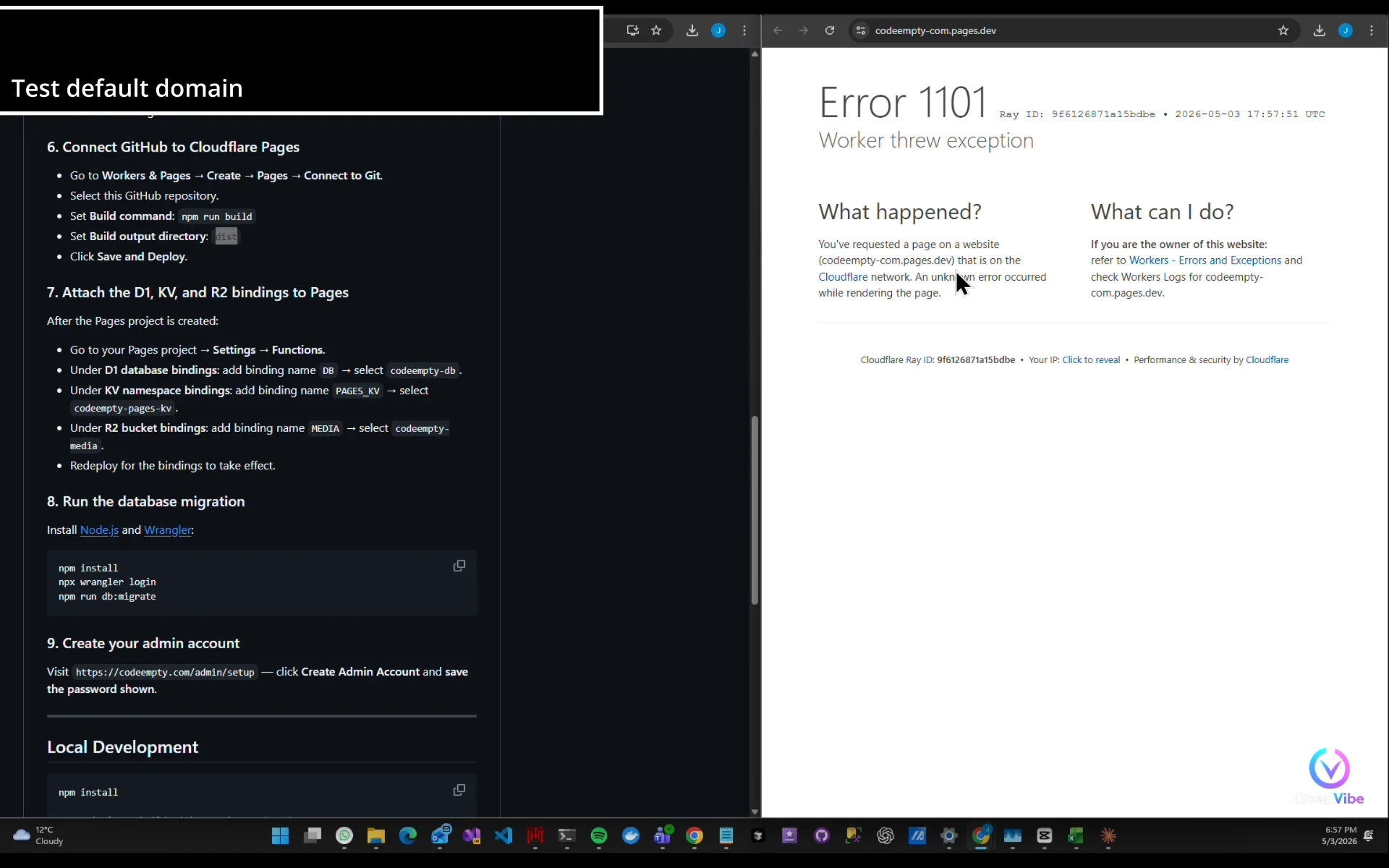
Test default domain
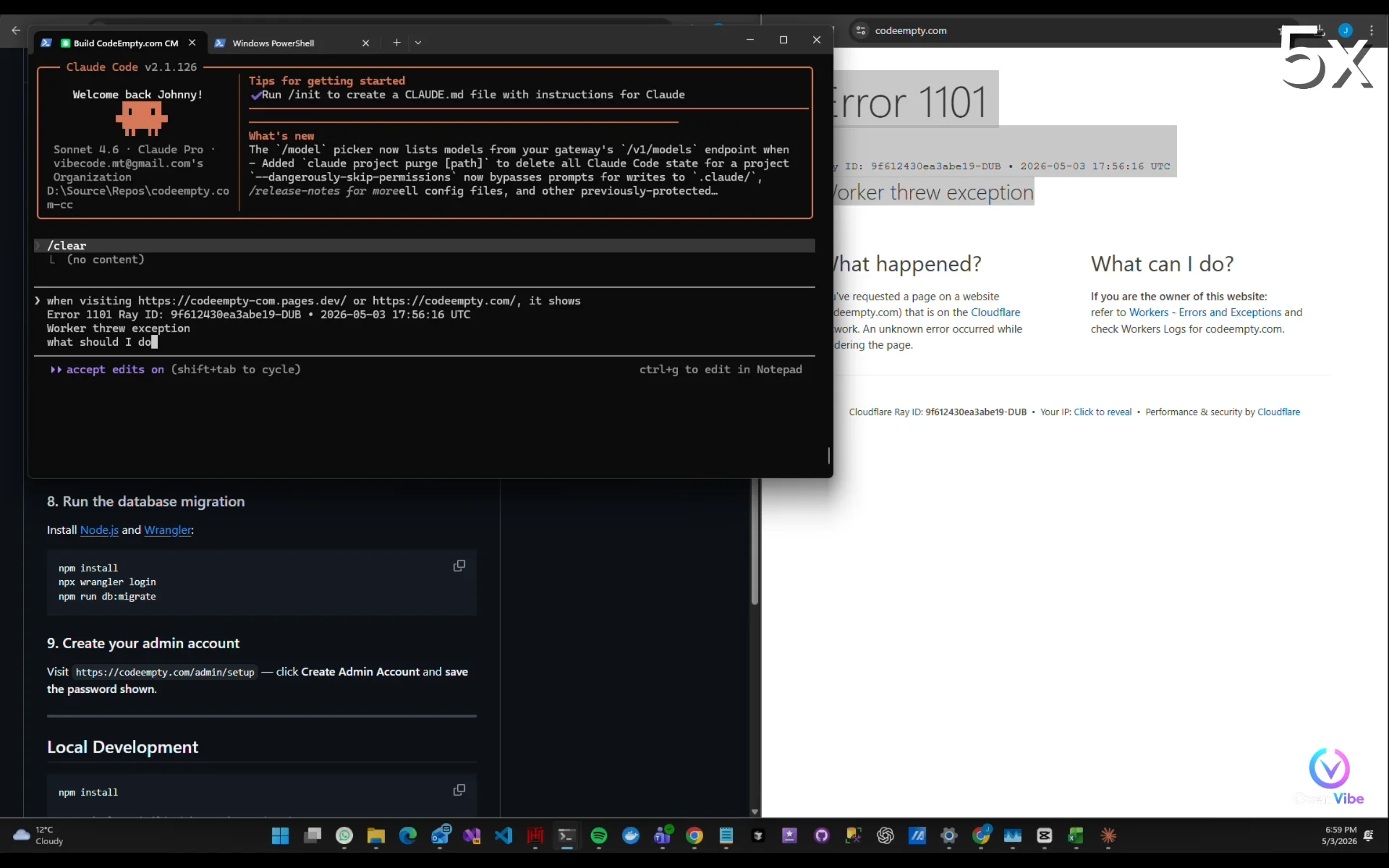
Ask AI
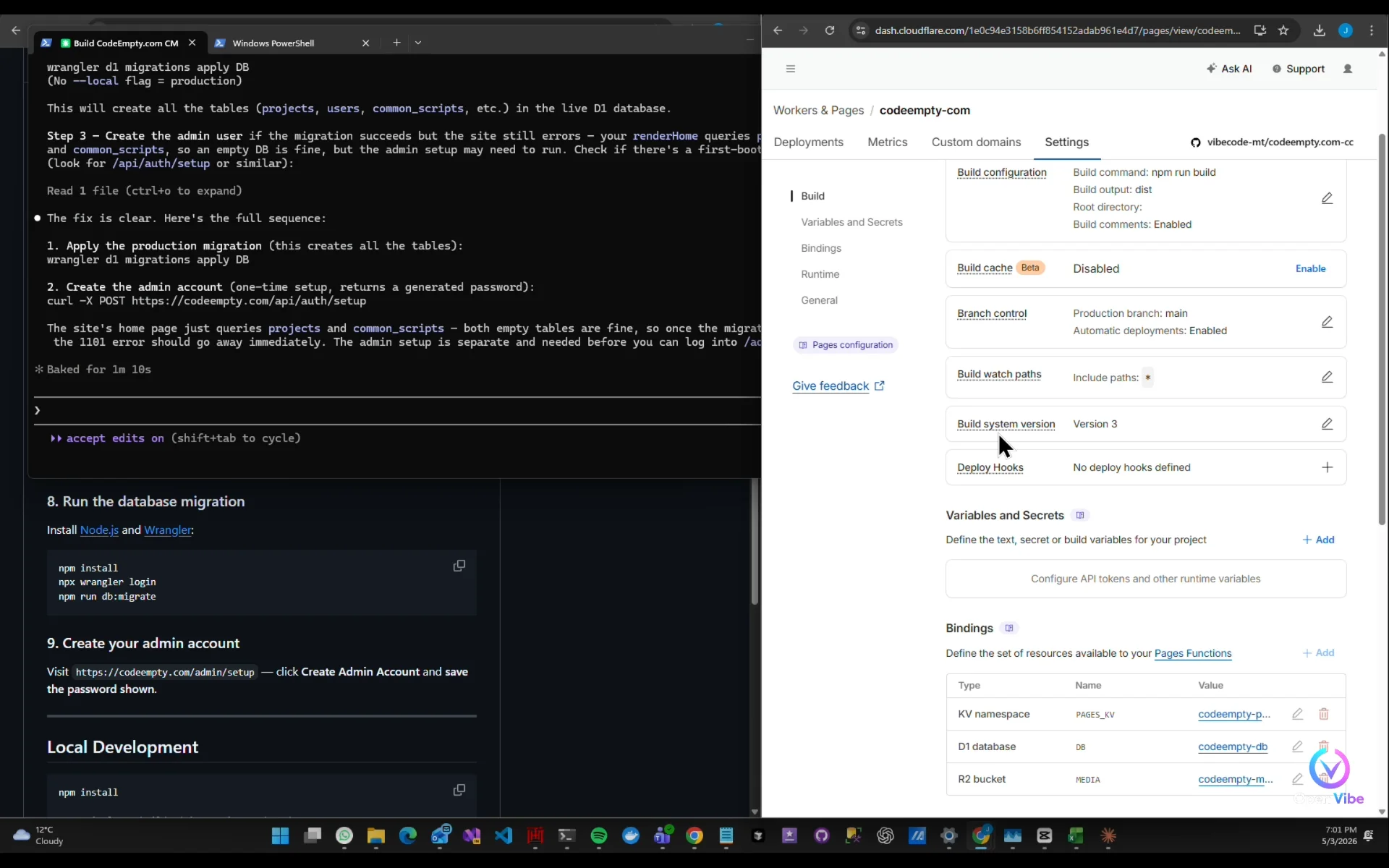
The fix is clear...
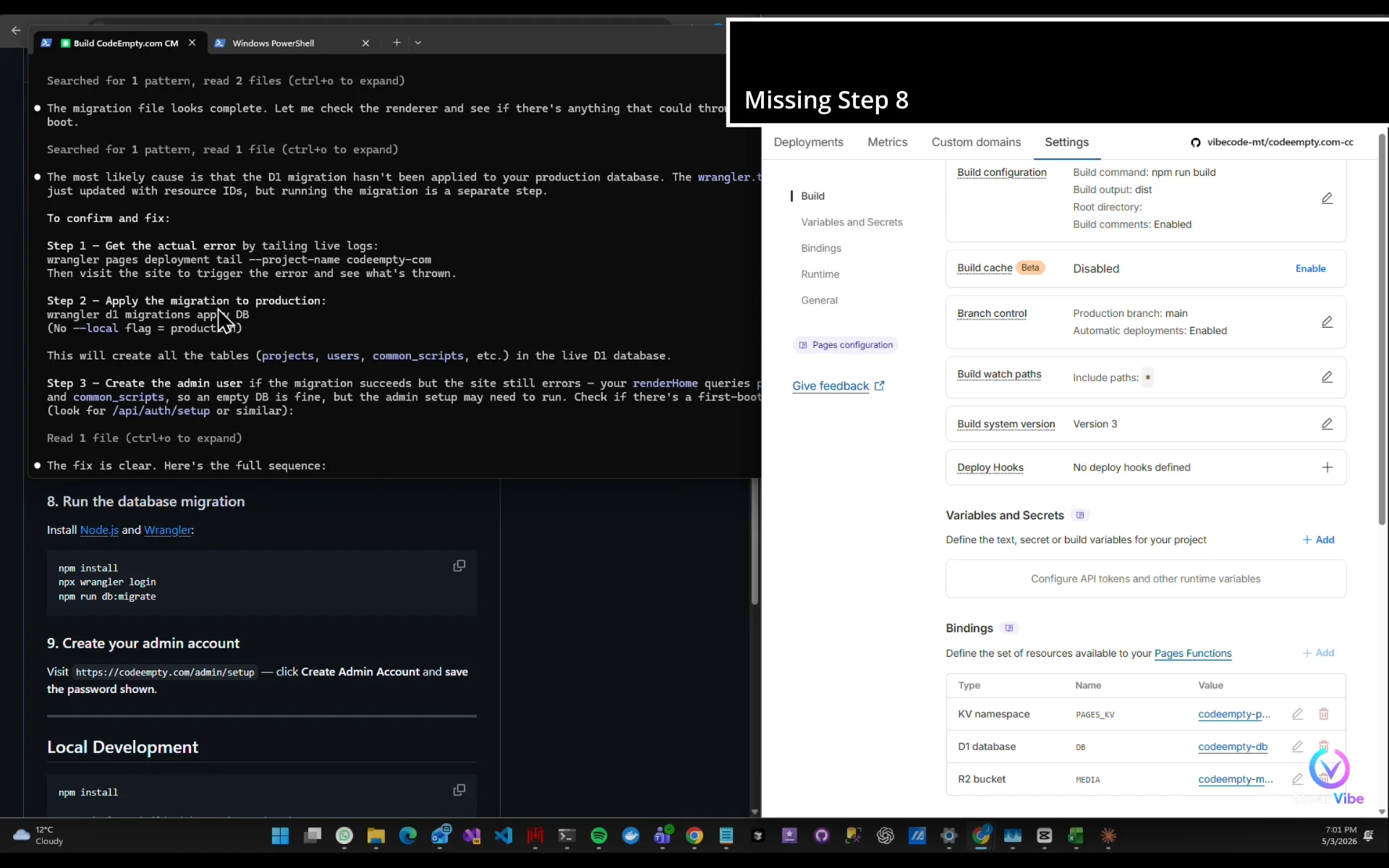
Missing Step 8 in Readme.md
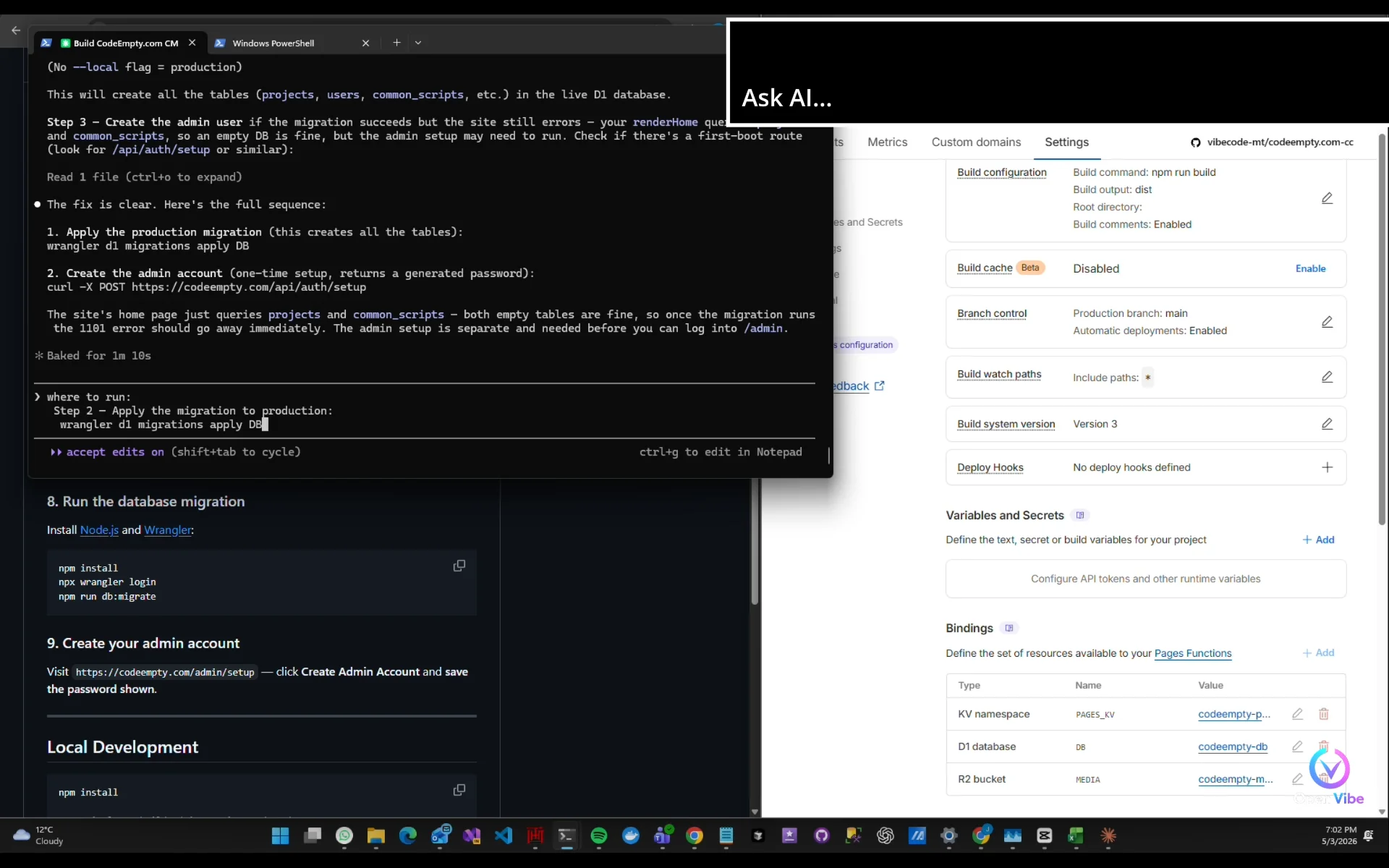
Ask AI...
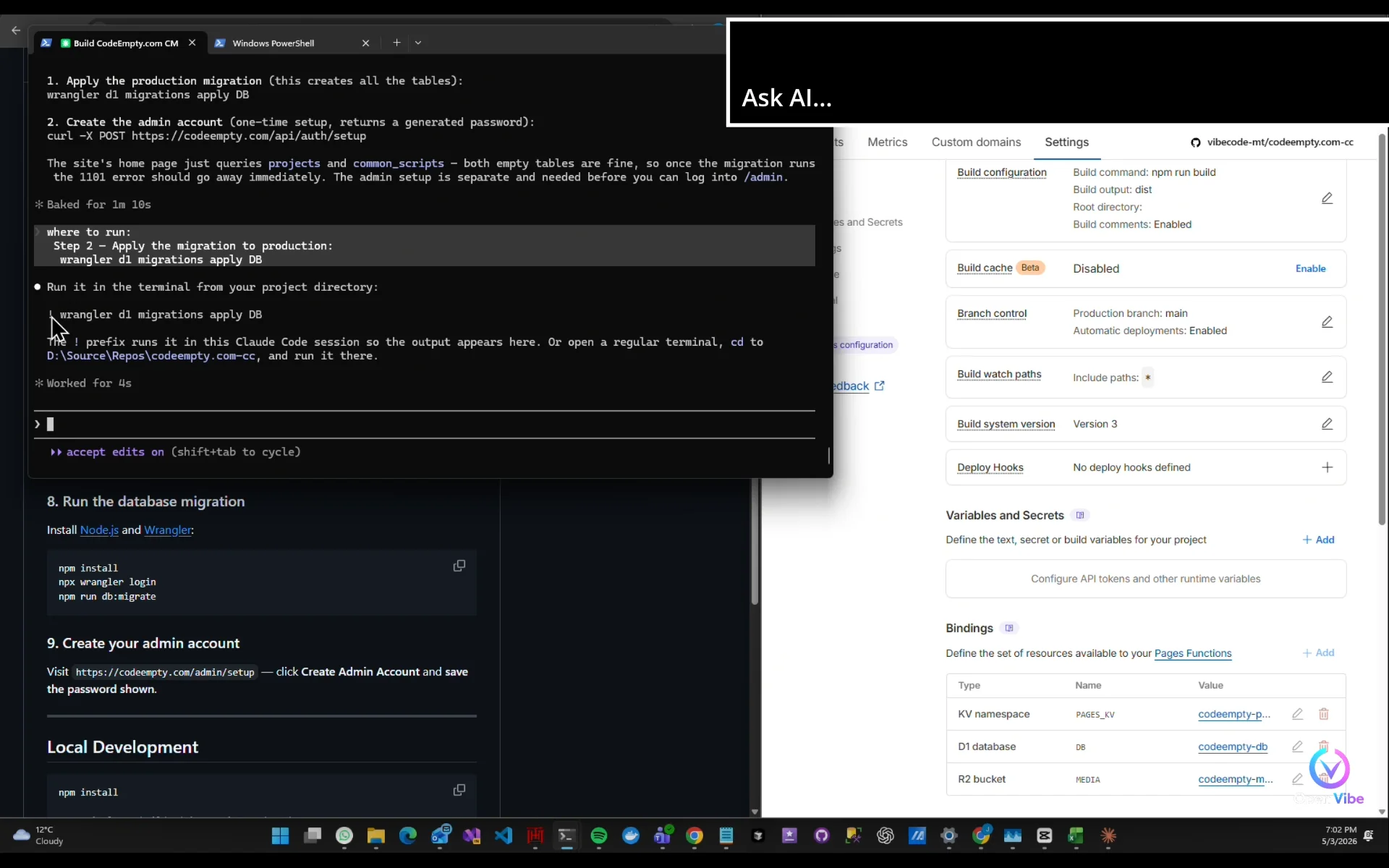
It asks me to run this command here...
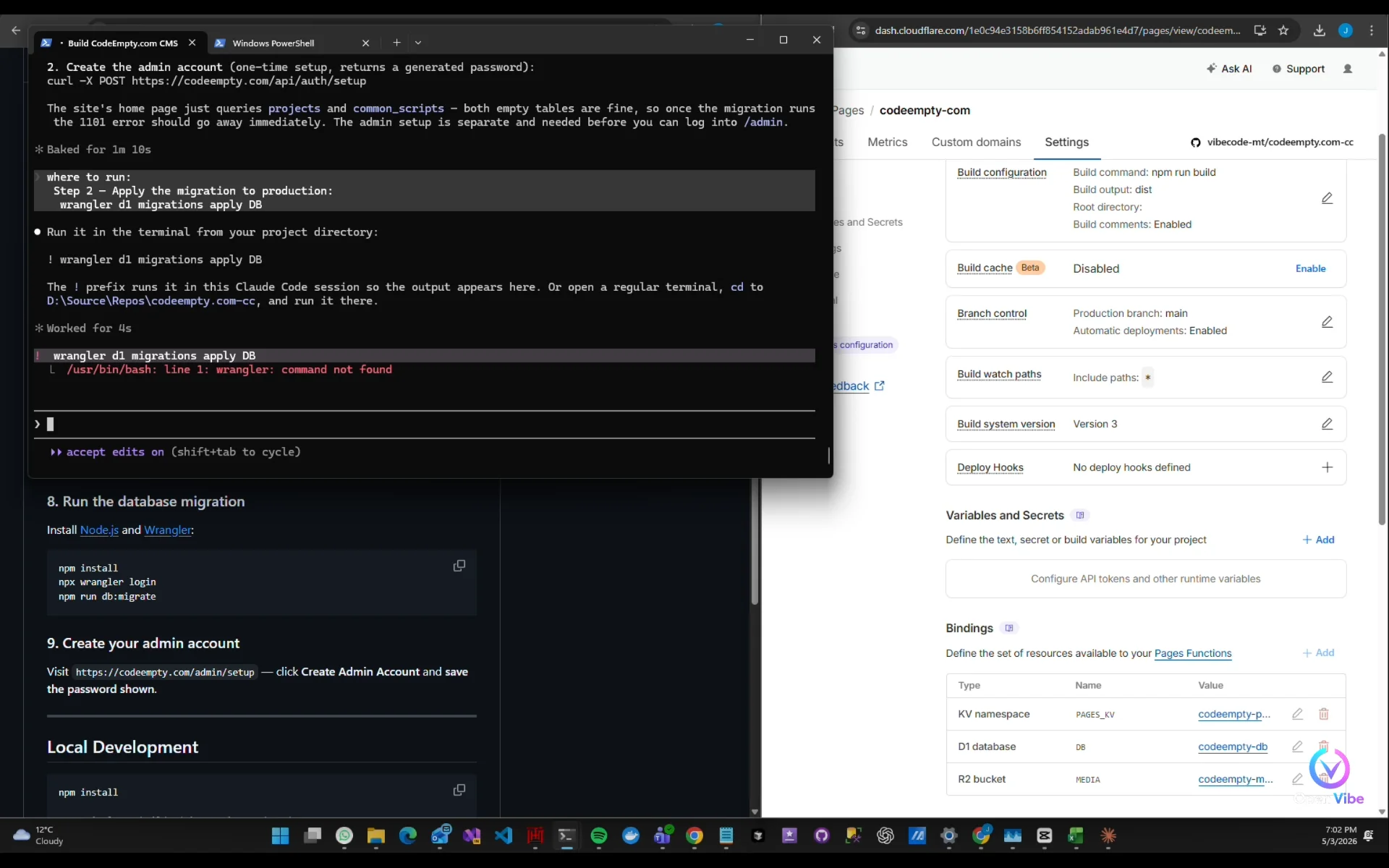
Error…
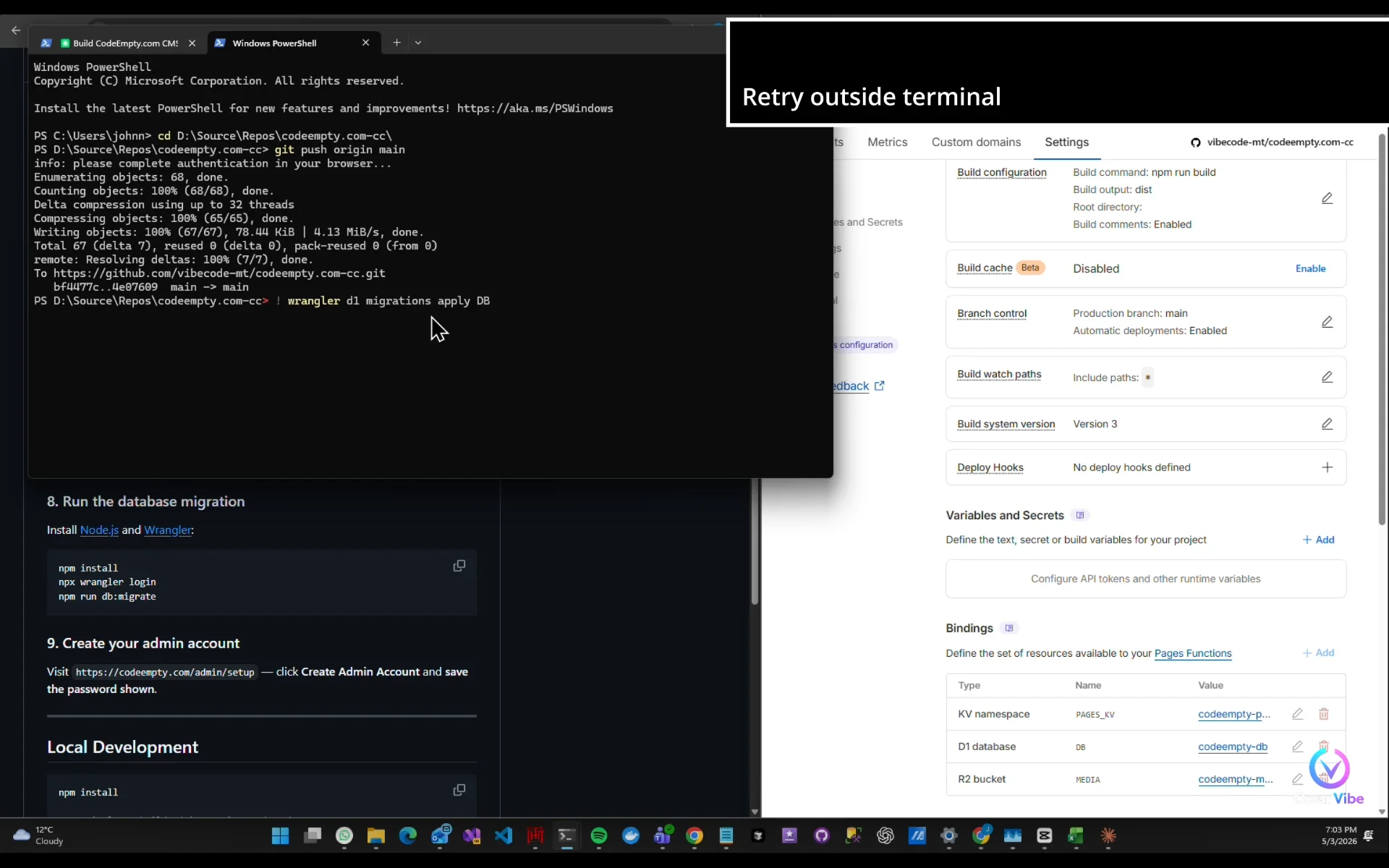
Retry outside terminal
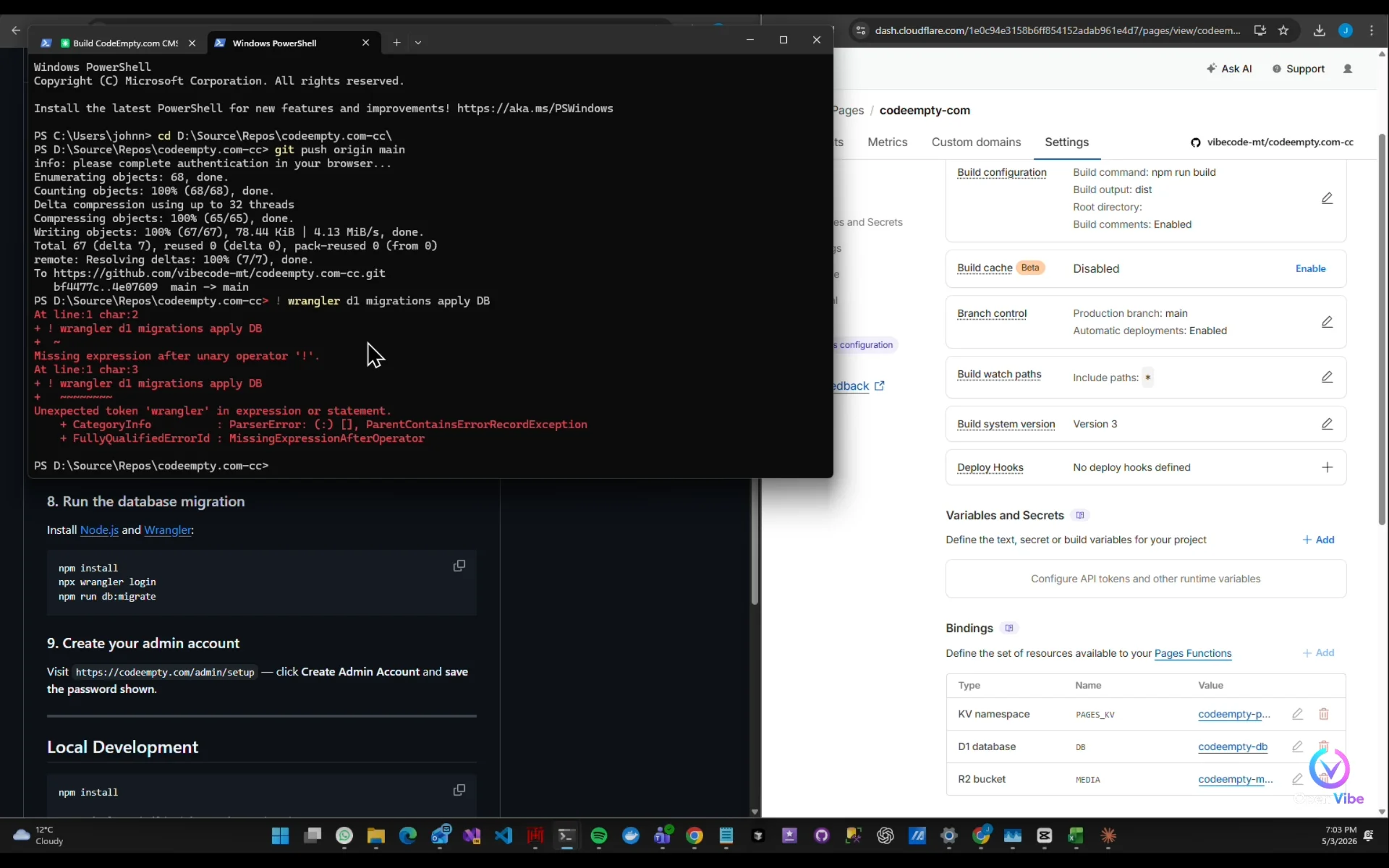
it doesn't understand "!"...
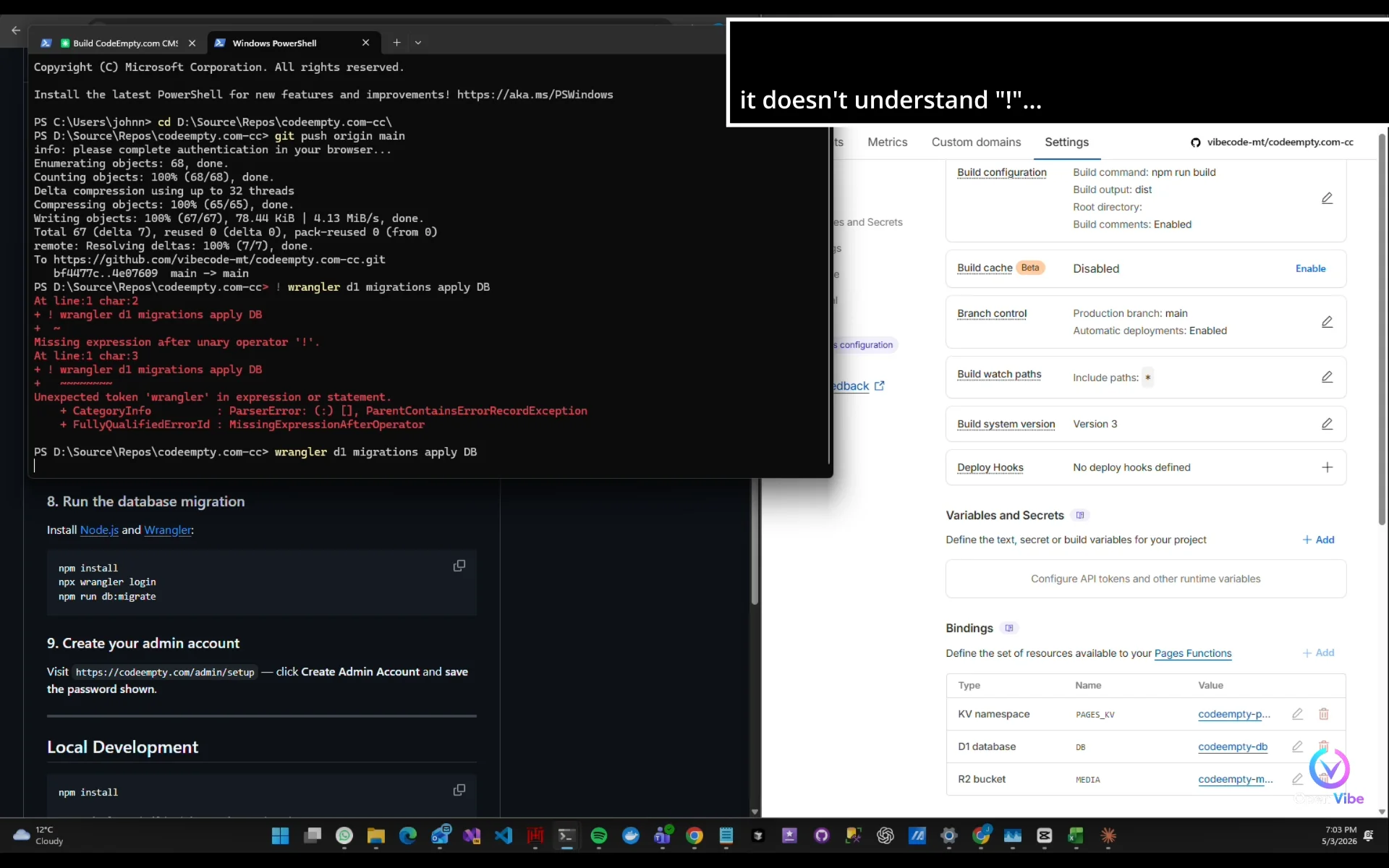
remove "!" and try again...
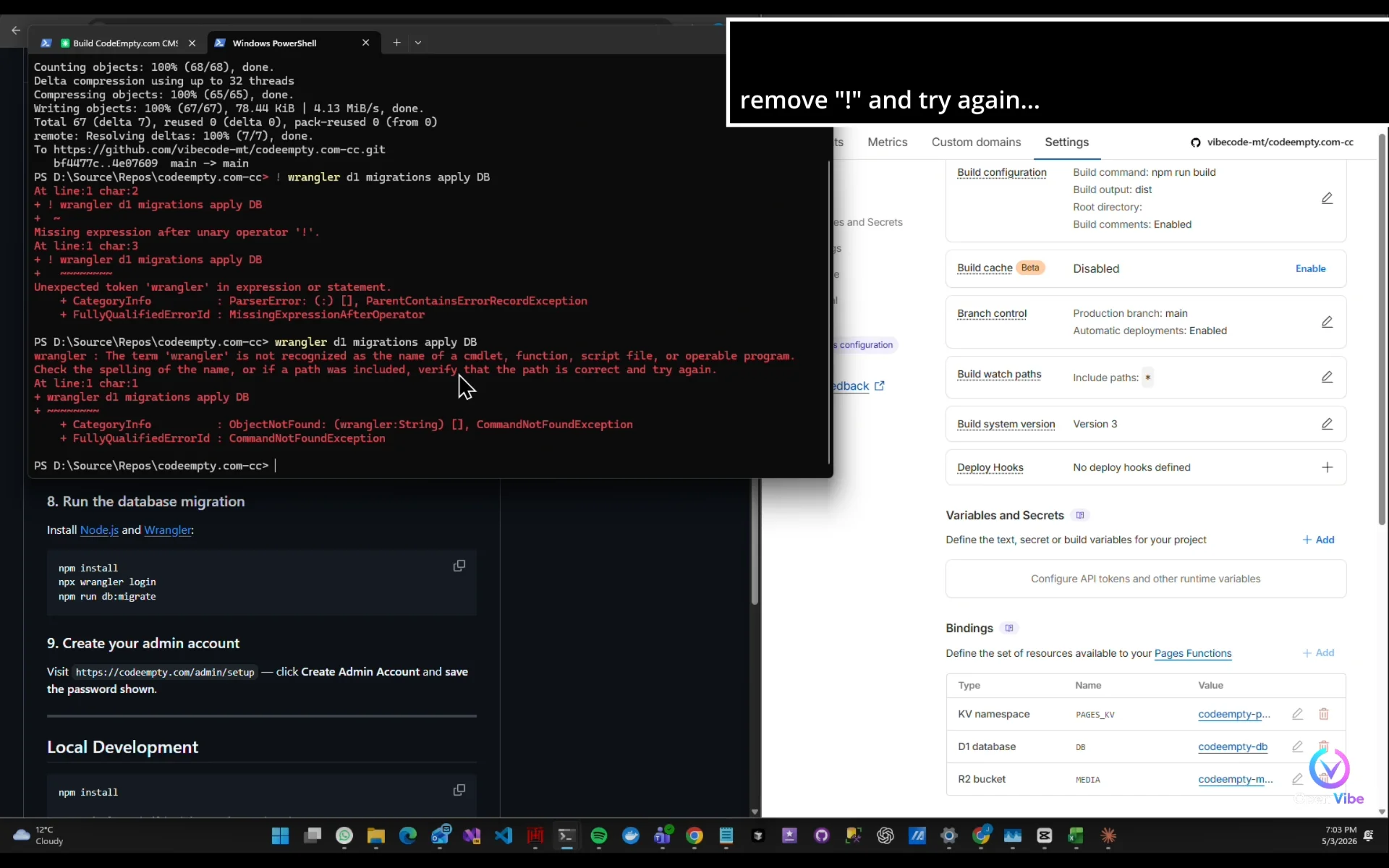
Read the error.
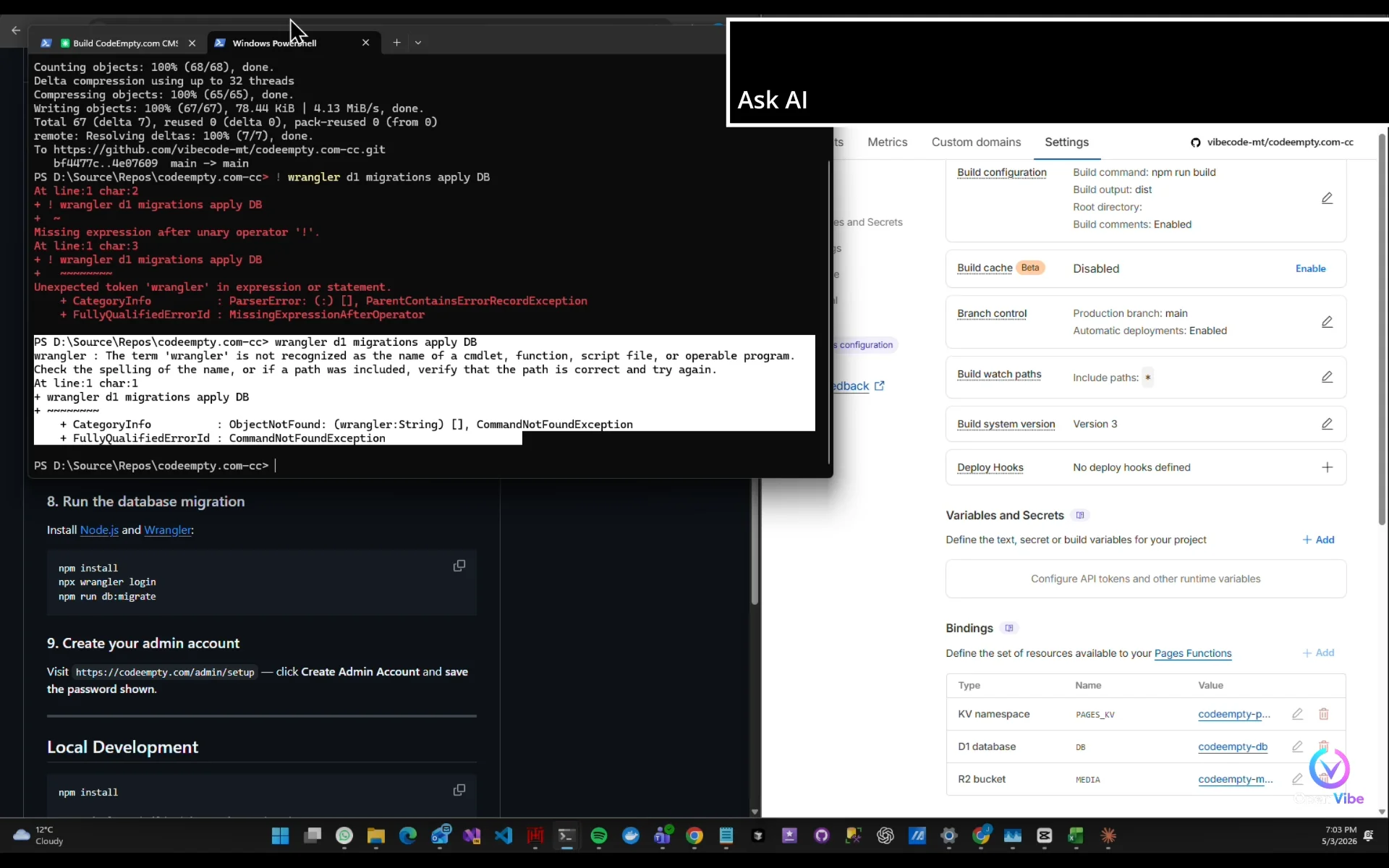
Ask AI
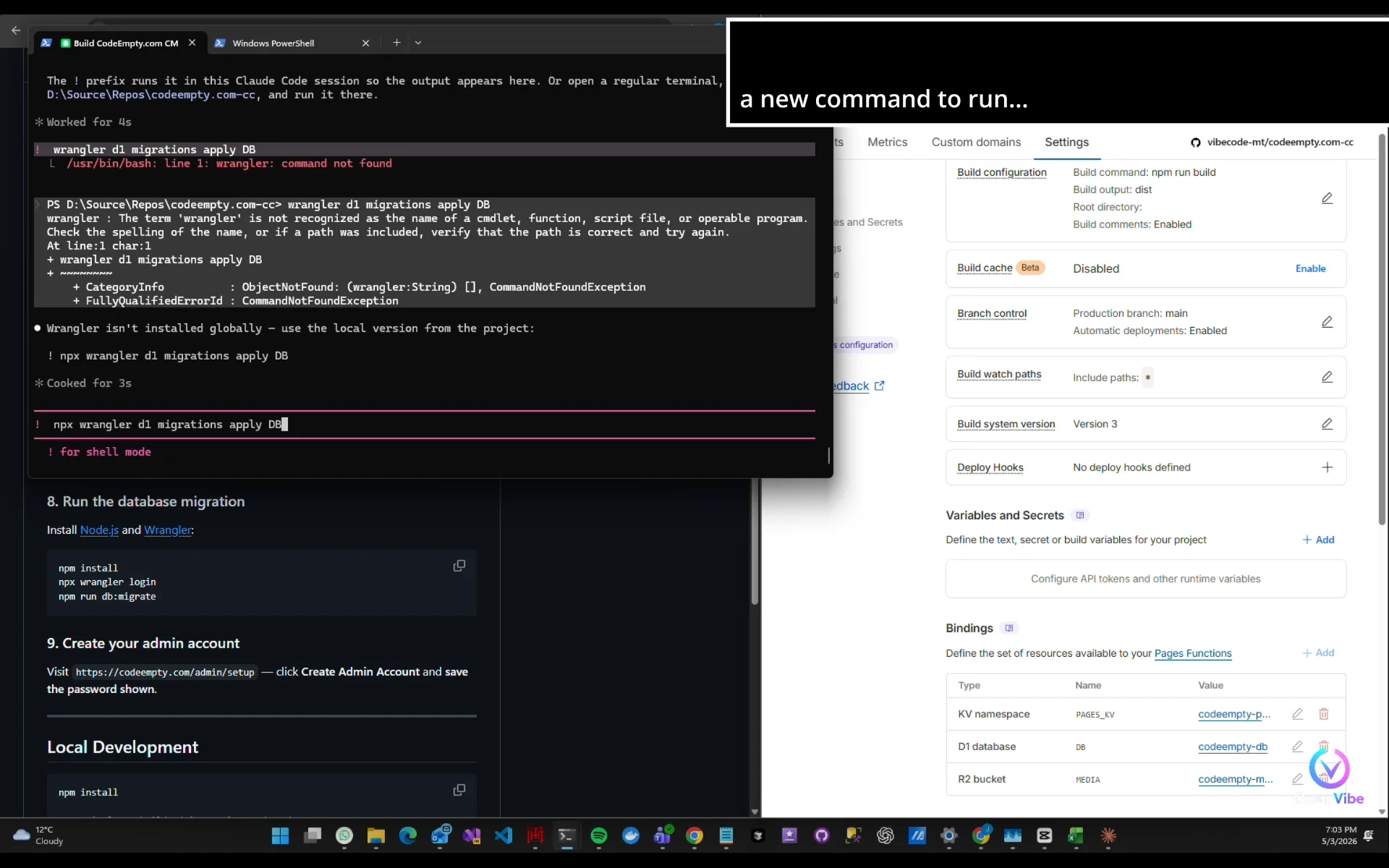
Try again.
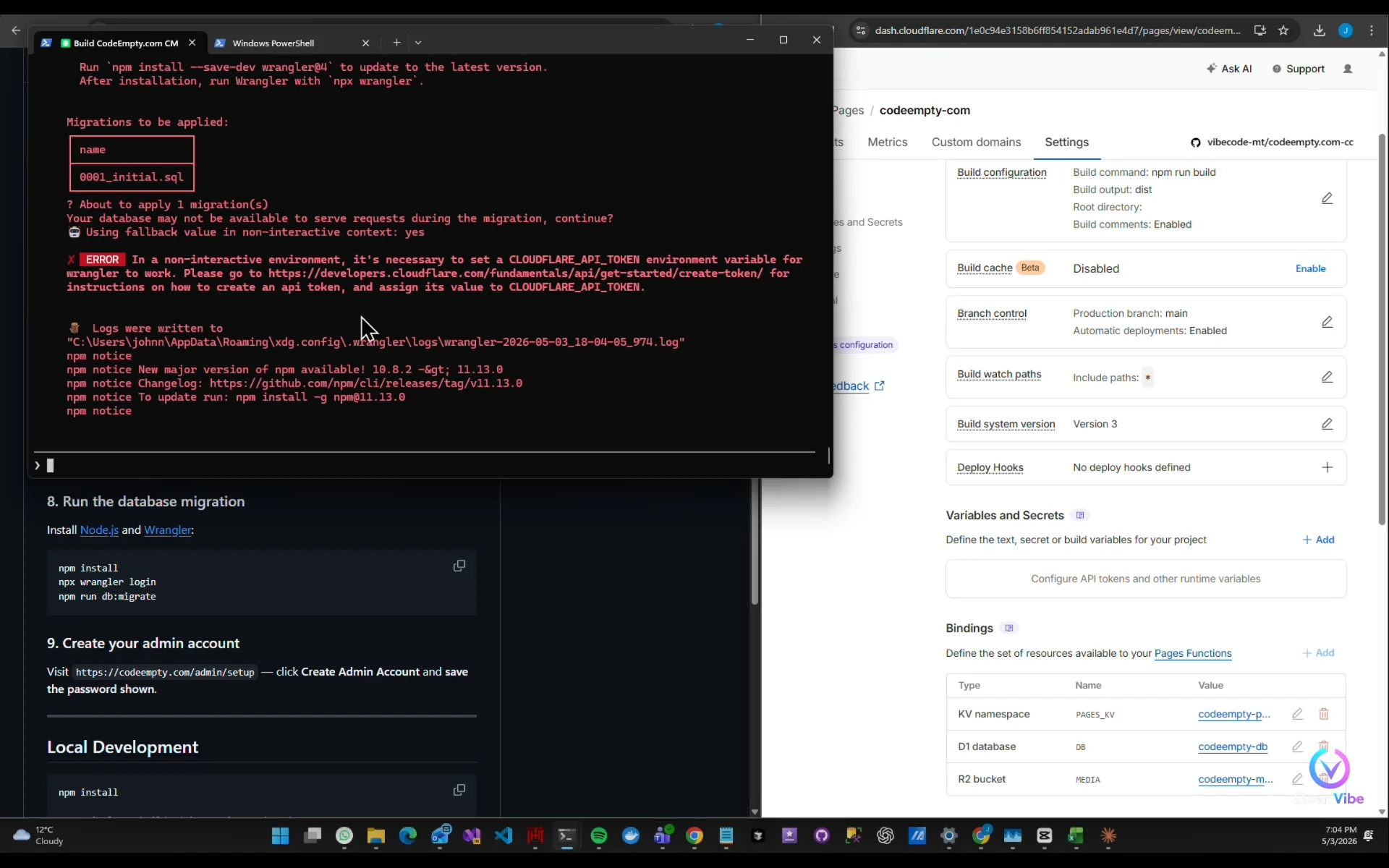
Another error.
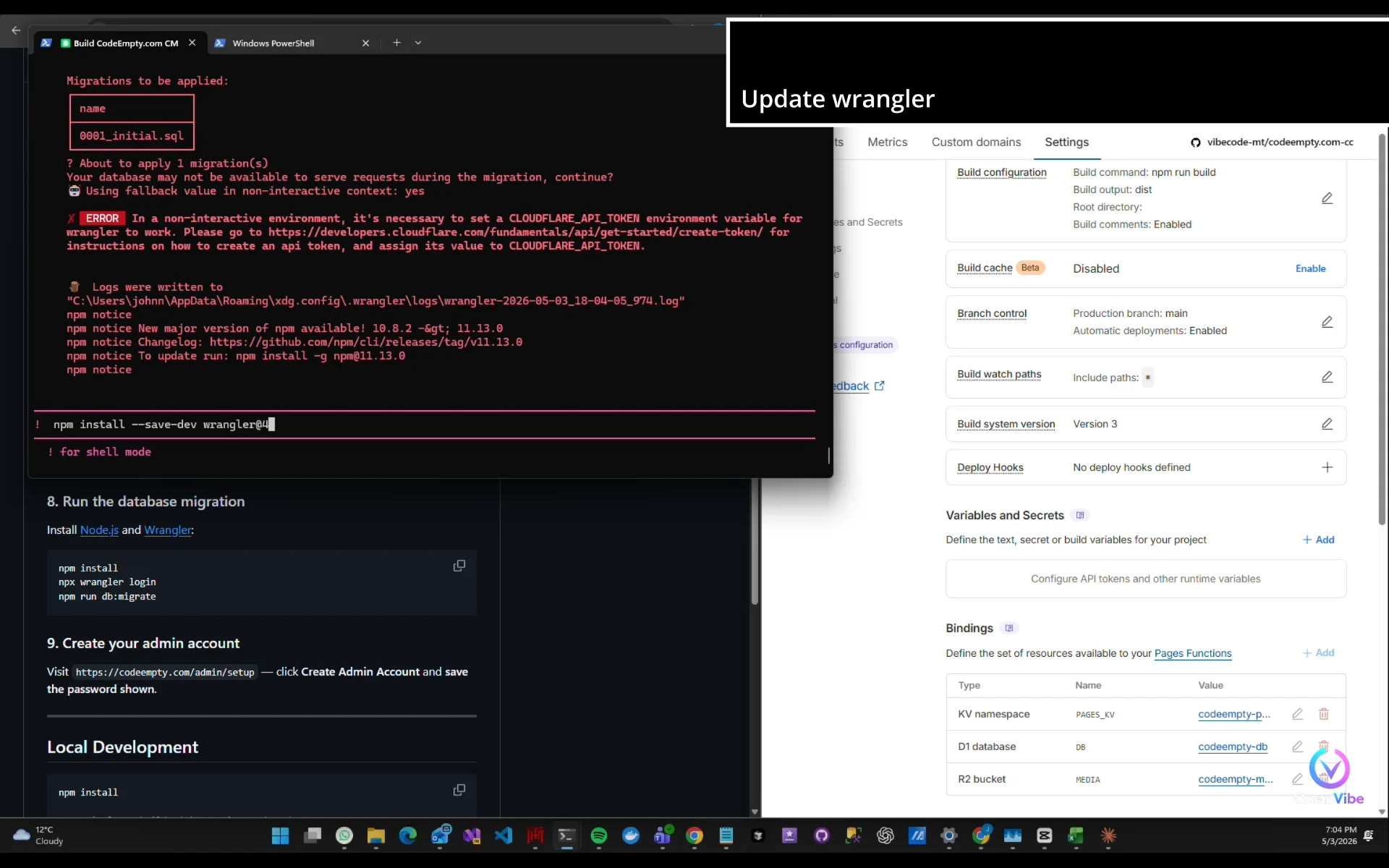
Update wrangler (the error suggests)
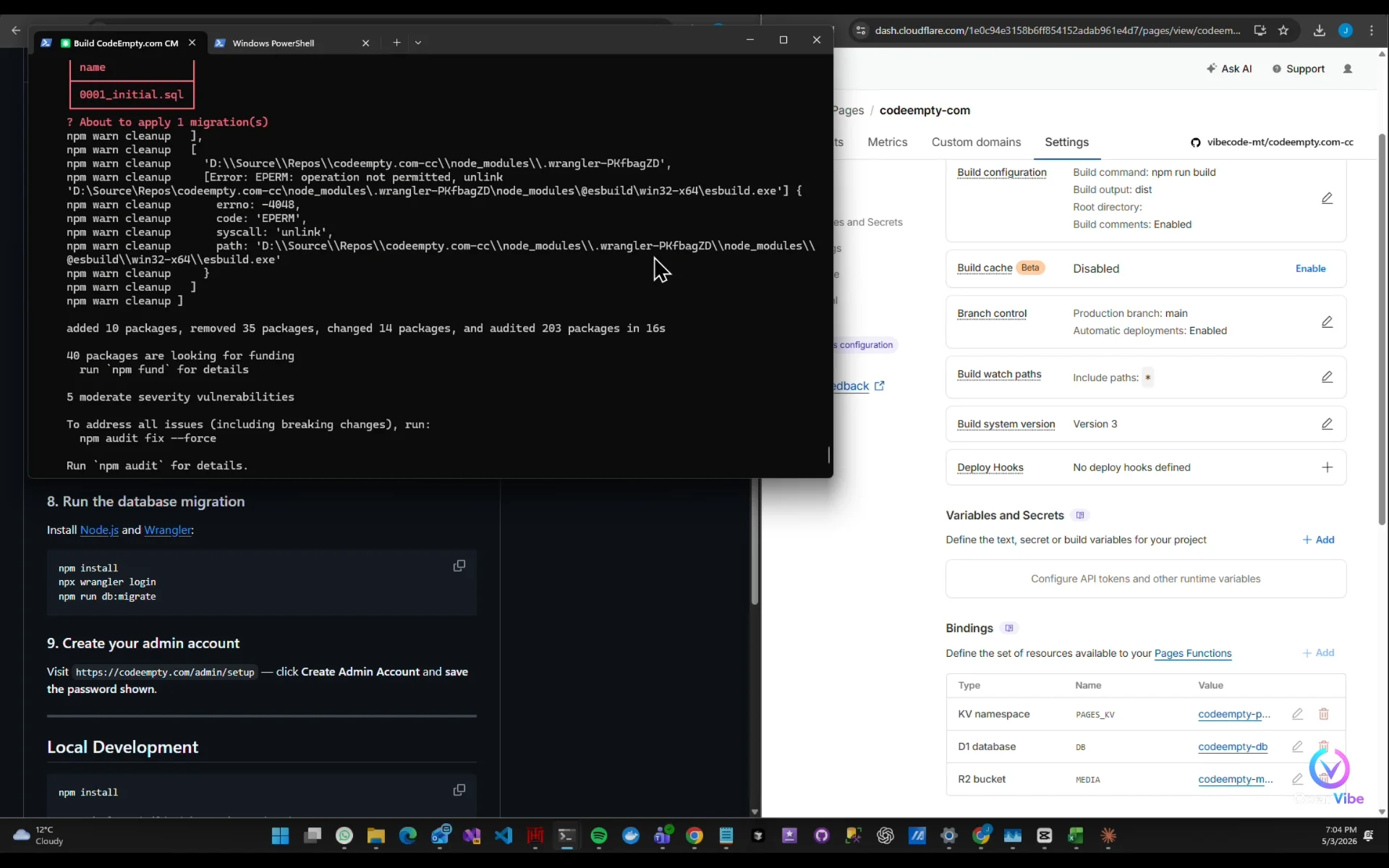
Keep going.
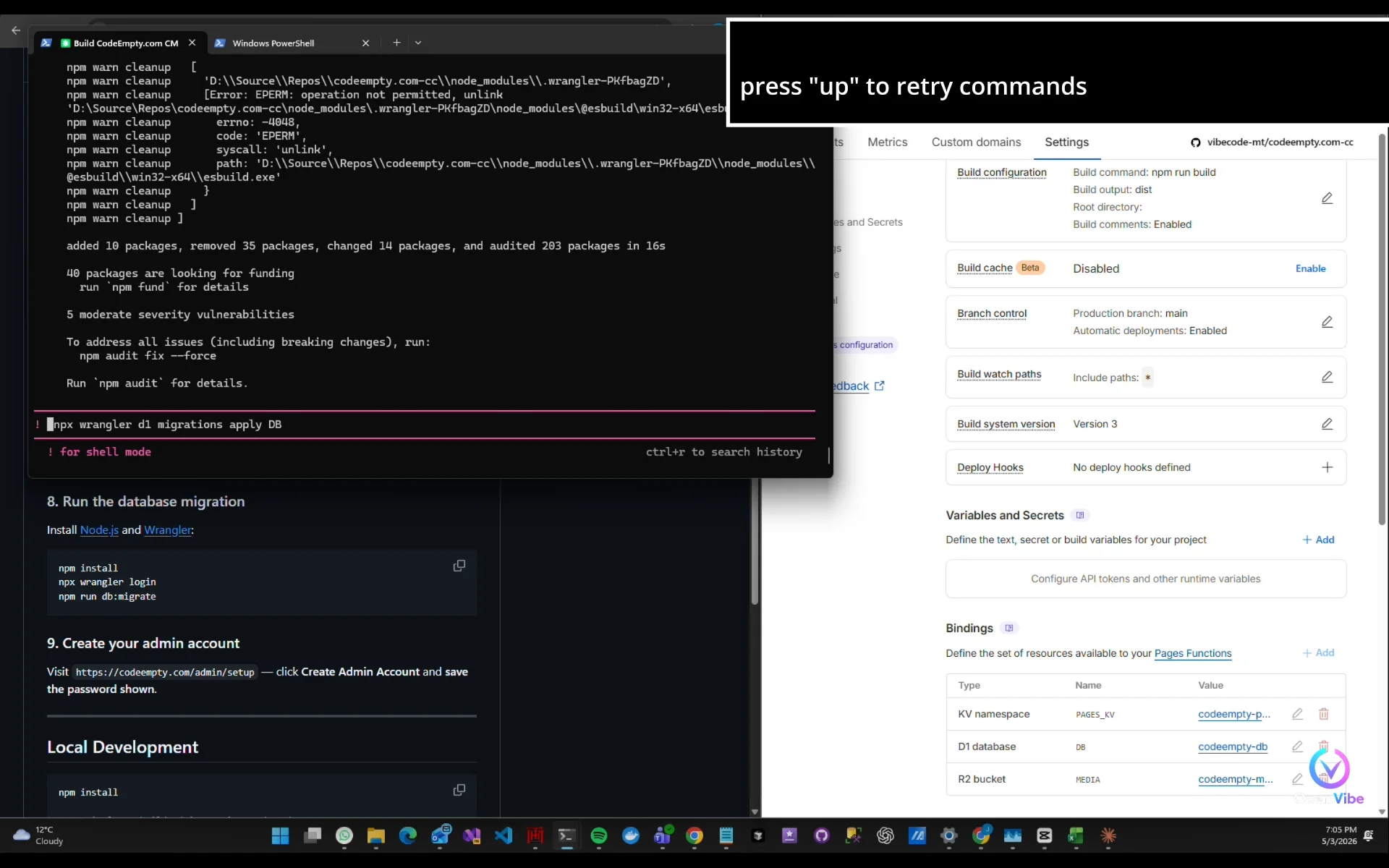
press "up" to retry commands
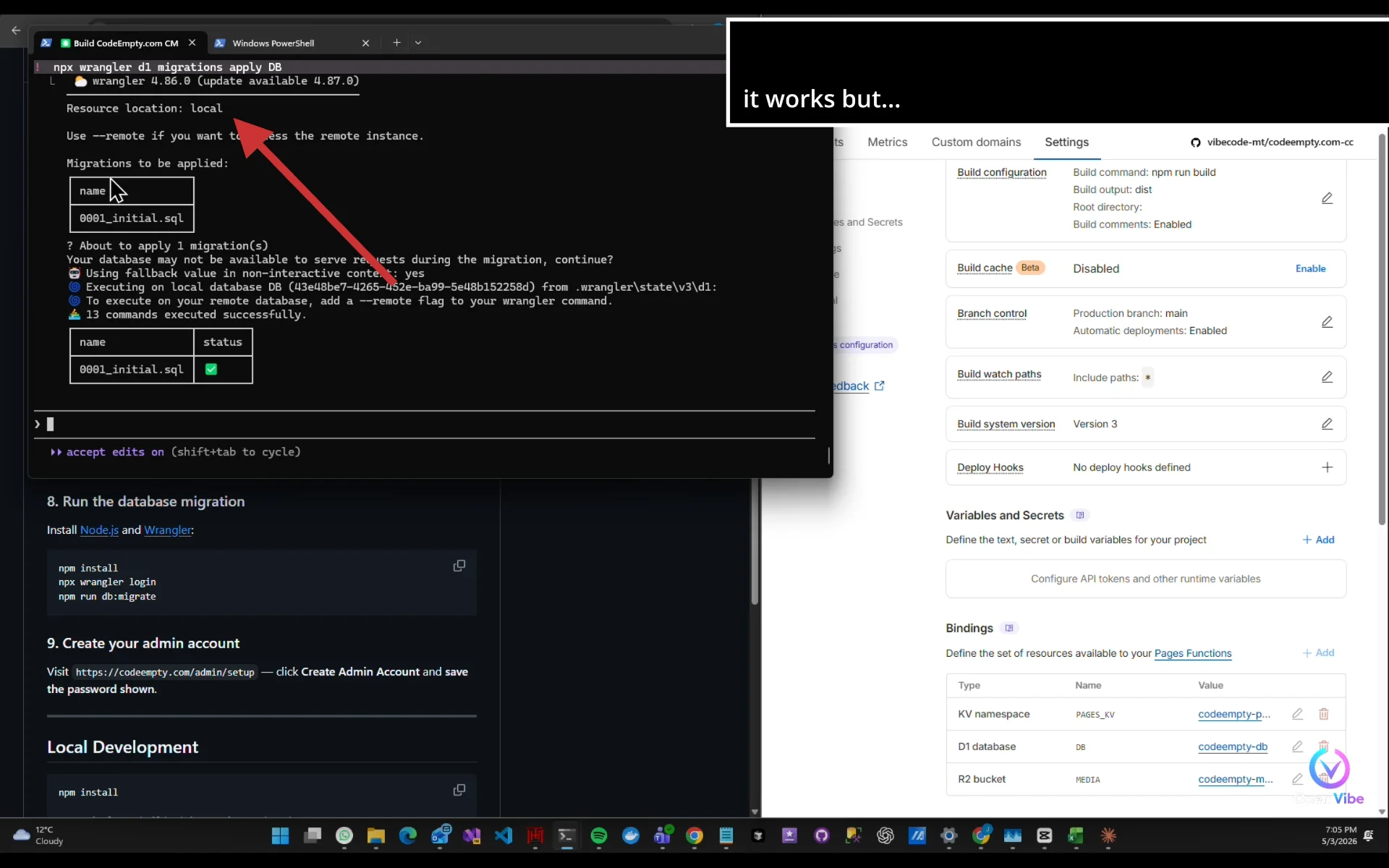
it works but...
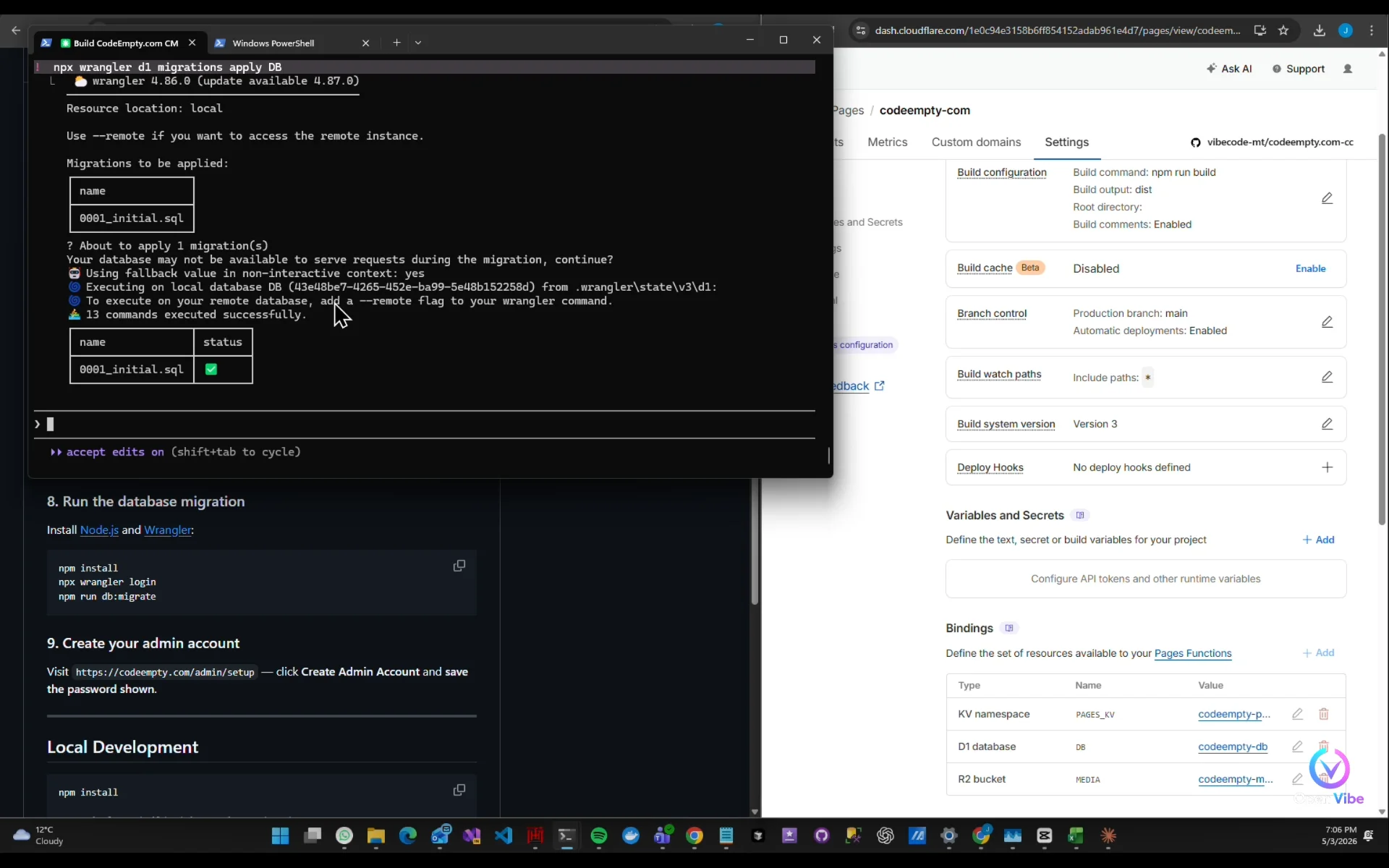
it said "add a --remote flag"!
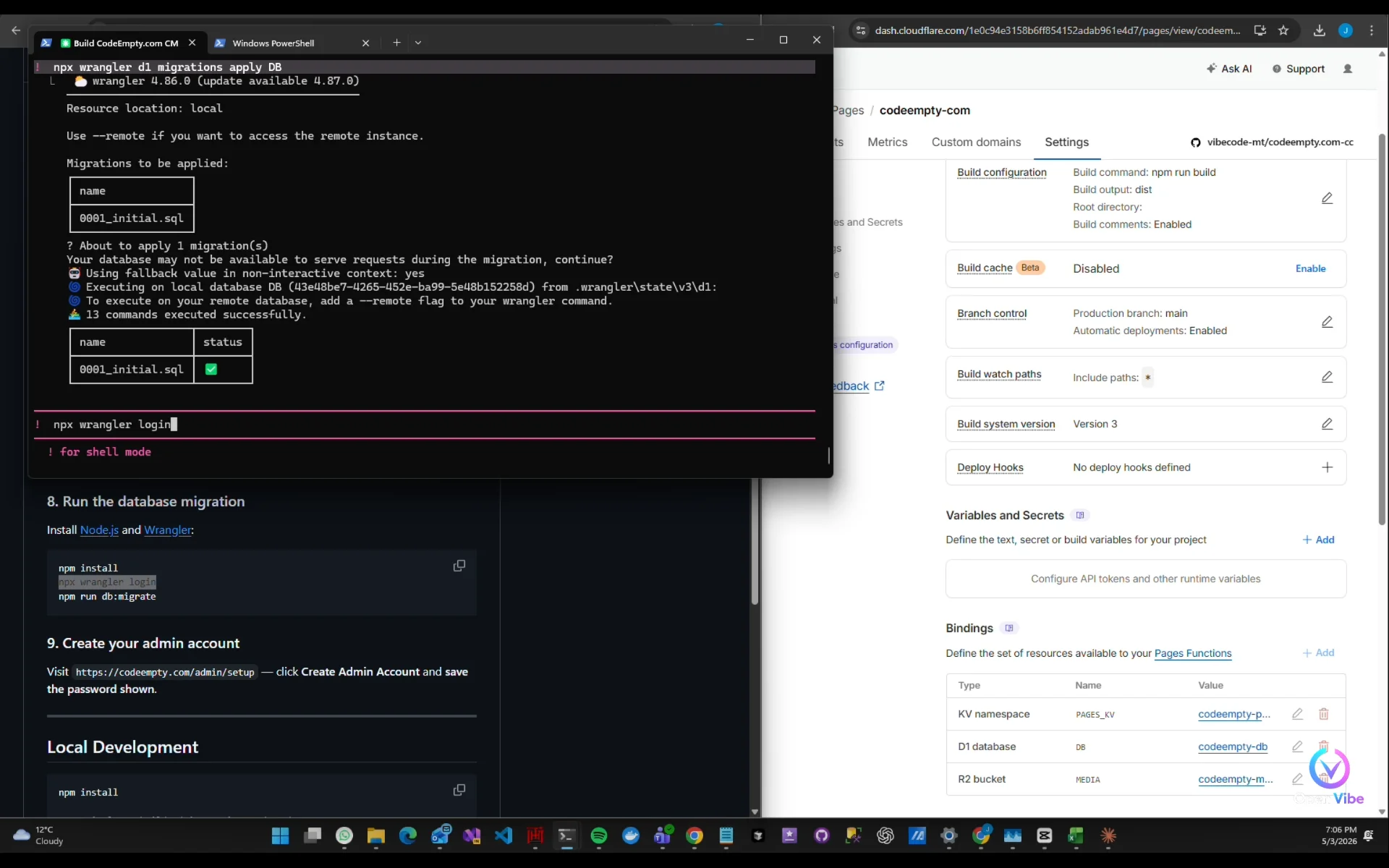
Referring to Step 8, let's login first!
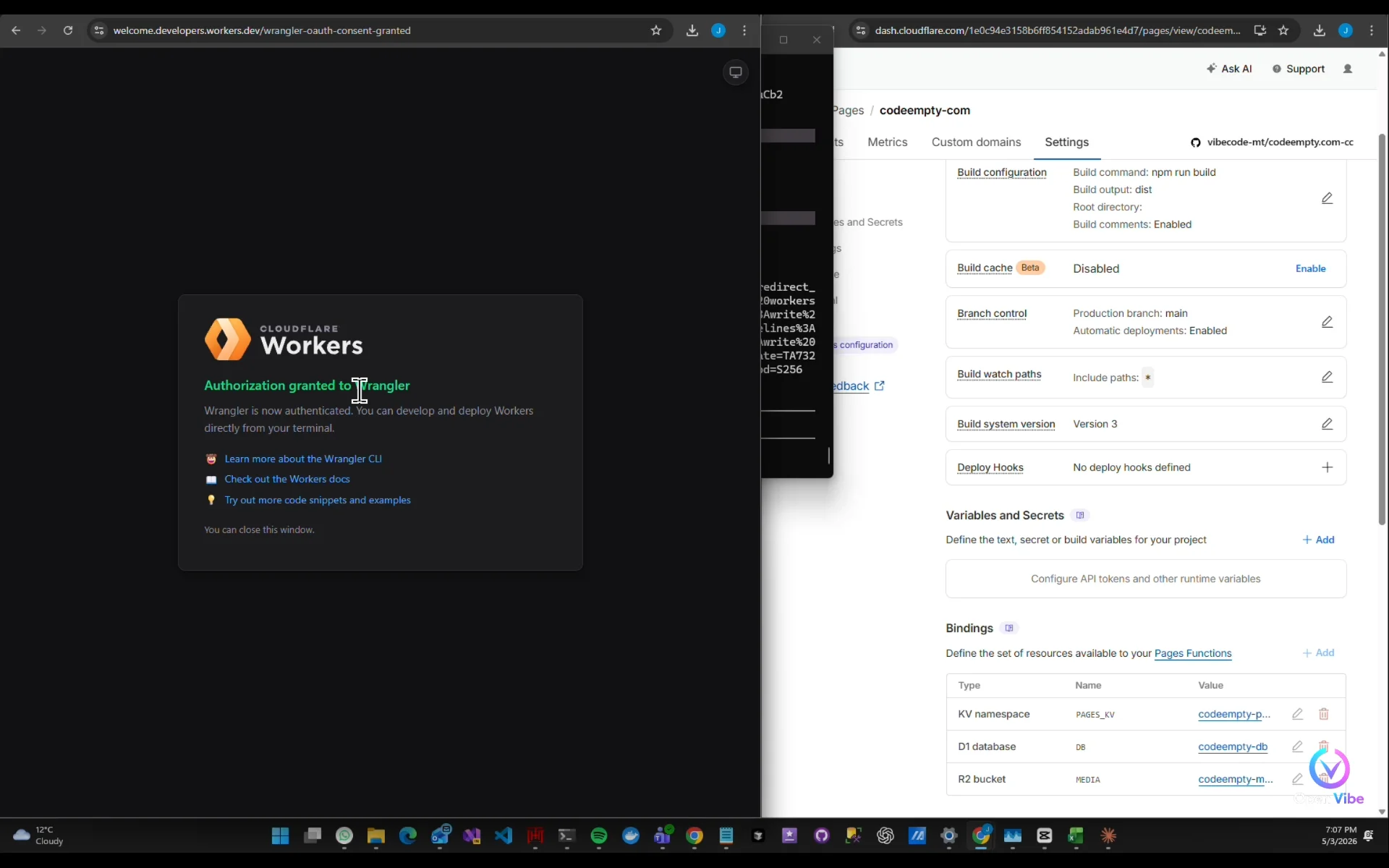
Making progress...!
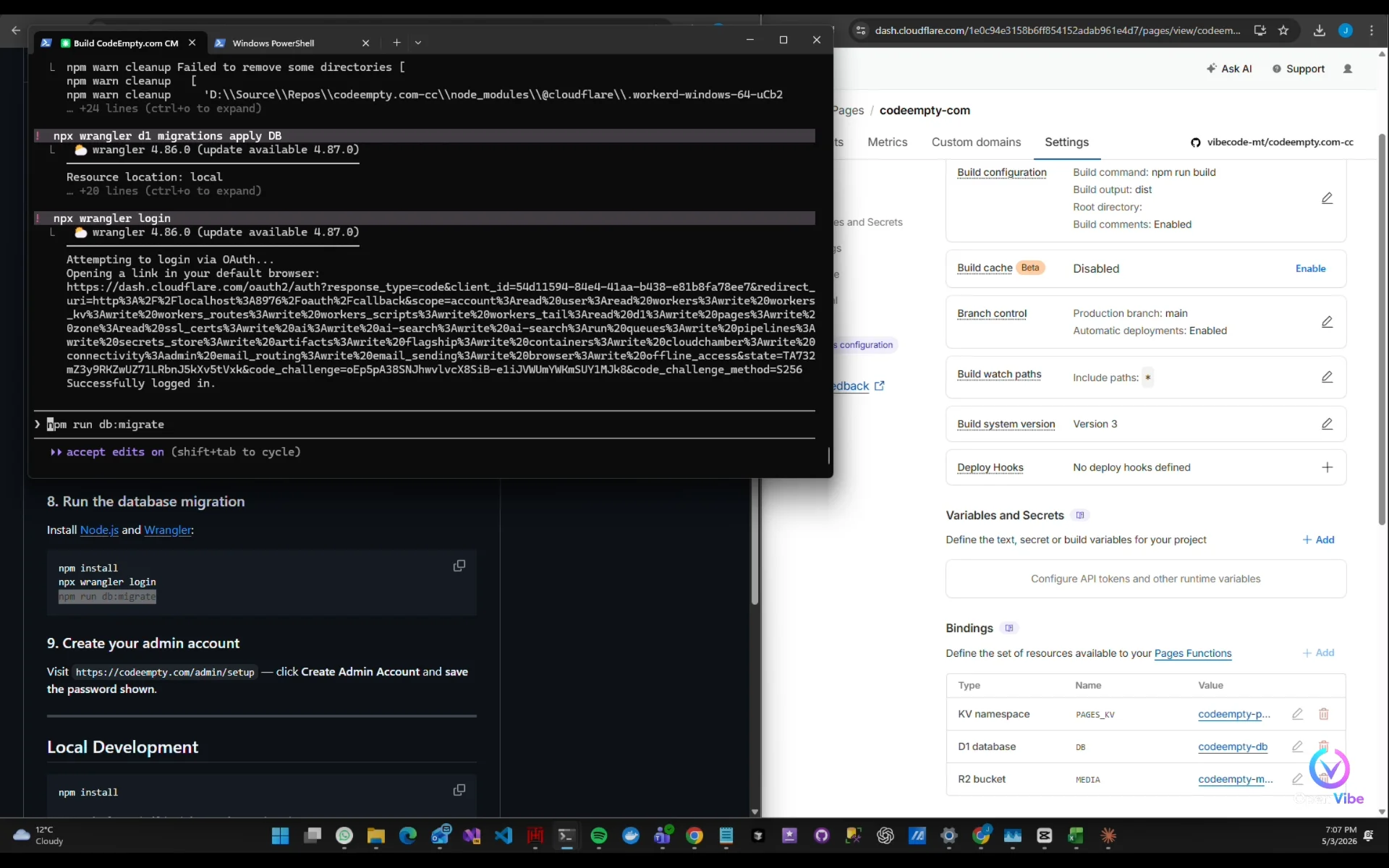
Continue setup
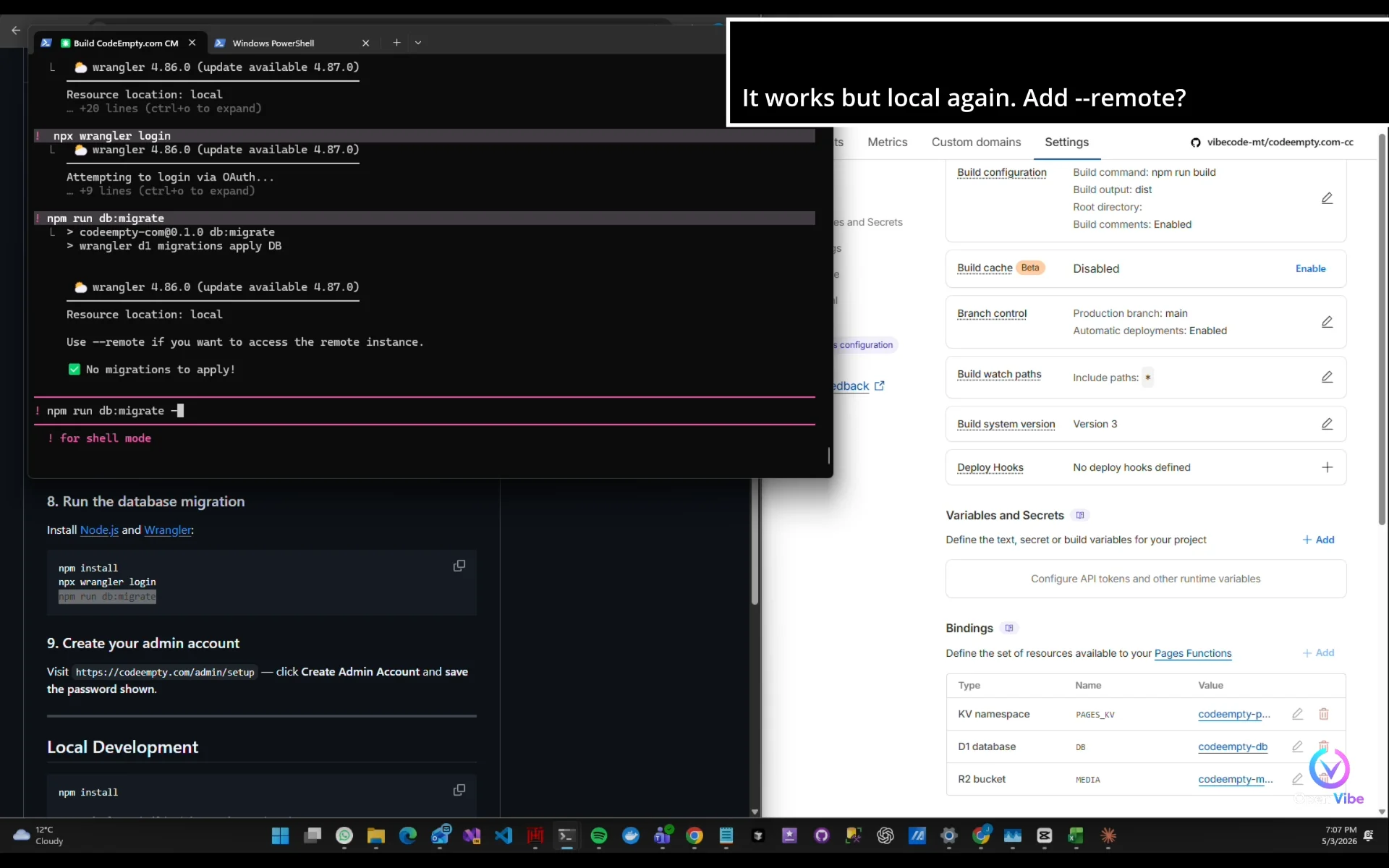
It works but local again. Add --remote?
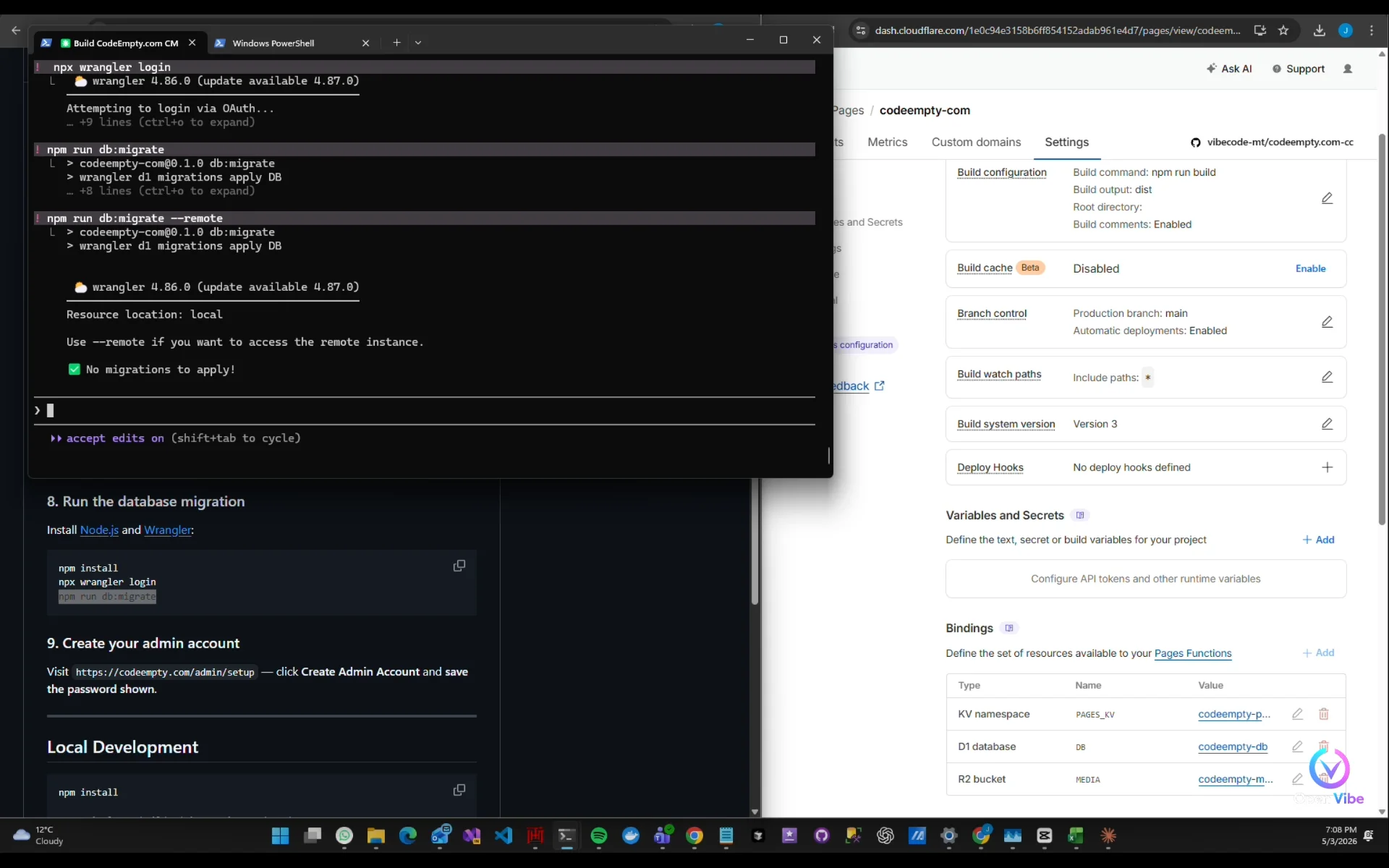
still local... doesn't recognize the --remote flag?
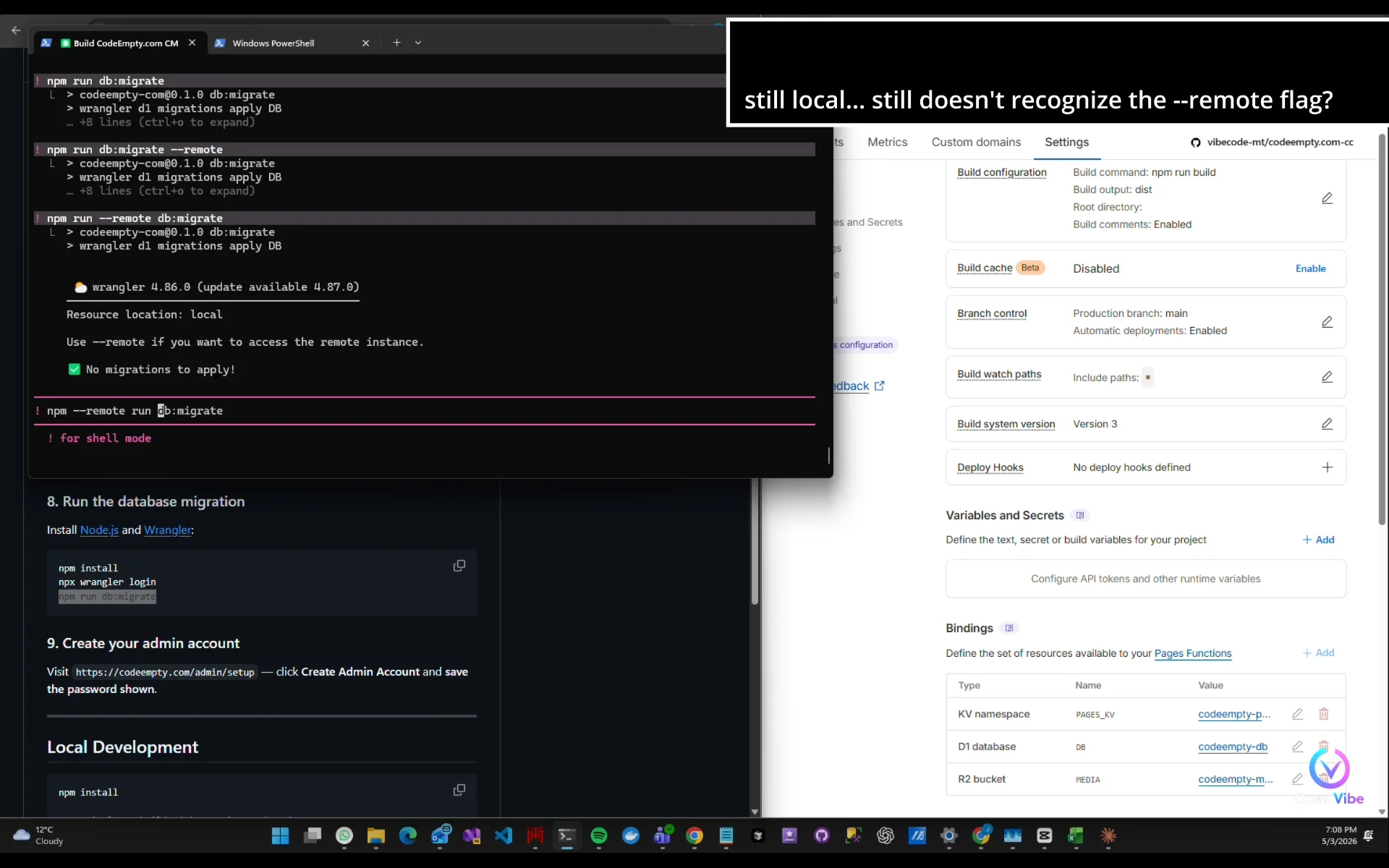
still local... still doesn't recognize the --remote flag?
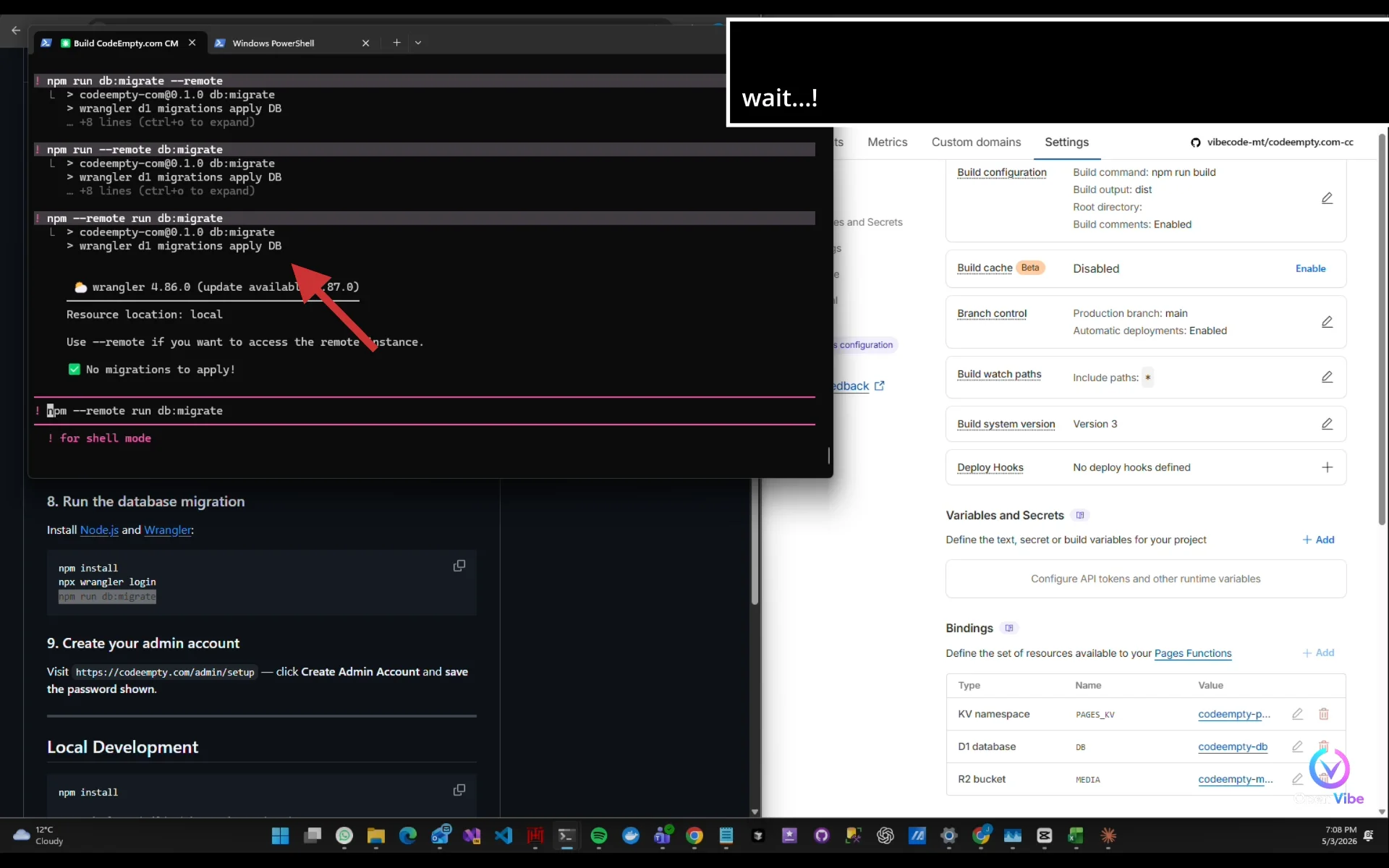
wait...!
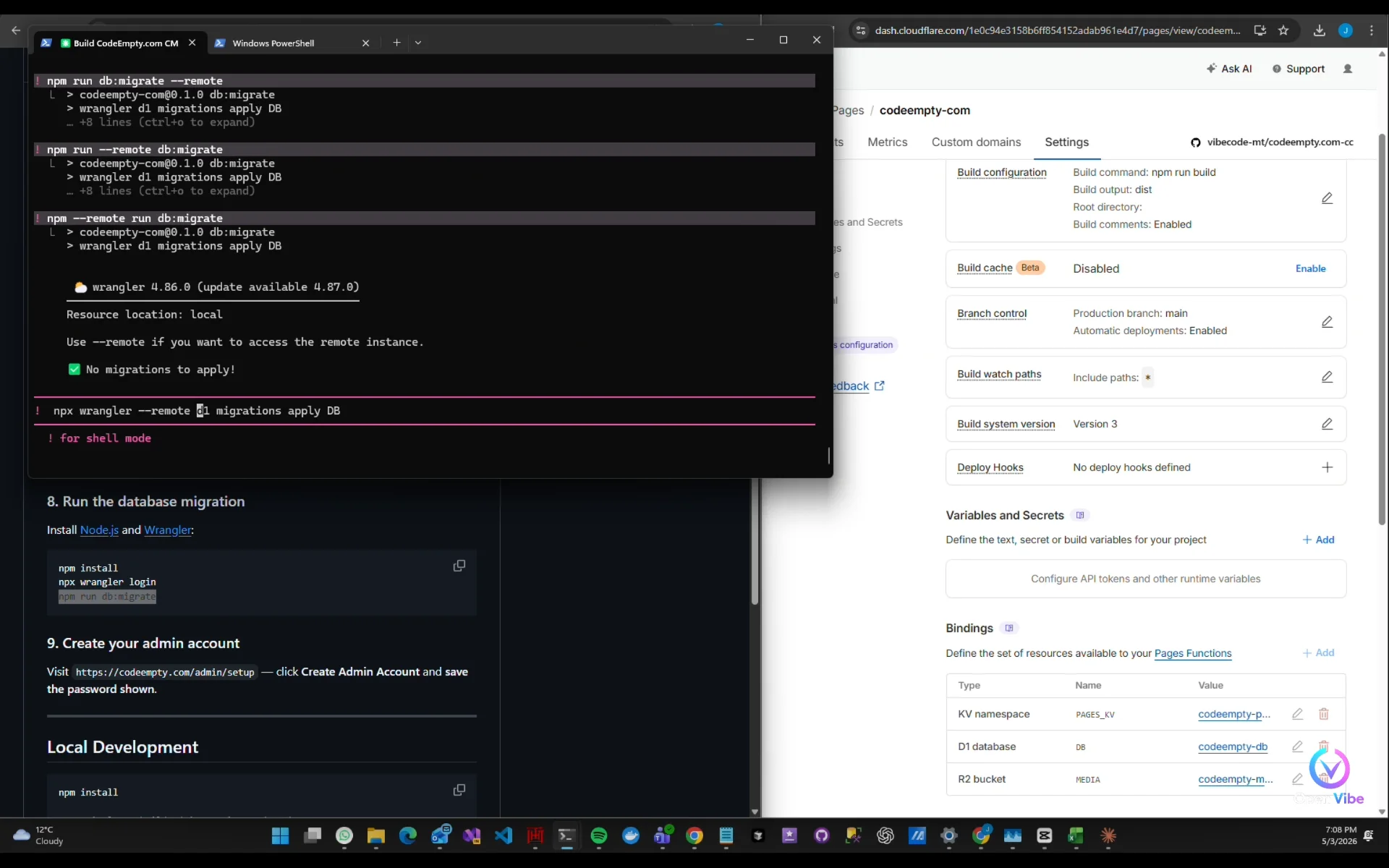
It's actually running this command. The --remote flag should be applying here?
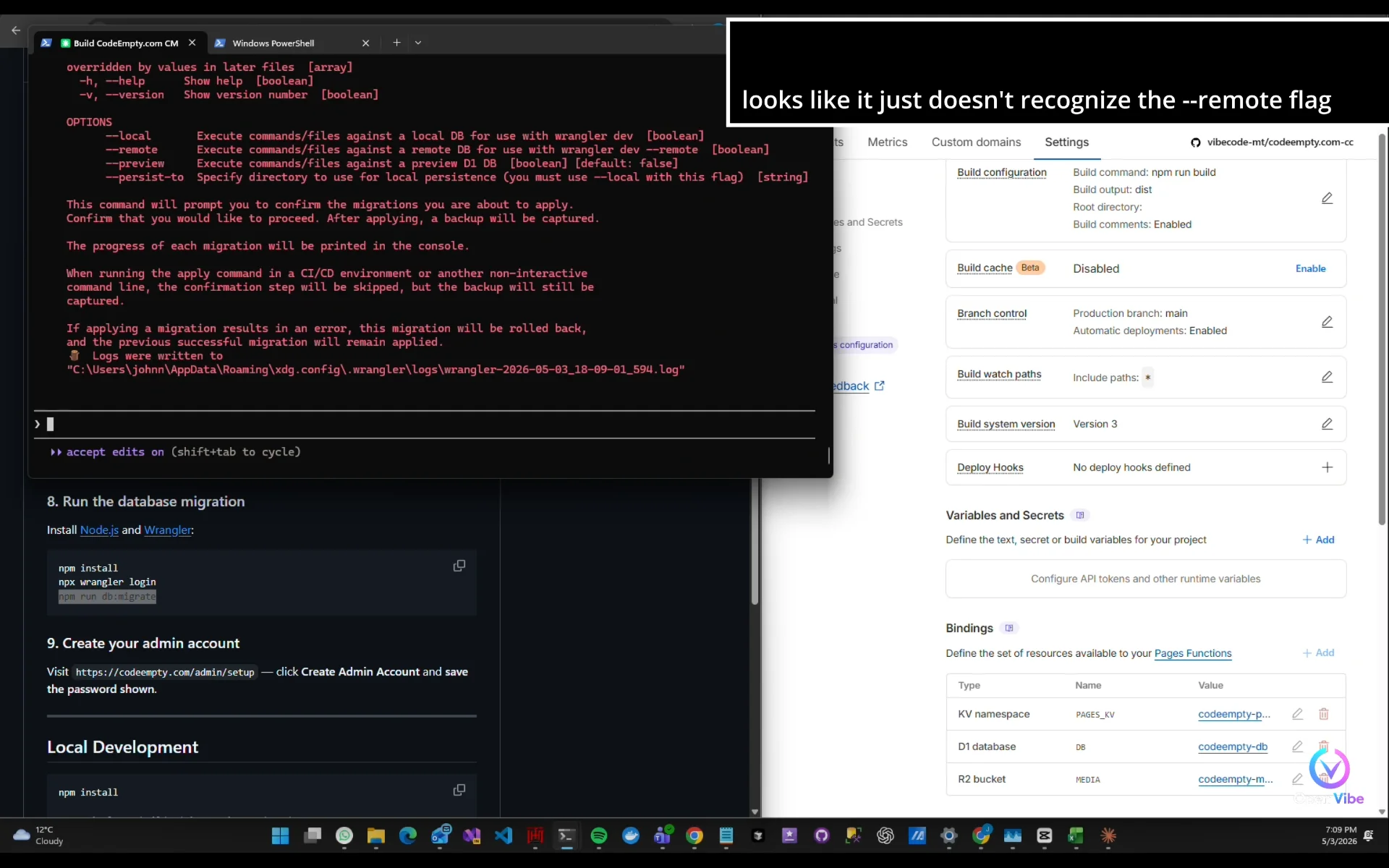
looks like it just doesn't recognize the --remote flag
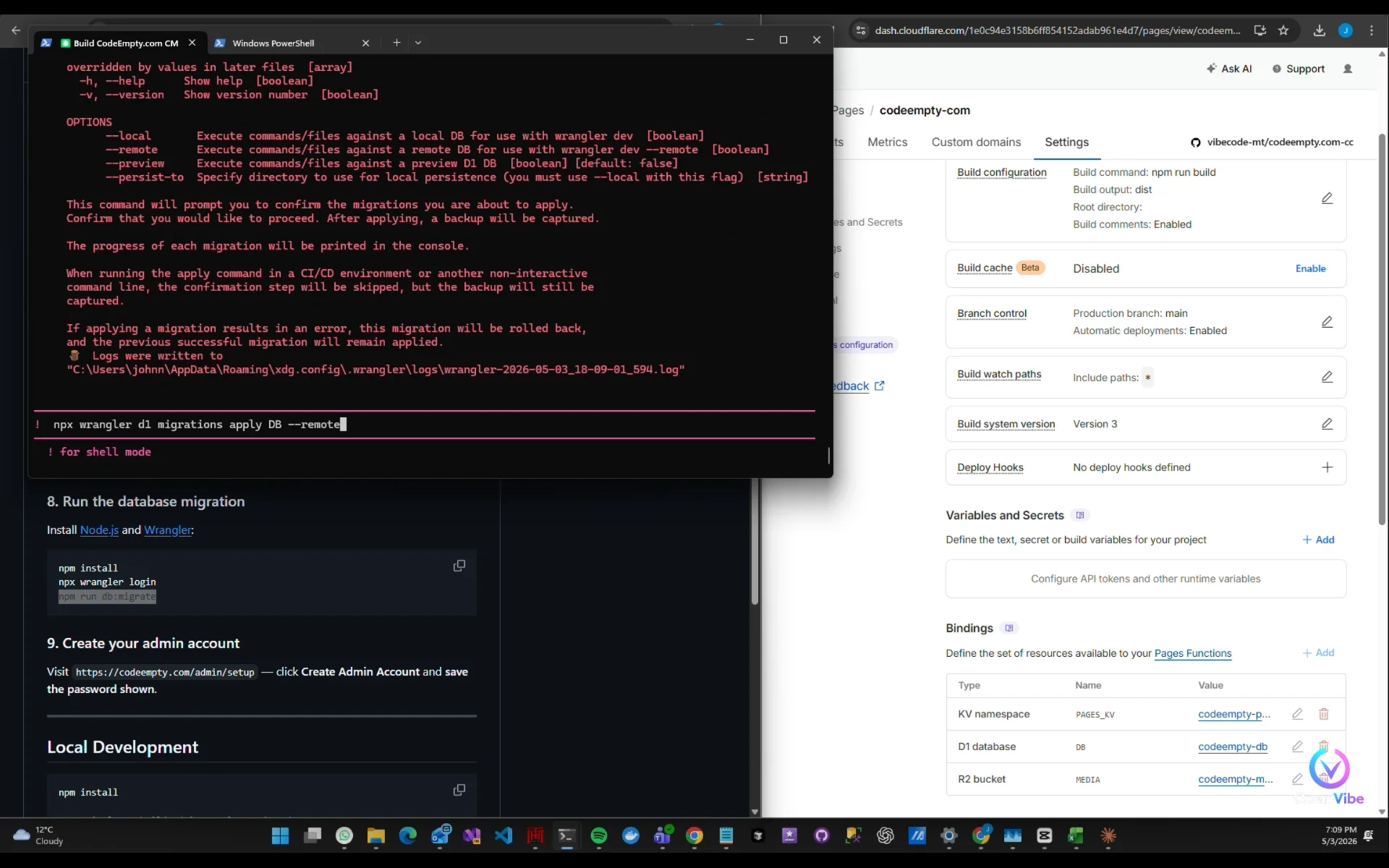
And this time…
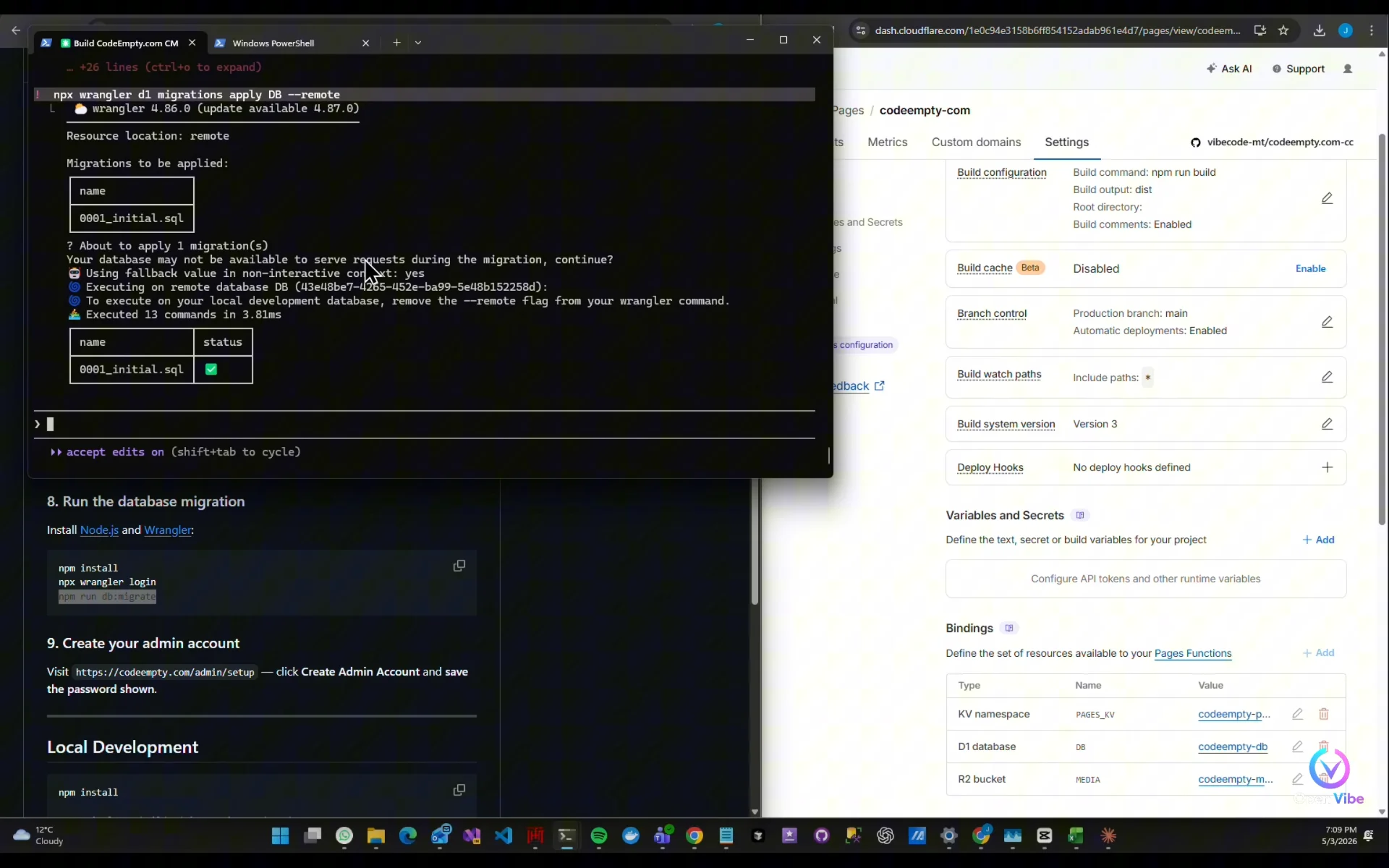
Finally… it works
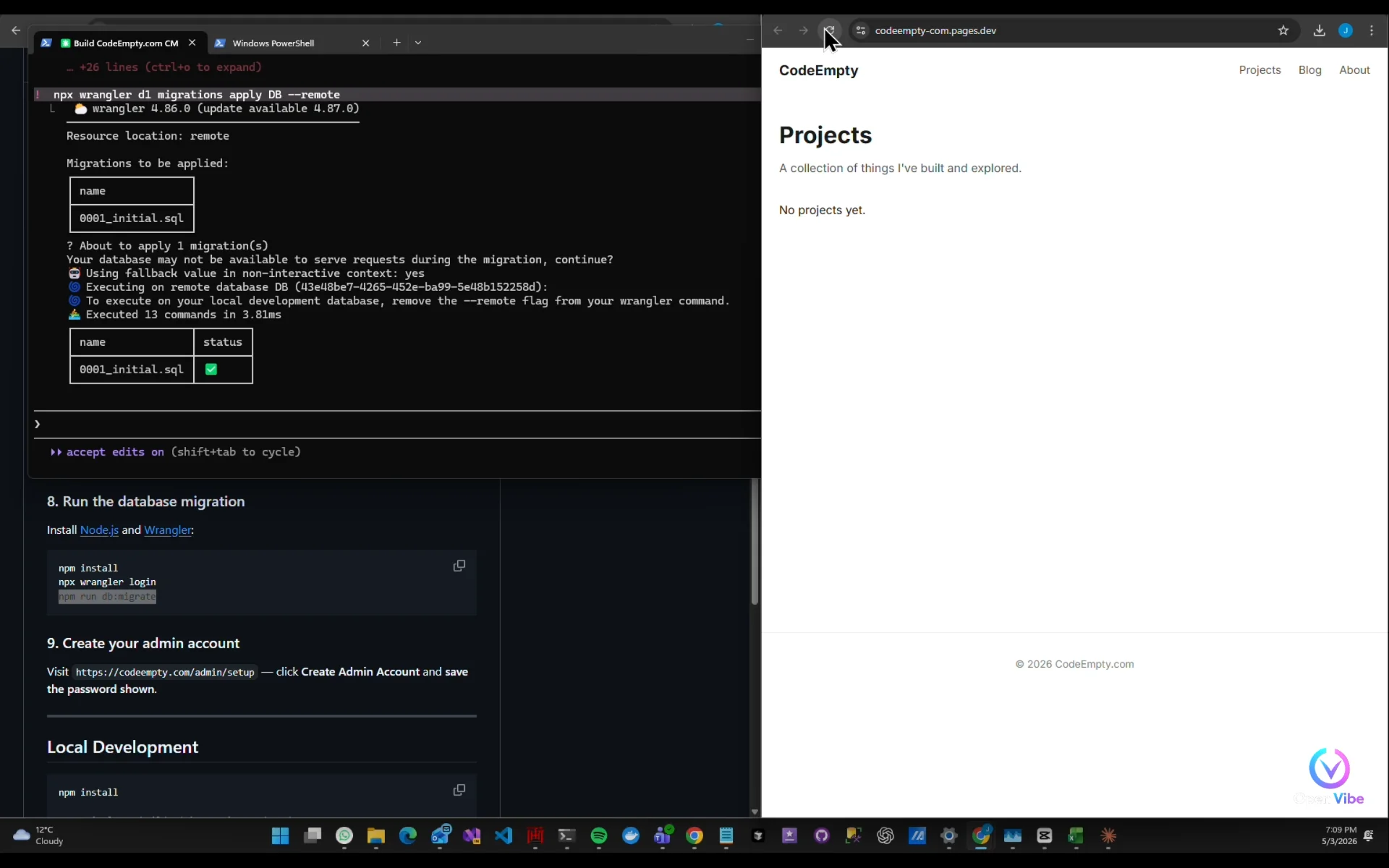
It works...!!!
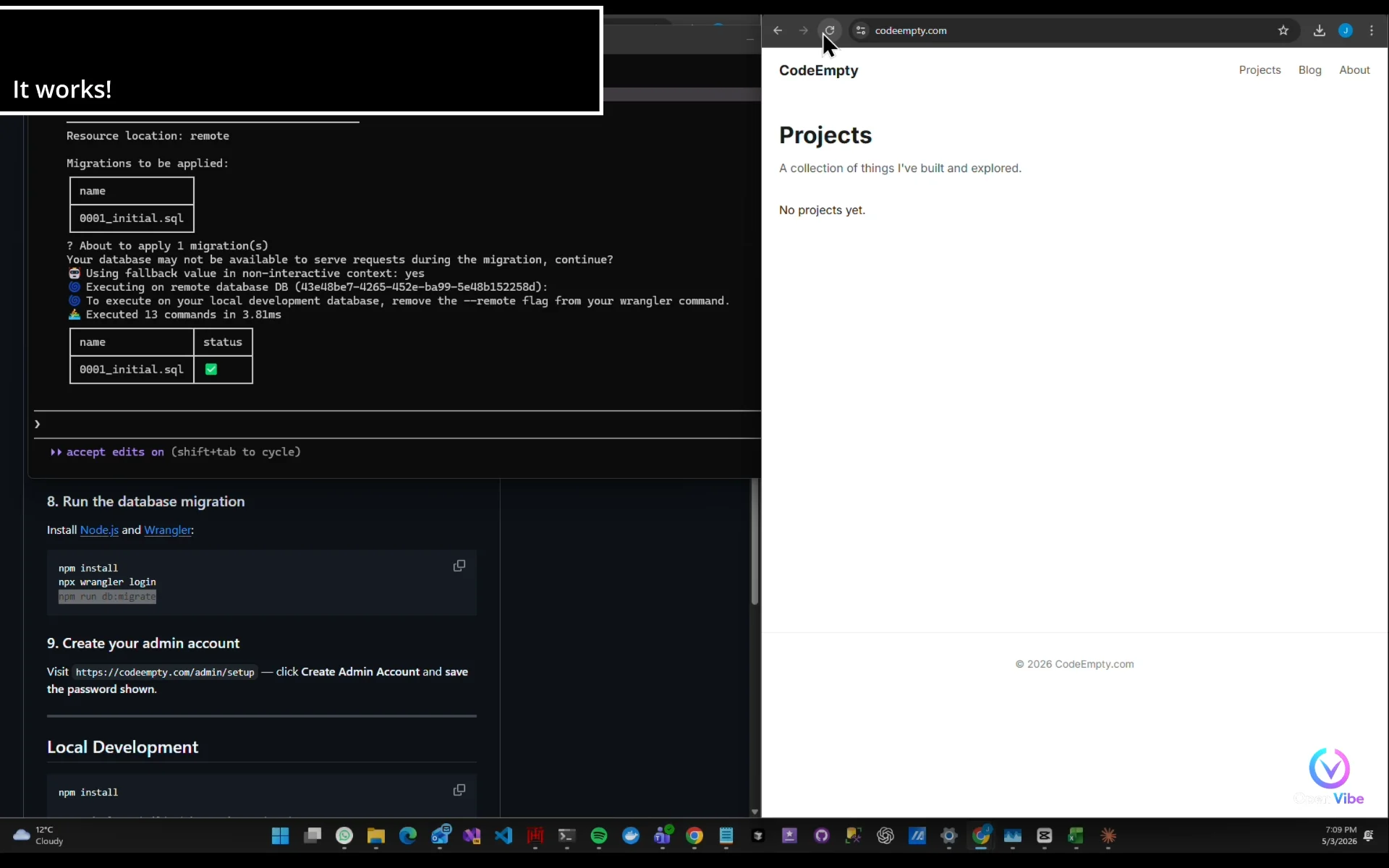
It works!
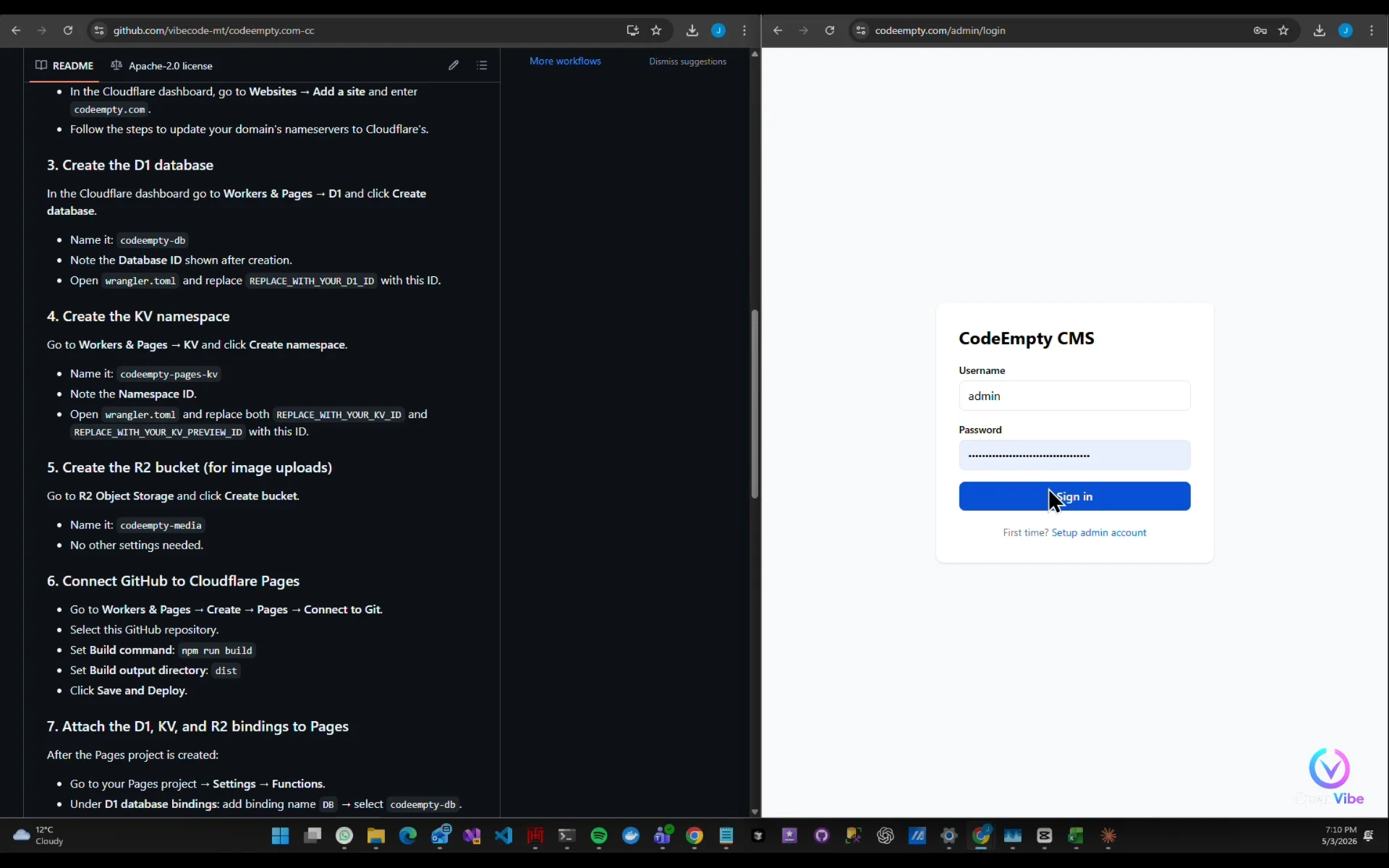
Try to access admin dashboard
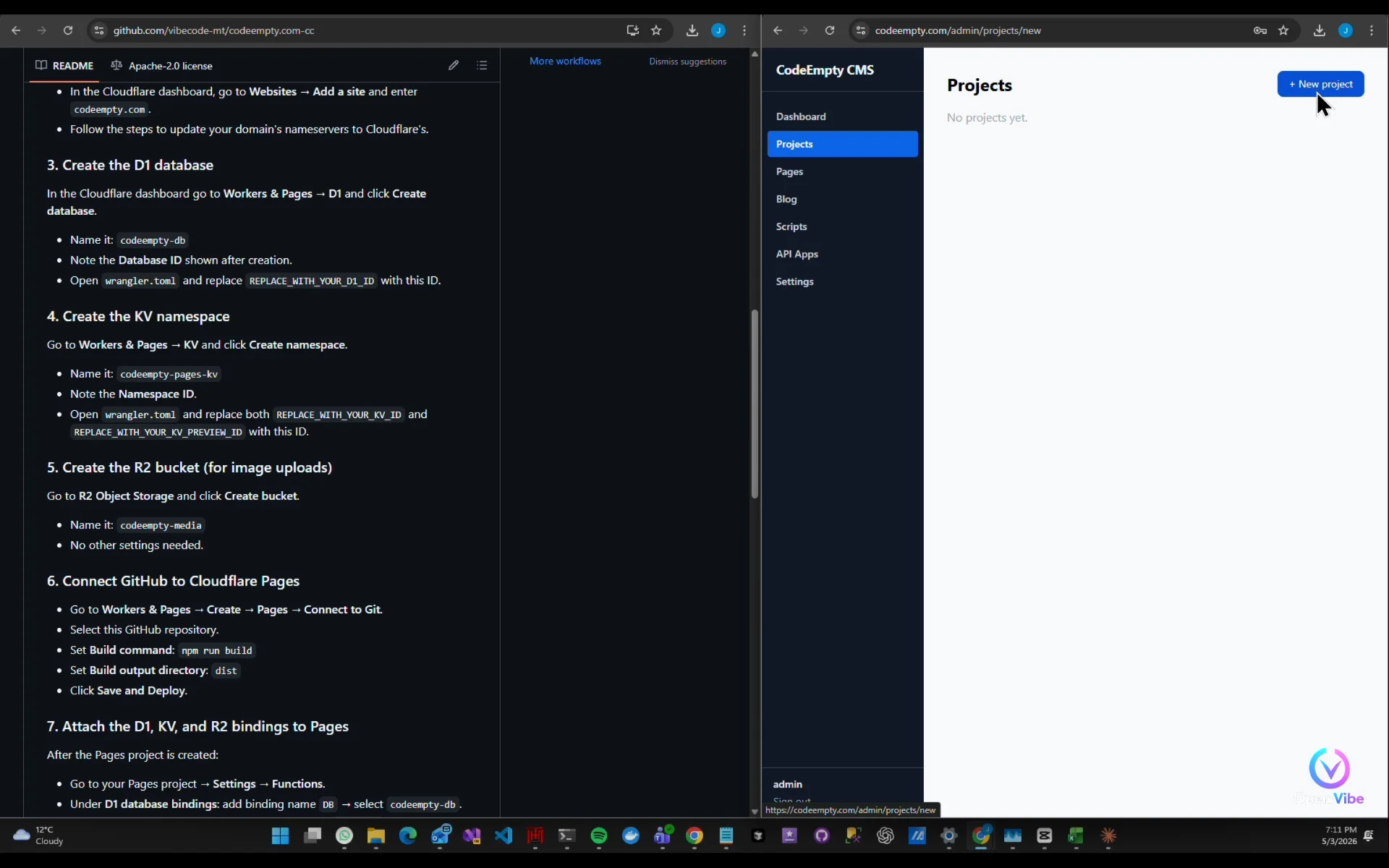
Create new project
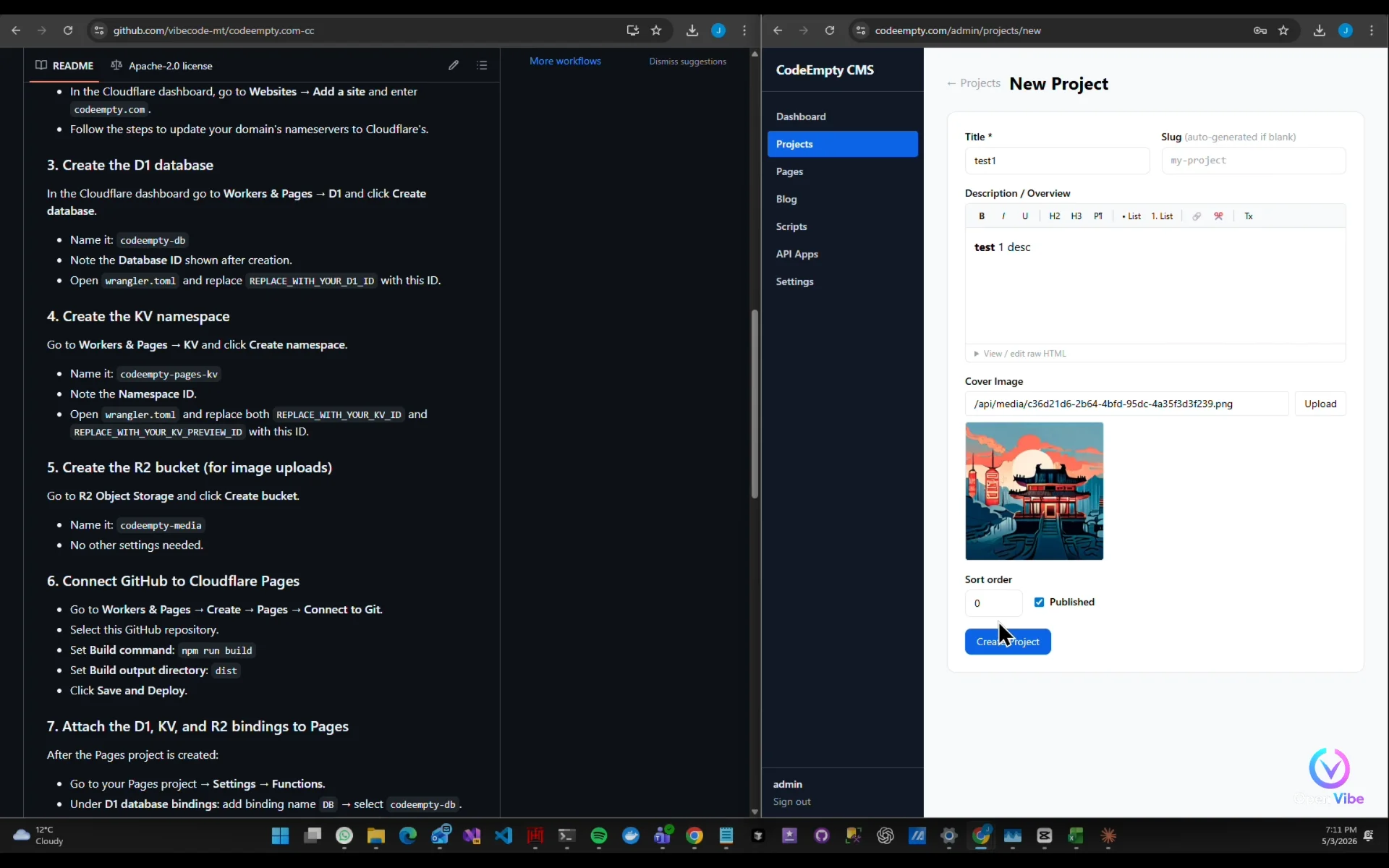
Upload image
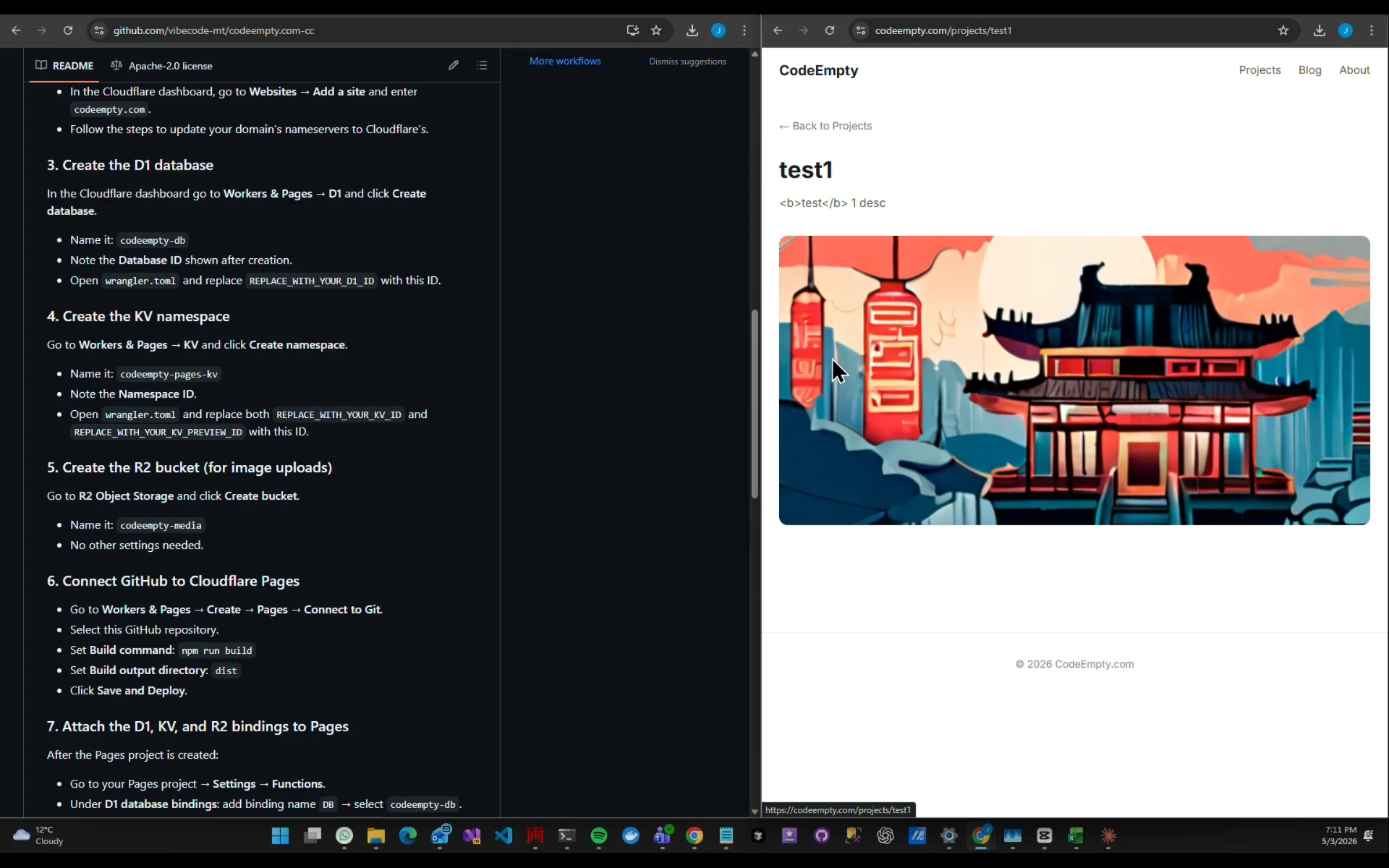
Everything works